If you’ve ever finished a long workday with aching wrists, tight shoulders, or that nagging tension between your shoulder blades, your keyboard might be the culprit. Traditional keyboards force your hands into an unnatural, cramped position—internally rotating your shoulders and pronating your forearms for hours on end. It’s a recipe for repetitive strain injuries, chronic discomfort, and declining productivity. Split keyboards, however, flip this script entirely. By separating the key clusters into two distinct modules, they allow your hands to rest in a more natural, shoulder-width stance that mirrors your body’s neutral posture. The result? Dramatically reduced strain, improved circulation, and typing comfort that actually lasts until quitting time.
But not all split keyboards are created equal, and the market has exploded with options that cater to different needs, budgets, and ergonomic philosophies. Whether you’re a programmer logging 10-hour coding sessions, a writer crafting thousands of words daily, or simply someone who values long-term hand health, understanding what separates a truly ergonomic split keyboard from a gimmicky pretender is critical. This guide dives deep into the features, adjustments, and considerations that matter most—arming you with the knowledge to make an informed decision without getting lost in marketing hype.
Top 10 Split Keyboards for Ergonomic Typing
Detailed Product Reviews
1. Perixx PERIBOARD-512B Wired Ergonomic Keyboard - Split Keyboard, Wrist Rest, Natural Typing - Wired USB Connectivity - US English - Black

Overview: The Perixx PERIBOARD-512B delivers essential ergonomic benefits at an entry-level price point. This wired split keyboard features a built-in palm rest and tactile keystrokes designed to reduce wrist strain during extended typing sessions. With its straightforward plug-and-play USB connectivity and 6-foot cable, it targets budget-conscious users seeking their first ergonomic upgrade without complexity.
What Makes It Stand Out: This keyboard distinguishes itself through remarkable affordability while maintaining core ergonomic principles. The integrated palm rest eliminates separate accessory costs, and the 7 multimedia hotkeys add convenient productivity shortcuts. Its split-key 3-D design genuinely mirrors natural hand positioning, offering legitimate ergonomic value rather than superficial design tweaks at this price tier.
Value for Money: At $39.99, the PERIBOARD-512B significantly undercuts most ergonomic competitors while delivering fundamental wrist-saving features. Comparable keyboards typically start at $60+, making this an exceptional entry point. The wired connection avoids battery replacement costs, and the durable construction ensures longevity that matches its one-time investment appeal.
Strengths and Weaknesses: Pros include unbeatable pricing, genuine split-key ergonomic design, simple plug-and-play setup, integrated wrist support, and tactile feedback that reduces finger fatigue. Cons involve a basic plastic build quality, lack of backlighting, wired-only connectivity limiting flexibility, and a learning curve for users transitioning from standard keyboards. The design also lacks advanced adjustability features found in premium models.
Bottom Line: The Perixx PERIBOARD-512B is the ideal budget gateway into ergonomic typing. While it sacrifices premium materials and wireless freedom, it delivers authentic wrist relief and comfort at a price that makes experimentation risk-free.
2. Arteck Split Ergonomic Keyboard with Cushioned Wrist and Palm Rest, 2.4G USB Wireless Comfortable Natural Ergonomic Split Keyboard, for Windows Computer Desktop Laptop

Overview: Arteck’s wireless ergonomic keyboard combines split-key comfort with cordless convenience for Windows users. The cushioned wrist rest supports natural forearm positioning while the 2.4GHz wireless connection eliminates cable clutter. With a rechargeable lithium battery promising six months of endurance, it targets productivity-focused users seeking ergonomic benefits without tethering.
What Makes It Stand Out: The six-month battery life sets an industry benchmark for wireless ergonomic keyboards, removing frequent charging hassles. The integrated nano receiver storage prevents loss during travel. Its soft cushioned rest provides immediate comfort improvement over flat keyboards, while the wireless freedom allows flexible desk positioning essential for proper ergonomic setups.
Value for Money: Priced at $54.99, this keyboard positions itself in the mid-range sweet spot. The rechargeable battery eliminates ongoing AA battery costs, and the 24-month warranty provides long-term protection. While $15 more than wired alternatives, the wireless convenience and exceptional battery life justify the premium for users prioritizing desk flexibility.
Strengths and Weaknesses: Strengths include extraordinary 6-month battery life, comfortable cushioned wrist rest, clutter-free wireless connection, simple plug-and-play receiver setup, and comprehensive warranty. Weaknesses include 2.4GHz-only connectivity (no Bluetooth), Windows-centric design limiting Mac compatibility, slightly higher price than basic wired models, and potential wireless interference in crowded offices.
Bottom Line: This Arteck keyboard excels for Windows users wanting reliable wireless ergonomics. The marathon battery life and thoughtful design make it a smart investment for reducing wrist strain without the premium pricing of top-tier brands.
3. Logitech Ergo K860 Wireless Ergonomic Keyboard - Split Keyboard, Wrist Rest, Natural Typing, Stain-Resistant Fabric, Bluetooth and USB Connectivity, Compatible with Windows/Mac, Black

Overview: Logitech’s Ergo K860 represents the premium tier of ergonomic keyboards, engineered with input from ergonomists to deliver certified posture improvement. The curved split keyframe, pillowed memory foam wrist rest, and adjustable tilt legs create a comprehensive ergonomic solution. Dual Bluetooth and USB connectivity ensures seamless multi-device compatibility across Windows and Mac ecosystems.
What Makes It Stand Out: The Ergonomist Approved certification provides scientific credibility unmatched by competitors. The memory foam wrist rest delivers 54% more support than standard keyboards, while the scooped Perfect Stroke keys match fingertip shapes precisely. Three adjustable tilt angles (0°, -4°, -7°) accommodate both seated and standing desk configurations, adapting to dynamic modern workspaces.
Value for Money: While priced at a premium level (historically $120-130), the K860 justifies cost through certified health benefits, superior materials, and dual-platform versatility. The stain-resistant fabric maintains professional appearance, and Logitech’s reputation ensures durability. For users experiencing existing discomfort, the investment pales compared to potential medical costs.
Strengths and Weaknesses: Pros include certified ergonomic design, exceptional memory foam wrist support, versatile connectivity options, Mac/Windows compatibility, adjustable palm lift, and premium build quality. Cons involve premium pricing, lack of backlighting, larger footprint requiring desk space, and potentially excessive features for casual users. The learning curve is steeper than basic split keyboards.
Bottom Line: The Logitech Ergo K860 is the definitive choice for serious ergonomic users prioritizing certified health benefits and premium comfort. Its professional-grade design and proven posture improvement make it worth every penny for those typing extensively.
4. Nulea RT07B Wireless Ergonomic Keyboard - Split Keyboard, Wrist Rest, Natural Typing, Bluetooth and USB Connectivity, USB-C Rechargeable,Compatible with Windows Mac (Silver Black)

Overview: The Nulea RT07B bridges budget and premium ergonomic keyboards with modern connectivity and design. Its split layout reduces forearm twisting while dual-mode wireless (Bluetooth and 2.4GHz) provides exceptional device flexibility. The USB-C rechargeable battery delivers 200 hours of operation, and scissor-switch keys ensure stable, responsive typing across Windows and Mac platforms.
What Makes It Stand Out: Dual-mode connectivity at this price point is genuinely impressive, allowing seamless switching between devices. The USB-C charging modernizes the experience, while scissor-switch mechanisms typically found in premium laptops provide superior stability. The silver-black aesthetic offers a contemporary alternative to utilitarian black designs common in ergonomic keyboards.
Value for Money: At $45.99, the RT07B delivers premium features—dual wireless, USB-C, scissor switches—at a mid-range price. This undercuts competitors offering similar connectivity by $20-30. The 200-hour battery, while shorter than Arteck’s 6-month claim, remains practical for most users and recharges quickly via USB-C.
Strengths and Weaknesses: Advantages include versatile dual-mode connectivity, USB-C modern charging, scissor-switch key stability, cross-platform compatibility, attractive design, and competitive pricing. Disadvantages include brand recognition concerns (newer manufacturer), shorter battery life than some rivals, potentially less cushioned wrist rest than premium options, and limited adjustability in tilt angles.
Bottom Line: The Nulea RT07B is the connectivity champion for users juggling multiple devices. It delivers modern features and genuine ergonomic benefits at a price that makes dual-mode wireless accessible without premium-brand markup.
5. Arteck Ergonomic USB Wired Keyboard with Cushioned Wrist & Palm Rest, Backlit 7 Colors & Adjustable Brightness Comfortable Natural Split Keyboard with 6 Feet Wire for Windows Computer Desktop Laptop

Overview: Arteck’s backlit ergonomic keyboard merges split-key comfort with aesthetic versatility through seven-color LED illumination. The wired connection ensures lag-free reliability while the cushioned wrist rest supports natural positioning. With three brightness levels and a 6-foot cable, it caters to users working in variable lighting conditions who won’t compromise on ergonomic fundamentals.
What Makes It Stand Out: The 7-color backlighting is virtually non-existent in ergonomic keyboards at this price, making it unique for low-light environments. The ability to adjust brightness prevents eye strain while maintaining visibility. The same comfortable cushioned rest from Arteck’s wireless model transfers here, providing consistent comfort across their product line.
Value for Money: At $56.99, this keyboard commands a $15-20 premium over non-backlit wired alternatives. For users frequently typing in dim conditions, this investment eliminates separate desk lamp costs and reduces eye strain. The 24-month warranty and wired reliability ensure long-term value without battery replacement expenses.
Strengths and Weaknesses: Pros include unique backlighting customization, comfortable cushioned rest, wired reliability eliminating latency, generous 6-foot cable, and solid warranty coverage. Cons include premium pricing for wired ergonomic keyboards, lack of wireless flexibility, Windows-focused compatibility, and backlighting that may not suit minimalist users. The feature set prioritizes visibility over advanced ergonomic adjustability.
Bottom Line: This Arteck keyboard serves a specific niche perfectly: ergonomic comfort in low-light environments. If you work evenings or in dim offices, the backlighting premium pays dividends in both visibility and sustained wrist health.
6. MEETION Ergonomic Keyboard and Mouse, Wireless Keyboard with Vertical Mouse, Split Curved Keyboard with Wrist Rest, Natural Typing USB Receiver Rechargeable Full Size, Windows/Mac/PC/Laptop, Large

Overview:
The MEETION Ergonomic Keyboard and Mouse combo delivers a complete peripheral upgrade for users battling wrist strain. This wireless set pairs a split curved keyboard with an integrated pillowed wrist rest and a vertical ergonomic mouse, both connecting through a shared USB-A receiver. Designed for full-size functionality, it supports Windows and Mac systems with a 33-foot connection range, making it suitable for various workstation setups.
What Makes It Stand Out:
This package uniquely includes both a split keyboard and vertical mouse, addressing ergonomic concerns comprehensively. The pillowed palm rest uses soft, non-slip material for superior comfort during extended sessions. The vertical mouse features adjustable DPI settings (800-2400), silent clicking, and side-scrolling functionality. Both devices share a single receiver, reducing USB port clutter. The rechargeable 500mAh batteries in each device last 1-2 months per charge, eliminating constant battery replacements.
Value for Money:
At $62.98, this combo offers exceptional value compared to purchasing ergonomic keyboard and mouse separately. The vertical mouse alone would cost $30-40 individually. The build quality, battery longevity, and comprehensive feature set rival products costing nearly twice as much. For users needing a complete ergonomic solution, this represents a smart, consolidated investment.
Strengths and Weaknesses:
Strengths include the all-in-one ergonomic solution, long battery life, quiet operation, adjustable DPI mouse, and comfortable wrist support. The split design effectively reduces reaching and twisting. Weaknesses include the confusing USB-C adapter requirement (it’s not a standalone receiver) and the large footprint that demands substantial desk space. New users face a learning curve with the vertical mouse, and the keyboard’s size may overwhelm compact workstations.
Bottom Line:
Ideal for office workers and anyone experiencing wrist discomfort, the MEETION combo delivers genuine ergonomic benefits at a compelling price. The included vertical mouse distinguishes it from competitors. Recommended for users seeking a complete, ready-to-use solution rather than piecing together separate peripherals.
7. X9 Wired Ergonomic Keyboard with Cushioned Wrist Rest - Type Comfortably Longer - USB Wired Split Keyboard for Laptop, PC & Chrome Computer with 110 Ergo Keys & 5ft Cable

Overview:
The X9 Wired Ergonomic Keyboard prioritizes simplicity and reliability with its plug-and-play design. Featuring a split wave layout and integrated cushioned wrist rest, this 110-key keyboard targets users who want ergonomic benefits without wireless complexity or charging concerns. The 5ft cable provides flexible positioning for various desk configurations.
What Makes It Stand Out:
The integrated cushioned wrist rest delivers continuous support without separate attachments that can shift or detach. The full-size layout maintains productivity with 17 shortcut keys and a numeric keypad. LED indicators provide clear status feedback, while the adjustable kickstand allows personalized typing angles. The wired connection ensures zero latency and uninterrupted performance during critical tasks.
Value for Money:
Priced at $49.99, this keyboard sits in the mid-range while avoiding wireless premiums. It delivers core ergonomic features comparable to $70+ models. The durable construction and comprehensive key layout make it competitive for office environments. For stationary workstations where mobility isn’t priority, it offers excellent return on investment through reliable performance and genuine comfort.
Strengths and Weaknesses:
Strengths include reliable wired connectivity, instant plug-and-play setup, comfortable integrated cushioning, full-size functionality, and LED indicators. The adjustable kickstand enhances ergonomics. Weaknesses include lack of wireless freedom, membrane keys that may feel mushy to mechanical enthusiasts, and no Mac-specific key labels despite broad compatibility claims. The fixed cable could be limiting for some setups.
Bottom Line:
A practical choice for users prioritizing consistent performance over wireless convenience. The X9 offers authentic ergonomic benefits at a reasonable price, making it perfect for office workstations, call centers, and any environment where reliability trumps mobility. The integrated wrist rest eliminates the need for separate purchases.
8. Perixx Periboard-612B Wireless Ergonomic Split Keyboard with Dual Mode 2.4G and Bluetooth Feature, Compatible with Windows 10 and Mac OS X System, Black, US English Layout

Overview:
The Perixx Periboard-612B distinguishes itself with professional-grade dual wireless connectivity, supporting both 2.4GHz and Bluetooth. This ergonomic split keyboard targets power users who need flexibility across multiple devices and operating systems. The integrated palm rest and tactile keys create a premium typing experience for Windows and Mac users.
What Makes It Stand Out:
The dual-mode wireless system enables seamless switching between connections, perfect for multi-device workflows. Dedicated Mac and Windows compatibility includes switchable keys and a provided key puller for layout customization. The tactile responsive keys feature long travel distance, delivering satisfying feedback that reduces mistyping. The integrated palm rest supports wrists naturally, reducing median nerve pressure.
Value for Money:
At $77.59, this premium option justifies its price through versatility and build quality. The dual connectivity eliminates need for separate keyboards across devices, potentially saving money long-term. For professionals juggling computers and tablets, the convenience outweighs the cost. The professional aesthetics and robust construction support its positioning above budget alternatives.
Strengths and Weaknesses:
Strengths include dual wireless modes, cross-platform compatibility, excellent tactile feedback, professional black finish, and thoughtful receiver storage compartment. The long-travel keys feel superior to membrane alternatives. Weaknesses include the higher price point, lack of rechargeable batteries (assumed disposable), and steeper learning curve for split design newcomers. Bluetooth pairing can occasionally be finicky.
Bottom Line:
Perfect for professionals managing multiple devices and operating systems. The Periboard-612B’s connectivity flexibility and platform support make it worth the premium. Highly recommended for tech-savvy users, developers, and designers who demand versatility without sacrificing ergonomic benefits or typing feel.
9. Lomiluskr Wired Ergonomic Keyboard with PU Wrist Rest, Carpal Tunnel Keyboard, Colorful Split Ergo Design, Comfortable Natural Typing, Compatible with PC/Laptop (Purple)

Overview:
The Lomiluskr Wired Ergonomic Keyboard provides an affordable entry into ergonomic typing with its distinctive purple design and PU leather wrist rest. This budget-friendly option focuses on essential ergonomic benefits while adding personality to your workspace. The wired connection ensures reliable performance for PC and laptop users.
What Makes It Stand Out:
The vibrant purple color scheme and colorful keycaps differentiate it from sterile office alternatives, making it a decorative statement piece. The included USB to Type-C converter ensures compatibility with modern devices. Silent membrane keys operate quietly, ideal for shared spaces. The split tilted design promotes natural hand positioning while the integrated wrist rest supports comfortable alignment.
Value for Money:
At $36.98, this is the most accessible ergonomic keyboard in the market. It delivers core wrist-friendly features at a fraction of competitor prices. While lacking wireless connectivity and premium materials, it provides genuine ergonomic benefits. The one-year quality guarantee and refund/replacement policy add significant peace of mind for budget-conscious buyers.
Strengths and Weaknesses:
Strengths include exceptional affordability, quiet operation, modern Type-C connectivity, comfortable PU leather wrist rest, and attractive aesthetic. The wired connection eliminates latency and charging concerns. Weaknesses include basic membrane keys with shorter travel, limited adjustability options, and no Mac-specific layout. The colorful design may not suit conservative professional environments. Build quality reflects the price point.
Bottom Line:
An excellent starter ergonomic keyboard for students, home users, and remote workers. The Lomiluskr proves you don’t need to spend heavily for wrist-friendly typing. Recommended for those prioritizing value, aesthetics, and simplicity over advanced features. The warranty makes it a risk-free entry into ergonomic peripherals.
10. Nulea RT07B Wireless Ergonomic Keyboard - Split Keyboard, Wrist Rest, Natural Typing, Bluetooth and USB Connectivity, USB-C Rechargeable,Compatible with Windows Mac (Grey White)
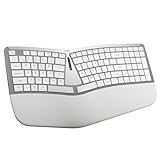
Overview:
The Nulea RT07B Wireless Ergonomic Keyboard balances modern features with ergonomic design at a competitive price. This split keyboard offers dual wireless connectivity and USB-C charging, targeting users who want flexibility without premium costs. The grey-white color scheme provides a professional, contemporary aesthetic.
What Makes It Stand Out:
The scissor-switch keys deliver laptop-like stability and responsiveness, offering a superior typing experience to standard membrane keyboards. The impressive 200-hour battery life minimizes charging frequency. Seamless dual-mode connectivity allows easy switching between Bluetooth and 2.4GHz devices, supporting multi-device workflows. The comprehensive palm rest provides excellent wrist support.
Value for Money:
At $47.99, this keyboard hits the feature-to-price sweet spot. It offers premium features—dual connectivity, rechargeable battery, quality scissor switches, and comprehensive wrist rest—typically found in $70+ models. The USB-C charging adds modern convenience. For users wanting wireless freedom and quality typing feel, it represents exceptional value.
Strengths and Weaknesses:
Strengths include scissor-switch keys, excellent battery life, dual connectivity, USB-C charging, comfortable palm rest, and professional aesthetics. The wireless performance is reliable within standard ranges. Weaknesses include lack of included mouse, potential interference in crowded wireless environments, and the learning curve associated with split layouts. No adjustable tilt mechanism limits customization.
Bottom Line:
A well-rounded ergonomic keyboard that perfectly balances features, performance, and price. The Nulea RT07B is ideal for home offices, mobile workstations, and users wanting wireless convenience with quality key feel. Highly recommended for professionals seeking modern amenities without premium pricing. The scissor switches make it worth choosing over membrane alternatives.
Why Split Keyboards Revolutionize Ergonomic Typing
The magic of split keyboards lies in their ability to respect your body’s natural alignment. Unlike conventional flat boards that force everything inward, split designs acknowledge that your shoulders are wider than your hands and that your forearms prefer a neutral, untwisted orientation.
The Science Behind Split Design
Research in occupational ergonomics consistently shows that ulnar deviation (bending wrists outward) and forearm pronation (rotating palms down) are primary contributors to repetitive strain injuries. A split keyboard addresses both issues simultaneously. By positioning each half directly in front of your shoulders, you eliminate the need to angle your wrists outward to reach keys. Many designs also incorporate tenting—raising the center of each half—to reduce pronation, allowing your forearms to remain in a more natural “handshake” position.
The benefits compound over time. Reduced muscular tension in the forearms leads to better blood flow to the hands and fingers. Decreased pressure on the median nerve can alleviate early carpal tunnel symptoms. Even subtle improvements in shoulder positioning can prevent the forward-hunch posture that plagues desk workers.
Health Benefits That Matter
Beyond the biomechanics, users report measurable improvements in comfort and endurance. Many experience reduced finger fatigue because each key sits closer to its intended finger, minimizing stretch and strain. The adjustable width helps those with broader shoulders finally find a typing position that doesn’t feel constrained. For anyone already managing tendinitis, RSI, or early-stage carpal tunnel, a split keyboard isn’t just a comfort upgrade—it’s a necessary intervention that can slow or even reverse symptom progression when combined with proper technique.
Understanding Different Types of Split Keyboards
Navigating the split keyboard landscape requires understanding the fundamental categories. Each type offers different trade-offs between adjustability, learning curve, and ergonomic potential.
Fixed Split Keyboards
Fixed split models feature a permanent angle and separation between the two halves, typically integrated into a single chassis with a hinge or curved layout. They’re the most approachable entry point—just unpack and start typing. While less customizable than fully separated designs, quality fixed-split boards often include built-in tenting and negative tilt, delivering 80% of the ergonomic benefits with zero setup friction. They’re ideal for shared workspaces or users who want improvement without complexity.
Adjustable Split Keyboards
These models let you modify the angle between halves, usually through a central hinge or rotating mechanism. You might start with a modest 20-degree splay and gradually increase to 45 degrees as your comfort evolves. This adjustability makes them excellent for first-timers who want to experiment without committing to a fully separated system. The compromise? They’re often bulkier and may not allow independent positioning of each half.
Fully Separated Models
The gold standard for customization, fully separated keyboards consist of two completely independent units connected by a cable or wirelessly. You can position each half exactly where your hands naturally fall, adjust the distance based on your shoulder width, and even angle them differently to accommodate asymmetries. The learning curve is steepest here—you’ll need to retrain muscle memory for the space bar and center keys—but the ergonomic payoff is unmatched for those willing to invest the time.
Contoured and Tented Options
Contoured keyboards take splitting further by sculpting the keywells into bowl-shaped depressions that match finger length, reducing extension and reach. Tenting elevates the inner edges of each half, creating a peaked profile that dramatically reduces forearm pronation. Premium ergonomic boards often combine both features, with adjustable tenting angles ranging from 5 to 60 degrees. While these designs maximize comfort, they also demand the most significant adaptation period and typically command higher prices.
Key Features to Evaluate Before Buying
A keyboard’s spec sheet reveals its true ergonomic potential. Look beyond marketing claims and focus on these tangible attributes that directly impact daily comfort.
Adjustability Range and Tilt Mechanisms
The best split keyboards offer multiple adjustment axes. Tenting angle determines how much you can reduce forearm pronation—look for at least 15-20 degrees of adjustability, with premium models offering up to 60 degrees. Negative tilt (front edge lower than back) keeps wrists in neutral extension, a feature surprisingly rare but crucial for preventing dorsiflexion strain. Height adjustability matters too; being able to fine-tune the keyboard’s vertical position relative to your chair and desk ensures proper elbow angles.
Key Switch Types and Typing Feel
Mechanical switches dominate the ergonomic space for good reason. They provide consistent actuation force and tactile feedback that can reduce bottoming-out impact. Linear switches offer smooth keystrokes ideal for those with finger joint pain. Tactile switches give a subtle bump mid-press, helping you release earlier and reduce impact forces. Clicky switches, while satisfying, may not suit shared offices. Low-profile switches and scissor mechanisms provide shorter travel distances that some find faster, though they sacrifice the customization potential of standard mechanical switches.
Build Quality and Materials
Your keyboard is a daily-use tool that should last years. Aluminum top plates provide rigidity and a premium feel while resisting flex that can affect typing consistency. High-quality ABS or PBT keycaps resist shine and wear—PBT being the more durable, textured option. Check the tenting mechanism; plastic hinges can loosen over time, while metal components maintain precise angles. A solid warranty (2-5 years) often correlates with build confidence.
Connectivity Options
Consider your workspace ecosystem. Wired USB-C connections offer reliability and eliminate battery concerns, with detachable cables adding portability. Bluetooth multi-device pairing lets you switch between laptop, tablet, and desktop seamlessly. Some boards offer both, providing backup connectivity. For fully separated models, check whether the connection between halves is wired (more reliable, no latency) or wireless (cleaner desk, but requires charging two units).
Programmability and Customization
True ergonomic optimization often requires remapping keys to match your workflow. Look for keyboards with onboard memory for saving layouts, flexible software for macro programming, and the ability to adjust key repeat rates. Layer functionality—where a key temporarily shifts the entire board to a secondary function layer—can reduce hand movement dramatically. Open-source firmware like QMK or ZMK offers virtually unlimited customization but demands technical comfort.
Ergonomic Considerations for Your Unique Needs
No single keyboard fits everyone perfectly. Matching features to your physical characteristics and habits ensures you don’t invest in a solution that creates new problems.
Hand Size and Shoulder Width
Broad-shouldered users often need fully separated models to achieve proper alignment—fixed splits may still force inward rotation. Conversely, those with narrower frames might find extreme separation awkward. Hand size affects key reach; if you have smaller hands, contoured keywells or shorter key travel can prevent overextension. Measure your shoulder width in a relaxed position and look for keyboards that can match that span.
Typing Style and Force
Heavy-handed typists benefit from switches with higher actuation force (like 67g) to prevent accidental presses and provide satisfying feedback. Light typists may prefer 45g switches that reduce finger fatigue. If you’re a “hunt-and-peck” user, the learning curve for split boards increases dramatically—consider starting with a fixed-split model before graduating to fully separated designs. Thumb cluster usage varies; some users naturally utilize thumb keys while others need retraining.
Existing Pain Points
Identify your primary complaint. Wrist pain demands excellent tenting and negative tilt. Shoulder tension requires adjustable width and possibly negative tilt to open the chest. Finger fatigue calls for low-force switches and contoured keywells. Carpal tunnel sufferers should prioritize minimal wrist extension and consider ortholinear layouts that reduce finger travel. Matching the keyboard’s strengths to your specific symptoms yields far better results than buying based on general recommendations.
Workspace Setup
Your desk height, chair adjustability, and monitor position all interact with keyboard ergonomics. A keyboard tray might be necessary to achieve proper negative tilt. Fully separated boards need more desk real estate—ensure you have depth for proper positioning and width for separation. Consider cable management; some models have ports on the back, others on the sides, affecting desk layout. If you hot-desk, portability and quick setup become priorities.
The Learning Curve: What to Expect
Switching to a split keyboard is a physical skill acquisition, not just a gear change. Setting realistic expectations prevents frustration and abandonment.
Timeline for Adaptation
Most users experience initial awkwardness for the first 3-5 days, with typing speed dropping 20-40%. By week two, muscle memory begins reforming, and speed typically returns to 80% of baseline. Full adaptation—where you type without conscious thought and exceed original speed—usually takes 3-6 weeks of consistent daily use. Those transitioning to contoured or ortholinear layouts may need 8-12 weeks. The key is exclusive use; switching back to a conventional keyboard resets adaptation.
Common Challenges
The space bar becomes the biggest hurdle. On split boards, you’ll use two separate space keys (one under each thumb), requiring conscious effort initially. Reaching for center keys (B, N, etc.) often causes errors as you retrain which hand handles which keys. Some users experience temporary shoulder or upper back soreness as posture muscles activate properly for the first time. Fully separated models can drift apart on slick desks, requiring repositioning throughout the day.
Tips for Faster Adjustment
Start with a typing tutor program focused on proper technique, not speed. Practice 15-20 minutes daily before work tasks to build confidence. Use keyboard stickers or a printed layout map for the first week. Resist the urge to “cheat” by looking at your hands—touch typing fundamentals become even more critical. Consider temporarily reducing workload or scheduling the transition during a lighter work period. Keep your old keyboard connected as a backup for urgent tasks, but commit to using the split board for at least 90% of typing.
Price vs. Value: Making Smart Investment Decisions
Split keyboards range from budget-friendly to eye-wateringly expensive. Understanding where your money goes helps avoid both cheap disappointment and unnecessary extravagance.
Budget-Friendly Entry Points
Quality entry-level split keyboards start around $80-150. At this price, expect fixed-split designs with basic tenting, standard mechanical switches, and plastic construction. While lacking advanced programmability, these models deliver core ergonomic benefits—shoulder-width positioning and reduced ulnar deviation. They’re perfect for testing whether split typing suits you without major financial risk. Compromises usually involve non-detachable cables, ABS keycaps, and limited adjustability.
Mid-Range Sweet Spots
The $150-300 range offers the best balance of features and quality. Here you’ll find adjustable splits, robust tenting mechanisms (often metal), PBT keycaps, and extensive programmability. Connectivity options expand to include Bluetooth and detachable cables. Build quality jumps significantly, with aluminum frames and better switch variety. This tier suits serious users who want long-term durability and customization without professional-grade pricing. Most users find their ideal keyboard in this range.
Premium Features Worth Paying For
High-end boards ($300-600+) justify their cost through extreme adjustability (electronic tilt controls, modular designs), exotic materials (carbon fiber, machined aluminum), and advanced ergonomics like contoured keywells or motorized adjustments. They often use premium switches, include extensive accessory ecosystems (palm rests, tenting kits), and carry multi-year warranties with excellent support. For those with chronic pain, severe RSI, or who type professionally for 8+ hours daily, these investments pay dividends in health and productivity. The law of diminishing returns applies, but the final 10% of ergonomic optimization can be life-changing for the right user.
Setting Up Your Split Keyboard for Maximum Comfort
Even the best keyboard performs poorly if positioned incorrectly. Proper setup transforms good ergonomics into great ones.
Ideal Positioning and Angles
Start with each half positioned so your wrists remain straight and fingers float naturally over home row. Your elbows should form 90-110 degree angles, with forearms parallel to the floor. The inner edges of each half should align with the front of your shoulders. Avoid pushing the halves too far apart—overreaching strains shoulder muscles. A slight negative tilt (front edge 10-20mm lower than back) prevents wrist extension. If your keyboard lacks built-in negative tilt, prop up the back with a book or purchase aftermarket feet.
Tenting and Negative Tilt Explained
Tenting rotates each half along its long axis, raising the inner edge. Start conservatively at 10-15 degrees and increase weekly as comfort allows. Most users settle between 20-40 degrees, but some prefer extreme angles up to 60 degrees. Negative tilt (front lower than back) is equally important but often overlooked. It keeps wrists in neutral flexion/extension, preventing the dorsiflexion that compresses carpal tunnels. Combine both adjustments for maximum benefit—tenting handles pronation, negative tilt manages extension.
Integrating with Your Existing Workspace
Your split keyboard should complement, not complicate, your setup. Position it so the home row sits at elbow height; this might require a keyboard tray or adjustable desk. Keep mouse close to the right (or left) half to avoid overreaching. Monitor distance should increase slightly—proper shoulder positioning opens your chest, making you sit taller. Consider a compact layout that eliminates the numeric keypad, bringing your mouse closer to your centerline and reducing shoulder abduction.
Maintenance and Longevity Tips
A quality split keyboard is a long-term investment. Proper care ensures it remains comfortable and functional for years.
Cleaning Best Practices
Disconnect or power off before cleaning. Use compressed air weekly to remove debris from between switches. Monthly, remove keycaps with a proper puller and clean them in warm soapy water—never put them in a dishwasher. Wipe the plate with a slightly damp microfiber cloth; avoid liquids near switches or electronics. For boards with palm rests, use disinfectant wipes designed for electronics. Fully separated models need their connection points cleaned occasionally—use a dry cotton swab on USB-C ports to prevent buildup.
Firmware Updates and Software Management
Manufacturers release firmware updates that improve connectivity, fix bugs, and occasionally add features. Check for updates quarterly, but read community feedback first—sometimes new firmware introduces issues. Back up your custom layouts before updating. For keyboards using open-source firmware, joining community forums keeps you informed about experimental features and optimizations. Keep configuration software installed but not running in the background to avoid performance issues.
When to Replace Keycaps or Switches
Shiny, smooth keycaps indicate wear and can affect grip and typing accuracy—replace them every 2-3 years with heavy use. Switches last 50-100 million keystrokes, but feel can degrade. If keys feel scratchy, inconsistent, or develop chatter (registering multiple presses), it’s time to replace. Hot-swappable sockets make this a 10-minute job; soldered switches require more skill or professional service. Consider this feature when buying—hot-swap capability dramatically extends usable lifespan.
Common Mistakes to Avoid
Even informed buyers can stumble. Sidestep these pitfalls to ensure your split keyboard purchase delivers on its promises.
Buying Based on Hype Alone
A keyboard trending on Reddit or praised by a popular YouTuber might be perfect—for them. Your hand size, shoulder width, pain points, and workflow are unique. What works for a 6’3” programmer with broad shoulders might torture a 5’2” writer. Focus on features that address your specific needs, not community consensus. Read critical reviews that discuss long-term use, not just unboxing impressions.
Ignoring Return Policies
Even with diligent research, a keyboard might not suit you. Some ergonomic issues only appear after 2-3 weeks of adaptation. Ensure your purchase has at least a 30-day return policy, preferably 60 days. Keep original packaging and document any issues. Some manufacturers offer trial programs—take advantage of these when available. Buying from retailers with generous return policies provides insurance against expensive mistakes.
Overlooking Warranty Coverage
Ergonomic keyboards contain moving parts—hinges, tenting mechanisms, adjustable feet. These wear over time. A 1-year warranty is standard but insufficient for a premium tool. Look for 2-5 year warranties that cover mechanical failures. Check what’s excluded; some don’t cover “normal wear” on keycaps or cables. For expensive models, consider extended warranties that cover accidental damage, especially if you transport the keyboard frequently.
Frequently Asked Questions
How long does it really take to adjust to typing on a split keyboard?
Most people see significant improvement within two weeks, but complete muscle memory retraining typically requires 3-6 weeks of consistent daily use. Your typing speed may initially drop by 20-40%, but returns to baseline—or exceeds it—by week four for most users. Contoured or ortholinear layouts can extend adaptation to 8-12 weeks. The key is exclusive use; switching back to a conventional keyboard resets progress.
Are split keyboards actually proven to help with carpal tunnel syndrome?
While no keyboard can “cure” carpal tunnel, split designs can significantly reduce symptoms and slow progression by minimizing wrist extension and ulnar deviation—two major compressors of the median nerve. Clinical studies show that keyboards with tenting and negative tilt reduce carpal tunnel pressure by up to 30%. For best results, combine a split keyboard with proper typing technique, regular breaks, and wrist-neutral mouse alternatives.
Can I still game effectively on a split keyboard?
Absolutely, though with caveats. FPS and MOBA players often prefer fully separated models, positioning left half optimally for movement keys while leaving ample mouse space. The main challenge is muscle memory for spacebar and modifier keys—most gamers adapt within 1-2 weeks. Some premium split boards offer “gaming modes” that disable certain ergonomic features for traditional layouts. However, MMORPG players relying on extensive keybinds may find the split layout initially disruptive.
What’s the difference between a split keyboard and a regular “ergonomic” keyboard?
“Ergonomic” is an unregulated term—many conventional keyboards claim it with a slight curve or wrist rest. True split keyboards physically separate the key clusters, allowing independent positioning to match your shoulder width and preferred angles. This fundamental design change addresses the root cause of many RSI issues: forced internal shoulder rotation and wrist deviation. Other ergonomic features like tenting and negative tilt are often added to split designs but rarely fix the core problem alone.
Do I need a special desk or keyboard tray for a split keyboard?
Not necessarily, but proper desk ergonomics become more critical. Your keyboard should sit at elbow height, which might require a keyboard tray if your desk is too tall. Fully separated models need enough depth to position halves without the front edge pressing into your palms. A cluttered desk makes proper placement challenging. Ideally, you want a setup that lets you position each half independently without fighting monitor stands, document holders, or desk edges.
Are mechanical switches necessary for ergonomic benefits?
Mechanical switches aren’t strictly required, but they offer advantages. Their consistent actuation force and tactile feedback help prevent bottoming out, reducing impact stress on finger joints. The variety of switch weights lets you match resistance to your typing force. However, high-quality scissor-switch or low-profile membrane split keyboards can be ergonomic if they offer proper adjustability. The split design itself provides 80% of the benefit; switches refine the experience.
How much should I realistically spend on my first split keyboard?
Start with a budget of $120-180 for a quality entry-level model with basic tenting and mechanical switches. This range delivers core ergonomic benefits without major compromises. If you’re committed to long-term adaptation and want durability, the $200-250 sweet spot offers premium materials and programmability. Only exceed $300 if you have specific chronic pain issues requiring extreme adjustability or if you type professionally for a living. Remember to factor in accessories like palm rests or tenting kits.
Can I use a split keyboard with my laptop on the go?
Yes, but portability varies. Compact, fully separated models with Bluetooth excel here—they pack flat and reconnect instantly. However, you’ll need desk space to position halves properly, which airplanes and coffee shops often lack. Some users compromise by using a portable split board at their destination while tolerating the laptop keyboard during transit. Consider a model with a built-in trackball or trackpad to eliminate separate mouse needs when space is tight.
What if I only experience pain in one hand or wrist?
This is more common than you’d think, often resulting from dominant-hand mouse use or asymmetric typing habits. Fully separated models shine here—you can position the problematic side at an extreme ergonomic angle while keeping the other half more traditional. Some users even use only one half plus a specialized input device on the other side. Address the root cause too; single-side pain often indicates mouse positioning issues or uneven desk height that a keyboard alone won’t fix.
Do split keyboards work well for people with very small or large hands?
Hand size matters more than most realize. Users with small hands often struggle with standard key spacing and benefit from compact layouts or contoured keywells that reduce finger stretch. Many split keyboards offer different keycap profiles or adjustable keywell curvature. Large-handed users need adequate separation to avoid cramping—fully separated models are almost mandatory. Some premium brands offer size variants or adjustable keywells. Always check specifications for key spacing and consider boards with hot-swappable switches to customize keycap profiles for your hand dimensions.