Let’s be honest—Apple’s Magic Trackpad has become the gold standard in people’s minds, the trackpad against which all others are measured. But here’s the truth that might ruffle some feathers: for Windows users, it’s not just suboptimal; it’s fundamentally mismatched to how you actually work. The gestures feel foreign, the drivers are an afterthought, and that seamless macOS integration you’re paying for? It vanishes the moment you plug it into a PC.
Windows users deserve better than a repurposed Mac accessory. The trackpad market has evolved dramatically, with manufacturers finally understanding that Windows’ gesture language, window management, and productivity workflows demand an entirely different approach. Whether you’re a creative professional tired of wrestling with inconsistent scrolling, a developer seeking precise multi-desktop navigation, or simply someone who wants their trackpad to feel like a native Windows experience, the right hardware can transform your daily workflow.
Top 10 Trackpads for Windows Users
Detailed Product Reviews
1. ProtoArc Bluetooth Trackpad for Windows 10/11, T1 Plus Large High-Precision Touchpad, Wireless Trackpad Mouse with Multi-Gesture Support for Computer/Desktop/Laptop, Grey Black

Overview: The ProtoArc T1 Plus brings laptop-style navigation to desktop Windows environments with its expansive 6.4-inch metal touchpad. Designed exclusively for Windows 10 and 11, this premium peripheral supports multi-device connectivity through three Bluetooth channels, allowing seamless switching between workstations. The ultra-slim profile houses a 500mAh battery delivering 50 hours of operation, with Type-C fast charging ensuring minimal downtime. Its grey-black aesthetic complements modern office setups while providing a spacious, ultra-smooth surface for gesture-based control.
What Makes It Stand Out: The T1 Plus distinguishes itself through generous proportions and multi-device capability. Unlike conventional mice, the 6.4×4.8-inch surface enables full Windows gesture support with up to four-finger inputs for advanced navigation. The triple Bluetooth pairing function is a productivity boon for multi-PC users, eliminating re-pairing hassles. Machined metal construction provides satisfying tactile feedback and durability rarely seen in trackpads, while dedicated cursor speed adjustment through Windows settings allows fine-tuning for precision work.
Value for Money: At $69.99, the T1 Plus sits in the premium category but justifies its cost through build quality and versatility. Comparable wireless trackpads often lack multi-device support or compromise on surface area. The 50-hour battery life and fast charging reduce operational costs versus battery-powered alternatives. For Windows power users seeking ergonomic, gesture-rich navigation across multiple machines, this represents solid long-term value despite the initial investment.
Strengths and Weaknesses: Strengths include the spacious tracking surface, robust metal build, triple Bluetooth connectivity, and impressive battery endurance. Dedicated Windows optimization ensures reliable gesture recognition. However, the Windows-only limitation excludes Mac and Linux users, and Bluetooth-only connectivity may introduce latency. The product description’s warning about potential disconnection issues is concerning, suggesting possible stability problems. Additionally, the large footprint may not suit compact desk setups.
Bottom Line: The ProtoArc T1 Plus is an excellent choice for Windows professionals craving laptop-like precision on desktop setups. Its multi-device support and premium build quality make it ideal for power users, though Bluetooth stability concerns warrant consideration. If you work exclusively within the Windows ecosystem and value gesture control, this trackpad delivers compelling functionality despite its premium pricing and platform restrictions.
2. ProtoArc Bluetooth Trackpad for Windows 10/11, T1 Plus Large High-Precision Touchpad, Wireless Trackpad Mouse with Multi-Gesture Support for Computer Desktop Laptop, Black

Overview: Identical to its grey-black sibling, the black ProtoArc T1 Plus offers Windows 10/11 users a spacious alternative to traditional mice. This 6.4-inch wireless trackpad supports multi-gesture inputs across three simultaneous Bluetooth connections, making it perfect for multi-device workflows. The rechargeable 500mAh battery provides 50 hours of continuous use, while the Type-C charging port ensures quick power-ups. Its all-black finish delivers a sleek, professional aesthetic for modern workstations.
What Makes It Stand Out: The T1 Plus excels through its expansive glass-like surface and robust multi-device capability. The ability to pair with three Windows devices simultaneously and switch instantly via a mode button eliminates friction in cross-computer tasks. Four-finger gesture support surpasses most laptop trackpads, enabling advanced window management and navigation shortcuts. The ultra-thin 0.4-inch profile and metal construction create a premium feel that enhances desk ergonomics, while the large surface area reduces hand strain during extended use.
Value for Money: Priced at $69.99, this trackpad competes with premium input devices while offering unique multi-PC functionality. The durable metal build and long battery life offset the initial cost over time. Compared to purchasing separate quality mice for multiple workstations, the T1 Plus provides consolidated value. However, the Windows-only limitation narrows its audience, making it a specialized tool rather than a universal peripheral. For targeted users, the price aligns with features and build quality.
Strengths and Weaknesses: Strengths include the generous tracking area, triple Bluetooth connectivity, premium metal design, and extensive battery life. Dedicated Windows optimization ensures full gesture compatibility. Weaknesses mirror its sibling: exclusive Windows support, potential Bluetooth instability (as noted in warnings), and no wired fallback option. The large dimensions may overwhelm smaller desks, and the learning curve from mouse to trackpad can be significant for some users.
Bottom Line: The black ProtoArc T1 Plus is a specialized but powerful tool for Windows-centric professionals managing multiple computers. Its premium construction and multi-device prowess justify the price for the right user. If you prioritize gesture control and cross-PC workflow within Windows, this trackpad excels. However, verify your Bluetooth stability first, and consider your desk space before committing to this large-format device.
3. Perixx PERIPAD-704 Wireless Touchpad, Portable Track Pad for Desktop and Laptop User, Large Size 4.72x3.54x0.74 inches (Wireless), Black
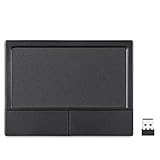
Overview: The Perixx PERIPAD-704 offers an affordable entry into wireless touchpad navigation for Windows users. This compact device features a 2.4GHz wireless connection via USB receiver, providing plug-and-play simplicity across Windows 7 through 11. With dimensions of 4.72×3.54 inches, it delivers a respectable tracking area in a portable form factor. The touchpad supports essential multi-touch gestures including two-finger scroll and pinch-to-zoom, powered by two AAA batteries for cord-free operation.
What Makes It Stand Out: The PERIPAD-704’s primary advantage is its universal wireless dongle approach, eliminating Bluetooth compatibility concerns entirely. This makes it ideal for older PCs or corporate environments with locked-down Bluetooth settings. The compact, cordless design enhances portability for mobile professionals, while the dedicated USB receiver ensures stable connectivity without pairing hassles. Its budget-friendly positioning opens trackpad navigation to users unwilling to invest in premium alternatives, and the plug-and-play nature requires zero software installation.
Value for Money: At $34.99, this touchpad represents exceptional value for casual users and budget-conscious buyers. It delivers core trackpad functionality at half the price of premium competitors. While it lacks advanced features like multi-device pairing or rechargeable batteries, the low entry cost and broad Windows compatibility make it accessible. The reliance on AAA batteries adds minor ongoing expense, but the overall cost of ownership remains attractive for users seeking basic gesture control without breaking the bank.
Strengths and Weaknesses: Strengths include affordable pricing, reliable 2.4GHz wireless connectivity, broad Windows compatibility, and true plug-and-play operation. The compact size suits travel and small desks. Weaknesses are the smaller tracking surface, lower 800 DPI sensitivity, battery dependency, and lack of advanced gestures or multi-device support. The plastic build feels less premium than metal alternatives, and the absence of Bluetooth limits modern device connectivity.
Bottom Line: The Perixx PERIPAD-704 is a practical, no-frills trackpad for Windows users seeking affordable gesture control. It excels in reliability and simplicity, making it perfect for office environments or secondary workstations. While it won’t satisfy power users needing premium materials or advanced features, it delivers solid performance where it counts. If budget and broad compatibility are your priorities, this touchpad offers genuine utility without unnecessary complexity.
4. Wireless Bluetooth Trackpad for Windows 10 & 11, 3-in-1 Connectivity Modes,High Precision Control, Portable Multi-Touch Gestures touchpad for PC & Laptop (Black)

Overview: This versatile trackpad targets Windows 10/11 users with its triple connectivity options and spacious 6.4-inch glass surface. The device supports three simultaneous device connections through flexible modes, though the description intriguingly mentions “3-in-1 Connectivity” while also stating Bluetooth-only operation—a confusing detail requiring clarification. The 500mAh rechargeable battery promises extended use, while the ultra-thin metal design provides durability and aesthetic appeal for desktop setups seeking laptop-like navigation precision.
What Makes It Stand Out: The ambiguous “3-in-1 Connectivity” claim suggests versatility, though details point to triple Bluetooth pairing rather than mixed wireless technologies. The 6.4-inch glass surface matches premium competitors, offering ample space for complex multi-touch gestures up to four fingers. Dedicated left/right mouse buttons provide tactile feedback missing from many trackpads. Its sleek metal construction and fast-charging capability position it as a modern, professional-grade peripheral for productivity-focused Windows users.
Value for Money: At $59.99, this trackpad undercuts the ProtoArc T1 Plus by $10 while offering similar core specifications. The value proposition hinges on actual connectivity flexibility—if it truly offers multiple wireless modes beyond Bluetooth, it becomes a steal. As a Bluetooth-only device with triple pairing, it’s competitively priced but not revolutionary. The glass surface and metal build suggest durability that justifies the mid-range cost, though documentation ambiguity might give cautious buyers pause.
Strengths and Weaknesses: Strengths include the large glass tracking surface, multi-device Bluetooth support, fast charging, and premium materials. The inclusion of physical mouse buttons enhances usability. However, the contradictory connectivity description is a major red flag, potentially indicating marketing confusion or product misrepresentation. Windows-only support limits audience, and the unknown brand raises support and longevity questions compared to established competitors.
Bottom Line: This trackpad offers compelling value if its connectivity claims prove accurate, delivering premium features at a moderate price. The large surface and multi-gesture support make it attractive for Windows power users. However, the ambiguous product description demands clarification before purchase. Verify the actual connectivity modes and brand reputation. If seeking a budget-friendly alternative to name-brand options with similar specs, it’s worth investigating—but proceed with due diligence.
5. Perixx PERIPAD-504 Wired USB Touchpad, Portable Trackpad for Desktop and Laptop User, Large Size,Big
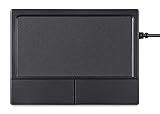
Overview: The Perixx PERIPAD-504 provides reliable wired trackpad functionality for Windows users prioritizing stability over wireless convenience. This USB-connected device features a compact 4.7×3.5-inch design with a 5.9×4.5cm active tracking area, supporting essential Windows gestures including scrolling and zoom. The wired connection ensures zero latency and eliminates battery concerns, making it ideal for fixed workstations where consistent performance is paramount. Its plug-and-play nature requires no drivers on Windows 7 through 11.
What Makes It Stand Out: The PERIPAD-504’s wired design is its defining feature, offering guaranteed connectivity without interference or pairing issues. This makes it perfect for corporate environments, kiosks, or users frustrated by wireless instability. The integrated cable provides a stable, low-latency connection that wireless alternatives cannot match. Its affordability and simplicity appeal to users needing basic gesture control without complexity. The compact, durable construction withstands daily use, while the dedicated sensitivity adjustment through Windows settings allows customization.
Value for Money: At $29.99, this is the most affordable trackpad in the lineup, delivering core functionality at a budget price. The wired connection eliminates ongoing battery costs and potential wireless dongle replacements. While it lacks advanced features like multi-device support or premium materials, its reliability and broad compatibility provide excellent ROI for office deployments or single-workstation use. For users unconcerned with cable clutter, it offers professional-grade stability at entry-level pricing.
Strengths and Weaknesses: Strengths include rock-solid wired connectivity, affordable pricing, broad Windows compatibility, and zero maintenance requirements. The compact size suits various desk configurations. Weaknesses are the smaller tracking surface, lack of advanced multi-touch gestures, tethered design limiting mobility, and basic plastic construction. The short cable may restrict placement, and the absence of wireless connectivity makes it unsuitable for modern minimalist setups or multi-device workflows.
Bottom Line: The Perixx PERIPAD-504 is a straightforward, dependable trackpad for Windows users who value reliability above all else. It’s ideal for office environments, fixed workstations, or budget-conscious buyers needing gesture control without wireless hassles. While it won’t impress with premium features or sleek aesthetics, it delivers consistent performance where it matters. If you prioritize stability, affordability, and simplicity, this wired touchpad is a practical, no-nonsense solution.
6. Tacti Trix Wireless Bluetooth Trackpad for Windows 10/11, Supports 3 Connection Modes, High-Precision Multi-Gesture Touchpad, Compatible with PC Laptop Computer

Overview:
The Tacti Trix Wireless Bluetooth Trackpad targets Windows 10/11 users seeking versatile connectivity options. This trackpad combines modern design with practical functionality, featuring a 6.3" x 4.7" glass surface housed in an ultra-thin metal body. It supports three distinct connection modes: Bluetooth 5.0, 2.4G wireless, and USB-C wired, making it adaptable to various computing scenarios.
What Makes It Stand Out:
The triple connection flexibility is the headline feature—rare in this price range. The pressure-sensitive zones with customizable haptic feedback provide a modern, button-free experience while maintaining tactile response. The inclusion of a USB-to-USB-C adapter demonstrates thoughtful attention to connectivity versatility. With 50 hours of battery life from a 500mAh cell, it minimizes charging interruptions.
Value for Money:
At $39.99, this trackpad sits in the sweet spot between budget and premium options. Competitors typically offer dual connectivity at this price, making the triple-mode support exceptional value. The glass surface and metal construction feel premium compared to plastic alternatives costing similarly.
Strengths and Weaknesses:
Strengths include versatile connectivity, premium build materials, excellent battery life, and comprehensive gesture support up to four fingers. The pressure-sensitive zones may frustrate users accustomed to physical buttons, requiring an adjustment period. Bluetooth 5.0 supports only one device at a time, limiting multi-device workflows.
Bottom Line:
Ideal for Windows users wanting connection flexibility without sacrificing build quality. The Tacti Trix excels as a primary input device for hybrid work setups, though those preferring physical clicks should consider alternatives.
7. ProtoArc Wired USB Trackpad for Windows 10/11, Large High-Precision T1 Wired Trackpad Mouse with Multi-Gesture, Ultra Slim Portable Aluminum Touchpad Mouse for Computer/Desktop/Laptop, Grey Black
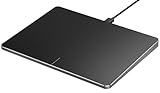
Overview:
The ProtoArc Wired USB Trackpad delivers a traditional trackpad experience for Windows 10/11 users who prioritize reliability and physical feedback. This large, high-precision trackpad emphasizes tactile interaction with dedicated left and right physical buttons at its base, addressing a common complaint about button-less designs.
What Makes It Stand Out:
The hybrid clicking system sets it apart—physical buttons coexist with full-area single-click and two-finger tap functionality. This dual approach accommodates diverse user preferences and tasks. The trackpad supports up to four-finger gestures, matching premium laptop touchpads. Its grey-black aluminum aesthetic suits professional environments.
Value for Money:
Priced at $49.99, it’s positioned as a mid-tier wired option. While functional and well-built, the lack of wireless connectivity makes it less versatile than similarly priced competitors. You’re paying for the physical button mechanism and gesture sophistication rather than connection flexibility.
Strengths and Weaknesses:
Strengths include reliable wired connection, intuitive physical clicks, comprehensive gesture support, and straightforward plug-and-play setup. The double-tap-and-hold drag method works well once mastered. Weaknesses center on the single connection type—no Bluetooth or wireless option limits mobility. The price feels high for a wired-only device in an increasingly wireless world.
Bottom Line:
Perfect for stationary desktop setups where consistency matters more than mobility. Office workers and professionals who prefer physical button feedback will appreciate its dependable performance, though wireless seekers should look elsewhere.
8. ProtoArc Bluetooth Trackpad for Windows 10/11, T1 Plus Large High-Precision Touchpad, Wireless Trackpad Mouse with Multi-Gesture Support for Computer Desktop Laptop, White and Silver
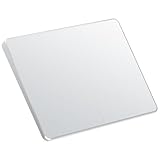
Overview:
The ProtoArc Bluetooth Trackpad T1 Plus represents the premium wireless offering for multi-device Windows 10/11 users. Its expansive 6.4-inch metal touchpad provides generous workspace for gestures, while triple-device Bluetooth switching enables seamless transitions between laptop, PC, and tablet.
What Makes It Stand Out:
The ability to pair with three devices simultaneously and switch instantly via a mode button is a standout productivity feature. The large 6.4 x 4.8-inch surface area surpasses most laptop trackpads, reducing finger travel fatigue. Fast Type-C charging and 50-hour battery life support intensive work sessions. The white-and-silver finish offers a modern alternative to standard black peripherals.
Value for Money:
At $69.99, this is a premium investment. The price is justified for users managing multiple Windows devices, as it effectively replaces three separate trackpads. However, single-device users may find better value in cheaper alternatives without multi-device complexity.
Strengths and Weaknesses:
Strengths include exceptional multi-device support, large responsive surface, premium build quality, and strong battery performance. The manufacturer note about potential Bluetooth disconnection issues is concerning and warrants testing. Lack of wired or 2.4G fallback means Bluetooth instability could render it useless. The Windows-only limitation restricts cross-platform flexibility.
Bottom Line:
Best suited for power users juggling multiple Windows machines who prioritize desk aesthetics and gesture space. Verify Bluetooth stability with your specific hardware before committing, as the noted connectivity issues could undermine its core value proposition.
9. Wired touchpad supports multi gesture control, Aluminum alloy casing and glass panel Trackpad Mouse with Multi-Touch Navigation for Windows 10/11/Linux/fedora 43 Laptop PC Notebook Computer (black)

Overview:
This compact wired trackpad targets budget-conscious Windows and Linux users seeking basic gesture functionality without frills. Its 90x130mm tempered glass surface provides durable, scratch-resistant tracking in a space-saving footprint ideal for cluttered desks or mobile workstations.
What Makes It Stand Out:
Linux compatibility (including Fedora 43) distinguishes it from Windows-exclusive competitors, broadening its appeal to open-source users. The tempered glass construction offers superior durability compared to plastic surfaces at this price point. Stable wired connectivity eliminates battery concerns and wireless interference, making it suitable for technical work requiring consistent input.
Value for Money:
At $38.90, it’s competitively priced for entry-level trackpads. The glass surface and Linux support add value beyond typical budget options. However, the compact dimensions may feel restrictive for users accustomed to larger laptop trackpads, somewhat offsetting its affordability.
Strengths and Weaknesses:
Strengths include broad OS compatibility, durable tempered glass, reliable wired connection, and portability. The absence of physical left/right buttons requires gesture or tap-based clicking, which may frustrate some users. The small surface area limits multi-finger gesture comfort and precision. No wireless option reduces flexibility for modern setups.
Bottom Line:
A solid choice for Linux enthusiasts or Windows users prioritizing durability and stability over size. Its compact nature suits travel or space-constrained environments, but those needing expansive gesture control should invest in larger alternatives.
10. ProtoArc USB Trackpad for Windows 10/11, Large Wired Touchpad Mouse, High-Precision Navigation, Ultra-Thin Portable Aluminum Alloy Touchpad Mouse, Suitable for Desktops/Laptops, White and Silver

Overview:
The ProtoArc USB Trackpad delivers large-surface trackpad functionality at an entry-level price for Windows 10/11 users. Its ultra-thin 0.19-0.39 inch profile and 6.4-inch diagonal provide expansive gesture real estate typically reserved for premium models, while built-in physical buttons cater to traditionalists.
What Makes It Stand Out:
The combination of an oversized touchpad, physical left/right buttons, and sub-$30 pricing creates exceptional value. The USB-C plug-and-play setup requires no drivers, ensuring immediate usability. The ultra-thin aluminum alloy construction feels premium despite the budget positioning. Dual clicking methods—physical buttons and full-area tap—accommodate diverse user habits.
Value for Money:
At $27.99, it’s the most affordable large-trackpad option available. Competitors with similar surface area typically cost twice as much. The build quality and feature set defy its budget classification, making it accessible to students and professionals alike. The wired connection keeps costs down while ensuring reliability.
Strengths and Weaknesses:
Strengths include unbeatable price, generous surface area, physical button convenience, stable USB-C connection, and premium materials. Weaknesses are the lack of wireless connectivity and Windows-only support. The ultra-thin design may feel insubstantial to some users, and cable management could clutter minimalist setups.
Bottom Line:
The definitive budget champion for Windows users wanting maximum trackpad real estate without breaking the bank. Ideal for students, office deployments, or anyone prioritizing functionality over wireless freedom. Compromises are minimal given the price.
Why Windows Users Need a Different Trackpad Philosophy
The fundamental disconnect between Apple’s Magic Trackpad and Windows isn’t about build quality—it’s about philosophical design choices that prioritize different user behaviors. Windows trackpads must serve a master with radically different expectations: window-snapping precision, virtual desktop management, and compatibility with a fragmented hardware ecosystem.
The macOS vs Windows Gesture Ecosystem Divide
Apple’s gesture language was built from the ground up for its operating system, with consistent animations and predictable behaviors across every app. Windows, by contrast, has developed its gesture vocabulary through iteration and standardization, particularly with the Precision Touchpad initiative. A three-finger swipe on macOS triggers Mission Control; on Windows, it switches virtual desktops or reveals Task View. These aren’t just different commands—they represent fundamentally different mental models of how users should interact with their digital workspace.
When you use a Magic Trackpad on Windows, you’re essentially trying to speak a language through a translator that doesn’t understand context. The result is gestures that feel slightly off, missing features you rely on, and a constant sense that you’re fighting your hardware rather than flowing with it.
Driver Support: The Make-or-Break Factor
Here’s where the rubber meets the road. Apple’s Boot Camp drivers for Windows are notoriously outdated, offering only basic functionality and none of the advanced gestures that make trackpads powerful. Third-party solutions exist but create their own instability. Windows-native trackpads, conversely, leverage Microsoft’s Precision Touchpad drivers—a universal standard that ensures deep OS integration, regular updates through Windows Update, and consistent behavior across devices. This isn’t a minor convenience; it’s the difference between a tool that works reliably and one that becomes a daily frustration.
Understanding Trackpad Technology Fundamentals
Before diving into features, you need to understand the underlying technologies that separate mediocre trackpads from exceptional ones. The specs that matter aren’t always the ones manufacturers splash across product pages.
Capacitive vs Pressure-Sensitive Surfaces
Most modern trackpads use capacitive sensing—the same technology as smartphone screens—to detect finger position. However, the resolution of this sensing grid varies dramatically. High-end trackpads pack more sensing points per square inch, enabling finer gesture recognition and eliminating the “jumpy cursor” syndrome that plagues budget options. Pressure-sensitive layers, while less common, add another dimension by detecting how hard you’re pressing, enabling features like force clicks or pressure-sensitive drawing. For Windows users, this matters because certain creative applications in the Adobe suite and 3D modeling tools are beginning to leverage pressure data for nuanced control.
The Importance of Surface Area and Aspect Ratio
Bigger isn’t always better, but surface geometry profoundly impacts usability. The Magic Trackpad’s nearly square 5.5-inch profile works for macOS’s vertical scrolling emphasis, but Windows’ horizontal window management and three-finger swipes benefit from a wider, more rectangular aspect ratio. A trackpad that’s too shallow forces cramped gestures; one that’s too deep puts your wrist in an awkward position. The sweet spot for most users falls between 5.5 and 6.5 inches diagonally, with a width-to-height ratio of roughly 16:10—mirroring modern laptop displays.
Polling Rates and Latency: What Actually Matters
Manufacturers love to tout Bluetooth 5.0 or 5.2 support, but the Bluetooth version matters less than the trackpad’s internal polling rate—the frequency at which it reports position data to your PC. A trackpad polling at 125Hz feels sluggish compared to one hitting 500Hz or even 1000Hz. This becomes critical during precise operations like photo editing or gaming. Wireless interference, Bluetooth stack inefficiencies, and USB polling rates all contribute to the final latency you experience. The best Windows trackpads prioritize low-latency wireless protocols or offer wired modes that bypass Bluetooth entirely.
Key Features That Define a Superior Windows Trackpad
With fundamentals covered, let’s examine the specific features that elevate a trackpad from functional to transformative for Windows workflows.
Precision Touchpad Certification Explained
Microsoft’s Precision Touchpad (PTP) certification isn’t just a sticker—it’s a rigorous standard that guarantees specific hardware capabilities and driver integration. PTP-certified devices must support a minimum of five simultaneous touch points, offer consistent gesture recognition, and receive driver updates directly from Microsoft. This certification ensures that when Windows 12 drops with new gesture features, your trackpad will support them natively. Non-certified trackpads rely on proprietary drivers that may never be updated, leaving you stranded as the OS evolves.
Multi-Finger Gesture Customization Depth
Windows natively supports 3-finger and 4-finger gestures, but the real power lies in customization. Premium trackpads allow you to reassign gestures at the driver level, creating app-specific shortcuts. Imagine a three-finger tap that triggers “Save” in Photoshop, or a four-finger swipe that runs a PowerShell script. This programmability transforms your trackpad from a pointing device into a command center. Look for trackpads that offer per-application gesture profiles and the ability to chain actions together.
Haptic Feedback vs Mechanical Click Mechanisms
Apple’s Force Touch haptic engine set a new bar for click feel, but Windows trackpads have evolved beyond simple imitation. Modern haptic trackpads use linear resonant actuators to simulate clicks anywhere on the surface, eliminating the “dead zone” at the top of mechanical clickpads. More importantly, they allow for adjustable click force and contextual feedback—like a subtle bump when snapping a window or a light click for normal taps versus a firm click for drag-lock. Mechanical trackpads still have their place, offering tactile certainty and lower cost, but haptic feedback represents the future of precise, customizable interaction.
The Windows Precision Touchpad Advantage
Understanding PTP at a deeper level reveals why it’s the single most important factor for Windows users to consider.
Why Microsoft’s Standard Changes Everything
Before PTP, Windows trackpads were a Wild West of proprietary drivers, each manufacturer implementing gestures differently. This fragmentation meant tutorials were useless, support was inconsistent, and upgrading Windows risked breaking functionality. PTP standardizes the interface between hardware and OS, creating a stable platform where gestures work identically across devices. This standardization has enabled a cottage industry of gesture-enhancement utilities and ensures that your muscle memory transfers between your laptop and desktop trackpad.
How to Verify PTP Compatibility Before Buying
Don’t trust manufacturer claims—verify PTP certification yourself. In Windows 10 or 11, navigate to Settings > Bluetooth & devices > Touchpad. If you see a comprehensive settings page with visual gesture demonstrations, your trackpad is PTP-certified. If the page is sparse or directs you to a third-party utility, it’s not. Before purchasing, check the product’s technical specifications for explicit mention of “Microsoft Precision Touchpad” certification. Be wary of terms like “Precision-like” or “Compatible with Windows gestures”—these are marketing euphemisms for non-certified hardware.
Size Matters: Finding Your Ideal Trackpad Dimensions
The right size depends on your desk setup, hand size, and workflow patterns. Getting this wrong undermines every other feature.
Desk Real Estate vs Portability
Full-size desktop trackpads range from 5.5 to 7 inches diagonally, offering expansive gesture real estate but demanding significant desk space. Compact options around 4.5 inches sacrifice some multi-finger comfort but fit alongside a tenkeyless keyboard in tight setups. Consider your primary use case: if you travel between home and office, a mid-size trackpad with a protective case offers the best balance. For stationary setups, maximize surface area—the extra space reduces accidental palm inputs and allows broader, more comfortable gestures.
The Ergonomics of Wider Aspect Ratios
The 16:10 aspect ratio isn’t just aesthetically pleasing—it’s ergonomically superior for Windows. Horizontal gestures like switching virtual desktops or snapping windows left/right feel natural across a wide surface. A wider trackpad also aligns better with modern ultrawide and multi-monitor setups, where cursor travel is predominantly horizontal. Pay attention to the bottom edge placement: a trackpad that sits flush with your desk edge allows your wrist to rest naturally, while raised edges create pressure points during extended use.
Connectivity Options: Bluetooth, USB-C, or 2.4GHz?
The connection method affects not just convenience but latency, reliability, and power management.
Latency Comparison Across Wireless Technologies
Bluetooth 5.0+ theoretically offers 1ms latency, but real-world performance varies wildly based on your PC’s Bluetooth stack, antenna quality, and interference from other devices. Many users report perceptible lag with Bluetooth trackpads, especially on older desktops with budget motherboards. 2.4GHz wireless dongles often provide more consistent latency by bypassing Windows’ Bluetooth stack entirely, though they consume a USB port. For the lowest possible latency, wired USB-C connections are unbeatable, with polling rates limited only by USB’s 1000Hz ceiling.
Wired Connections for Gaming and Creative Work
While trackpads aren’t traditional gaming peripherals, creative professionals benefit from wired connections during precise work. A wired connection eliminates battery anxiety and ensures consistent performance during long rendering sessions or editing marathons. Some premium trackpads offer hybrid modes that switch to wired data when connected for charging, giving you the best of both worlds. Look for braided cables and strain relief if you plan to use wired mode regularly—trackpads see constant hand movement that can stress cable connections over time.
Battery Life and Power Management Realities
Nothing kills productivity like a dead trackpad mid-project. Understanding power specs helps you avoid constant charging anxiety.
Rechargeable vs Replaceable Batteries
Built-in lithium batteries offer sleek profiles and convenience but inevitably degrade, turning your premium trackpad into a paperweight after 2-3 years of heavy use. Trackpads using standard AA or AAA batteries offer infinite lifespan—when cells degrade, you simply replace them. High-efficiency trackpads can run for 3-6 months on a pair of AA batteries, while rechargeable models typically last 2-4 weeks per charge. For sustainability and long-term value, user-replaceable rechargeables (like those using 18650 cells) represent the best compromise.
Fast Charging Capabilities
Modern trackpads increasingly support fast charging, delivering a full day of use from just 15 minutes of charging. This changes how you manage power—instead of overnight charging, you can top up during lunch. However, fast charging generates heat that can degrade battery longevity. Premium trackpads mitigate this with thermal management and charge limiting, but budget options may sacrifice battery health for convenience. Check charging specifications: 5V/2A charging is standard, but some trackpads support USB-PD for even faster top-ups.
Build Quality and Materials That Impact Performance
The difference between a trackpad that feels premium and one that performs premium often comes down to material science and construction details.
Glass vs Plastic Surfaces: The Friction Factor
Glass surfaces offer consistent glide and superior durability, resisting oils and scratches that degrade plastic over time. However, not all glass is equal—chemically strengthened glass like Gorilla Glass maintains smoothness longer than standard soda-lime glass. Plastic surfaces, while less premium, can be engineered with specific textures that some users prefer for precise control. Matte plastics reduce finger stickiness in humid environments, while glossy plastics mimic glass glide at lower cost. The key is consistency: a surface that feels the same in the center and at the edges prevents cursor control surprises.
Frame Rigidity and Long-term Durability
A flexible frame introduces cursor inaccuracy, especially during click operations. Press down on a cheap trackpad and watch the cursor shift—that’s frame flex corrupting your input. Premium trackpads use aluminum or reinforced polymer frames that maintain planar stability. The attachment mechanism matters too: trackpads that sit on rubber feet can slide during aggressive gestures, while those with weighted bases or desk clamping options stay put. Consider the expected lifespan: a trackpad with replaceable feet and a serviceable click mechanism can last a decade, while glued-together units become e-waste after their first failure.
Advanced Features Worth Paying For
Beyond basics, certain advanced features can fundamentally change how you interact with Windows.
Pressure Sensitivity and Force Touch Alternatives
While Windows doesn’t natively support Force Touch like macOS, some trackpads implement pressure sensitivity that creative apps can leverage. Photoshop brush dynamics, 3D sculpting intensity, and timeline scrubbing speed can all be controlled through pressure. This requires both hardware support and software integration—check if your critical applications support Windows Ink or direct pressure APIs. Even without app support, pressure can be mapped to system functions like scroll speed or zoom intensity, creating a more nuanced control experience.
Programmable Zones and Edge Gestures
Advanced trackpads allow you to define active zones with independent functions. The bottom edge can become a horizontal scrollbar, the right edge a volume control, and the corners custom hotkeys. Edge gestures—swiping in from the border—can trigger system-level actions like opening Action Center or cycling through virtual desktops. This spatial programming turns your trackpad into a context-sensitive control surface, especially powerful when combined with AutoHotkey scripts for workflow automation.
Integrated Number Pads and Modular Designs
Some innovative trackpads incorporate a toggleable numeric keypad overlay, lighting up LED indicators or using haptic boundaries to guide finger placement. This saves desk space for users who occasionally need numeric input but don’t want a full numpad. Modular designs take this further, allowing you to physically reconfigure the trackpad with magnetic attachments like a dial controller or macro keys. While niche, these features can consolidate multiple input devices into one, reducing desk clutter and context-switching fatigue.
Integration with Windows Ecosystem
A trackpad shouldn’t just work with Windows—it should enhance its unique features.
Microsoft Surface Dial Compatibility
While primarily a Surface accessory, the Dial protocol is open to third-party devices. Some premium trackpads integrate Dial-like functionality directly into the surface, allowing you to press and rotate for context-sensitive controls in apps like Photoshop, Illustrator, and even Visual Studio. This integration provides tactile, analog control within digital workflows—adjusting brush size, scrubbing timelines, or zooming schematics without keyboard modifiers.
Snap Layouts and Virtual Desktop Optimization
Windows 11’s Snap Layouts and enhanced virtual desktops are gesture-intensive features that demand precise input. The best trackpads for Windows optimize these workflows with dedicated gesture zones and customizable three-finger swipe behaviors. Some allow you to assign different swipe directions to specific Snap positions—swipe up to maximize, left to snap to left third, right to right two-thirds. This level of integration transforms window management from a mouse-driven chore into a fluid, gesture-based dance.
Troubleshooting Common Windows Trackpad Issues
Even the best hardware can suffer from software conflicts. Knowing how to diagnose and fix issues saves hours of frustration.
Driver Conflicts and How to Resolve Them
Windows’ aggressive driver updates can sometimes overwrite your trackpad’s optimized drivers with generic ones. If gestures suddenly stop working after a Windows update, check Device Manager for driver rollbacks. The conflict often lies in power management settings—Windows may disable USB selective suspend, causing Bluetooth trackpads to disconnect intermittently. Creating a dedicated power plan for your trackpad can resolve this. For persistent issues, utilities like Bluetooth Tweaker can force specific Bluetooth stack behaviors that improve stability.
Calibrating Sensitivity for Your Workflow
Default sensitivity settings rarely match individual needs. Windows offers basic sensitivity sliders, but deeper calibration requires accessing the trackpad’s advanced settings. Look for options to adjust finger detection threshold (prevents palm input), gesture velocity sensitivity (how fast you need to swipe), and cursor acceleration curves. Some trackpads support per-monitor DPI scaling, crucial for multi-monitor setups with different resolutions. Spend time calibrating these parameters—an hour of fine-tuning can yield years of comfortable use.
Price vs Performance: Finding Your Sweet Spot
Trackpad pricing spans from $30 to $300, with diminishing returns that vary by use case.
Budget Considerations Without Sacrificing Core Features
Below $50, prioritize PTP certification and adequate surface size over fancy materials. A plastic-surfaced, PTP-certified trackpad with solid drivers outperforms a glass-surfaced non-certified device every time. In the $50-$100 range, expect glass surfaces, rechargeable batteries, and basic haptic feedback. This is the sweet spot for most users, offering 80% of premium performance at 40% of the cost. Avoid budget trackpads that require proprietary drivers—they’re abandonware waiting to happen.
Premium Features That Justify Higher Costs
Above $150, you’re paying for advanced haptic engines, pressure sensitivity, premium materials, and extensive customization software. These features justify their cost for creative professionals whose workflows benefit from analog control and gesture automation. For developers, the premium is in build longevity and driver stability—your trackpad becomes a reliable tool that outlasts multiple PC upgrades. The $200+ tier is for specialists: those who need modular expandability, integrated displays, or enterprise-grade security features like fingerprint authentication built into the trackpad surface.
Setting Up Your New Trackpad for Maximum Productivity
Unboxing is just the beginning. Proper setup unlocks the potential that makes a trackpad beat the Magic Trackpad experience.
Initial Configuration Best Practices
First, update Windows to ensure you have the latest PTP drivers. Then, connect your trackpad and let Windows recognize it before installing any manufacturer software. Test native gestures first—if they don’t work reliably, the hardware has issues. Only after verifying basic functionality should you install customization utilities. Create a system restore point before installing drivers, giving you a rollback option if conflicts arise. Finally, spend time in Settings > Bluetooth & devices > Touchpad exploring every option; many powerful features are buried in submenus.
Creating Custom Gestures for Specific Applications
Use PowerToys’ Keyboard Manager or AutoHotkey to map complex keyboard shortcuts to simple gestures. For example, map Ctrl+Shift+T (reopen closed tab) to a three-finger tap in browsers, or Ctrl+K, Ctrl+C (comment code) to a four-finger swipe in VS Code. Some trackpad software allows direct macro recording, but external tools offer more flexibility and survive hardware upgrades. The goal is reducing common 2-3 second operations to instantaneous gestures, compounding time savings across thousands of repetitions.
Frequently Asked Questions
1. Can I use a Mac trackpad with Windows without losing functionality?
You’ll lose most advanced gestures and gain driver instability. While basic pointing and clicking work, the experience feels compromised because Apple’s Windows drivers lack support for Windows Precision Touchpad standards. You’re essentially using a generic pointing device that happens to be made by Apple.
2. What makes a trackpad “Precision Touchpad certified” and why does it matter?
PTP certification means the hardware meets Microsoft’s standards for gesture recognition, touch point accuracy, and driver integration. It matters because it guarantees the trackpad will work with all Windows features, receive automatic driver updates, and behave consistently across devices. Without it, you’re at the mercy of manufacturer support.
3. How important is surface material for daily use?
Extremely important. Glass surfaces provide consistent glide and resist skin oils, maintaining performance over years. Plastic degrades faster but can offer better grip for precise work. For most users, chemically strengthened glass offers the best balance of durability and feel, especially in humid environments where fingers stick to plastics.
4. Why do some trackpads feel laggy even with good specs?
Latency involves multiple factors: Bluetooth stack efficiency, USB polling rate, internal processing speed, and even the USB controller on your motherboard. A trackpad might have a 1000Hz internal sensor but only report at 125Hz due to Bluetooth limitations. Wired connections or 2.4GHz dongles often reduce latency more than spec sheet improvements.
5. Should I choose a rechargeable or battery-powered trackpad?
For longevity, user-replaceable batteries win. For convenience, rechargeables are better. Consider your usage: if you travel frequently, the convenience of USB-C charging outweighs battery concerns. For stationary setups, AA-powered trackpads offer lower total cost of ownership and never become e-waste due to battery degradation.
6. Can trackpads really replace a mouse for creative work?
Yes, but it depends on your workflow. For photo editing, 3D modeling, and video editing, a high-quality trackpad with pressure sensitivity and customizable gestures can match or exceed mouse efficiency. For CAD work or gaming, mice still hold advantages. Most professionals benefit from using both, switching based on task.
7. What’s the ideal trackpad size for multi-monitor setups?
Larger is better for multi-monitor use. A 6-inch diagonal trackpad provides enough physical space to traverse 4K displays without lifting your finger. Wider aspect ratios (16:10 or 3:2) align better with horizontal monitor arrangements, making cross-screen window snapping more intuitive.
8. How do I prevent palm rejection issues?
Quality trackpads use capacitive signature detection to distinguish fingers from palms. Ensure your trackpad has adjustable palm rejection thresholds in its settings. Position the trackpad slightly below keyboard level so palms rest on the desk surface, not the trackpad. Some users place a thin wrist rest between keyboard and trackpad to create a physical barrier.
9. Are haptic trackpads worth the premium over mechanical ones?
For most users, yes. Haptic trackpads eliminate the dead zone at the top of mechanical pads, offer customizable click feel, and enable contextual feedback. The premium is most justified if you use tap-to-click extensively or need silent operation. Mechanical trackpads remain viable for budget-conscious users who prioritize tactile certainty over advanced features.
10. How long should a quality trackpad last?
A well-built trackpad should functionally last 5-7 years. Glass surfaces resist wear indefinitely, while mechanical buttons typically fail first. Trackpads with replaceable feet, serviceable batteries, and modular construction can last a decade. Budget trackpads with integrated batteries and glued construction often become unusable after 2-3 years due to battery swelling or surface coating wear.