Picture this: you’re at a cramped café table in Tokyo, a standing desk in a London co-working space, or an airport lounge with exactly one available outlet. Your sleek, modern laptop boasts a single USB-C port, but you need to connect an external monitor, charge your phone, access files from a camera’s SD card, and plug in a wireless mouse—all while keeping your computer charged. This is the modern traveler’s connectivity paradox, and it’s why pocket-sized USB-C travel docks have evolved from niche accessories to essential gear.
Gone are the days when “portable docking station” meant a brick-sized hub that demanded its own luggage real estate. Today’s best travel docks pack surprising capability into designs that genuinely disappear into your jeans pocket or the smallest pouch in your carry-on. But with this miniaturization comes complexity: not all compact docks are created equal, and the difference between a travel-saver and a travel-wrecker lies in the details most spec sheets gloss over. Let’s dive deep into what separates genuinely useful pocketable docks from the disappointing imposters that’ll leave you stranded.
Top 10 USB-C Travel Docks
Detailed Product Reviews
1. OWC USB-C Travel Dock E, 6 Port, Bus-Powered, USB Type-C 100W Pass Through, one 4K Display, (2) USB 3.2 Type-A, HDMI, SD Card, Gigabit Ethernet, Compatible with Thunderbolt Devices

Overview: The OWC USB-C Travel Dock E is a compact 6-port solution designed for mobile professionals who need essential connectivity without bulk. This bus-powered dock features an integrated USB-C cable and supports up to 100W pass-through power, delivering 92W to your host device while reserving minimal power for its own operation.
What Makes It Stand Out: Its mini-sized form factor makes it exceptionally portable, while the comprehensive port selection—including HDMI 2.0 for 4K@60Hz displays, Gigabit Ethernet, SD card reader, and two USB 3.2 Type-A ports—covers most travel needs. The 2-year OWC warranty provides peace of mind, and the intelligent power management ensures stable operation even when bus-powered.
Value for Money: At $49.99, this dock sits in the sweet spot for budget-conscious travelers. It competes favorably with generic alternatives while offering brand reliability and warranty support. The bus-powered design eliminates the need for a separate power brick, saving both money and luggage space compared to full-sized docking stations.
Strengths and Weaknesses: Strengths include ultra-portable design, robust power pass-through, reliable brand reputation, and comprehensive port selection for its size. Weaknesses are limited to single display support and lack of USB-C data ports beyond the host connection. The 0.9A USB power limitation may trouble users with high-power peripherals.
Bottom Line: Perfect for professionals prioritizing portability and essential connectivity. The OWC Travel Dock E delivers reliable performance in a pocket-sized package, making it an excellent value for single-display setups.
2. Lenovo USB-C Dual Display Travel Dock - 7 Ports, Integrated USB-C Cable, Universal Compatibility, Dual Displays at 4K - Black

Overview: Lenovo’s Dual Display Travel Dock offers seven ports in a sleek, eco-conscious design for professionals needing dual monitor support on the road. This universal dock features an integrated USB-C cable and supports dual 4K displays via DisplayPort 1.4 and HDMI 2.0, making it ideal for complex workflows.
What Makes It Stand Out: The standout feature is genuine dual 4K@60Hz display capability, rare in travel docks. Its 66% post-consumer recycled content chassis demonstrates serious environmental commitment. The innovative ‘Always-On’ USB port continuously charges devices even when your laptop disconnects, ensuring peripherals and phones stay powered.
Value for Money: Priced at $50.99, this dock offers exceptional value for dual-display users. While it lacks an included power adapter, its competitive pricing allows purchasing a compatible charger separately while still undercutting bundled alternatives. The premium build quality and unique sustainability credentials justify the modest premium over basic docks.
Strengths and Weaknesses: Strengths include true dual 4K support, 10Gbps USB speeds, sustainable materials, and the versatile Always-On charging port. Weaknesses are the absence of a power adapter, potentially increasing total cost, and limited USB-A ports (only one). Users needing more legacy connections may find this restrictive.
Bottom Line: An excellent choice for multi-monitor mobile workstations. If you already own a USB-C power adapter, this dock delivers premium features and sustainability at a compelling price point.
3. Lenovo USB-C Dual Display Travel Dock w/ 100W Power Adapter - 7 Ports, Integrated USB-C Cable, Universal Compatibility, Dual Displays at 4K - Black

Overview: This bundled version of Lenovo’s Dual Display Travel Dock includes a 100W power adapter, creating a complete mobile workstation solution. It maintains all the features of the standalone dock—seven ports, dual 4K display support, and sustainable construction—while adding reliable power delivery.
What Makes It Stand Out: The inclusion of a matched 100W adapter simplifies purchasing decisions and ensures optimal compatibility. The dock delivers 65W to your laptop with the included adapter, with headroom to upgrade to 100W laptop charging using an optional 135W charger. The Always-On USB port and 66% recycled content chassis remain key differentiators.
Value for Money: At $101.99, the bundle commands a $51 premium over the dock alone. While this seems steep, quality 100W USB-C adapters typically cost $40-60, making the package price reasonable. For users needing a complete solution, the convenience and guaranteed compatibility offset the cost, though bargain hunters might prefer sourcing adapters independently.
Strengths and Weaknesses: Strengths include everything from the standalone model plus guaranteed adapter compatibility and a single-SKU solution. Weaknesses are the premium pricing that may exceed budget constraints and the included adapter’s 65W delivery, which underutilizes the dock’s 100W potential without additional investment.
Bottom Line: Ideal for professionals seeking a turnkey dual-display travel solution. The bundle eliminates guesswork and ensures compatibility, making it worth the premium for those prioritizing convenience over absolute cost savings.
4. Lenovo USB-C Slim Travel Dock, 8 Ports, Up to 65W PD Pass Through, Integrated USB-C Cable, 4K Display Support, Black

Overview: The Lenovo USB-C Slim Travel Dock packs eight ports into a compact, environmentally responsible design for professionals needing versatile connectivity. Supporting up to 65W pass-through power and 4K@60Hz via HDMI 2.1, this dock balances capability with portability for modern remote workers.
What Makes It Stand Out: With eight ports—including three USB-C and two USB-A all running at 10Gbps—it offers exceptional connectivity density. The HDMI 2.1 port ensures future-proof display compatibility, while the innovative cable management system keeps travel bags tidy. Its 66% recycled content chassis continues Lenovo’s sustainability leadership.
Value for Money: At $62.99, this dock positions itself as a premium mid-range option. The eight-port configuration and 10Gbps speeds across all data ports justify the price premium over basic six-port alternatives. While limited to 65W power delivery, this suffices for most ultrabooks and productivity laptops.
Strengths and Weaknesses: Strengths include best-in-class port count, full-speed 10Gbps on all data ports, HDMI 2.1 support, and strong environmental credentials. Weaknesses are the 65W power ceiling, which may not suffice for high-performance workstations, and lack of SD card reader—a surprising omission for a travel-focused dock.
Bottom Line: A versatile connectivity hub for professionals using modern laptops. The Slim Travel Dock excels in port variety and speed, making it perfect for users who prioritize peripheral connections over maximum power delivery.
5. TESSAN Charging Station PD 100W for Multiple Devices, 6-in-1 USB C Charger Block Compatible with iPhone 17/16, MacBook, Charging Dock with 3 USB-C, 1 USB-A & 2 AC, Home Office Travel Accessories
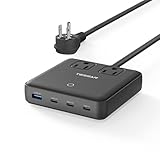
Overview: The TESSAN Charging Station is a 6-in-1 power hub designed for multi-device households and travelers. Unlike traditional docks, it focuses purely on power delivery, offering three 100W USB-C PD ports, one 18W USB-A QC 3.0 port, and two 1100W AC outlets in a compact, GaN-powered package.
What Makes It Stand Out: GaN technology enables remarkable efficiency and heat dissipation in a tiny 3.94-inch square profile. The ability to charge six devices simultaneously—including high-power laptops via 100W USB-C and appliances via AC outlets—makes it uniquely versatile. Four anti-slip pads provide stability on any surface.
Value for Money: At just $24.99, this charging station delivers exceptional value. Comparable GaN multi-port chargers typically cost $40-60, while adding AC outlets creates a travel powerhouse. The 5-foot extension cable enhances usability without adding bulk, making it a budget-friendly alternative to separate chargers and power strips.
Strengths and Weaknesses: Strengths include incredible value, GaN efficiency, simultaneous multi-device charging, and travel-friendly design. Weaknesses are the lack of data connectivity—this is purely a charger—and the 1100W AC limit, which excludes high-power appliances. The plastic construction, while lightweight, may not match premium metal docks.
Bottom Line: An outstanding value for users needing pure charging capability. The TESSAN station excels as a travel companion or desk organizer, consolidating multiple chargers into one affordable, efficient unit. Just don’t expect display or data connectivity.
6. Targus USB-C Travel Dock with Power Pass-Through (DOCK412USZ)
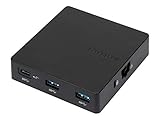
Overview: The Targus DOCK412USZ is a compact travel companion designed for professionals who need reliable connectivity on the go. This USB-C dock supports DisplayPort Alt-Mode and offers a versatile selection of ports including VGA, Mini DisplayPort, HDMI, two USB-A ports, and Gigabit Ethernet. Its integrated cable tucks away neatly, making it ideal for mobile workers who value organization.
What Makes It Stand Out: The clever cable management system sets this dock apart from competitors, eliminating cable clutter in your bag. The triple video output options (VGA, Mini DP, HDMI) ensure compatibility with virtually any display or projector you encounter, from legacy conference room equipment to modern monitors. Power pass-through capability means you can charge your laptop while using all connected peripherals, a critical feature for all-day productivity.
Value for Money: At $49.99, this dock sits in the mid-range price bracket. It offers excellent value for business travelers specifically, as the VGA and Mini DP ports are rare finds in modern docks. While it lacks 4K60Hz support, the versatility for enterprise environments justifies the cost compared to cheaper single-function adapters or pricier Thunderbolt alternatives.
Strengths and Weaknesses: Pros: Excellent portability with cable storage; multiple legacy video outputs; reliable brand reputation; power pass-through. Cons: Limited to 4K30Hz HDMI output; only two USB-A ports may be insufficient for some users; no SD card reader.
Bottom Line: This dock is a smart investment for corporate road warriors who frequently present in varied environments. If you need guaranteed compatibility with older display systems and value tidy cable management, the Targus delivers. For users needing more USB ports or higher video refresh rates, consider alternatives.
7. New for Microsoft Surface Docking Station 11-in-1 Surface Dock 2 4K@60HZ HDMI USB C Travel Dock for Microsoft Surface Pro 11/10/9/8/X/7/6/5/4/3,Surface Laptop 6/5/4/3/2/1,Laptop Go 3/2/1,Surface Book

Overview: This 11-in-1 docking station is engineered exclusively for Microsoft Surface devices, transforming your tablet or laptop into a full desktop workstation. With 4K@60Hz HDMI output, Gigabit Ethernet, multiple USB ports, and SD/TF card slots, it addresses every connectivity need Surface users might have. The plug-and-play design leverages Surface Connect technology for seamless integration.
What Makes It Stand Out: The Surface-specific magnetic connection ensures perfect compatibility across the entire Surface lineup, from Pro 3 to the latest models. The 4K@60Hz HDMI output is a standout feature rarely found in Surface-focused docks, delivering smooth, high-resolution visuals. The inclusion of both USB-A and USB-C data ports alongside SD/TF slots creates a truly comprehensive solution without needing additional hubs.
Value for Money: Priced at $74.90, this dock offers exceptional value for Surface owners. Generic USB-C docks with similar port arrays cost $60-90 but lack the optimized magnetic connection. Considering it replaces multiple adapters and provides 100W power delivery, it pays for itself quickly. The broad device compatibility across generations also ensures longevity.
Strengths and Weaknesses: Pros: Perfect Surface integration; 4K@60Hz support; comprehensive port selection; 100W PD pass-through; lightweight design. Cons: Only works with Surface devices; magnetic connector requires careful alignment; some users may not need all 11 ports.
Bottom Line: If you own a compatible Surface device, this is arguably the best docking solution available. The combination of perfect compatibility, high-resolution video support, and extensive connectivity makes it a must-have for Surface power users. For non-Surface devices, look elsewhere.
8. StarTech.com USB C Multiport Adapter - USB-C Mini Travel Dock w/ 4K HDMI or 1080p VGA - 3x USB 3.0 Hub, SD, GbE, Audio, 100W PD Pass-Through - Portable Docking Station for Laptop/Tablet (DKT30CHVAUSP)

Overview: StarTech’s DKT30CHVAUSP is an 8-in-1 multiport adapter designed for universal compatibility across USB-C and Thunderbolt 3 devices. This versatile travel dock offers flexible video output with either 4K30Hz HDMI or 1080p VGA, three USB 3.0 ports, SD slot, Gigabit Ethernet, audio jack, and 100W power delivery pass-through. Its extra-long 1ft cable reduces strain on device ports.
What Makes It Stand Out: The 30cm attached cable is a game-changer for users of 2-in-1 devices and tablets, preventing awkward port strain. The choice between HDMI and VGA outputs provides rare flexibility for both modern and legacy displays. Automatic driver setup across all major operating systems—Windows, macOS, ChromeOS, iPadOS, and Android—makes it truly plug-and-play without software headaches.
Value for Money: At $38.39, this is one of the most feature-rich budget docks available. Competitors at this price point typically offer fewer ports and shorter cables. While limited to 4K30Hz, the VGA option and extensive OS support deliver value that premium docks often lack. It’s an ideal choice for students and professionals needing maximum versatility on a tight budget.
Strengths and Weaknesses: Pros: Extra-long cable reduces device strain; HDMI/VGA flexibility; wide OS compatibility; excellent price point; power pass-through. Cons: 4K limited to 30Hz; no USB-C data ports (only USB-A); aluminum construction would feel more premium.
Bottom Line: This dock punches far above its weight class. For under $40, you get exceptional connectivity flexibility and a design that protects your devices. It’s perfect for hybrid workers and students who need to connect to various displays and peripherals. If you can live with 4K30Hz, this is a budget champion.
9. Razer USB C Dock 11-Port Travel Charging Station for Windows Mac Laptop iPad Surface Chromebook Galaxy Tab: Type C, HDMI, Ethernet, MicroSD - 4K 60 Hz Display - 85 W Tablets + Mobile Fast Charge

Overview: Razer’s 11-port travel dock targets power users and creators with a premium aluminum alloy build and comprehensive connectivity. It features 4K@60Hz HDMI output, four USB-A ports, two USB-C ports, Gigabit Ethernet, UHS-I SD/MicroSD slots, and a 3.5mm audio jack with 7.1 surround sound. The dock delivers 85W laptop charging and smartphone fast charging simultaneously.
What Makes It Stand Out: The all-metal construction provides durability and superior thermal management that plastic docks can’t match. The 7.1 surround sound audio jack offers immersive positional audio—unique for a travel dock. With 4K@60Hz support and UHS-I card readers, it’s built for content creators and gamers who need high-performance data and video throughput in a portable package.
Value for Money: At $109.68, this is a premium investment. The price is justified by the robust aluminum build, high-resolution video support, and fast charging capabilities. While cheaper 11-port docks exist, none combine this build quality and performance. For professionals who rely on their dock daily, the durability alone warrants the extra cost over budget alternatives.
Strengths and Weaknesses: Pros: Premium aluminum construction; 4K@60Hz output; 7.1 surround sound; UHS-I card readers; simultaneous 85W charging. Cons: Premium pricing; no power adapter included; may be overkill for casual users; heavier than plastic docks.
Bottom Line: This is the dock for demanding users who refuse to compromise. If you’re a creator, gamer, or professional who needs rock-solid reliability, high-resolution video, and fast data transfer in a durable package, the Razer dock is worth every penny. For basic connectivity needs, more affordable options suffice.
10. USB C Fast Charger, 100W GaN 6 Port Type USB C Charging Station Hub Block Cube, USB C Wall Charger Power Strip Adapter Plug for iPad iPhone 17 16 15 14 13 12 Pro Max Pixel Note Galaxy, 5ft Cord
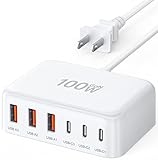
Overview: This 100W GaN charging station delivers fast charging for up to six devices simultaneously through three USB-C PD 3.0 ports and three USB-A ports. Utilizing Gallium Nitride technology, it achieves higher efficiency in a compact 3.4x2.2x0.9-inch form factor. The 5ft AC extension cord provides flexible placement options for home, office, or travel use.
What Makes It Stand Out: GaN technology enables this charger to be 50% smaller than traditional silicon chargers while delivering 100W total output. The intelligent IC identification technology automatically adjusts power delivery for each device, ensuring optimal charging speeds without manual configuration. The ability to charge six devices at once—from phones to tablets to accessories—makes it a true all-in-one solution.
Value for Money: At $18.98, this represents exceptional value for a GaN charger. Most GaN chargers with this port count cost $40-60. While it explicitly states it’s not compatible with laptops, for mobile devices it’s unbeatable. The combination of price, port variety, and GaN efficiency makes it a standout budget option for households with multiple devices.
Strengths and Weaknesses: Pros: Incredible price for GaN technology; compact size; six ports; intelligent charging; 5ft cord. Cons: Not suitable for laptops; maximum 20W per USB-C port; plastic build feels less premium; no data transfer capabilities.
Bottom Line: If you need to charge multiple phones, tablets, and accessories simultaneously, this is a no-brainer purchase. The GaN technology, port variety, and sub-$20 price make it one of the best values in charging. Just remember it’s not a laptop solution. For mobile device households, it’s an essential desktop accessory that eliminates outlet clutter.
Why Pocket-Sized USB-C Docks Are Travel Essentials
The shift to USB-C as a universal standard was supposed to simplify our lives, but for travelers, it initially created more problems than it solved. That single oval port on your laptop is now responsible for power, data, video, and audio—simultaneously. A well-designed travel dock acts as a universal translator, converting that one connection into a seamless workspace anywhere on the planet.
The Evolution from Bulky Hubs to Portable Powerhouses
Early USB-C hubs were essentially desktop docks with portability as an afterthought. They weighed half a pound, required external power adapters, and treated “compact” as a relative term. The engineering breakthrough came with chip integration and smarter power management, allowing manufacturers to pack multiple controllers into spaces smaller than a credit card. Modern pocket docks leverage advanced IC designs that combine USB, HDMI, and power delivery controllers into single chips, reducing both size and heat generation.
Understanding True “Pocketability”
Here’s where marketing meets reality. A device claiming to be “pocket-sized” might technically fit in a pocket but create an unsightly bulge or dig into your thigh when sitting. True pocketability means under 50 grams and dimensions that don’t exceed a stack of credit cards. The best designs integrate the USB-C cable directly into the body, eliminating the need to carry a separate cord that can get lost or tangled. Cable length matters too—anything longer than 6 inches becomes unwieldy in tight spaces, while shorter cables limit positioning flexibility.
Key Features to Evaluate Before Buying
When you’re staring at a wall of nearly identical small black rectangles, knowing which specs actually matter prevents costly mistakes. The priority order shifts dramatically for travel versus home office use.
Port Selection: Quality Over Quantity
Seven ports sound impressive until you realize three are USB 2.0 speeds and the HDMI maxes out at 30Hz. For travel, focus on versatile ports: one high-speed USB-A (3.2 Gen 2 or better), one USB-C with pass-through charging, and video output that matches your needs. SD card readers should support UHS-II speeds if you work with large photo or video files—UHS-I caps at 104 MB/s, which feels glacial when transferring a wedding shoot’s worth of RAW files.
Power Delivery: Charging Your Laptop on the Go
This is where most budget docks fail travelers. A dock advertising “100W pass-through” might only deliver 85W to your laptop after its own power consumption, which is insufficient for a 16-inch MacBook Pro under load. Check the actual power delivery spec, not the input rating. For ultrabooks, 60W is adequate; for creative workstations, you need 90W or more. Some docks dynamically allocate power, prioritizing the laptop while throttling other ports—a feature rarely mentioned but critically important.
Data Transfer Speeds: USB 3.2, Thunderbolt, and Beyond
USB naming conventions are intentionally confusing. USB 3.2 Gen 1 is 5 Gbps (formerly USB 3.0), Gen 2 is 10 Gbps, and Gen 2x2 is 20 Gbps. Thunderbolt 3 and 4 both offer 40 Gbps but differ in minimum requirements. For travel, 10 Gbps is the sweet spot—fast enough for external SSDs and large file transfers without the cost and heat of Thunderbolt. Be wary of docks that share bandwidth; a USB-A port might drop to 2.0 speeds when HDMI is active.
Video Output Capabilities: 4K, 8K, and Multi-Monitor Support
Single-display travelers can save money and space with HDMI 2.0 (4K@60Hz) support. Dual-display setups require MST (Multi-Stream Transport), which works seamlessly on Windows but is disabled by macOS—Apple only supports single external displays via USB-C on most models. Check refresh rates carefully; many compact docks limit 4K output to 30Hz, which creates mouse lag and eye strain. For creative work, 4K@60Hz is non-negotiable.
Understanding USB-C Standards and Protocols
The alphabet soup of USB specifications directly impacts real-world performance. Misunderstanding these differences leads to incompatible purchases and frustration.
USB 3.2 vs USB4: What Travelers Need to Know
USB4 is the future, offering dynamic bandwidth allocation and native Thunderbolt 3 compatibility. However, most travel scenarios don’t yet benefit from USB4’s advanced features. USB 3.2 Gen 2 remains the practical standard, offering 10 Gbps data and video simultaneously. USB4 docks are currently larger and more expensive, often negating the travel-friendly aspect. The exception is if you’re investing for a 3-5 year horizon—USB4 will become standard on laptops by 2026.
Thunderbolt 3 vs Thunderbolt 4: Is There a Difference for Portability?
For pocket docks, Thunderbolt 4’s stricter certification requirements mostly benefit desktop setups. Both offer 40 Gbps, but Thunderbolt 4 guarantees dual 4K display support and PC wake-from-sleep via dock—features less critical when you’re traveling light with one monitor. The real advantage is future-proofing; Thunderbolt 4 docks will work flawlessly with next-generation laptops. However, they generate more heat and cost 30-50% more than USB 3.2 alternatives.
The Alt Mode Mystery: How Video Signals Travel Through USB-C
DisplayPort Alt Mode is the secret sauce that enables video over USB-C. Not all USB-C ports support it—some are data-only. When buying a dock, ensure it explicitly mentions DP Alt Mode compatibility. The version matters too: DP 1.4 Alt Mode supports 4K@120Hz or 8K@60Hz, while DP 1.2 is limited to 4K@60Hz. This is particularly important for gamers or video editors who need high refresh rates.
Build Quality and Durability Considerations
Travel gear lives a hard life. That dock will experience temperature extremes, drops, cable yanks, and bag pressure that would destroy lesser electronics.
Materials Matter: Aluminum vs Plastic Construction
Aluminum alloy bodies dissipate heat effectively and survive being crushed in an overpacked backpack. Premium plastics like polycarbonate can be equally durable while saving weight, but cheap ABS plastic cracks under pressure. The best docks use aluminum for the main body and reinforced thermoplastic for the cable connector—combining heat management with flexibility. Avoid docks with painted surfaces; the paint chips, revealing a cheap appearance.
Cable Strain Relief and Connector Longevity
The integrated cable is the failure point in most travel docks. Look for molded strain relief that extends at least 8mm from the connector body. Some designs use braided cables, which resist fraying but can be stiffer. The USB-C connector itself should feel solid, with no wobble when plugged in. Gold-plated connectors are marketing fluff—stainless steel with proper tolerances matters more.
Heat Dissipation in Ultra-Compact Designs
Pocket docks cram multiple high-speed controllers into a tiny space, generating significant heat. Without proper dissipation, chips throttle performance or fail prematurely. Vents are impractical in pocket designs, so thermal conductivity becomes crucial. Docks that get uncomfortably warm after 30 minutes are poorly engineered. The best models use the aluminum body as a heat sink, positioning chips to transfer heat away from the connector.
Power Delivery Deep Dive
Understanding power flow prevents mid-meeting shutdowns and battery anxiety. Travel docks handle power differently than their desktop cousins.
Wattage Requirements for Different Laptop Categories
Ultrabooks (MacBook Air, Dell XPS 13) sip power happily at 45-60W. Creative workstations (MacBook Pro 16", mobile workstations) demand 90-100W minimum when rendering or compiling. Gaming laptops often need proprietary chargers—USB-C PD rarely suffices. Calculate your needs: check your laptop’s charger wattage and add 15% headroom. A dock delivering 85W to a 96W MacBook Pro will work for light tasks but discharge the battery under heavy load.
Pass-Through Charging: What Gets Priority?
Intelligent docks prioritize the host laptop, then allocate remaining power to peripherals. However, some budget models split power evenly, meaning your laptop might only receive 60W of a 100W input when a phone is charging. Look for docks with dynamic power allocation that advertises “priority charging” or similar terminology. This prevents your laptop from draining even while plugged in.
The “Power Budget” Concept in Small Docks
Every dock has a power budget—the total wattage it can handle across all ports. Exceed this, and the dock shuts down or enters protection mode. For example, a 100W input dock might have a 15W budget for USB-A ports. Charging two phones (2.5W each) is fine, but connecting a bus-powered SSD (7.5W) and a tablet (12W) simultaneously trips the limit. Quality docks publish their power budgets; cheaper ones don’t.
Video Output Realities
The dream of dual 4K monitors clashes with the reality of pocket-sized engineering. Understanding limitations prevents disappointment.
Single vs Dual Display Support in Pocket-Sized Docks
True dual-display support requires either Thunderbolt 3/4 or USB-C with DP 1.4 MST. Most pocket docks fake dual displays by using a USB graphics chip for the second monitor—resulting in laggy performance and high CPU usage. For travel, single high-quality output beats dual mediocre connections. If you absolutely need two screens, consider a slightly larger “compact” dock rather than a true pocket model.
Refresh Rate Limitations at High Resolutions
That 4K@60Hz spec might drop to 30Hz when you also use USB 3.0 data due to bandwidth sharing. Some docks achieve 4K@60Hz by disabling USB 3.0 and falling back to USB 2.0 speeds—a trade-off rarely disclosed. For smooth mouse movement and reduced eye strain, insist on docks that maintain 60Hz with full USB 3.0 functionality. Gamers need 120Hz+, which requires DP 1.4 and limits you to single-display setups.
The MST (Multi-Stream Transport) Consideration
MST lets you daisy-chain monitors or run multiple displays from one USB-C port. Windows supports MST natively; macOS does not (except on select Macs with M1 Pro/Max/Ultra chips). If you’re a Mac user, MST is irrelevant—you need a dock with dual independent controllers, which doesn’t exist in pocket sizes. Windows users should verify MST support in the dock’s specs, as it’s often omitted to save cost.
Data and Peripheral Connectivity
Beyond video and power, the quality of data ports determines how productive you can be on the road.
SD Card Readers: UHS-I vs UHS-II Speeds
Professional photographers should treat UHS-II as mandatory. UHS-I maxes at 104 MB/s, while UHS-II hits 312 MB/s—critical when ingesting hundreds of RAW files. The physical difference is visible: UHS-II slots have a second row of pins. Many travel docks include UHS-I slots as a checkbox feature, disappointing users who expect professional speeds. If you shoot burst mode or 4K video, verify UHS-II support.
Ethernet Ports: Gigabit vs 2.5Gbps in Compact Form Factors
Hotel Wi-Fi remains notoriously unreliable, making Ethernet essential for video calls. Gigabit (1 Gbps) is standard and sufficient for most travel scenarios. However, 2.5Gbps ports are emerging in premium docks, future-proofing for faster networks. The catch: 2.5Gbps requires more power and generates heat, making it rare in truly pocket-sized designs. For travel, prioritize reliability over raw speed—a well-implemented Gigabit port beats a flaky 2.5Gbps connection.
Audio Jacks: The Analog Comeback Story
The 3.5mm audio jack is making a surprise return in travel docks. Bluetooth headphones still suffer latency for video editing, and many professionals prefer wired monitors. A combo jack that supports both headphones and microphones is ideal. Check for DAC (Digital-to-Analog Converter) quality; cheap docks produce hiss and distortion. Premium models use Cirrus Logic or Realtek ALC chips that rival laptop audio quality.
Platform-Specific Considerations
Your operating system dictates which features work seamlessly and which cause headaches.
Windows Laptop Compatibility Nuances
Windows offers the broadest compatibility but also the most variables. USB4 and Thunderbolt support varies wildly between manufacturers. Some Lenovo laptops require “Alt Mode” to be enabled in BIOS. Dell systems often have proprietary power negotiation that rejects non-Dell docks for charging. Always check your laptop manufacturer’s compatibility list, especially for business-class machines with security features that block unauthorized accessories.
macOS and the Apple Ecosystem
Apple’s USB-C implementation is pristine but restrictive. M1/M2 Macs (except Pro/Max/Ultra) support only one external display via USB-C, regardless of dock capability. Macs also enforce strict power delivery standards—some docks charge Windows laptops fine but refuse to charge Macs. Look for docks with “Made for Mac” certification or explicit macOS compatibility. The Apple Studio Display’s built-in hub won’t work with third-party docks, a quirk that frustrates many users.
ChromeOS and Android Mobile Productivity
Chromebooks and Android phones/tablets with USB-C can use travel docks, but with limitations. Android’s desktop mode (Samsung DeX, etc.) works best with docks that have HDMI 2.0 and USB 3.0. ChromeOS supports most USB-C docks natively but may limit power delivery to 45W on budget devices. Test your specific model; ChromeOS updates frequently change dock compatibility.
iPad Pro and iPad Air: USB-C Implementation
iPadOS treats USB-C docks differently than macOS. External displays mirror the iPad screen unless the app specifically supports extended display. The iPad Pro with M-series chips opens more possibilities, but power delivery is capped at about 30W input. Some docks cause the “This accessory requires too much power” error. Look for docks with iPad-specific compatibility notes, especially if you plan to use external storage and displays simultaneously.
Travel-Specific Design Elements
Features that matter in a home office often become liabilities on the road.
Integrated Cables vs Detachable Designs
Integrated cables mean one less thing to lose but create a failure point if the cable frays. Detachable cables offer replacement flexibility but add bulk. For true pocket carry, integrated is superior—just ensure the cable is reinforced. Some innovative designs use a short, permanently attached cable that wraps around the dock for storage, protecting the connector while keeping everything together.
LED Indicators: Helpful or Annoying?
That tiny power LED becomes a flashlight in a dark hotel room. Premium docks use dim LEDs or place them on the side facing away from you. Some include LED dimming or disabling via software. Bright blue LEDs are particularly irritating and indicate cost-cutting design. Look for amber or white LEDs positioned discreetly.
International Voltage and Frequency Considerations
Unlike laptop chargers, USB-C docks don’t handle voltage conversion—they rely on your USB-C charger. Ensure your charger supports 100-240V input for international travel. The dock itself should handle 50/60 Hz frequency without issue. Some docks include surge protection, which is valuable in regions with unstable power grids. Look for IEC 60950-1 certification for safety.
Security and Data Protection
Public spaces introduce security risks that home setups don’t face.
Physical Security: Kensington Lock Compatibility
Pocket docks are theft magnets in co-working spaces. Some include Kensington lock slots, but this adds size. A more practical solution: docks with built-in cable locks that secure to your laptop’s USB-C port. While not as robust as a Kensington lock, it prevents opportunistic grab-and-run thefts. For high-risk areas, consider a dock small enough to always keep in your pocket rather than leaving it on the table.
Data Security: Firmware Vulnerabilities in Travel Docks
Cheap docks from unknown brands often lack secure firmware, making them susceptible to BadUSB attacks where malicious firmware steals data or injects keystrokes. Stick to brands with secure supply chains and firmware update mechanisms. Enterprise-grade docks include secure boot features and tamper-evident seals. For sensitive work, treat your dock like any other security device—don’t borrow or buy used.
Bus-Powered vs Self-Powered: Security Implications
Bus-powered docks (no external power adapter) are safer in untrusted environments because they can’t operate without being physically connected to your laptop. Self-powered docks with AC adapters could theoretically be modified to include data-logging hardware. For maximum security in public spaces, choose bus-powered designs and power your laptop separately.
Price vs Performance: Finding Your Sweet Spot
The travel dock market spans from $15 to $150+, with diminishing returns at the high end for most users.
The Budget Tier: What You Sacrifice
Sub-$30 docks cut corners on controller chips, power delivery, and build quality. Expect USB 2.0 speeds when using HDMI, limited to 4K@30Hz, and plastic bodies that crack within months. The power budget is tiny, often causing shutdowns when multiple devices connect. Worse, many lack proper certification and can damage your laptop’s USB-C port with improper power negotiation. Avoid unless you’re truly desperate.
The Premium Tier: Justifiable Expenses
$80+ docks offer Thunderbolt 4, UHS-II card readers, 2.5Gbps Ethernet, and aluminum construction. For professionals whose income depends on reliability—photographers, video editors, developers—these are insurance policies. The premium is justified if you regularly transfer 100GB+ files or need guaranteed dual 4K@60Hz. For most travelers, the mid-range is better value.
The Mid-Range Goldilocks Zone
$40-70 is where the best travel docks live. You get USB 3.2 Gen 2 speeds, reliable 60-85W power delivery, 4K@60Hz HDMI, UHS-I or entry UHS-II SD readers, and aluminum bodies. These docks make smart compromises: maybe no Ethernet or only two USB-A ports, but what they include works flawlessly. This is the sweet spot for digital nomads and business travelers.
Troubleshooting Common Issues
Even the best docks misbehave. Knowing quick fixes saves hours of frustration.
The “Accessory Not Supported” Error
This usually indicates a power negotiation failure. First, try a different USB-C cable (even with integrated-cable docks, the charger cable matters). On Macs, reset the SMC (System Management Controller). For Windows, uninstall the USB controller in Device Manager and reboot. If persistent, the dock’s power delivery controller is likely incompatible with your laptop’s USB-C implementation—return it.
Display Flickering and Connection Drops
Flickering often stems from insufficient power or bandwidth. Disconnect all peripherals except the display—if the flicker stops, you’re exceeding the power budget. Also try a lower resolution or refresh rate. Connection drops usually indicate a loose USB-C connector; clean both the laptop port and dock connector with compressed air. Avoid docks with straight connectors; right-angle designs reduce strain and maintain better contact.
Overheating Warnings and Performance Throttling
If your dock becomes too hot to touch, it’s thermally throttling. Ensure it’s not covered by fabric or pressed against other devices. Some docks throttle when ambient temperature exceeds 35°C (95°F)—common in tropical climates. If throttling persists, the dock is poorly designed. Premium models maintain full performance up to 45°C ambient. Consider removing the dock’s casing (if possible) to improve airflow, but this voids warranties.
Future-Proofing Your Purchase
Technology moves fast. A dock that works today might be obsolete next year.
USB4 Adoption Timeline for Travelers
USB4 becomes mainstream in 2024-2025 laptops, but the ecosystem is slow. USB4 docks won’t be pocket-sized until 2025 at the earliest due to chip size and heat. Buying a USB 3.2 Gen 2 dock today is safe for 3-4 years. If you must have USB4, expect to carry a slightly larger “compact” dock, not a true pocket model. The performance gain for typical travel tasks is minimal anyway.
The DisplayPort 2.1 Question
DP 2.1 supports 8K@60Hz and beyond, but no pocket dock currently implements it—the controllers are too large and power-hungry. DP 1.4 is the practical standard until 2026. More importantly, few laptops have DP 2.1 output, so it’s moot for now. Don’t pay extra for DP 2.1 “ready” claims; it’s marketing fluff in the travel dock category.
Wi-Fi 6E and Future Wireless Integration
Some docks now include Wi-Fi adapters to add wireless capabilities to desktops, but this is irrelevant for travel—you have laptop Wi-Fi. More interesting is the emergence of docks with built-in 5G modems, creating a mobile hotspot. These are currently too large for pockets but watch this space. Within two years, we may see true pocket docks with integrated eSIM and 5G, eliminating phone tethering.
Environmental and Sustainability Factors
Every purchase impacts the planet. Travel gear gets replaced frequently, amplifying the effect.
E-Waste Considerations with Multi-Port Devices
A travel dock combines multiple functions—reducing e-waste if it replaces several adapters. However, when one port fails, most users discard the entire dock. Choose brands with repair programs or modular designs where the cable can be replaced. Some European manufacturers now offer 5-year warranties and free repairs, significantly extending lifespan.
Repairability and Modular Design Trends
The Fairphone of travel docks doesn’t yet exist, but we’re seeing movement. Some docks use standard Phillips screws instead of glue, allowing battery replacement (yes, some have small batteries for power smoothing). Check iFixit or YouTube for teardown videos before buying. A dock that can be opened and cleaned will last years longer than sealed units.
Packaging and Carbon Footprint
Premium brands now use recycled cardboard and eliminate plastic inserts. The dock’s shipping weight matters—lighter means lower carbon transport costs. Some companies offset shipping emissions. If sustainability is important, research the brand’s supply chain transparency. Chinese manufacturing isn’t inherently worse, but companies that audit their factories for environmental standards deserve support.
Frequently Asked Questions
Will a pocket-sized USB-C dock charge my laptop while powering other devices?
Yes, but the total power is limited by the dock’s power budget. Most pocket docks pass through 60-85W to your laptop while reserving 15W for peripherals. For heavy charging needs (multiple tablets, hard drives), choose a dock with a higher total power budget or use a powered USB hub downstream.
Can I use these docks with my smartphone or tablet?
Absolutely, with caveats. Android devices with USB-C and DeX/Desktop mode work excellently. iPads support most docks for accessories and display mirroring, but power delivery is limited. Phones without desktop mode will only charge and transfer data—not output video. Check your device’s USB-C implementation before relying on it for presentations.
Why does my 4K monitor only show 30Hz instead of 60Hz?
This usually indicates HDMI 1.4 instead of 2.0, or bandwidth sharing with USB 3.0. Some docks achieve 4K@60Hz by disabling USB 3.0 and using USB 2.0 instead. Check the dock’s detailed specs for “4K@60Hz with USB 2.0 only” disclaimers. Using a shorter, high-quality USB-C cable can also resolve bandwidth issues.
Are pocket docks safe for my expensive laptop?
Certified docks from reputable brands are safe. Look for USB-IF certification and Over-Current Protection (OCP). Avoid no-name Amazon brands without reviews mentioning long-term use. Cheap docks can deliver dirty power that damages USB-C controllers. When in doubt, buy from brands that also sell laptop chargers—they understand power delivery.
How do I know if a dock truly fits in a pocket?
Check dimensions and weight. True pocket docks are under 50 grams and smaller than a credit card in footprint. Read reviews mentioning pocket carry specifically. Beware of “portable” docks that are merely small for desks. Integrated cables that wrap around the body are a good sign of travel-focused design.
Will these work with USB-A chargers using an adapter?
Technically yes, but you’ll lose all benefits. USB-A adapters can’t deliver Power Delivery or Alt Mode video. The dock may power on but won’t charge your laptop or output video. Always use a native USB-C PD charger. Adapters are a backup plan, not a primary solution.
What’s the difference between a hub and a dock?
In modern usage, “hub” implies data-only expansion (USB ports, card readers), while “dock” includes video output and power delivery. Pocket devices blur this line. For travel, you want a dock—power and video are essential. Some “hubs” include HDMI but no power pass-through; read specs carefully.
Can I connect two displays with a pocket dock?
Only if it supports MST and you use Windows. macOS (except M1 Pro/Max/Ultra) doesn’t support MST for dual displays. Most pocket docks fake dual displays with a USB graphics chip, resulting in poor performance. For reliable dual displays, you need Thunderbolt 4 or a larger compact dock, not a true pocket model.
Why is my dock hot to touch?
Heat is normal; burning hot is not. Quality docks operate at 40-50°C surface temperature. If it’s uncomfortable to hold, it’s either poorly designed or you’re exceeding its power budget. Ensure adequate ventilation and disconnect unused peripherals. Persistent overheating indicates a design flaw—return it.
How long should a travel dock last?
With daily travel use, expect 2-3 years before cable or connector wear causes issues. Premium docks with reinforced cables last 4-5 years. The electronics rarely fail; it’s always physical damage. To maximize lifespan, use a right-angle connector to reduce strain, and store it in a protective pouch rather than loose in a bag.