The paperless home office isn’t just a trend—it’s an essential evolution in how we manage information, productivity, and peace of mind. As we move deeper into 2026, the technology that powers document digitization has reached an inflection point where affordability, speed, and intelligence converge. Whether you’re drowning in decades of family paperwork, launching a freelance consultancy, or simply tired of the clutter that kills your focus, the right document scanner transforms from a luxury into a strategic necessity.
But here’s the challenge: not all scanners are created equal, and the “best” choice depends entirely on your unique workflow, volume, and long-term digital archiving goals. This guide cuts through the marketing noise to equip you with the expert-level knowledge you need to evaluate scanners like a seasoned IT professional—without requiring a computer science degree. We’ll explore the critical features, hidden pitfalls, and workflow strategies that separate a frustrating paperweight from a true productivity powerhouse.
Top 10 Document Scanners for Paperless Home Office Archiving
Detailed Product Reviews
1. Canon imageFORMULA R40 - Office Document Scanner, Windows and Mac, Duplex Scanning, Easy Setup, Scans a Wide Variety of Documents, Scans to Cloud

Overview: The Canon imageFORMULA R40 is a robust office document scanner designed to streamline paper-heavy workflows. Capable of digitizing everything from receipts to legal contracts, this scanner targets small businesses and home offices needing reliable batch scanning. With USB connectivity and broad OS compatibility, it integrates seamlessly into most setups without network complexity.
What Makes It Stand Out: The R40’s impressive 40 pages-per-minute simplex and 80 images-per-minute duplex scanning speeds set it apart in its price class. Its 60-sheet automatic document feeder handles mixed document types—including thick cards and extra-long pages up to 118 inches—without manual intervention. The simultaneous dual-side scanning with one-touch operation significantly reduces digitization time for multi-page documents.
Value for Money: At $224, the R40 delivers professional-grade features typically found in pricier models. While not the cheapest option, its speed and ADF capacity justify the cost for users with regular scanning needs. Compared to entry-level portables, it offers 3-4x the performance for less than double the price, making it a smart investment for growing offices.
Strengths and Weaknesses: Strengths include exceptional scanning speed, versatile media handling, reliable duplex capability, and straightforward USB setup. The TWAIN driver ensures compatibility with most document management systems. Weaknesses include lack of wireless connectivity, which limits placement flexibility, and its desk footprint, which may be too large for ultra-compact spaces. No touchscreen interface means all controls are software-dependent.
Bottom Line: The Canon imageFORMULA R40 excels as a dedicated office workhorse for users prioritizing speed and reliability over wireless convenience. It’s an excellent choice for small businesses ready to digitize archives efficiently without breaking the budget.
2. Canon imageFORMULA R10 - Portable Document Scanner, USB Powered, Duplex Scanning, Document Feeder, Easy Setup, Convenient, Perfect for Mobile Users
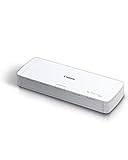
Overview: The Canon imageFORMULA R10 redefines mobile document management with its compact form factor and USB-powered operation. Weighing significantly less than traditional scanners, this device enables professionals to create searchable PDFs and digital archives from virtually anywhere. It bridges the gap between bulky office equipment and limited single-sheet portables.
What Makes It Stand Out: True portability distinguishes the R10—drawing power directly from your laptop eliminates the need for AC adapters. Despite its size, it includes a 20-sheet automatic feeder and duplex scanning at 12 pages-per-minute, a rare combination for mobile devices. It handles diverse media including embossed cards and legal documents, making it surprisingly versatile for travel.
Value for Money: Priced at $162, the R10 sits in the sweet spot for mobile professionals. It’s more expensive than basic sheet-fed scanners but offers invaluable ADF convenience. For remote workers and consultants who scan 500 pages daily, the time savings quickly offset the premium over entry-level models that require manual feeding.
Strengths and Weaknesses: Strengths include exceptional portability, USB-powered convenience, duplex capability, and broad OS compatibility. The 20-sheet ADF is a major advantage over single-sheet competitors. Weaknesses include slower scanning speeds that may test patience during large batches, and the lack of wireless connectivity. The suggested 500-scan daily volume indicates it’s not built for heavy-duty office use.
Bottom Line: The Canon imageFORMULA R10 is the ideal travel companion for mobile professionals who need more than minimal scanning capability. It sacrifices raw speed for genuine portability, making it perfect for remote workers with moderate digitization needs.
3. Brother DS-640 Compact Mobile Document Scanner, (Model: DS640) 1.5"x2"x11.9"

Overview: The Brother DS-640 is engineered for extreme mobility, measuring under 12 inches and weighing just 1.5 pounds. This sleek scanner empowers traveling professionals to digitize documents at up to 16 ppm without sacrificing luggage space. Its USB 3.0 connection provides both power and data transfer, enabling true on-the-go operation from any laptop.
What Makes It Stand Out: The DS-640’s diminutive footprint combined with respectable 16 ppm scanning speed creates an unmatched portability-to-performance ratio. Unlike many compact scanners, it includes robust software for scanning directly to cloud services, OCR, email, and editable Word files. The ability to handle documents up to 11.9 inches long while maintaining a slim profile demonstrates thoughtful engineering.
Value for Money: While pricing isn’t specified, the DS-640 positions itself as a premium compact solution worth the investment for frequent travelers. Its bundled software suite adds significant value, eliminating additional purchases for OCR and document management. Compared to single-sheet scanners, its continuous feed capability saves substantial time.
Strengths and Weaknesses: Strengths include exceptional portability, USB 3.0 connectivity, versatile scan-to destinations, and included OCR software. The lightweight design is perfect for digital nomads. Weaknesses include reliance on software downloads rather than included installation media, requiring internet access for setup. The lack of an automatic document feeder (it appears to be continuous sheet-fed but not true ADF) limits batch scanning efficiency compared to slightly larger portables.
Bottom Line: The Brother DS-640 is the minimalist’s choice for mobile scanning, prioritizing size and simplicity. It’s best suited for professionals who need reliable document digitization without any bulk, accepting manual sheet feeding in exchange for ultimate portability.
4. ScanSnap iX2500 Wireless or USB High-Speed Cloud Enabled Document, Photo & Receipt Scanner with Large 5" Touchscreen and 100 Page Auto Document Feeder for Mac or PC, Black

Overview: The ScanSnap iX2500 represents the pinnacle of consumer document scanning technology, replacing the iX1600 as Fujitsu’s flagship model. This wireless powerhouse combines a massive 100-sheet ADF with a 5-inch touchscreen interface, enabling standalone operation without a computer. It’s designed for demanding home offices and small businesses with heavy digitization requirements.
What Makes It Stand Out: Wi-Fi 6 connectivity with a blazing 45 ppm duplex scanning speed creates unprecedented flexibility—the iX2500 operates independently from PCs and streams scans directly to mobile devices and cloud services. The intelligent brake roller system prevents multi-feeds and paper jams, while automatic file optimization, naming, and sorting eliminate post-processing drudgery. Customizable touchscreen profiles let multiple users share the device seamlessly.
Value for Money: At $399.99, the iX2500 commands a premium but delivers professional-grade features rivaling enterprise scanners costing twice as much. The wireless freedom alone justifies the price for users wanting to declutter their workspace. For high-volume scanners, the time saved through automation and the 100-sheet capacity provides rapid ROI.
Strengths and Weaknesses: Strengths include exceptional speed, massive ADF capacity, wireless independence, advanced paper handling, and intelligent automation features. The touchscreen simplifies complex workflows. Weaknesses include its substantial footprint and premium pricing, which may exceed casual users’ needs. Wi-Fi setup can be challenging for non-technical users, and it’s overkill for those scanning only occasional documents.
Bottom Line: The ScanSnap iX2500 is the ultimate scanning solution for productivity-focused users who demand wireless convenience and high-volume capability. It’s a worthwhile investment for busy offices ready to eliminate paper through intelligent, autonomous operation.
5. Epson WorkForce ES-50 Portable Sheet-Fed Document Scanner for PC and Mac

Overview: The Epson WorkForce ES-50 claims the title of fastest and lightest mobile single-sheet scanner in its class. This ultra-compact device is built for professionals who need occasional document digitization without any bulk. Scanning a page in just 5.5 seconds, it handles documents up to 72 inches long and ID cards through its simple sheet-fed design.
What Makes It Stand Out: The ES-50’s remarkable scanning speed for a single-sheet device—5.5 seconds per page—eliminates the typical bottleneck of manual-feed scanners. Its extreme portability requires no batteries or external power, drawing everything from a USB connection. The inclusion of Epson ScanSmart software provides intuitive document organization tools typically absent in budget portables.
Value for Money: At $129, the ES-50 is the most affordable scanner in this lineup, offering exceptional value for light-duty users. While it lacks an ADF, its speed partially compensates for manual feeding. For students, occasional travelers, or home users with minimal scanning needs, it delivers professional results without unnecessary features or cost.
Strengths and Weaknesses: Strengths include lightning-fast single-page scanning, ultimate portability, USB-powered simplicity, and included ScanSmart software. The ability to scan long documents and ID cards adds versatility. Weaknesses include the lack of an automatic document feeder, making multi-page scanning labor-intensive. It’s not suitable for batch processing or high-volume environments. The single-sheet design requires constant user attention.
Bottom Line: The Epson WorkForce ES-50 is perfect for users seeking the simplest, most affordable path to mobile scanning. It excels at quick, occasional digitization tasks but isn’t designed for document-heavy workflows. Choose it for convenience, not capacity.
6. Epson Workforce ES-400 II Color Duplex Desktop Document Scanner for PC and Mac, with Auto Document Feeder (ADF) and Image Adjustment Tools, ES-400 II

Overview: The Epson Workforce ES-400 II is a robust duplex document scanner designed for home offices and small businesses processing moderate paperwork volumes. With its 50-sheet automatic document feeder and high-speed capabilities, it efficiently transforms paper into searchable digital files. The scanner integrates seamlessly with PC and Mac systems, making it versatile for mixed environments that require reliable daily digitization.
What Makes It Stand Out: The Epson ScanSmart Software is the standout feature, offering intuitive preview functions and automatic file naming that streamlines workflow. Unlike competitors, it includes a TWAIN driver for deep integration with existing document management systems—crucial for business environments. The ability to create searchable PDFs and convert directly to editable Word and Excel files saves significant post-processing time and eliminates extra software purchases.
Value for Money: At $299.99, the ES-400 II sits in the sweet spot for feature-rich scanning. You’re investing in professional-grade software integration and reliable duplex performance that cheaper scanners lack. While basic models under $200 exist, they rarely match this scanner’s workflow efficiency or OCR accuracy. The TWAIN driver alone justifies the premium for offices needing seamless third-party software compatibility.
Strengths and Weaknesses: Strengths include excellent software ecosystem, TWAIN driver support, fast duplex scanning, and reliable paper handling. Weaknesses are the wired-only connection limiting placement flexibility, and the 50-sheet capacity requiring frequent reloading for larger projects. The plastic construction feels functional rather than premium, though durability remains adequate for typical office use.
Bottom Line: The Epson Workforce ES-400 II is an excellent choice for small offices prioritizing software integration and workflow efficiency over wireless convenience. Its powerful scanning tools justify the price for productivity-focused users.
7. Canon imageFORMULA R30 - Office Document Scanner, Auto Document Feeder, Duplex Scanning, Plug-and-Scan Capability, No Software Installation Required

Overview: The Canon imageFORMULA R30 offers straightforward document digitization for budget-conscious users seeking reliability without complexity. This plug-and-scan solution converts paper documents into searchable digital formats with minimal setup fuss. The 60-sheet automatic document feeder handles mixed batches of invoices, contracts, and business cards, making it practical for home offices and small businesses with diverse scanning needs.
What Makes It Stand Out: True plug-and-play functionality sets the R30 apart—no software installation required, with built-in scanning software that updates automatically. This eliminates common driver conflicts and IT headaches. The scanner reliably processes various document types in mixed batches without manual sorting, saving valuable time during daily scanning tasks and reducing prep work significantly.
Value for Money: At $219.00, the R30 delivers exceptional value for users wanting reliable duplex scanning without premium features. It competes directly with entry-level scanners while offering better paper handling and faster 25 ppm speeds. However, the simplified software means fewer advanced features compared to pricier alternatives, making it best for straightforward scanning needs rather than complex workflows requiring extensive customization.
Strengths and Weaknesses: Strengths include incredibly easy setup, reliable mixed-document handling, automatic software updates, and competitive pricing. Weaknesses are the lack of wireless connectivity, basic OCR capabilities, and no TWAIN driver for third-party software integration. The plastic design is functional but not particularly durable for high-volume environments exceeding daily scanning limits.
Bottom Line: The Canon imageFORMULA R30 is perfect for users wanting hassle-free scanning without technical complexity. It’s an ideal entry-level office scanner that prioritizes simplicity and reliability over advanced features.
8. Epson Workforce ES-580W Wireless Color Duplex Desktop Document Scanner for PC and Mac with 100-sheet Auto Feeder (ADF), Intuitive 4.3’ Touchscreen

Overview: The Epson Workforce ES-580W represents the premium tier of desktop document scanners, combining wireless freedom with robust paper handling. Its spacious 100-sheet automatic document feeder and 4.3-inch touchscreen enable standalone operation without a computer. Scanning at up to 35 pages per minute with single-pass duplex technology, it handles high-volume tasks efficiently for busy offices and workgroups.
What Makes It Stand Out: Wireless connectivity and the large color touchscreen eliminate the tether to a computer, allowing direct scanning to USB drives, email, or cloud services. The ability to operate independently makes it uniquely flexible for shared office environments. Epson’s Single-Step Technology captures both sides simultaneously while maintaining ultra-high reliability across various paper types and sizes without manual intervention.
Value for Money: At $359.09, the ES-580W commands a premium reflecting its advanced wireless capabilities and larger capacity. For offices prioritizing flexibility and standalone operation, the investment pays dividends in workflow efficiency. Compared to wired alternatives, you’re paying approximately $60-100 for wireless freedom and touchscreen convenience—justifiable for multi-user environments but potentially excessive for single users with simple scanning needs.
Strengths and Weaknesses: Strengths include excellent wireless performance, intuitive touchscreen interface, large 100-sheet ADF, fast scanning speeds, and standalone operation. Weaknesses are the premium price point, larger footprint requiring more desk space, and occasional wireless connectivity hiccups in congested network environments that may require troubleshooting.
Bottom Line: The Epson Workforce ES-580W is the top choice for offices needing wireless flexibility and high-capacity scanning. Its standalone capabilities and user-friendly interface justify the premium for productivity-focused environments.
9. Plustek PS186 Desktop Document Scanner, with 50-Pages Auto Document Feeder (ADF). for Windows 7/8 / 10/11 (Intel/AMD only)

Overview: The Plustek PS186 targets Windows users seeking advanced scanning customization at an accessible price point. This desktop document scanner features a 50-page automatic document feeder and specialized functions for business environments. With support for Windows 7 through 11, it converts paper documents into searchable PDFs and editable formats while offering unique automation features for repetitive tasks and structured workflows.
What Makes It Stand Out: The ability to create 255 customized favorite scan settings with single-touch activation is unparalleled in this price range. The integrated barcode recognition function automatically categorizes complex documentation, streamlining data organization. Additionally, direct FTP and NAS support enables seamless integration with existing network storage systems without intermediary software, a feature rarely found at this price point.
Value for Money: At $199.00, the PS186 offers remarkable value for Windows-centric offices needing advanced automation. The barcode processing and extensive customization options typically appear in scanners costing twice as much. However, the Windows-only limitation significantly narrows its market appeal, and Mac users must look elsewhere regardless of the attractive price point and feature set.
Strengths and Weaknesses: Strengths include exceptional customization options, barcode recognition, network storage integration, intelligent image processing, and competitive pricing. Weaknesses are Windows exclusivity, dated interface design, less intuitive software compared to Epson or Canon alternatives, and requiring driver downloads from the website rather than included media, which may frustrate less technical users.
Bottom Line: The Plustek PS186 is an outstanding value for Windows users with specialized scanning workflows. Its automation features and barcode capabilities make it ideal for businesses processing structured documents regularly.
10. ScanSnap iX1300 Compact Wireless or USB Double-Sided Color Document, Photo & Receipt Scanner with Auto Document Feeder and Manual Feeder for Mac or PC, Black

Overview: The ScanSnap iX1300 redefines desktop scanning with its innovative space-saving design that occupies minimal desk real estate. This compact wireless scanner handles documents, photos, receipts, and plastic cards through dual feeding options—automatic document feeder and manual slot. Scanning at up to 30 pages per minute with automatic image enhancement, it delivers professional results without demanding technical expertise from users.
What Makes It Stand Out: The vertical design and compact footprint are genuinely innovative, freeing valuable workspace while remaining fully functional. The exclusive Quick Menu enables drag-and-drop scanning directly to favorite applications, streamlining repetitive tasks. Unlike many competitors, it handles thick items like plastic cards without manual intervention, making it versatile for diverse scanning needs including receipts and ID cards.
Value for Money: At $279.99, the iX1300 positions itself as a mid-range scanner with premium convenience features. The space-saving design and wireless connectivity justify the price premium over basic models. While you can find faster scanners with larger ADFs for similar money, none match the iX1300’s compact versatility—ideal for home offices where desk space is at a premium and aesthetics matter.
Strengths and Weaknesses: Strengths include revolutionary compact design, wireless/USB flexibility, excellent ScanSnap Home software ecosystem, versatile document handling, and true portability. Weaknesses are the smaller ADF capacity compared to office-focused models, premium pricing for the scanning speed, and the vertical design may feel less stable with very thick stacks of documents requiring careful loading.
Bottom Line: The ScanSnap iX1300 is the perfect solution for space-constrained home offices needing versatile scanning capabilities. Its innovative design and user-friendly operation make it worth every penny for the right environment.
Why 2026 Is the Perfect Storm for Going Paperless
The convergence of AI-powered OCR, cloud-native architecture, and energy-efficient hardware has fundamentally rewritten what home office scanners can achieve. This year, we’re seeing scanners that don’t just capture images—they understand context, automatically categorize documents, and integrate seamlessly with hybrid work environments. With remote work now permanently embedded in professional culture, the pressure to create searchable, accessible, and secure digital archives has never been greater. The technology has matured while price points have dropped, making enterprise-level capabilities available to solo entrepreneurs and household managers alike.
Understanding Document Scanner Technology in 2026
The Shift From Capture to Comprehension
Modern scanners have evolved beyond simple image capture devices. Today’s models leverage on-device processing and edge computing to perform real-time document classification. This means the scanner can differentiate between a receipt, a contract, and a photograph before the file even reaches your computer. Understanding this paradigm shift is crucial because it affects everything from file naming conventions to searchability. When evaluating scanners, look for terminology like “intelligent document processing” or “AI-enhanced capture”—these aren’t just buzzwords but indicators of a fundamentally more capable device.
The Importance of Sensor Technology
The heart of any scanner is its sensor array. Contact Image Sensors (CIS) have become the standard for home office units due to their compact size and instant-on capabilities, eliminating warm-up time. However, the quality variance between CIS implementations is significant. Higher-end models now feature enhanced CIS with expanded color depth (48-bit internal processing) and improved signal-to-noise ratios that capture subtle details in faded documents or handwritten notes. Don’t just look at DPI ratings—understand the sensor architecture beneath the spec sheet.
Key Features to Evaluate Before Buying
Scanning Speed and Volume: Matching Capacity to Reality
Manufacturers love to advertise pages-per-minute (PPM) ratings, but these numbers exist in a vacuum. A scanner rated at 40 PPM might achieve that speed only at 200 DPI in black-and-white mode. Real-world performance drops significantly with color documents, higher resolutions, and duplex scanning. More importantly, consider the duty cycle—the maximum number of pages the scanner can handle daily without premature wear. For home offices, a duty cycle of 1,500-3,000 pages is typically sufficient, but heavy users should look for 5,000+ pages. Always buy for your peak volume, not your average.
Optical Resolution and Image Quality: Beyond the DPI Marketing
While 600 DPI remains the sweet spot for document archiving, the story doesn’t end there. Interpolated resolution is meaningless—optical resolution is what matters. For photographs or detailed graphics, consider models offering 1200 DPI optical resolution. But here’s the insider tip: look for scanners with selectable resolution enhancement technologies that use software algorithms to improve text sharpness without ballooning file sizes. This is particularly valuable for archiving old, faded documents where legibility is paramount.
Automatic Document Feeder (ADF) Capacity: The Unsung Hero of Efficiency
An ADF’s capacity determines how long you can walk away from a scanning job. A 50-sheet ADF sounds adequate until you’re facing a 300-page tax document archive. For home offices, 50-80 sheets is the practical minimum, but consider how often you want to babysit the machine. More crucial is the ADF’s reliability with mixed document sizes. Premium models feature ultrasonic double-feed detection and dynamic skew correction that prevents jams when scanning everything from business cards to legal-size pages in a single batch.
Duplex Scanning Capabilities: Single-Pass vs. Dual-Pass
All modern scanners claim duplex (two-sided) scanning, but the implementation matters enormously. Single-pass duplex scanners use two sensor arrays to capture both sides simultaneously, dramatically reducing wear and processing time. Dual-pass models scan one side, flip the page internally, then scan the other—doubling the mechanical action and jam risk. For archiving large volumes, single-pass isn’t just faster; it’s more reliable and extends the scanner’s lifespan significantly.
Connectivity Options: The Wireless vs. Wired Debate
USB-C has become the standard wired connection, offering faster data transfer and power delivery. However, wireless connectivity (Wi-Fi 6E and Bluetooth 5.3) has matured to the point where speed differences are negligible for most home office tasks. The real consideration is workflow integration. Wireless scanners can push files directly to cloud services, network drives, or mobile devices without a computer intermediary. Look for models supporting both infrastructure and direct Wi-Fi modes for maximum flexibility, especially if you operate in a mixed-device environment.
Software Integration and OCR: The Intelligence Layer
The bundled software often determines long-term satisfaction more than the hardware itself. Modern scanners should include optical character recognition (OCR) that supports multiple languages and handwriting recognition. But go deeper: evaluate whether the OCR engine can preserve document structure (tables, columns, signatures) and whether it integrates with your existing digital ecosystem—be it Google Drive, OneDrive, Dropbox, or a NAS system. The best solutions offer API-level integration for automated workflows.
Mobile and Cloud Compatibility: Scanning Without Boundaries
In 2026, a scanner that requires a desktop computer is a dinosaur. Evaluate mobile apps for iOS and Android that allow remote operation, batch preview, and quality adjustment. Cloud-native scanners can authenticate directly with your storage provider and apply rules-based filing. For example, a receipt could auto-upload to a “Expenses” folder with OCR text extraction, while contracts go to “Legal” with password protection. This level of automation transforms scanning from a chore into a background process.
Types of Document Scanners for Home Offices
Flatbed Scanners: When Precision Trumps Speed
Flatbeds remain the gold standard for fragile, bound, or irregularly sized documents. While slower for multi-page jobs, modern flatbeds have gained significant speed with LED-based instant-scan technology. They’re indispensable for archiving old family photos, books, or creased documents that could jam an ADF. Some hybrid models now combine a flatbed with an ADF, offering the best of both worlds for mixed collections.
Sheet-fed Scanners: The Volume Workhorse
Sheet-fed scanners dominate the home office market for good reason—they’re fast, compact, and purpose-built for documents. The latest generation features ultrasonic sensors that detect staples before they cause damage and self-cleaning mechanisms that reduce maintenance. When evaluating sheet-fed models, pay attention to the paper path design. Straight-path feeders handle thick or delicate documents better than U-shaped paths, which is crucial for archiving older paper stock.
Portable and Mobile Scanners: Productivity on the Move
Battery-powered portable scanners have matured beyond gimmicks into legitimate productivity tools. 2026 models offer 300 DPI optical scanning, 20-sheet ADFs, and Wi-Fi Direct connectivity in packages smaller than a laptop. While not primary archive drivers, they’re invaluable for capturing documents while traveling, at client sites, or in secondary locations. Look for models with swappable batteries and offline storage capabilities that sync when you return to your home network.
Multi-function Printers with Scanning: The Compromise Conundrum
MFPs have improved significantly, but they remain a compromise for serious archiving. The scanning mechanisms are typically slower, less robust, and share resources with print functions. However, for space-constrained home offices, a high-end MFP with a dedicated scanning processor can suffice. The key differentiator is whether the scanning function operates independently—can you scan while printing, or does it queue? Separate scanning processors indicate a manufacturer taking the function seriously.
The Hidden Costs Nobody Talks About
The sticker price is just the beginning. Consumables like roller replacement kits ($50-150) are necessary every 50,000-100,000 scans. Premium software subscriptions for advanced OCR or cloud features can run $5-15 monthly. Energy consumption varies dramatically—some scanners draw 30W in standby, while efficient models drop to 2W. Over a three-year lifespan, these operational costs can exceed the initial purchase price. Factor in a realistic total cost of ownership calculation before committing.
Designing Your Scanning Workflow for Maximum Efficiency
The Pre-Scan Purge: Why Less Is More
Before buying any scanner, audit your paper. The 80/20 rule applies: 80% of your paper’s value resides in 20% of the documents. Shredding obsolete paperwork reduces your scanning volume and clarifies your organizational structure. Create a “scan queue” system with categories: Archive (permanent retention), Action (requires follow-up), and Reference (frequently accessed). This triage system prevents scanning unnecessary documents and informs your feature priorities.
Batch Scanning Strategies for Large Backlogs
For tackling years of accumulated paper, adopt a batch scanning methodology. Scan everything uncategorized at moderate resolution first—this “digital pile” approach gets paper out of your physical space quickly. Then, use software with bulk OCR and auto-categorization to organize incrementally. This two-phase approach maintains momentum and prevents burnout. Invest in a scanner with robust ADF capacity and cooling systems designed for extended operation during this initial backlog phase.
Organizing Your Digital Archive: Beyond Simple Folders
Metadata and Tagging Systems
Effective digital archiving requires more than a folder hierarchy. Implement a consistent file naming convention: YYYY-MM-DD_DocumentType_Description_ClientName.pdf. This chronological structure sorts automatically and remains portable across systems. Use EXIF metadata and PDF tags to embed keywords, making documents searchable beyond filename alone. Some scanning ecosystems automate this, extracting dates and document types via OCR and applying tags without manual intervention.
Cloud vs. Local Storage: The Hybrid Approach
Pure cloud storage offers accessibility but raises privacy concerns and ongoing costs. Pure local storage provides control but risks data loss. The 2026 best practice is a hybrid model: scan to a local NAS with automated cloud backup of select categories. Use end-to-end encryption for sensitive documents before any cloud upload. Consider scanners with built-in encryption processors that secure files at the point of capture, eliminating the window of vulnerability before encryption.
Security Considerations for Digital Documents
Encryption at Rest and In Transit
Your scanned documents contain sensitive information—tax records, medical files, legal contracts. Ensure your scanner supports TLS 1.3 for data transfer and that your storage solution uses AES-256 encryption. Some enterprise-grade scanners offer FIPS 140-2 validated encryption modules, previously overkill for home offices but now affordable. The key is encryption that doesn’t slow down your workflow; hardware-based encryption achieves this seamlessly.
Access Control and Audit Trails
Even solo professionals need access controls. Use scanners that support multiple user profiles with PIN or biometric authentication. This creates audit trails showing who scanned what and when—valuable for compliance and security. For home offices, this means family members can have separate, secure scanning destinations, preventing accidental exposure of sensitive business documents.
Future-Proofing Your Investment
Modular Design and Firmware Updates
Technology obsolescence is a legitimate concern. Prioritize scanners with a history of firmware updates from the manufacturer—this indicates ongoing security patches and feature improvements. Modular designs allowing roller or sensor replacement extend lifespan beyond the typical 3-5 year cycle. USB-C connectivity ensures compatibility with future devices, while open software APIs prevent vendor lock-in as your workflow evolves.
Scalability for Growing Needs
Your scanning needs may grow from 50 pages monthly to 500. Choose a scanner whose duty cycle and speed can handle 3-5x your current volume without requiring replacement. This might mean buying slightly more capacity than you need today, but the premium is minimal compared to replacing an undersized unit. Consider scanners that support network expansion—some allow multiple units to be managed from a single dashboard as your home office grows into a micro-enterprise.
Troubleshooting Common Scanning Issues
Paper Jams and Double-Feeds: Prevention Over Cure
Most jams stem from user error: mixed paper weights, curled edges, or overloaded ADFs. Invest in a document prep area with a de-curling tool and paper jogger. For persistent double-feeds, ultrasonic detection is worth the premium. If scanning aged, brittle paper, consider a flatbed for those documents rather than forcing them through an ADF. Regular roller cleaning with isopropyl alcohol pads prevents 90% of feed issues—make this a monthly ritual.
Image Quality Problems: When Scans Don’t Match Originals
Faded text, color casts, and moiré patterns plague archival scanning. Modern scanners include adaptive image processing that analyzes each page and applies optimal settings. If your scans look poor, first check for driver updates that may improve processing algorithms. For critical documents, scan in RAW mode at maximum bit depth, then process with dedicated software. This preserves more information than letting the scanner make irreversible decisions during capture.
Environmental Impact and Sustainability
Energy Consumption and Sleep Modes
A scanner running 24/7 can consume more electricity than your refrigerator. Look for Energy Star 2026 certification and auto-shutdown features that power off completely after inactivity rather than entering high-draw sleep modes. Some scanners now include solar-rechargeable battery options for intermittent use, reducing grid dependency for low-volume users.
Recyclability and Manufacturer Take-Back Programs
E-waste is a growing concern. Choose manufacturers with documented recycling programs and modular designs that facilitate repair over replacement. Scanners with easily replaceable parts reduce landfill contributions. Some companies now offer trade-in credits for old scanners, ensuring responsible disposal while offsetting upgrade costs. This isn’t just environmentally responsible—it’s often economically smart.
Making the Final Decision: A Framework for Choice
The 30-Day Use Case Simulation
Before purchasing, simulate your actual usage. Track every document you handle for 30 days, noting size, type, and frequency. This data reveals your true needs versus perceived needs. If 80% of your scanning is single-page receipts, a high-speed ADF is overkill. If you’re digitizing a family history of photos, prioritize flatbed quality over speed. This empirical approach prevents expensive mismatches between features and reality.
Total Cost of Ownership Calculation
Create a three-year TCO model: purchase price + (estimated pages × cost per page) + software subscriptions + energy costs. Cost per page includes roller replacements and consumables, typically $0.01-0.03 per page. A $300 scanner with high consumable costs may be more expensive over time than a $500 efficient model. This calculation often reveals that mid-range scanners offer the best long-term value for home offices.
Frequently Asked Questions
What resolution should I use for archiving documents versus photos?
For standard documents, 300 DPI black-and-white or 600 DPI color provides excellent OCR accuracy without excessive file sizes. For photographs or detailed graphics, 1200 DPI preserves fine details. Always scan historically significant items at the highest optical resolution your scanner offers—you can’t go back and rescan at higher quality later.
How do I handle fragile or damaged documents without destroying them?
Use a flatbed scanner with a gentle closure mechanism, or place a sheet of archival-quality Mylar over the document before lowering the lid. For extremely brittle paper, consider a book-edge flatbed that allows scanning without fully pressing the document. Some sheet-fed scanners offer “fragile mode” with reduced roller pressure, but flatbeds remain safest for irreplaceable items.
Can I scan directly to cloud storage without a computer?
Yes, most 2026 scanners support direct-to-cloud functionality via Wi-Fi. They authenticate with services like Google Drive, Dropbox, or OneDrive through OAuth protocols. Ensure your scanner supports TLS 1.3 encryption for secure transfers. For sensitive documents, scan to an encrypted local folder first, then manually upload after reviewing—a slight inconvenience for significant security gains.
What’s the difference between OCR accuracy rates, and why do they matter?
OCR accuracy above 98% is considered excellent, but that 2% error rate means two mistakes per 100 characters—unacceptable for legal or financial documents. Look for scanners with “verification mode” that highlights low-confidence characters for manual review. Handwritten text recognition accuracy typically ranges from 85-95% depending on script quality; always verify critical handwritten documents manually.
How long should I keep original paper documents after scanning?
Retention depends on document type and jurisdiction. Tax documents: 7 years minimum. Legal contracts: duration of obligation plus 7 years. Estate documents: permanently. For non-legal papers, implement a 90-day hold: keep originals for three months after scanning to verify digital accessibility, then shred. Always consult a legal professional for business or tax-related retention requirements.
Are wireless scanners secure enough for sensitive documents?
Modern Wi-Fi 6E scanners with WPA3 encryption are sufficiently secure for home networks. However, the vulnerability often lies in cloud storage or mobile apps. Disable WPS, use strong unique passwords, and enable scanner firmware auto-updates. For maximum security, use wired connections for sensitive batches and reserve wireless for routine, low-risk scanning.
What causes double-feeds, and how can I prevent them?
Double-feeds occur when static electricity or misaligned pages cause two sheets to enter the ADF together. Prevent them by fanning paper stacks before loading, ensuring pages are flat, and not overfilling the tray. Ultrasonic double-feed detection is the most effective technology—if it senses two pages, it stops immediately. Regular roller cleaning and using de-static sprays on very dry paper also help significantly.
How much storage space will I need for a large scanning project?
A standard text page at 300 DPI averages 100KB in PDF format. A banker box of 2,500 pages requires approximately 250MB. Color documents at 600 DPI can be 500KB-1MB each. For a typical home office backlog of 10,000 pages, budget 5-10GB plus overhead. Photos dramatically increase this—a single 1200 DPI color photo can be 10-20MB. Plan for triple your initial estimate to accommodate growth and higher-quality rescans.
Can scanning damage my old photographs?
Standard sheet-fed scanners can damage photos due to roller pressure and bending. Always use a flatbed with a photo setting for original prints. If you must use a sheet-fed scanner, ensure it has a straight paper path and photo mode with reduced speed and pressure. Never scan Polaroids or very thick stock through an ADF—these require flatbeds. For slides and negatives, dedicated film scanners are necessary.
What maintenance does a document scanner require, and how often?
Clean the ADF rollers monthly with isopropyl alcohol pads, especially in dusty environments. Replace roller kits every 50,000-100,000 scans or when you notice increased jams. Update firmware quarterly for security patches. Clean the scan sensor glass weekly with a microfiber cloth—dust specks create permanent artifacts on every scan. For heavy users, a professional cleaning every two years extends lifespan significantly. Most maintenance takes under 10 minutes and prevents costly failures.