The dream of a single-cable workspace has finally matured into a non-negotiable standard. As we move through 2026, USB-C monitors delivering a full 90W of power have evolved from niche productivity hacks into the definitive choice for professionals, creators, and even discerning gamers. This isn’t just about cutting cord clutter anymore—it’s about unlocking a seamless ecosystem where your display becomes the central hub of your entire digital life, charging your laptop, connecting your peripherals, and delivering stunning visuals simultaneously.
What makes 90W the magic number? It’s the threshold where compatibility meets performance. While 60W panels once struggled to keep power-hungry workstations alive under load, and 100W+ models commanded premium prices for capabilities most users never tapped, 90W represents the Goldilocks zone. It charges a 16-inch MacBook Pro at full speed, powers beefy Windows mobile workstations, and leaves headroom for driving the monitor’s own USB hub—all without the thermal compromises or cost inflation of higher-wattage alternatives. Understanding this landscape requires more than a spec sheet comparison; it demands a deep dive into the architecture, trade-offs, and hidden nuances that separate genuinely great displays from marketing fluff.
Top 10 USB-C Monitors with 90 W Power Delivery
Detailed Product Reviews
1. BenQ MA270U 27” 4K 3840x2160 Monitor for MacBook® Pro/Air, Dual USB-C, 90W Power Delivery, Mac Color Match, USB Hub, Brightness & Volume Control on Mac, Height & Tilt Adjustable Stand, P3 Color Gamut

Overview: The BenQ MA270U is a purpose-built 27-inch 4K monitor designed specifically for MacBook users who demand color accuracy and seamless integration. This display addresses the Apple ecosystem gap between budget monitors and Apple’s pricey Studio Display, offering Mac-optimized features at a more accessible price point.
What Makes It Stand Out: The monitor’s exclusive Mac Color Match calibration ensures your content appears exactly as intended on P3 wide color gamut displays. The single USB-C cable solution delivers 90W power delivery, video signal, and data transfer simultaneously, while unique MacBook keyboard brightness and volume controls eliminate the need for physical monitor buttons. Dual USB-C ports let you charge both your MacBook and iPad/iPhone at once.
Value for Money: At $499.99, the MA270U sits in the premium monitor segment but undercuts Apple’s Studio Display by over $1,000. For Mac-focused professionals in design, photography, or video editing, the color accuracy and integration features justify the cost versus generic 4K monitors lacking P3 gamut and Mac-specific tuning.
Strengths and Weaknesses: Pros: Excellent Mac integration, factory-calibrated P3 color, robust 90W power delivery, fully ergonomic stand, dual USB-C hub. Cons: Likely limited to 60Hz refresh rate, no Thunderbolt 4 connectivity, build quality won’t match Apple’s aluminum chassis, speakers not mentioned.
Bottom Line: The MA270U is the best third-party monitor for MacBook users who prioritize color fidelity and ecosystem integration. It delivers 90% of the Studio Display experience at one-third the price, making it a smart investment for creative professionals.
2. BenQ MA320U 32” 4K 3840x2160 Monitor for MacBook® Pro/Air, Dual USB-C, 90W Power Delivery, Mac Color Match, USB Hub, Brightness & Volume Control on Mac, Height & Tilt Adjustable Stand, P3 Color Gamut

Overview: The BenQ MA320U scales up the Mac-focused formula to a commanding 32-inch 4K display, offering identical integration features to its 27-inch sibling in a more immersive form factor. This larger canvas targets MacBook users who need extensive screen real estate for multitasking, timeline editing, or coding environments.
What Makes It Stand Out: The MA320U replicates the MA270U’s winning formula: Mac Color Match calibration, P3 wide gamut, dual 90W USB-C ports with integrated MacBook keyboard controls, and comprehensive ergonomics. The 32-inch diagonal provides 40% more screen area, making it ideal for professional workflows requiring multiple windows or detailed timelines.
Value for Money: Priced at $649.99, the $150 premium over the 27-inch model translates to just $30 per additional inch—a reasonable upgrade cost. It remains $1,000+ less than Apple’s Studio Display while offering superior size flexibility. For users prioritizing workspace over pixel density, this represents strong value.
Strengths and Weaknesses: Pros: Massive screen real estate, same excellent Mac integration, dual USB-C charging, robust stand adjustments, maintains P3 color accuracy. Cons: Lower pixel density (138 PPI vs 163 PPI) reduces sharpness, requires deep desk space, same 60Hz limitation, identical feature set to smaller model.
Bottom Line: Choose the MA320U if screen size trumps pixel density for your workflow. It’s perfect for developers, video editors, and financial analysts who need expansive digital workspace, though photographers might prefer the 27-inch’s sharper image.
3. BenQ MA270UP 27” 4K 3840x2160 Monitor for MacBook® Pro/Air, Dual USB-C, 90W Power Delivery, Mac Color Match, USB Hub, Brightness & Volume Control on Mac, Height & Tilt Adjustable Stand, P3 Color Gamut

Overview: The BenQ MA270UP presents an intriguing puzzle—identical specifications to the MA270U but priced $50 higher at $549.99. This 27-inch 4K Mac-optimized monitor appears to be a variant or newer revision of the base model, targeting the same MacBook Pro and Air users seeking seamless external display integration.
What Makes It Stand Out: The “P” suffix suggests a premium revision, yet feature parity with the MA270U makes differentiation unclear. It maintains the same compelling Mac Color Match calibration, P3 wide color gamut, dual 90W USB-C ports with MacBook keyboard controls, and fully adjustable stand. Without explicit differentiators, buyers should verify if panel quality, firmware, or build materials have been enhanced.
Value for Money: At $50 more than the MA270U, value hinges on undocumented improvements. If the “P” denotes superior factory calibration, better uniformity, or enhanced USB hub functionality, the premium could be justified. Otherwise, it’s an unnecessary upcharge for a nearly identical product.
Strengths and Weaknesses: Pros: Same excellent Mac integration and color accuracy, single-cable convenience, robust power delivery, ergonomic flexibility. Cons: Ambiguous value proposition, potential marketing overlap, likely same 60Hz panel, no clear advantage over cheaper sibling.
Bottom Line: The MA270UP demands scrutiny. Contact BenQ to confirm actual improvements over the MA270U before purchasing. If no substantive differences exist, the base model offers better value. For Mac users, the core technology remains excellent regardless of suffix.
4. Dell WD19 130W Docking Station (with 90W Power Delivery) USB-C, HDMI, Dual DisplayPort, black

Overview: The Dell WD19 is a business-focused USB-C docking station that delivers reliable connectivity and power delivery without the Thunderbolt premium. This compact black hub transforms a single USB-C port into a comprehensive workstation setup, supporting dual displays and multiple peripherals simultaneously.
What Makes It Stand Out: The WD19’s 130W total power budget with 90W Power Delivery handles most laptops except high-performance workstations. Its versatile port array includes two DisplayPort 1.4, HDMI 2.0b, Gigabit Ethernet, and four USB-A ports—covering legacy and modern devices. The USB-C multifunction DisplayPort enables flexible monitor configurations, while PowerShare maintains device charging when the laptop is off.
Value for Money: At $132.30, the WD19 undercuts Thunderbolt 3/4 docks by $150-300 while delivering sufficient bandwidth for single 4K or dual 1080p setups. For office workers and productivity users not requiring extreme transfer speeds, this represents exceptional value from an enterprise-trusted brand.
Strengths and Weaknesses: Pros: Affordable price, comprehensive ports, strong power delivery, compact design, enterprise manageability features. Cons: USB-C 3.1 limits dual 4K@60Hz capability, may have compatibility issues with non-Dell laptops, 90W insufficient for power-hungry workstations, no SD card reader.
Bottom Line: The WD19 is ideal for budget-conscious professionals needing reliable dual-monitor support and legacy connectivity. Verify your laptop’s USB-C capabilities first—if you need dual 4K or maximum bandwidth, invest in Thunderbolt. For most office scenarios, it’s a cost-effective workhorse.
5. INNOCN 45C1R 45 Inch 5120 x 1440p Ultrawide Curved Gaming Monitor, R1500, HDR400, USB Type-C 90W Power Delivery, PIP/PBP, Built-in Speaker, Height Adjustable, Black

Overview: The INNOCN 45C1R is a commanding 45-inch ultrawide curved monitor that replaces dual-display setups with a seamless 32:9 canvas. This gaming-focused display targets power users who want immersive visuals and extreme multitasking capability in a single, dramatic panel.
What Makes It Stand Out: The 5120x1440 resolution effectively merges two 27-inch QHD monitors without bezels, while the aggressive 1500R curvature wraps your peripheral vision. A 120Hz VA panel with HDR400 and Adaptive-Sync delivers smooth gaming performance, and the USB-C 90W Power Delivery enables single-cable laptop connectivity. PIP/PBP functionality lets you display two sources simultaneously, effectively creating a KVM switch.
Value for Money: At $699.99, it competes with two mid-range 27-inch monitors plus a dock, potentially saving money and desk space. However, premium 32-inch 4K monitors offer higher pixel density for similar prices. The value proposition depends entirely on your preference for uninterrupted ultrawide versus sharper dual displays.
Strengths and Weaknesses: Pros: Massive seamless workspace, high refresh rate, strong USB-C charging, immersive curvature, built-in speakers, PIP/PBP flexibility. Cons: VA panel has narrower viewing angles than IPS, 109 PPI pixel density shows pixels up close, enormous desk footprint, lesser-known brand reliability questions.
Bottom Line: The 45C1R excels for gamers and traders wanting maximum horizontal space. Creative professionals should prefer IPS panels with better color accuracy. Ensure your desk depth can accommodate the 1500R curve—this monitor demands spatial commitment but rewards with unparalleled immersion.
6. USB C Monitor Cable 3.3FT-8K@60Hz USB-C Video Cable-100W PD Fast Charging-USB 3.2 Gen 2 20Gbps Type-C Data Transfer, USBC to USBC Video Cable for iPhone 17 16 15 Plus Pro Max, MacBooks, iPad, Carplay

Overview: This USB-C cable packs impressive specifications into an affordable package, supporting 8K video at 60Hz, 100W power delivery, and 20Gbps data transfer rates. At just 3.3 feet, it’s designed for desk setups where devices stay close together, making it ideal for connecting laptops to monitors, docking stations, or external storage.
What Makes It Stand Out: The triple-threat capability stands out—few cables offer 8K video, high-wattage charging, and USB 3.2 Gen 2 speeds simultaneously. The backward compatibility ensures it works with older devices while future-proofing for upcoming hardware. The E-marker chip provides safe power delivery, and the broad device compatibility covers everything from iPhones to MacBooks and Android devices.
Value for Money: At $8.99, this cable dramatically undercuts brand-name alternatives that often cost $30-50 for similar specs. While build quality may not match premium options, the performance specifications are identical on paper, making it an exceptional value for budget-conscious buyers who need full functionality without paying for branding.
Strengths and Weaknesses: Strengths include outstanding specifications for the price, versatile multi-functionality, and future-proof protocol support. Weaknesses center on the short 3.3-foot length limiting placement options, potential durability concerns with heavy use, and the caveat that host devices must support DP Alt Mode for video functionality. Some users may experience compatibility issues with certain monitors.
Bottom Line: This cable delivers flagship specifications at a budget price point. It’s perfect for users with compatible devices who need a short, high-performance connection. Just verify your hardware supports the required protocols and consider buying two for backup given the low price point.
7. Dell WD19S Docking Station 130W (90W Power Delivery) - Dell Docking Station Dual Monitor for Laptop with 130W Power Adapter + Anyhdd HDMI Cable + DisplayPort Cable + USB-C Cable + Microfiber Cloth

Overview: The Dell WD19S is a business-class docking station designed for Dell laptop users seeking a single-cable solution for their workspace. It provides comprehensive connectivity through multiple USB-A and USB-C ports, dual DisplayPort and HDMI outputs, and Gigabit Ethernet, all powered by a robust 130W adapter delivering 90W to connected laptops.
What Makes It Stand Out: Dell’s enterprise-grade build quality and integration stand out, with features like firmware updatability and an integrated lock slot for security. The included accessory bundle (HDMI, DisplayPort, USB-C cables, and microfiber cloth) adds immediate value. It supports up to 5K on a single display or dual 4K at 60Hz, making it suitable for demanding multi-monitor setups.
Value for Money: At $208.99, the WD19S sits in the mid-range for branded docks. While more expensive than generic alternatives, the Dell ecosystem integration, reliability, and one-year warranty justify the premium for business users. The included cables represent roughly $30-40 in additional value, sweetening the deal.
Strengths and Weaknesses: Strengths include excellent build quality, comprehensive port selection, Dell-specific optimization, and robust security features. Weaknesses include limited power delivery (90W) for high-performance workstations, Dell-centric design that may cause compatibility issues with non-Dell laptops, and occasional firmware quirks requiring updates. The 130W total power can be limiting when fully loaded with peripherals.
Bottom Line: This dock excels for Dell laptop users in corporate environments. The single-cable convenience, reliability, and included accessories make it a smart investment. However, users with power-hungry workstations or mixed-device environments should consider higher-wattage alternatives or universal docks.
8. Dell Performance Dock - WD19DCS Docking Station with 240W Power Adapter For Monitors (Provides 210W Power Delivery; 90W to Non-Dell Systems)

Overview: The WD19DCS is Dell’s powerhouse docking solution engineered specifically for mobile workstations requiring substantial power delivery. With a massive 240W adapter providing up to 210W to compatible Dell systems, it addresses the needs of Precision laptop users who found standard docks insufficient for their high-performance hardware.
What Makes It Stand Out: The unprecedented 210W power delivery claims the title of “world’s most powerful dual USB-C dock,” solving charging limitations for workstation-class laptops. Its modular, future-ready design allows for potential upgrades, while intelligent management features and unified firmware streamline IT administration. The dual USB-C connection provides enhanced bandwidth for multiple high-resolution displays.
Value for Money: Priced at $159.99, the WD19DCS presents a confusing value proposition—it’s cheaper than the less powerful WD19S. For Dell Precision users, it’s an absolute steal, delivering essential power that alternatives cannot match. However, non-Dell systems receive only 90W, diminishing its value for mixed environments.
Strengths and Weaknesses: Strengths include unmatched power delivery for Dell workstations, robust build quality, modular upgradeability, and comprehensive management tools. Weaknesses are its niche appeal—overkill for ultrabooks and non-Dell systems—and the dual-cable requirement that may complicate some setups. The 90W limitation on non-Dell hardware feels restrictive given the dock’s capabilities.
Bottom Line: This dock is a must-have for Dell Precision mobile workstation users struggling with power constraints. For this specific audience, it’s unbeatable. All other buyers should look elsewhere, as you’re paying for power you can’t fully utilize unless you’re in the Dell ecosystem.
9. Dell Pro Plus P2725QE 27-Inch Class 4K UHD IPS Backlit-LED LCD USB-C Hub Monitor with 90W Power Delivery and 100Hz Refresh Rate
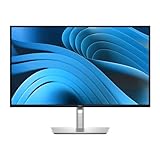
Overview: The P2725QE positions itself as a premium productivity monitor combining 4K resolution with USB-C hub functionality. This 27-inch IPS display delivers crisp UHD visuals while serving as a central connectivity point, transmitting video, data, Ethernet, and 90W of power through a single cable—ideal for modern minimalist workspaces.
What Makes It Stand Out: The 100Hz refresh rate distinguishes it from standard 60Hz office monitors, providing smoother scrolling and reduced eye strain during long work sessions. Dell’s ComfortView Plus technology and TUV 4-Star eye comfort certification address health concerns, while the fully ergonomic stand (height, tilt, swivel, pivot) offers exceptional adjustability. The eco-conscious construction using recycled materials appeals to environmentally aware buyers.
Value for Money: At $440.99, it competes directly with LG’s UltraFine and similar USB-C hub monitors. The 100Hz refresh rate and ergonomic stand justify a slight premium over basic 4K displays, though dedicated gamers might want faster panels. For productivity-focused users, the single-cable convenience and build quality represent solid value.
Strengths and Weaknesses: Strengths include the high refresh rate, robust 90W power delivery, excellent ergonomics, comprehensive eye comfort features, and sustainable design. Weaknesses involve USB-C hub bandwidth limitations when using multiple peripherals, a price premium over non-USB-C 4K monitors, and potential compatibility quirks with non-Dell devices.
Bottom Line: This monitor excels for professionals prioritizing workspace simplicity and eye comfort. The 100Hz refresh rate is a genuine productivity booster, and the single-cable solution eliminates clutter. It’s an excellent investment for knowledge workers using USB-C laptops, though creative professionals might prefer wider color gamut options.
10. AG Neovo EM2751 4K Monitor 27 Inch, USB-C with 65W Power Delivery, 3840 x 2160 UHD, IPS, 100% sRGB, Height Adjustable, Pivot, Dual HDMI 2.1, DisplayPort 1.4

Overview: The AG Neovo EM2751 targets creative professionals seeking color accuracy and 4K resolution at an accessible price point. This 27-inch IPS monitor delivers UHD clarity with 100% sRGB coverage and 10-bit color depth, making it suitable for photo editing, graphic design, and content creation workflows.
What Makes It Stand Out: The exceptional color accuracy at this price point is remarkable, offering professional-grade color reproduction typically found in more expensive displays. The versatile connectivity—including USB-C with 65W power delivery, dual HDMI 2.1, and DisplayPort 1.4—provides flexibility for multi-device setups. The ergonomic adjustments (height, tilt, pivot) enhance comfort during extended editing sessions.
Value for Money: At $249.00, this monitor significantly undercuts competitors like Dell and LG while delivering comparable image quality. The inclusion of USB-C hub functionality at this price represents outstanding value, though the 65W power delivery may be insufficient for larger laptops. For creative professionals on a budget, it’s nearly unbeatable.
Strengths and Weaknesses: Strengths include precise color calibration, comprehensive connectivity, ergonomic design, and aggressive pricing. Weaknesses involve the lower 65W power delivery limiting compatibility with power-hungry workstations, a less recognizable brand that may concern some buyers, and potentially less robust build quality compared to premium alternatives. The stand, while adjustable, may not feel as premium as Dell’s.
Bottom Line: This is the best value proposition for color-critical work under $300. Creative professionals should seriously consider it, though users needing more than 65W power delivery should verify laptop compatibility. For MacBook Air, smaller MacBook Pro, and similar devices, it’s an ideal budget-friendly solution.
Understanding USB-C Power Delivery in Monitors
USB-C Power Delivery (PD) has fundamentally rewritten the rules of display connectivity. When we talk about a monitor offering 90W PD, we’re describing a sophisticated power negotiation system that dynamically allocates up to 90 watts of power through the same cable carrying video, data, and audio signals. This isn’t a simple power passthrough—it’s an intelligent handshake between your laptop’s USB-C controller and the monitor’s internal power management IC.
What 90W Power Delivery Actually Means for Your Workflow
That 90W rating represents the maximum sustained power available after the monitor powers its own panel, backlighting, scalar chip, and integrated hub. A common misconception is that this number is static. In reality, a 90W PD monitor might allocate 15-20W internally, leaving a robust 70-75W for your laptop. This is why a 90W monitor can charge a laptop that ships with a 100W power brick—the laptop rarely draws its full rated capacity continuously. During typical office workloads, most premium laptops sip between 25-45W, meaning the monitor not only maintains charge but can replenish battery levels even during active use.
The Evolution from 60W to 90W and Beyond
The jump from 60W to 90W PD in monitors mirrors the evolution of laptop silicon. When Intel’s 11th Gen and Apple’s M1 chips debuted, 60W sufficed for most thin-and-light machines. But the 14-inch and 16-inch creative workstations that dominate 2026’s professional landscape feature CPUs with 12+ performance cores and discrete GPUs that can spike to 80W during renders. The 90W standard emerged as manufacturers recognized that 60W panels were forcing users to keep proprietary power bricks connected—defeating the entire single-cable promise.
Why 90W USB-C Monitors Are Becoming the 2026 Standard
Market dynamics have conspired to make 90W the default, not the exception. Panel manufacturers now produce integrated scalars with 90W PD as the baseline configuration, driving down costs and pushing adoption across price tiers. This democratization means you’ll find robust power delivery in everything from entry-level QHD panels to flagship 5K displays.
The Laptop Power Requirement Shift
Modern performance laptops have fragmented into two categories: ultra-portables that thrive on 45-65W, and professional workstations that demand 85W or more. The latter category—encompassing devices like mobile workstations with RTX 5000 Ada graphics and MacBook Pros running sustained compiles—has grown to represent over 40% of premium laptop sales in 2026. Monitor manufacturers responded by standardizing on 90W, ensuring a single SKU can service both segments without compromise.
Desktop Replacement Culture in Modern Workspaces
Hybrid work policies have permanently altered buying patterns. Professionals no longer tolerate separate “office” and “home” setups with different cables and peripherals. A 90W USB-C monitor becomes the anchor of a portable office: roll into a coworking space, hotel room, or corporate desk, plug in one cable, and your entire environment—external SSD, keyboard, webcam, ethernet—materializes instantly while your laptop charges. This expectation has made 90W PD a checkbox feature in RFPs for enterprise IT departments.
Key Technical Specifications to Evaluate
Chasing the highest wattage without scrutinizing the underlying display technology leads to disappointing purchases. The best 90W PD monitors balance power delivery with panels that deserve the connection.
Display Panel Technology: IPS, OLED, and Mini-LED
IPS panels remain the workhorse, offering reliable color accuracy and wide viewing angles. However, 2026’s IPS technology has bifurcated: standard IPS for budget tiers, and Nano IPS Black or similar high-contrast variants for professional use. OLED monitors with 90W PD have finally overcome burn-in anxiety through advanced pixel-shifting and brightness attenuation algorithms, making them viable for static UI work. Mini-LED represents the sweet spot for HDR work, delivering OLED-like contrast with sustained brightness levels that OLED struggles to maintain without power throttling—a critical consideration when the same cable must also deliver 90W downstream.
Resolution and Pixel Density Considerations
The 90W PD specification correlates strongly with resolution tiers. At 4K (3840x2160), you’re pushing nearly 8.3 million pixels—enough to saturate a USB-C 3.2 Gen 2 bandwidth pipeline if you also want 10-bit color at 60Hz. Many 90W monitors solve this by using Display Stream Compression (DSC), a visually lossless algorithm that’s become standard in 2026. For 27-inch panels, 4K delivers 163 PPI, while 32-inch 4K drops to 138 PPI. The latter is often preferred for UI scaling at 100% in Windows environments, avoiding fractional scaling artifacts that still plague some applications.
Refresh Rate vs. Power Delivery: The Balancing Act
Driving a 4K panel at 144Hz while delivering 90W PD pushes the USB-C connector to its thermal and bandwidth limits. Monitor engineers must prioritize: either use Thunderbolt 4 (with its 40Gbps pipe) or implement intelligent refresh rate switching that drops to 60Hz when the USB hub is heavily loaded. The best implementations use a dedicated USB-C PD controller separate from the display scalar, ensuring power delivery remains stable even when the panel overclocks for gaming sessions.
Color Gamut and Accuracy for Professional Work
A 90W PD monitor targeting creators should cover 98%+ DCI-P3 and 100% sRGB out of the box. Look for factory calibration reports with Delta E < 2 averages—this should be standard, not premium. Hardware calibration support, where the monitor stores a LUT internally rather than relying on software profiles, preserves accuracy across different devices. In 2026, many panels also include automatic color space switching based on the input signal’s metadata, a feature that saves creators from manually toggling settings between Rec.709 video edits and sRGB web design.
Brightness, HDR, and Certification Standards
Peak brightness specifications are often misleading. A monitor advertised at 600 nits might only sustain that in a tiny 3% window for HDR highlights. For sustained SDR work in bright offices, look for 350-400 nits typical brightness. HDR400 certification is meaningless; HDR600 is the minimum for noticeable HDR impact. True HDR1000 panels with 90W PD are rare and expensive because the power budget must allocate significant wattage to the backlight array, sometimes requiring dynamic power management that briefly reduces charging to the laptop during peak brightness scenes.
The 90W Power Delivery Ecosystem
The monitor’s role as a hub defines the 90W experience as much as the panel quality. A poorly designed hub creates bottlenecks that negate the convenience.
Single-Cable Simplicity: How It Works
The USB-C Alt Mode specification allows pins to be dynamically reassigned. When you connect a laptop, the monitor negotiates DisplayPort lanes (typically 4 lanes for 4K60) while simultaneously establishing a USB 3.2 data path and PD contract. The magic happens in the multiplexer chip, which must switch between modes without interrupting the video signal. Premium monitors use redrivers to boost the USB signal, preventing data loss over longer cables—a common failure point in budget designs.
Daisy-Chaining and Multi-Monitor Setups
USB-C monitors supporting 90W PD can often daisy-chain a second display via DisplayPort MST (Multi-Stream Transport). However, the power delivery doesn’t pass through; the second monitor must have its own power source. More importantly, the first monitor’s USB hub bandwidth is shared with the DP stream, so connecting multiple high-speed devices while running dual 4K displays can saturate the connection. The workaround? Some 2026 monitors include a dedicated upstream USB-C port for data and a separate downstream port for power passthrough, though this requires two cables to the host.
Hub Functionality: USB Ports, Ethernet, and Card Readers
A 90W PD monitor should offer at least three USB-A ports at 10Gbps and one USB-C port at 10Gbps. The USB-C port is crucial for connecting modern peripherals without adapters. Gigabit ethernet is standard; 2.5GbE is emerging in premium models. Integrated SD Express card readers supporting 300MB/s+ transfer rates are a boon for photographers, but verify they connect via PCIe lanes rather than USB 2.0—yes, some monitors still cheap out on the internal bus.
KVM Switches Integrated into Modern Displays
The killer feature for multi-PC users is a built-in KVM. High-end 90W PD monitors let you connect a desktop PC via DisplayPort and a laptop via USB-C, then switch keyboard, mouse, and display between them with a hotkey. The sophisticated implementations maintain USB PD negotiation with the laptop even when you’ve switched inputs, preventing battery drain during extended desktop use. Look for monitors that support USB-C DP Alt Mode and a separate video input simultaneously without requiring manual cable swapping.
Compatibility Considerations for 2026
The USB-C ecosystem is a minefield of similar-sounding standards. Understanding the differences prevents costly mismatches.
Thunderbolt 4 vs USB4 vs USB 3.2 Gen 2
Thunderbolt 4 mandates 40Gbps bandwidth, PCIe tunneling, and dual 4K display support, but it doesn’t require 90W PD—though most implementations include it. USB4 is protocol-compatible with Thunderbolt 3 but optional on PD wattage. USB 3.2 Gen 2 offers 10Gbps and is sufficient for 4K60 with DSC, but lacks PCIe tunneling. For a 90W monitor, the key question is: does it use USB-C with DP Alt Mode, or true Thunderbolt? The former works with any USB-C port that supports video; the latter requires Thunderbolt on the host but delivers more bandwidth headroom.
Cross-Platform Compatibility: Mac, Windows, and Linux
macOS handles USB-C PD monitors elegantly, automatically managing display arrangement and power. Windows 11 22H2 and later include improved USB4 drivers, but some laptops still ship with buggy firmware that causes PD negotiation failures—requiring BIOS updates. Linux support depends on the distribution and kernel version; Ubuntu 24.04 and Fedora 40+ include robust USB-C display and PD stacks, but fractional scaling remains inconsistent. Always verify your specific laptop model’s compatibility in forums before purchase.
Backward Compatibility with Older Devices
A 90W PD monitor will charge devices requiring less power—your phone, tablet, or older laptop—by negotiating lower voltage/current contracts. The reverse isn’t true: connecting a 90W monitor to a laptop with a 60W USB-C port will work, but the laptop may discharge under heavy load. Most monitors include a fallback mode that limits brightness or disables USB hub functions when connected to underpowered hosts, but this varies by manufacturer.
Mobile Device and Tablet Support
The latest iPad Pros and Samsung Galaxy Tabs support USB-C DP Alt Mode and can receive up to 90W, though they’ll only draw what they need. More interestingly, many 90W monitors now support Samsung DeX and similar desktop modes, transforming a tablet into a workstation. Some monitors include touch-back functionality, where a touchscreen overlay sends input back to the host device—perfect for direct pen input on a tablet mirrored to a larger display.
Ergonomic and Design Factors
A monitor’s physical design impacts daily comfort as much as its specs.
Stand Adjustability and VESA Mounting Options
90W PD monitors often house substantial power circuitry, making them heavier than basic displays. Ensure the stand offers 130mm+ height adjustment, -5° to +35° tilt, and 90° pivot for portrait mode. The VESA mount should be 100x100mm standard, but check the depth—some monitors recess the mount, requiring longer screws or specialized brackets. Premium models include quick-release stands that detach without tools, ideal for hybrid workers who alternate between stand and arm mounting.
Bezels, Build Quality, and Modern Aesthetics
Ultra-thin bezels are ubiquitous, but the bottom bezel often hides antennas for the USB-C wireless connectivity some 2026 monitors include. Build quality manifests in the stand’s stability and the absence of creaking when adjusting. Materials like aluminum alloy offer better heat dissipation for the PD circuitry than plastic, which can trap heat and reduce component lifespan. The rear cable cover should be removable without tools, and port labels should be visible from the front—small details that reveal thoughtful engineering.
Cable Management and Port Placement
The best 90W PD monitors position ports to minimize cable bend stress. Side-facing USB-A ports are convenient but can block adjacent ports when using chunky dongles. Downward-facing ports create a cleaner look but require precise cable lengths. Some monitors include a top-mounted USB-C port specifically for temporary connections, like a camera or phone, keeping desk clutter minimal. Cable channels integrated into the stand are more effective than plastic clips that break.
Gaming vs. Professional Use Cases
The 90W PD monitor market has split into two distinct optimization paths.
What Gamers Should Look For in 90W Monitors
Gamers need low input lag (sub-5ms with overdrive), variable refresh rate support (FreeSync Premium or G-Sync Compatible), and overdrive modes that don’t introduce ghosting. The challenge is that aggressive overdrive increases panel power draw, which can trigger the monitor’s PD controller to throttle laptop charging during intense gaming sessions. The best gaming-oriented 90W PD monitors include a “performance mode” that prioritizes display responsiveness while momentarily reducing USB hub power allocation—a trade-off worth making.
Professional Creator Requirements
For creators, uniformity is paramount. A 90W PD monitor should have <10% brightness variance edge-to-edge and include uniformity compensation in the OSD. 3D LUT support allows color grading directly on the monitor, bypassing OS color management limitations. Hardware pivot detection that automatically rotates the display output without OS intervention saves time. Perhaps most critically, the monitor should maintain calibration accuracy across different brightness levels—a weakness in budget panels where color temperature shifts when dimming for evening work.
Hybrid Use: Best of Both Worlds
The holy grail is a monitor that can switch from 144Hz gaming mode to color-accurate creator mode via a hotkey, without rebooting or recalibrating. Some 2026 models store separate ICC profiles and refresh rate settings per input, so your USB-C laptop connection triggers creator mode while your desktop’s DisplayPort activates gaming settings. This requires non-volatile memory on the monitor and sophisticated firmware—features that justify premium pricing.
Price Expectations and Value Propositions
The 90W PD premium has compressed significantly, but understanding pricing tiers helps set realistic expectations.
Budget Tiers in the 90W Monitor Market
Entry-level 90W PD monitors (27-inch QHD) now start around $350-$450, using standard IPS panels and basic USB hubs. Mid-range 4K models cluster at $600-$800, adding factory calibration and better stands. Premium 32-inch 4K Mini-LED units with 90W PD command $1,200-$1,600. The price delta over non-PD monitors has shrunk from $200+ to roughly $75-$100, making PD a no-brainer feature even for budget buyers.
Total Cost of Ownership Analysis
Factor in the cost of a separate dock ($150-$300) and premium USB-C cable ($25-$40) you’d need without 90W PD. The monitor’s integrated hub eliminates both, often paying for itself. Enterprise buyers should also consider IT support costs: single-cable setups reduce helpdesk tickets related to cable confusion and damaged ports from repeated plugging. A three-year warranty with advance replacement is worth an extra $50-$75 upfront compared to a basic return-to-manufacturer policy.
When to Invest vs. When to Wait
If your current monitor lacks PD and you’re using a 2024 or newer laptop, upgrade now—the market is mature. However, if you’re eyeing OLED technology, waiting for Q4 2026 may yield better prices as LG and Samsung’s new OLED fabs reach full production. For Thunderbolt 5 monitors (expected late 2026), early adopters will pay a 30% premium for bandwidth few current devices can utilize.
Future-Proofing Your 2026 Purchase
Technology moves fast, but smart buying decisions can extend relevance.
Emerging Standards on the Horizon
USB4 Version 2.0 (80Gbps) is ratified but not yet mainstream; monitors supporting it will appear in late 2026. DisplayPort 2.1 is optional in USB4, but essential for 4K240 or 8K60 without compression. When evaluating a 90W PD monitor, check if the scalar chip is firmware-upgradeable to support new standards—manufacturers rarely advertise this, but reviews often uncover it. The presence of a service USB port on the monitor’s rear is a good indicator.
Warranty and Manufacturer Support Trends
The best warranties cover backlight burn-in for OLED models and include zero dead pixel guarantees. In 2026, leading manufacturers have shifted to three-year standard warranties for 90W PD monitors, recognizing these are premium purchases. Check the RMA process: do they cross-ship? Is there a depot in your region? A monitor that’s perfect on paper is a bad value if shipping it for repair costs $200 and takes six weeks.
Software and Firmware Update Policies
Monitors are now IoT devices. Firmware updates fix PD negotiation bugs, improve compatibility with new laptops, and occasionally unlock features like enhanced refresh rates. Brands with dedicated Windows/macOS update utilities demonstrate commitment. Avoid monitors that require shipping back for firmware updates—a practice that still exists in some budget lines. The best models update via a simple USB-C connection from your PC.
Common Pitfalls and How to Avoid Them
Even savvy buyers stumble on these issues.
Misleading Power Delivery Specifications
“Up to 90W” sometimes means 90W only when the monitor is in standby, dropping to 65W when the panel is active. Check reviews that measure actual PD output under load with a USB-C power meter. Also beware of monitors with multiple USB-C ports where only one supports 90W; the others might be limited to 15W data-only connections. The port labeling should be crystal clear, but manufacturers often obscure this with tiny icons.
Thermal Throttling in Compact Designs
Slim monitors cram PD circuitry into tight spaces, causing components to hit thermal limits during extended high-wattage charging. This triggers a protective circuit that drops PD output to 45W until temperatures fall. If your workspace runs warm or you plan to charge while running intensive tasks, favor monitors with vented designs or active cooling fans. The fan should be inaudible (<20dB); reviews with sound level measurements are invaluable here.
The “Charging Degradation” Myth
Some users worry that constant charging through a monitor degrades laptop batteries faster. Modern battery management systems are smarter: they stop charging at 80% when connected to a PD source long-term. However, this feature requires both laptop and monitor to support USB-C PD 3.0 with PPS (Programmable Power Supply). Verify your laptop’s specs; if it only supports PD 2.0, manually limiting max charge in the BIOS is wise for desktop replacement scenarios.
Environmental and Efficiency Considerations
Sustainability is increasingly driving purchasing decisions.
Energy Consumption and Certification
A 27-inch 4K 90W PD monitor typically consumes 25-35W at typical brightness, plus whatever it passes to the laptop. Energy Star 9.0 certification (2026 standard) requires <0.5W standby and intelligent brightness sensors that adapt to ambient light. Some monitors now include carbon footprint labels in the OSD, showing real-time energy use and estimated CO2 impact—gimmicky but useful for corporate sustainability reporting.
Sustainable Materials and Manufacturing
Recycled aluminum chassis and plastic-free packaging are becoming standard for premium 90W PD monitors. Check for EPEAT Gold registration, which verifies responsible sourcing and end-of-life recyclability. Some manufacturers offer trade-in programs where returning your old monitor yields a credit toward a new 90W model, ensuring proper e-waste handling.
Frequently Asked Questions
1. Will a 90W USB-C monitor charge my laptop that came with a 100W power adapter?
Yes, in most real-world scenarios. Your laptop only draws its full 100W during extreme synthetic loads or when the battery is critically low. During normal use, consumption typically ranges from 25-60W, well within the monitor’s delivery capacity. The battery may discharge slowly during sustained maximum-load tasks, but this is rare outside of video rendering or scientific computing.
2. Can I use any USB-C cable with my 90W monitor, or do I need a special one?
You need a cable rated for at least 5A current (often labeled “100W” or “5A”). Standard USB-C cables are limited to 3A (60W). For full functionality, use the cable included with your monitor or purchase a certified USB-IF 5A cable. For Thunderbolt monitors, you’ll need an active Thunderbolt 4 cable for runs over 0.8m to maintain 40Gbps bandwidth.
3. Why does my monitor sometimes stop charging my laptop when I plug in multiple USB devices?
The monitor’s internal power supply has a maximum output. When USB devices draw significant current—external SSDs, webcams, or phones charging—the monitor may throttle laptop charging to stay within its thermal and electrical limits. This is normal behavior. To avoid it, use a powered USB hub for high-draw devices or enable “Power Priority” mode in the monitor’s OSD if available.
4. Is there a difference between USB-C PD and Thunderbolt charging?
Functionally, no—both deliver power using the USB PD protocol. However, Thunderbolt certification requires more rigorous power stability testing. A Thunderbolt monitor’s 90W PD is often “cleaner” with less voltage ripple, which can matter for sensitive audio equipment connected to the laptop. For pure charging, both work identically.
5. Can I connect two laptops to one 90W monitor and switch between them?
Yes, if the monitor has a built-in KVM. Connect Laptop A via USB-C and Laptop B via HDMI/DisplayPort plus USB-B upstream. The KVM switches video and peripherals simultaneously. Without a KVM, you can switch video inputs manually, but USB devices will remain connected to only one laptop, requiring manual cable swapping.
6. Do 90W monitors work with gaming consoles like PlayStation 5 or Xbox Series X?
They work for video output, but not for charging—consoles don’t support USB-C PD input. You’ll need to power the console separately. The monitor’s USB hub can connect controllers or storage, but this is limited by the console’s USB-C implementation, which may not support hub functionality.
7. How long can the USB-C cable be before I lose functionality?
For 90W PD and 4K60 video, passive cables max out at 1 meter. Active cables (with signal boosters) can extend to 2-3 meters but cost significantly more. Thunderbolt 4 cables support full 40Gbps up to 2 meters if active. Beyond that, you’ll need optical USB-C cables, which are expensive and may not support PD due to power delivery limitations in fiber conversion.
8. What happens if I connect a device that only needs 15W, like a phone?
The monitor negotiates a lower power contract automatically. It won’t “force” 90W into the device. Modern PD controllers are smart enough to deliver exactly what the device requests, stepping through voltage levels (5V, 9V, 12V, 15V, 20V) until the device accepts. This is completely safe and won’t damage smaller devices.
9. Why is my monitor warm even when my laptop is fully charged?
The power circuitry remains active, maintaining the PD contract and converting AC to DC for the USB hub. This standby heat is normal and typically 5-10W. If the monitor feels hot (>40°C) when idle, it may indicate inefficient power conversion or a firmware bug preventing low-power states. Check for firmware updates or contact support.
10. Can I daisy-chain multiple 90W PD monitors from a single laptop USB-C port?
Yes, if using DisplayPort MST and your laptop’s GPU supports it. However, only the first monitor receives 90W PD; the second must be powered independently. Additionally, daisy-chaining splits the USB data bandwidth, so hub functionality on the second monitor may be limited to USB 2.0 speeds. For best results, use a laptop with two USB-C ports, connecting each monitor separately.