Stepping onto a stage in 2026 feels different than it did just a few years ago. Audiences expect seamless technology, polished delivery, and presenters who can command attention without fumbling through slides. The humble presentation remote has evolved from a simple clicker into a sophisticated command center that fits in your palm. For professional speakers, educators, and business leaders, choosing the right wireless presentation remote with laser pointer isn’t just about convenience—it’s about maintaining authority, enhancing engagement, and eliminating technical distractions that can derail even the most compelling message.
As hybrid presentations become the standard and venue sizes stretch from intimate boardrooms to massive conference halls, your remote needs to work flawlessly across multiple scenarios. The market has responded with an explosion of features that go far beyond forward/backward navigation. Understanding what separates a mediocre device from a game-changing tool will transform how you connect with your audience. Let’s explore the critical factors that define excellence in modern presentation remotes and how to select the perfect companion for your speaking engagements.
Top 10 Wireless Presentation Remotes with Laser Pointers
Detailed Product Reviews
1. Logitech Wireless Presenter R400, PowerPoint Clicker with Laser Pointer, Wireless Presentation Clicker Remote

Overview: The Logitech R400 is a reliable wireless presenter designed for professionals who need straightforward slideshow control. With its bright red laser pointer and 50-foot wireless range, it covers most conference rooms and classrooms effectively. The plug-and-play USB receiver eliminates software headaches, making it ideal for presenters who frequently switch between different computers. Its intuitive button layout requires zero learning curve, allowing you to focus on your message rather than the technology.
What Makes It Stand Out: The R400’s built-in receiver storage dock sets it apart from basic competitors, ensuring you won’t lose the tiny USB dongle between presentations. Its dedicated forward/backward controls with tactile feedback enable blind operation during talks. The 2.4GHz RF technology provides a stable connection without Bluetooth pairing issues, while the red laser remains visible against most projection surfaces. This combination of reliability and thoughtful design has made it a conference room staple.
Value for Money: At $32.85, the R400 sits in the sweet spot between budget knockoffs and premium models. You’re paying for Logitech’s renowned reliability and customer support, which generic brands can’t match. While cheaper alternatives exist, the R400’s build quality and consistent performance justify the investment for regular presenters. It outlasts most sub-$20 options by years, making it more economical long-term for weekly users who need dependable equipment.
Strengths and Weaknesses: Strengths include reliable connectivity, excellent ergonomics, receiver storage, and brand trustworthiness. The 50-foot range suffices for most venues but falls short in large auditoriums. The red laser struggles on LED/LCD screens, and AAA battery dependency means carrying spares. Some users may want additional features like timer or vibration alerts. The plastic construction feels durable but not premium.
Bottom Line: The R400 remains the gold standard for no-fuss presentations. It delivers exactly what most users need without unnecessary complexity. For educators, business professionals, and occasional speakers, this clicker offers dependable performance that justifies its mid-range price. Skip it only if you require green laser visibility or extended range.
2. Logitech Wireless Presenter R800, PowerPoint Clicker with Green Laser Pointer, Wireless Presentation Clicker Remote

Overview: The Logitech R800 represents the premium tier of presentation remotes, built for serious speakers who demand maximum visibility and range. Its green laser pointer is dramatically brighter than standard red lasers, cutting through ambient light and working on surfaces where red fails. With a 100-foot wireless range, it handles large venues like auditoriums and lecture halls with ease, giving presenters unprecedented freedom to engage audiences.
What Makes It Stand Out: The green laser is the star feature—up to 10 times more visible than red, especially on modern LED displays and in bright rooms. The doubled wireless range gives presenters confidence to move anywhere in large spaces. Like its sibling R400, it features the same smart receiver storage and plug-and-play simplicity, but adds professional-grade laser performance that commands attention. This combination makes it the choice for keynote speakers and high-stakes presentations.
Value for Money: At $49.99, the R800 costs 50% more than the R400. For occasional presenters, this premium is hard to justify. However, for professionals who present weekly or in challenging lighting conditions, the green laser alone is worth the upgrade. It eliminates the frustration of an invisible pointer and projects confidence. Compared to renting equipment or dealing with presentation failures, it pays for itself quickly through reliability and professional appearance.
Strengths and Weaknesses: Strengths include exceptional laser visibility, doubled range, rock-solid reliability, and professional appearance. Weaknesses are the higher price point and identical button functionality to cheaper models—no timer or advanced features. Green lasers consume more battery, and some venues have restrictions on laser colors. The premium may be unnecessary for dimly lit conference rooms.
Bottom Line: The R800 is the tool of choice for professional speakers, conference keynoters, and educators in bright lecture halls. If your presentations are mission-critical and you need guaranteed visibility, invest in the R800. For dimmer rooms and smaller spaces, save money with the R400. This is a specialist tool that earns its keep in demanding environments.
3. Logitech Wireless Presenter R500s, PowerPoint Clicker with Laser Pointer, Wireless Presentation Clicker Remote

Overview: The Logitech R500s slots between the R400 and R800, offering a modernized design with a Class 1 red laser and 20-meter range. It targets presenters wanting Logitech quality with slightly upgraded specs from the base model. The sleek form factor feels contemporary while maintaining the brand’s reputation for reliability and ease of use. It handles most presentation environments competently without reaching premium pricing.
What Makes It Stand Out: The Class 1 laser classification indicates higher power and potentially better visibility than the R400’s Class 2, though both are red. The 20-meter range (approximately 65 feet) provides a modest improvement over the R400’s 50 feet. Its minimalist design appeals to users preferring a more modern aesthetic without jumping to the R800’s premium price. The plug-and-play functionality remains as seamless as ever across Windows and Mac systems.
Value for Money: Priced at $37.80, the R500s sits awkwardly between its siblings. It costs $5 more than the R400 but lacks the R800’s game-changing green laser. The range improvement is marginal for most users. You’re essentially paying for a newer model number and slightly upgraded laser class. For Logitech loyalists wanting the latest design, it’s reasonable, but value-conscious buyers should compare carefully with the R400 before upgrading.
Strengths and Weaknesses: Strengths include Logitech reliability, improved range, potentially brighter laser, and modern styling. Weaknesses are the minimal upgrade over the R400 and poor value compared to the feature-packed R800. It lacks the receiver storage dock of the older models—a surprising omission. The price premium delivers incremental benefits most users won’t notice in typical conference rooms.
Bottom Line: The R500s is a competent but unnecessary middle child. Choose it only if you specifically need the Class 1 laser or prefer its styling. For most users, the R400 offers better value, while presentation professionals should spring for the R800. It’s a solid device overshadowed by its more compelling siblings. Consider your actual range needs before paying the premium.
4. Wireless Presenter, Hyperlink Volume Control Presentation Clicker RF 2.4GHz USB PowerPoint Clicker Presentation Remote Control Pointer Slide Advancer (Black)

Overview: This budget-friendly wireless presenter delivers surprising functionality for under $9, making it an attractive option for cost-conscious buyers. Despite the generic branding, it packs features typically found in pricier models, including a 100-foot range and multifunction controls. It’s designed for presenters who need basic functionality without brand-name premiums, perfect for students and occasional speakers.
What Makes It Stand Out: The feature set is exceptional at this price point—volume control, hyperlink support, window switching, and full/black screen toggles exceed basic clicker capabilities. The magnetic USB storage is clever, preventing dongle loss better than some premium models. The 100-foot range matches the top-tier Logitech R800, while the ergonomic button design with tactile bumps aids blind operation during presentations. Auto-sleep functionality extends battery life significantly.
Value for Money: At $8.96, this clicker is a steal. It undercuts the Logitech R400 by nearly 75% while offering more features and equal range. For students, occasional presenters, or organizations buying in bulk, the savings are substantial. The trade-off is build quality and longevity—expect 1-2 years of regular use versus Logitech’s 5+ year lifespan. It’s disposable tech that performs admirably while it lasts, making it ideal for light to moderate use.
Strengths and Weaknesses: Strengths include unbeatable price, rich feature set, excellent range, and smart USB storage. The red laser is bright but shares the same screen limitations as all red lasers. Weaknesses involve questionable durability, unknown brand support, and potentially inconsistent quality control. The plastic feels cheap, and battery life may vary between units. No dedicated receiver storage dock.
Bottom Line: This clicker proves you don’t need to spend big for solid performance. It’s perfect for backup devices, student use, or organizations needing multiple units. Don’t expect it to survive heavy daily use, but for occasional presentations, it outperforms its price dramatically. Buy it as a starter device or spare; upgrade to Logitech only if you present weekly. The value proposition is undeniable for light to moderate use.
5. Wireless Presentation Clicker for PowerPoint Presentations, USB Dongle Presenter Remote with Laser Pointer Slide Clickers for Mac/Windows/Linux, Computer/Laptop, Google Slide/PPT/Keynote
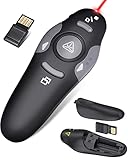
Overview: The CLIKBUTM clicker combines ergonomic design with practical functionality at a mid-tier price point. Its dark gray and black aesthetic targets style-conscious professionals tired of bland plastic remotes. With a 100-foot range and broad software compatibility, it handles diverse presentation environments from corporate boardrooms to university lecture halls. The compact 109mm design fits easily in pockets.
What Makes It Stand Out: The ergonomic shape genuinely improves comfort during long presentation sessions, reducing hand fatigue compared to flat designs. Its software support is remarkably broad, covering not just PowerPoint but Google Slides, Keynote, PDFs, and websites—versatility many competitors lack. The USB dongle hides inside the battery compartment, a smart space-saving solution for mobile presenters. The claimed 328-foot laser range is impressive overkill.
Value for Money: At $14.99, it positions itself as a premium budget option—costing less than Logitech but more than generic brands. You’re paying for thoughtful design and verified compatibility rather than brand name. The two-month battery life claim is realistic with the auto-sleep function. It offers 80% of the Logitech experience at 45% of the cost, making it a smart compromise for regular users not ready to commit to premium pricing.
Strengths and Weaknesses: Strengths include excellent ergonomics, outstanding compatibility, generous range, and stylish appearance. The AAA battery standard is convenient. Weaknesses include unknown long-term durability, limited brand recognition, and no dedicated receiver storage dock. The laser is standard red with no screen-visibility improvements. Build quality is good but not industrial-grade.
Bottom Line: The CLIKBUTM clicker hits a sweet spot for design-minded regular presenters. It outclasses generic brands in fit and finish while undercutting Logitech significantly. If you present monthly and value comfort and compatibility, this is your best value choice. For weekly professionals, invest in Logitech’s reliability. For occasional use, grab the $9 generic. This occupies a smart middle ground with genuine ergonomic benefits.
6. Wireless Presentation Clicker PowerPoint Presenter Remote : USB Type C Clicker with Red Laser Pointer Long Range PPT Control -Power Point Google Slide Advancer for Mac Laptop PC Computer Keynote

Overview: The Wireless Presentation Clicker delivers reliable performance with impressive range and modern connectivity options. This $15.99 remote combines a 98-foot control distance with a powerful 328-foot red laser pointer, giving presenters freedom to move confidently through large venues. Its plug-and-play functionality works seamlessly across Windows, Mac, and Linux platforms without software installation.
What Makes It Stand Out: The standout feature is the USB A & C 2-in-1 receiver, eliminating adapter hassles for modern MacBook users while maintaining legacy device compatibility. The ergonomic design ensures comfortable grip during extended presentations, while the included AAA batteries and thoughtful on/off switch demonstrate practical attention to detail. The substantial range lets you engage audiences without being tethered to your laptop.
Value for Money: At $15.99, this clicker punches above its weight class. Competing products with dual USB support typically cost $20-30, making this an excellent budget-friendly choice. The included batteries and robust build quality add further value for occasional and frequent presenters alike.
Strengths and Weaknesses: Strengths include versatile USB connectivity, exceptional range, ergonomic comfort, included batteries, and broad software compatibility. Weaknesses are the reliance on disposable AAA batteries rather than rechargeability and basic functionality without advanced features like volume control.
Bottom Line: This clicker is perfect for professionals seeking USB-C compatibility without premium pricing. The reliable performance and thoughtful design make it a smart purchase for educators, business presenters, and students who need dependable, modern connectivity.
7. Presentation Clicker with Case Storage: PowerPoint Wireless Presenter Remote USB Type C Rechargeable Red Laser Pointer Clickers for Computer Project Mac PPT Slideshow Google Slide Advancer

Overview: The Presentation Clicker with Case Storage elevates the standard remote experience with premium convenience features. Priced at $24.99, this rechargeable presenter eliminates battery anxiety while offering a professional 98-foot control range and 328-foot laser pointer. The included protective case makes it ideal for traveling professionals and educators.
What Makes It Stand Out: The rapid charging capability—just 5 minutes for one hour of use—is a game-changer for busy presenters. The grippy ergonomic texture prevents slips, while the compact size discreetly fits in pockets during Q&A sessions. The protective storage case distinguishes it from competitors, ensuring your investment stays safe between presentations.
Value for Money: While $24.99 exceeds basic clickers, the rechargeability alone justifies the premium. Avoiding constant AAA battery purchases quickly offsets the initial cost. The included case and superior build quality make this a cost-effective choice for frequent presenters who value reliability and professionalism.
Strengths and Weaknesses: Strengths include convenient USB-C rechargeability, protective case, excellent ergonomics, long range, and quick charging. Weaknesses involve the higher upfront cost and need to monitor battery levels before presentations. Users must remember to charge, unlike battery-powered alternatives.
Bottom Line: This is the ideal choice for road warriors and frequent presenters. The rechargeable convenience and protective case make it worth every penny for professionals who present weekly and want to avoid disposable battery waste.
8. Presentation Clicker Wireless Presenter Remote USB Control Powerpoint PPT Clicker, Laser Pointer RF 2.4GHz Presenter Remote Google Slide Advancer Powerpoint Clicker for Computer/Laptop/Mac/Keynote
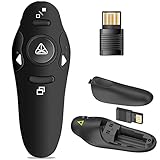
Overview: This $9.99 Presentation Clicker proves that effective presentation tools don’t require deep pockets. Delivering core functionality in a pen-sized package, it offers 50-foot wireless control and 300-foot laser range for straightforward slideshow navigation. Its minimalist design focuses on essential page forward/backward and full/black screen controls without complexity.
What Makes It Stand Out: The ultra-compact pen-sized form factor makes this the most portable option available, sliding effortlessly into shirt pockets or pen slots in briefcases. The clever USB receiver storage under the battery cover prevents loss—a thoughtful touch rarely seen in budget devices. At under ten dollars, it’s remarkably accessible for students and occasional presenters.
Value for Money: Exceptional value defines this clicker. While lacking advanced features, it delivers reliable basics at a fraction of competitor prices. For infrequent users, this represents smarter spending than premium models with unused capabilities. The affordability allows purchasing multiples for backup or team use.
Strengths and Weaknesses: Strengths include unbeatable price, superior portability, plug-and-play simplicity, and integrated receiver storage. Weaknesses are shorter 50-foot range, lack of volume control, no included battery, and incompatibility with LED/LCD screens. Build quality reflects the budget price point.
Bottom Line: Perfect for students, teachers on tight budgets, or anyone presenting occasionally. If you need basic slideshow control without frills, this clicker delivers remarkable functionality per dollar. Just remember to supply your own AAA battery.
9. Presentation Clicker Wireless Presenter Remote for PowerPoint, Powerpoint Clicker with Volume Control PowerPoint Slide Advancer for Mac, Computer, Laptop-E600

Overview: The E600 Presentation Clicker balances advanced functionality with user-friendly design at a competitive $15.99 price point. Beyond standard slideshow controls, it adds volume adjustment and window switching—features typically reserved for premium remotes. The dual USB and Type-C connector with magnetic storage solves dongle loss problems elegantly.
What Makes It Stand Out: Dedicated function buttons eliminate confusion, with each key performing one clear task. The 100-foot wireless range exceeds most competitors, giving presenters exceptional mobility. The magnetic dongle holder is brilliantly practical, securing the receiver when not in use. These thoughtful touches create a professional experience without premium pricing.
Value for Money: This clicker offers premium features at mid-tier cost. Volume control and window switching alone justify the price over basic models. The dual-head USB design eliminates adapter purchases for USB-C users. For $15.99, you’re getting capabilities found in $40+ remotes, making it outstanding value for budget-conscious professionals.
Strengths and Weaknesses: Strengths include volume control, window switching, dual USB connectors, magnetic dongle storage, and 100-foot range. Weaknesses are AAA batteries not included and potential complexity for users wanting only basic functions. The multi-function approach may overwhelm technophobes.
Bottom Line: An excellent choice for presenters needing more than basic controls. The E600’s extra features and smart design make it ideal for professionals who frequently switch between applications or need audio control during presentations.
10. PR-820 Wireless Presentation Clicker with Laser Pointer, PowerPoint Clicker with Air Mouse, Remote for Slideshows, Google Slides, Keynote & Smartboards, Mac/PC Compatible

Overview: The PR-820 commands its $61.99 premium price by transforming from a simple clicker into a comprehensive presentation command center. The integrated 6-axis air mouse and Class 2 laser pointer enable dynamic, interactive presentations on smartboards and large displays. With 50-foot RF stability and multi-function controls, it’s built for demanding professional environments and classrooms.
What Makes It Stand Out: The air mouse functionality sets this apart, allowing cursor control through intuitive hand movements—perfect for navigating hyperlinks or annotating slides spontaneously. Multi-function controls manage slides, volume, hyperlinks, and mouse clicks from one device. The RF stability outperforms Bluetooth in congested conference rooms, ensuring reliable performance when it matters most for critical presentations.
Value for Money: While expensive compared to basic clickers, the PR-820 replaces multiple tools: remote, air mouse, and laser pointer. For educators using smartboards or corporate trainers delivering interactive sessions, the $61.99 investment pays dividends in professionalism and engagement. It’s a specialized tool worth the premium for its target users.
Strengths and Weaknesses: Strengths include revolutionary air mouse, comprehensive controls, stable RF connection, ergonomic design, and professional build quality. Weaknesses are high price, potential overkill for simple presentations, and steeper learning curve. Not ideal for users wanting basic slideshow advancement only.
Bottom Line: This is the professional’s choice for interactive presentations. If you present on smartboards or need cursor control without returning to your computer, the PR-820 is unmatched. For basic PowerPoint clicks, however, simpler options suffice.
The Evolution of Presentation Technology in 2026
From Clickers to Smart Controllers
Remember when a presentation remote simply advanced slides? Those days are ancient history. Today’s devices function as intelligent peripherals that integrate with your entire digital ecosystem. They’ve become extensions of your presentation style, offering haptic feedback, motion controls, and even AI-assisted timing cues. The transformation reflects broader changes in how we deliver content—presentations are now dynamic performances rather than static information dumps.
Modern remotes communicate with your devices through multiple protocols simultaneously, ensuring redundancy if one connection fails. They store presentation notes, track your speaking pace, and some even analyze audience engagement metrics through connected platforms. This shift means you’re not just buying a button-clicker; you’re investing in a presentation partner that actively enhances your delivery.
Why Laser Precision Still Matters in the Digital Age
With high-resolution displays and digital annotation tools everywhere, you might wonder if physical laser pointers are obsolete. The reality? Nothing captures attention quite like a bright, precise beam cutting across a room to highlight a critical data point. In 2026’s presentation landscape, lasers serve as visceral anchors that ground digital content in physical space.
Audiences process information differently when you physically point versus digitally highlight. The laser creates a shared focal point, pulling wandering eyes back to your narrative. Advanced models now feature adjustable brightness and beam patterns that adapt to ambient lighting conditions, making them indispensable for speakers who command stages with varying technical setups.
Key Features That Define Premium Presentation Remotes
Wireless Range and Signal Stability
The difference between a confident walk across the stage and being tethered to your laptop often comes down to wireless range. Premium devices in 2026 offer reliable connectivity up to 200 feet in open spaces, but the real magic lies in signal penetration through walls and interference resistance in crowded conference centers.
Look for remotes that operate on the 2.4GHz frequency band with adaptive channel hopping. This technology automatically switches frequencies when it detects interference from WiFi networks, other presenters’ devices, or venue equipment. Some professional-grade models include signal strength indicators that warn you before you wander out of range—preventing those awkward moments when clicks stop registering mid-presentation.
Battery Life: From Hours to Months
Battery anxiety can poison your confidence before you even step on stage. The latest generation of presentation remotes has solved this through multiple approaches. Rechargeable lithium-ion cells now power high-end models, offering 50-100 hours of active use on a single charge. More impressively, energy-harvesting technology in cutting-edge devices converts button-press kinetic energy into supplemental power, extending battery life by 15-20%.
For road warriors who can’t risk a dead remote, hybrid models combine rechargeable batteries with emergency coin-cell backups. These give you an additional 10-15 hours of operation when the main battery depletes unexpectedly. Pay attention to standby time ratings too—premium remotes can sit unused for 6-12 months while retaining 80% of their charge.
Ergonomic Design for Extended Use
A remote that feels comfortable during a five-minute demo can become a cramp-inducing torture device during a three-hour workshop. The best designs distribute weight evenly across your palm, with buttons positioned for natural thumb movement without looking. Contoured grips with soft-touch materials prevent slippage from nervous sweating, while ambidextrous layouts accommodate left-handed speakers.
Weight matters more than you’d expect. Devices between 1.5-2.5 ounces hit the sweet spot—light enough for all-day carry but substantial enough to feel premium and stable in hand. Button travel distance and tactile feedback should provide satisfying clicks without requiring excessive force, which reduces fatigue during marathon presentation sessions.
Understanding Laser Pointer Technology
Class 2 vs Class 3R: What Speakers Need to Know
Laser classification isn’t just bureaucratic labeling—it determines where and how you can legally use your device. Class 2 lasers emit less than 1mW of power and are considered eye-safe for momentary exposure, making them suitable for most indoor venues. Class 3R lasers (up to 5mW) offer significantly brighter beams visible in well-lit auditoriums but require more careful handling.
International travel complicates matters further. Some countries restrict Class 3R devices, potentially creating customs headaches for globetrotting speakers. Professional-grade remotes often include adjustable power settings, allowing you to dial down to Class 2 compliance when regulations demand it. Always verify the classification before purchasing, and keep documentation handy when traveling internationally.
Green vs Red Lasers: Visibility Science
The physics of laser visibility reveals why green lasers appear 50-60 times brighter to human eyes than red lasers of equal power. Our retinas contain more photoreceptors sensitive to green wavelengths, making green beams pop against virtually any background color—critical when presenting on LED screens or in brightly lit rooms.
Red lasers still excel in specific scenarios. They consume 30-40% less battery power and perform better on certain projection surfaces where green might create unwanted color mixing. Advanced dual-laser remotes let you switch between colors based on venue conditions, giving you maximum flexibility. For speakers who frequently present on different screen technologies, this versatility proves invaluable.
Laser Safety Regulations for Public Speaking
Regulatory bodies have tightened laser safety standards for public venues in 2026. Many conference centers now require presenters to declare laser pointer usage and provide device specifications. Some jurisdictions mandate automatic shutoff features that disable the laser after 60 seconds of continuous use to prevent accidental exposure.
Smart remotes now include built-in safety protocols: angle sensors that prevent activation when pointed above eye level, and audience detection that warns if the beam sweeps across seating areas. Understanding these features isn’t just about compliance—it demonstrates professionalism and respect for audience safety. Always test your laser’s brightness in the actual venue during tech rehearsal, never pointing it at people or reflective surfaces.
Connectivity Standards in 2026
Bluetooth 5.3 and Beyond
The latest Bluetooth iteration has revolutionized presentation remote reliability. Version 5.3 offers lower latency (under 3ms), improved co-existence with WiFi 7 networks, and enhanced security through encrypted pairing. The real game-changer is LE Audio support, which enables remotes to send audio cues directly to your hearing aids or earbuds—perfect for timing reminders or slide change confirmations.
Multi-point connectivity allows simultaneous pairing with your laptop, tablet, and smartphone. This means you can advance slides from your primary device while using your phone as a backup controller or confidence monitor. The technology automatically prioritizes the active device, switching seamlessly if your main computer freezes mid-presentation.
USB-C Universal Adoption
The complete phase-out of USB-A ports in new laptops has made USB-C receivers essential. Modern presentation remotes feature low-profile receivers that barely protrude from your device, reducing breakage risk. The reversible design eliminates fumbling in dimly lit presentation venues.
Many premium remotes now support USB-C pass-through charging, allowing you to power your laptop while the receiver occupies the port. This seemingly small feature matters enormously during all-day conferences where power outlets are scarce. Some devices even include tiny LED indicators on the receiver itself, confirming successful connection without checking your computer.
Multi-Device Pairing Capabilities
Professional speakers rarely use just one device. Your remote should effortlessly switch between Windows, macOS, iOS, and Android platforms without re-pairing. Advanced models store up to eight device profiles, accessible through simple button combinations or a companion app.
This flexibility extends beyond computers. Imagine controlling your PowerPoint on a laptop while simultaneously advancing speaker notes on a tablet and triggering a teleprompter on your phone. The best remotes treat all your devices as a unified presentation ecosystem rather than isolated endpoints.
Software Ecosystem Integration
Cross-Platform Compatibility
A remote that works flawlessly on Windows but requires drivers on macOS creates unnecessary friction. Top-tier devices in 2026 offer plug-and-play functionality across all major operating systems, with native support for PowerPoint, Keynote, Google Slides, Prezi, and emerging AI-powered presentation platforms.
Look for devices that maintain consistent button mapping across platforms. The forward button should always advance slides, regardless of software. Some sophisticated remotes detect the active application and automatically adjust their behavior—Pressing the “play” button might start a video in PowerPoint but launch a slide transition in Keynote.
Customizable Button Mapping
Your presentation style is unique, and your remote should adapt to it. Modern companion apps allow deep customization of every button function. Map long-presses, double-clicks, and button combinations to specific actions like blanking the screen, launching a hyperlink, or toggging pointer modes.
The most advanced remotes support macro programming—single buttons that execute multiple commands. For example, one press could advance the slide, start a video, and dim the lights (if integrated with smart venue systems). This level of customization transforms your remote into a true presentation command center.
Gesture Controls and Motion Sensing
Air mouse functionality has matured significantly, allowing you to control on-screen cursors through subtle wrist movements. Gyroscopic sensors with 6-axis tracking provide precision without the jittery performance of early models. This feature proves invaluable for navigating interactive dashboards or drawing attention to specific screen areas without returning to your laptop.
Some devices recognize gesture patterns—a quick clockwise circle might zoom into a chart, while a flick of the wrist could blank the screen. The learning curve is surprisingly gentle, and once mastered, these gestures create a fluid, tech-savvy impression that enhances your professional credibility.
Advanced Features for Professional Speakers
Built-in Timing and Vibration Alerts
Silent vibration alerts have become the secret weapon of seasoned presenters. Program discreet pulses to warn you when you’re approaching time limits—one buzz at the 5-minute mark, two buzzes at 2 minutes, and continuous vibration when you must wrap up. This feature keeps you on track without conspicuously checking your watch or phone.
Advanced models integrate with your presentation software to vibrate at specific slides, reminding you to emphasize key points or transition to Q&A. The vibration patterns are customizable, allowing you to create a personal Morse code of timing cues that only you understand.
Digital Annotation Capabilities
The line between physical laser pointers and digital annotation has blurred. Premium remotes now include pressure-sensitive stylus tips that let you draw directly on touchscreens or activate digital inking on projected displays. This hybrid approach combines the immediacy of physical pointing with the permanence of digital markup.
Some devices capture your laser movements and convert them into digital highlights that remain on the slide. Audience members viewing recorded versions see exactly what you emphasized live. This feature bridges the gap between synchronous and asynchronous presentation delivery, making your content more valuable long after you leave the stage.
Voice Command Integration
Voice activation might seem gimmicky until you experience hands-free slide advancement during product demonstrations. Modern remotes include low-power always-listening microphones that recognize commands like “next slide,” “go back,” or “blank screen.” The microphone focuses on your voice pattern, ignoring audience chatter or ambient noise.
This technology shines when your hands are occupied—showing a prototype, gesturing dramatically, or holding a microphone. The voice commands work offline, processing locally on the device to ensure privacy and eliminate latency concerns. It’s not about replacing button clicks but providing options when manual control isn’t practical.
Build Quality and Durability Factors
Materials and Construction Standards
Professional speakers subject their gear to brutal treatment—airport security, hotel room floors, spilled coffee. Premium remotes use aircraft-grade aluminum or reinforced polycarbonate that withstands drops from podium height onto concrete. Buttons rated for 500,000+ presses ensure longevity even with daily use.
Internal components matter as much as external housing. Gold-plated battery contacts prevent corrosion from humid environments, while flexible circuit boards absorb impact better than rigid designs. The best manufacturers subject their devices to MIL-STD-810G testing, the same standards used for military equipment.
Water and Drop Resistance Ratings
IP ratings have become standard for presentation remotes. IPX4 resistance protects against splashes and brief rain exposure when rushing between venues. For true peace of mind, look for IP67 ratings that survive full submersion and dust storms—essential for outdoor presentations or desert conference locations.
Drop resistance specifications should exceed 6 feet onto hard surfaces. Some remotes feature honeycomb internal structures that dissipate impact energy, similar to modern smartphone designs. Remember, a remote that fails after one fall costs far more than its purchase price when it dies minutes before your keynote.
Price Tiers and Value Proposition
Budget-Friendly Options Under $50
Entry-level remotes in 2026 offer surprising capabilities. You can expect reliable 50-foot range, red laser pointers, and 6-month battery life from coin cells. These devices skip advanced features like gesture control and multi-device pairing but nail the fundamentals. They’re perfect for occasional presenters or as backup devices stashed in your laptop bag.
The compromise typically appears in build quality—plastic construction that feels hollow and buttons that may develop a “mushy” feel over time. However, many budget models now include Bluetooth connectivity and basic timing vibration, features that were premium-only just two years ago. The value proposition is undeniable for speakers making fewer than ten presentations annually.
Mid-Range Excellence ($50-$150)
This sweet spot delivers 90% of professional features at a fraction of flagship prices. Expect green lasers, 100+ foot range, rechargeable batteries, and robust software customization. Build quality jumps significantly, with aluminum construction and IPX5 water resistance becoming standard.
Mid-range remotes often include motion controls and dual connectivity (USB-C receiver + Bluetooth). They represent the best balance of performance, durability, and advanced features for working professionals who present weekly. The companion apps are polished, with regular firmware updates that add features over time. For most speakers, this category offers everything needed without unnecessary extravagance.
Professional-Grade Investment ($150+)
Flagship remotes target keynote speakers, corporate trainers, and educators who live on stage. These devices justify their premium with dual lasers (red and green), 200+ foot range, AI-powered timing analysis, and integration with venue control systems. They often include charging docks, protective cases, and priority customer support.
The real value lies in reliability under pressure. These remotes undergo individual factory testing, include redundant wireless chips, and feature hot-swappable batteries that change without powering down. When a single presentation can influence million-dollar decisions or shape organizational strategy, the investment becomes negligible compared to the cost of technical failure.
Common Pitfalls When Choosing a Presentation Remote
Overlooking Receiver Storage
That tiny USB receiver is the linchpin of your entire setup. Remotes with integrated storage slots prevent loss and protect the receiver from physical damage. Magnetic retention systems keep the receiver secure during travel while allowing easy removal. Some premium designs incorporate the receiver into the remote’s charging dock, ensuring it’s always where you need it.
Consider what happens when the receiver fails. Remotes with Bluetooth fallback modes let you connect directly without the dongle, while others become expensive paperweights. Always verify whether the receiver is universal (works with other devices from the same brand) or paired exclusively to your remote. This matters enormously when you need a replacement at a conference in another country.
Ignoring Software Update Policies
A remote is only as good as its firmware. Manufacturers committed to long-term support release quarterly updates that improve compatibility, add features, and patch security vulnerabilities. Check the company’s update history before purchasing—a brand that hasn’t updated its software in two years likely won’t support next year’s operating systems.
Some vendors lock advanced features behind subscription paywalls, turning your $150 remote into a recurring expense. Read the fine print about companion app costs and cloud service requirements. The best devices offer full functionality offline, with optional cloud features for those who want them.
Misjudging Venue Size Requirements
Buying a remote with 200-foot range for a 20-foot boardroom wastes money, but the opposite mistake can be catastrophic. Audit the largest venue where you’ll present in the next 18 months and add a 50% buffer to your range requirement. Outdoor venues, interference-heavy conference centers, and auditoriums with thick walls demand more robust signals than specifications suggest.
Consider line-of-sight requirements. Some remotes perform poorly when your body blocks the signal path to the receiver. Professional devices use diversity antennas that receive signals from multiple angles, ensuring reliability even when you turn your back to the computer while engaging the audience.
Optimizing Your Presentation Workflow
Pre-Presentation Checklist
Create a standardized setup routine: charge the remote, test the laser brightness in the actual venue, verify receiver connection, and confirm button mapping matches your presentation software. Store a backup pair of batteries (even for rechargeable models) in your laptop bag. Many seasoned speakers keep a second budget remote as insurance against primary device failure.
Take 30 seconds to walk the entire stage while clicking through a few slides, testing signal strength at the podium, wings, and audience interaction areas. This simple step reveals dead zones before your audience arrives. Program any custom buttons or gestures during this rehearsal, when you can afford to make mistakes.
On-Stage Best Practices
Develop muscle memory for critical functions. Practice blanking the screen and returning to the previous slide until you can do it without looking. Keep the remote in the same pocket or hand position throughout your talk—consistency prevents fumbling. If using motion controls, disable them during sections where dramatic gestures might accidentally trigger unwanted actions.
Laser discipline matters. Never wave the beam randomly across the screen or audience. Use deliberate, controlled movements to circle or underline specific elements, then release the button. This focused approach looks professional and reduces eye strain for viewers. When not actively pointing, rest your thumb away from the laser button to prevent accidental activation.
Post-Presentation Maintenance
After each presentation, wipe down your remote with a microfiber cloth to remove oil and sweat that can degrade materials over time. Store it in a protective case rather than loose in your bag where it can be crushed or scratched. Recharge the battery to 80% (not 100%) for long-term storage—this lithium-ion sweet spot maximizes cell lifespan.
Monthly, check for firmware updates and clean the laser lens with compressed air. Inspect the charging port for debris that could prevent proper connection. If your remote has removable batteries, take them out during extended storage periods to prevent corrosion. These simple habits can double your device’s functional lifespan.
The Future of Presentation Technology
AI-Powered Features on the Horizon
The next generation of remotes will analyze your speaking patterns in real-time, suggesting pacing adjustments and highlighting slides where audience engagement drops. Machine learning algorithms will predict which slides you’ll need based on your location and past presentation history. While these features sound futuristic, beta versions already exist in developer kits, promising general availability by late 2026.
Voice recognition will evolve beyond simple commands to natural language processing. Imagine saying “take me to the Q&A slide” and having the remote automatically navigate to the correct position. Gesture controls will incorporate haptic feedback, creating the sensation of touching virtual buttons in mid-air.
Sustainable and Eco-Friendly Designs
Environmental consciousness has reached the presentation remote market. Manufacturers now use recycled ocean plastics for housings and biodegradable packaging. Solar-assisted charging panels integrated into the remote’s surface provide supplementary power, reducing battery waste. Some companies offer trade-in programs that refurbish old remotes for educational institutions.
Modular designs are emerging, allowing you to replace individual components—buttons, batteries, laser modules—rather than discarding the entire device when one part fails. This shift toward repairability aligns with corporate sustainability goals and reduces long-term costs for frequent presenters who previously replaced remotes annually.
Frequently Asked Questions
How far in advance should I charge my presentation remote before an event?
Charge your remote to 100% the night before any presentation. Premium lithium-ion batteries don’t suffer from memory effects, so partial charges won’t harm longevity. For critical keynotes, top off the charge the morning of your talk. Most modern remotes include battery indicators—if it shows less than 70% on event day, give it a 30-minute charge while you rehearse.
Can airport security scanners damage my presentation remote’s laser or wireless components?
Modern remotes are designed to withstand X-ray scanners and metal detectors without damage. However, extreme electromagnetic fields from some cargo scanners can potentially affect calibration. Keep your remote in your carry-on luggage and remove it from your bag if requested by security. The laser diode is sealed and protected, but repeated exposure to intense magnetic fields could theoretically impact wireless antenna performance over time.
What’s the best way to test my laser pointer’s visibility in a new venue?
Arrive during the venue’s lighting setup and test the laser on the actual screen from your speaking position. Have a colleague stand at the back of the room to confirm visibility. For green lasers, test at both high and low brightness settings. If the venue uses LED walls instead of projection, verify that the laser doesn’t create unwanted reflections or color artifacts. Always test during the same lighting conditions as your presentation.
Should I choose a remote with a built-in timer display or rely on vibration alerts?
For most speakers, vibration alerts prove less distracting than constantly checking a tiny display. However, if you present in very long formats (90+ minutes) or need to coordinate with multiple time segments, a discrete LED timer can be valuable. The best compromise is a remote that offers both—vibration for routine pacing and an optional display that activates only when you deliberately check it.
How do I prevent accidental button presses when gesturing enthusiastically?
Enable button lock features that require a double-press or long-press for critical functions. Some remotes include “presentation mode” that disables non-essential buttons once you start. Practice keeping your thumb positioned away from the main buttons when not actively clicking. For extreme gesturers, consider remotes with recessed buttons or protective ridges that prevent accidental activation.
Can I use my presentation remote with a virtual presentation platform like Zoom or Teams?
Absolutely. Most modern remotes work seamlessly with virtual presentation software, advancing slides in PowerPoint or Keynote while you screen-share. The laser pointer appears as a physical beam on your shared screen, visible to remote attendees. Some remotes include dedicated buttons for muting/unmuting your microphone or activating the platform’s annotation tools, creating a unified control experience for hybrid presentations.
What’s the lifespan of a typical presentation remote laser diode?
Quality laser diodes last 5,000-10,000 hours of active use—equivalent to clicking the laser button for two hours daily for 7-14 years. The diode rarely fails; more commonly, the button mechanism or battery contacts wear out first. However, laser brightness can degrade 10-15% over five years of heavy use. If you present professionally, plan on replacing your remote every 3-4 years to ensure optimal visibility.
Are green lasers really worth the price premium over red lasers?
For speakers who present in varied lighting conditions or on large screens, green lasers justify their cost through superior visibility. They cut through ambient light and work on virtually any background color. If you exclusively present in darkened rooms with white screens, red lasers perform adequately. Consider your typical venues: corporate boardrooms with bright lighting demand green; academic lecture halls with controlled lighting can use red effectively.
How do I clean and maintain the laser lens for optimal brightness?
Use a microfiber cloth slightly dampened with isopropyl alcohol. Gently wipe the lens in circular motions, avoiding pressure that could misalign internal components. For stubborn debris, use compressed air held at least six inches away. Never use sharp objects or abrasive materials. Clean the lens monthly if you present frequently, as skin oils and dust can reduce brightness by 20-30% over time.
What should I do if my remote stops working mid-presentation?
First, don’t panic. Keep a backup remote in your pocket or bag. If you don’t have one, most presentation software responds to keyboard shortcuts—learn the arrow keys and spacebar controls as a fallback. For Bluetooth remotes, quickly toggle your computer’s Bluetooth off and on to force reconnection. USB receivers can be unplugged and reinserted. Always have a tech person aware of your setup who can bring you a spare clicker while you engage the audience with a story or question.