Staring at lines of code for hours on end? That familiar ache creeping into your wrist or forearm by mid-afternoon? You’re not alone. Millions of developers face the silent productivity killer known as repetitive strain injury (RSI), often triggered by the very tools we rely on most: standard computer mice. The wrong mouse forces your hand, wrist, and forearm into unnatural, static positions during marathon coding sessions, turning focused flow states into painful distractions. Ignoring this isn’t just uncomfortable—it can derail careers and zap the creative energy essential for solving complex problems.
The good news is that ergonomic design isn’t just a buzzword; it’s a science-backed solution engineered to align with your body’s natural mechanics. Choosing the right ergonomic mouse fundamentally reshapes your interaction with your workstation, distributing pressure evenly and encouraging movement instead of constraining it. This isn’t about luxury—it’s about sustainability. For coders who live and breathe in their IDEs, investing time to understand what makes a mouse truly ergonomic for extended keyboard-and-mouse workflows is the first non-negotiable step toward pain-free productivity and long-term career health. Let’s cut through the marketing noise and focus on the features that genuinely matter for your all-day coding reality.
Top 10 Ergonomic Mice for Coding
Detailed Product Reviews
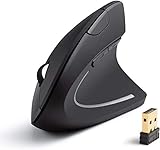
1. Anker 2.4G Wireless Vertical Ergonomic Optical Mouse for Work, Multi-Device Connectivity, 800/1200 /1600 DPI, 5 Buttons for Laptop, Desktop, PC - Black
Overview:
This vertical mouse prioritizes ergonomics for office professionals seeking relief from wrist strain. Its scientifically angled design encourages a neutral “handshake” position, reducing muscle tension during extended use. Compatible with Windows and macOS via a plug-and-play USB receiver, it targets users transitioning from traditional mice to mitigate repetitive strain risks.
What Makes It Stand Out:
The ergonomic structure is its core differentiator, validated by its focus on natural wrist alignment. The adjustable 800/1200/1600 DPI offers precision for varied tasks, while dedicated forward/backward buttons streamline web navigation. The auto-sleep mode after 8 minutes of inactivity significantly extends battery life (though batteries aren’t included), and the 18-month warranty exceeds industry standards.
Value for Money:
Priced mid-range, it delivers exceptional value through durability, ergonomic efficacy, and robust warranty coverage. While lacking Bluetooth or rechargeability, its reliability and focus on core ergonomic benefits outperform cheaper alternatives that compromise on build quality or long-term comfort.
Strengths and Weaknesses:
Strengths: Excellent wrist support; intuitive button layout; energy-efficient; strong warranty; smooth tracking on most surfaces.
Weaknesses: Requires AAA batteries (not included); no Bluetooth connectivity; limited DPI range (max 1600) for high-precision tasks; may feel small for larger hands.
Bottom Line:
A top choice for ergonomics-focused professionals, especially those new to vertical mice. Its comfort, reliability, and warranty justify the price, though users needing Bluetooth or higher DPI should consider alternatives.
2. acer Ergonomic Mouse Wireless, Vertical Computer Mouse for Office, Ergo Mice Rechargeable for Medium to Large Sized Hands, 2.4GHz USB Receiver, 800/1200/1600 DPI, 6 Buttons for Laptop, PC and Desktop

Overview:
Acer’s vertical mouse targets office users with medium-to-large hands, emphasizing fatigue reduction through its 58° tilt design. It promises up to 10% less muscle strain and features a rechargeable battery, making it ideal for daily work on Windows or macOS systems via a 2.4GHz USB-A dongle.
What Makes It Stand Out:
The rechargeable 500mAh battery eliminates ongoing battery costs, a rarity at this price point. The 58° ergonomic angle is clinically tuned for comfort, while the visual DPI indicator (flashing light) simplifies sensitivity adjustments. Dedicated side buttons enhance productivity, though Mac compatibility is limited.
Value for Money:
Competitively priced, it offers strong value with its rechargeable design and ergonomic focus. While not the most feature-rich, it outperforms similarly priced non-rechargeable models and undercuts premium brands. Ideal for budget-conscious users prioritizing sustainability and comfort.
Strengths and Weaknesses:
Strengths: Rechargeable battery; effective strain reduction; easy DPI switching; solid 10m wireless range; intuitive side buttons.
Weaknesses: Side buttons incompatible with Mac; no Bluetooth; limited hand-size suitability (not for small hands); basic tracking on glossy surfaces.
Bottom Line:
An excellent rechargeable ergonomic option for Windows users with larger hands. Its comfort and battery convenience make it a smart investment, but Mac users should verify button compatibility first.
3. ProtoArc Ergonomic Mouse, EM11 NL Bluetooth Rechargeable Wireless Vertical Mouse, 3 Multi-Device Connectivity for Computer/PC/Laptop, 2.4GHz USB-A Optical Mice for Windows, Mac OS, Black

Overview:
ProtoArc’s EM11 NL is a versatile vertical mouse designed for multi-device users, supporting Bluetooth 5.0 and 2.4GHz USB-A connectivity. It targets professionals with small-to-medium hands (under 7.5 inches) seeking seamless switching between Windows, Mac, or Android devices without sacrificing ergonomic benefits.
What Makes It Stand Out:
Triple-device pairing is its standout feature, allowing effortless toggling between systems—a boon for hybrid workers. The rechargeable 500mAh battery via USB-C and compatibility across major OS platforms enhance flexibility. Its compact size specifically addresses comfort for smaller hands, a gap many vertical mice overlook.
Value for Money:
Offers premium multi-device functionality at a mid-tier price. While competitors often charge more for similar connectivity, ProtoArc delivers robust cross-platform support and ergonomics. The inclusion of USB-C charging adds modern convenience, making it a cost-effective long-term solution.
Strengths and Weaknesses:
Strengths: Seamless 3-device switching; USB-C rechargeable; lightweight; excellent fit for small/medium hands; broad OS compatibility.
Weaknesses: Strict hand-size limitation (unsuitable for larger hands); USB-A receiver only (no USB-C dongle); no DPI indicator; basic tracking on uneven surfaces.
Bottom Line:
A top pick for multi-device users with smaller hands. Its connectivity and comfort justify the price, but verify hand size compatibility before purchasing to ensure optimal ergonomics.
4. Logitech Ergo M575S Wireless Trackball Mouse, Wireless Ergonomic Mouse with Bluetooth and Encrypted Dongle, Comfortable Thumb Control, Precise and Smooth Tracking, for PC/Mac - Black Silver Ball

Overview:
Logitech’s ERGO M575S reimagines ergonomics with a trackball design, minimizing forearm movement. Certified by ergonomists, it’s engineered for all-day comfort with thumb-controlled cursor movement, compatible via Bluetooth or USB dongle for Windows and Mac users seeking reduced strain.
What Makes It Stand Out:
The trackball mechanism eliminates wrist dragging, reducing forearm muscle strain by 25%. Logi Ergo Lab validation and ergonomist certification lend scientific credibility. Thumb control saves desk space, while customizable buttons and cursor speed (via Logi Options+ app) enhance precision for design or data work.
Value for Money:
Priced higher than vertical mice, it justifies cost through superior ergonomics validation, build quality, and space-saving design. The dual connectivity and quiet clicks add premium value, outperforming cheaper trackballs in reliability and comfort for chronic strain sufferers.
Strengths and Weaknesses:
Strengths: Clinically proven strain reduction; space-efficient; quiet operation; versatile connectivity; app-driven customization; fits most hand sizes.
Weaknesses: Steeper learning curve for trackball newbies; thumb fatigue possible during extended use; no vertical scroll wheel; higher initial cost.
Bottom Line:
The premier choice for severe wrist strain or limited desk space. Despite the learning curve, its ergonomics expertise and comfort make it worth the investment for long-term health.
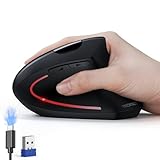
5. TECKNET Ergonomic Mouse, Wireless Rechargeable Vertical Mouse for Carpal Tunnel Right Hand, 4800 DPI 5 Adjustable Levels 2.4GHz with USB-A Receiver, Silent Click, for Laptop, PC, Desktop (Not USB-C)
Overview:
TECKNET’s vertical mouse targets carpal tunnel sufferers with aggressive ergonomics and high-performance specs. Featuring a rechargeable battery, 4800 DPI sensitivity, and silent clicks, it’s built for noise-sensitive offices and precision tasks like graphic design on Windows systems.
What Makes It Stand Out:
The 5-step adjustable DPI (up to 4800) is exceptional for ergonomic mice, catering to design work. Silent left/right clicks reduce office noise, while the 600mAh battery offers up to two months per charge. Tru-Wave tracking ensures versatility across surfaces, excluding glass.
Value for Money:
Offers flagship-level DPI and silence at a mid-range price. It outperforms rivals in precision and battery life, though the USB-A-only connectivity feels dated. For users needing high DPI and quiet operation, it delivers unmatched value in the ergonomic segment.
Strengths and Weaknesses:
Strengths: Industry-leading 4800 DPI; near-silent primary clicks; long 2-month battery life; rapid 1.5-hour charging; effective carpal tunnel relief.
Weaknesses: Non-silent auxiliary buttons; USB-A receiver only (no Bluetooth/USB-C); not ideal for left-handed users; glossy surface tracking issues.
Bottom Line:
A powerhouse for designers or noise-sensitive environments seeking precision and comfort. Its high DPI and silence justify the cost, but verify USB-A compatibility and hand dominance before buying.
6. TECKNET Ergonomic Mouse, Wireless Bluetooth Vertical Mouse, 4800 DPI Optical Tracking, 6 Adjustable DPI, Quiet Clicks, 2.4GHz with USB A Receiver, 12 Months Battery, 6 Buttons, Wide Compatibility

Overview: The TECKNET Ergonomic Mouse is a versatile wireless vertical mouse targeting users seeking wrist comfort and multi-device flexibility, featuring Bluetooth 5.0/3.0 and 2.4GHz connectivity.
What Makes It Stand Out: Its seamless switching between three devices (two via Bluetooth, one via 2.4GHz) and six adjustable DPI levels (up to 4800) ensure adaptability across surfaces and tasks. The near-silent left/right clicks and ergonomic right-handed design significantly reduce wrist strain during prolonged use.
Value for Money: Priced mid-range, it delivers exceptional utility with dual connectivity modes, long battery life (12 months), and broad OS compatibility (Windows, Chrome, Linux). While macOS lacks side-button support, the feature set outweighs similarly priced competitors.
Strengths and Weaknesses: Strengths: Reliable multi-device switching, customizable DPI with visual feedback, quiet operation, and ergonomic comfort. Weaknesses: Right-handed only, non-silent function buttons, and AAA batteries not included. macOS limitations for side buttons reduce versatility for Apple users.
Bottom Line: An excellent, budget-friendly ergonomic mouse for Windows/Linux users needing multi-device efficiency and wrist relief; avoid if macOS functionality is critical.
7. Logitech Lift Vertical Ergonomic Mouse, Wireless, Bluetooth or Logi Bolt USB Receiver, Quiet clicks, 4 Buttons, Compatible with Windows/macOS/iPadOS, Laptop, PC - Graphite

Overview: Logitech’s Lift is a premium ergonomic vertical mouse designed for small-to-medium right hands, emphasizing certified comfort and quiet operation for office environments.
What Makes It Stand Out: Its 57-degree vertical angle, ergo-certified design, and textured grip promote a natural wrist posture, reducing strain. Whisper-quiet clicks, a SmartWheel for smooth scrolling, and seamless Bluetooth/Bolt connectivity (with macOS/iPadOS support) enhance productivity without disturbing others.
Value for Money: Though pricier than budget options, its ergonomist-approved design, durability, and cross-platform compatibility justify the cost for professionals prioritizing long-term health. It outperforms cheaper alternatives in build quality and comfort.
Strengths and Weaknesses: Strengths: Superior ergonomic validation, near-silent operation, intuitive SmartWheel, and flawless macOS/iPadOS integration. Weaknesses: Only four buttons limit customization, no DPI adjustment beyond presets, and slightly higher price. Small hand-size specificity may exclude larger users.
Bottom Line: The top choice for Mac/iOS users and comfort-focused professionals seeking a reliable, quiet ergonomic mouse; ideal for reducing wrist fatigue in daily office use.
8. KUNSI Wired Ergonomic Mouse, USB Wired Vertical Mouse with 800/1200/1600 Adjustable DPI, 6 Buttons Ergonomic Mouse for Laptop/PC/Desktop-Black

Overview: The KUNSI Wired Ergonomic Mouse offers a straightforward, plug-and-play vertical solution for users wanting wrist relief without wireless complexity or battery concerns.
What Makes It Stand Out: Its wired USB connection ensures zero latency and instant setup (no drivers needed), while the 1.8m cable provides ample desk reach. The three DPI levels (800–1600) and dedicated Next/Previous buttons streamline web navigation and document workflow.
Value for Money: As the most affordable option here, it delivers solid value for basic ergonomic needs. Lacking wireless flexibility, it’s ideal for stationary setups where simplicity and cost trump portability—beating budget wireless mice in reliability.
Strengths and Weaknesses: Strengths: Zero lag, plug-and-play ease, durable wired design, and effective neutral-handshake posture. Weaknesses: Limited DPI range (max 1600), Mac-incompatible forward/back buttons, and no wireless functionality. Basic build feels less premium than competitors.
Bottom Line: A dependable, no-frills wired ergonomic mouse perfect for budget-conscious Windows users in fixed workspaces; skip if wireless freedom or macOS support is essential.
9. acer Ergonomic Mouse Wireless with Side Scroll Wheel, Bluetooth Mouse for Laptop(BT5.2+2.4GHz), Office Vertical Computer Mice, Small to Medium Sized Hands Ergo Mice, 8 Buttons for PC and Desktop

Overview: Acer’s wireless ergonomic mouse targets multi-device professionals with a unique side scroll wheel and dual-mode connectivity, optimized for small-to-medium hands.
What Makes It Stand Out: The innovative 3-in-1 side scroll wheel (toggling window switching, zoom, and horizontal scrolling) and seamless triple-device switching (via Bluetooth 5.2/2.4GHz) boost multitasking. Its 59° vertical tilt ensures ergonomic comfort, while 4000 DPI precision suits detailed work.
Value for Money: Competitively priced, it offers standout features like the side scroll wheel and 4000 DPI at a lower cost than Logitech. The 4-level DPI and eight buttons provide more customization than rivals in its class, maximizing productivity per dollar.
Strengths and Weaknesses: Strengths: Revolutionary side scroll functionality, effortless device switching, high DPI for accuracy, and thumb-friendly design. Weaknesses: Small/medium hand restriction, accidental thumb scrolling risk, and 10-minute auto-sleep may frustrate some users.
Bottom Line: A highly innovative, productivity-focused ergonomic mouse for multi-device Windows users; ideal for designers or frequent multitaskers needing versatile scrolling controls.
10. AOC 2.4GHz Ergonomic Mouse, Wireless Bluetooth Vertical Mouse for Work, 4800 DPI Optical Tracking, 5 Adjustable DPI, Quiet Clicks, RGB Light, Compatible with Computer, Laptop, PC, Mac, Desktop - Gray

Overview: The AOC Ergonomic Mouse combines high-performance tracking, triple-mode connectivity, and customizable RGB in a rechargeable vertical design for tech-savvy professionals.
What Makes It Stand Out: Triple connectivity (Bluetooth 5.4, 2.4GHz, USB-C wired), a 200-hour battery life, and a real-time LED battery display offer unmatched flexibility. Its 4800 DPI precision, programmable buttons, and app-driven RGB customization cater to both productivity and aesthetics.
Value for Money: Priced mid-to-high, it justifies cost with a rechargeable battery, wired/wireless versatility, and macOS compatibility—features often split across pricier models. The RGB and programmability add unique flair absent in rivals like Logitech Lift.
Strengths and Weaknesses: Strengths: Exceptional battery life with Type-C charging, seamless multi-device switching, customizable RGB/buttons, and precise DPI scaling. Weaknesses: RGB drains battery faster, quiet clicks limited to primary buttons, and app dependency for full customization.
Bottom Line: A feature-packed powerhouse for Windows/Mac users wanting customization, longevity, and connectivity—perfect for designers or gamers needing ergonomic comfort without sacrificing style.
Understanding Why Ergonomics Matter Specifically for Coders
The Unique Demands of Prolonged Coding Sessions
Coding isn’t just clicking icons; it’s a marathon of precise cursor movements, rapid button clicks for context menus, and constant switching between keyboard and mouse. Standard mice lock your hand in a “claw” or “palm” grip for hours, straining tendons and nerves repeatedly. This sustained, awkward positioning is the perfect storm for conditions like carpal tunnel syndrome or tendonitis, significantly amplified by the intense focus that makes coders forget to take micro-breaks. Ergonomic designs directly combat this by promoting neutral postures.
How Poor Mouse Design Impacts Coding Efficiency
Discomfort isn’t just physical—it’s a cognitive drain. When your wrist hurts, your brain dedicates resources to managing that pain instead of debugging or architecting solutions. Subtle issues like a stiff scroll wheel requiring excessive force, poorly placed buttons forcing awkward thumb stretches, or a shape that fatigues your hand quickly all contribute to micro-interruptions. These constant distractions shatter concentration, turning a two-hour task into a four-hour slog. An effective ergonomic mouse minimizes these friction points, keeping your focus squarely on the code.
Key Ergonomic Features to Prioritize for Development Work
Optimal Hand Posture and Natural Alignment
The core principle is neutral alignment: your hand, wrist, and forearm should form a straight line, avoiding ulnar deviation (bending the wrist sideways) or wrist extension (bending the back of the hand upwards). Look for designs that position your hand in a more vertical or tented orientation (thumb pointing upwards, like a handshake), which significantly reduces pressure on median nerves and tendons compared to the flat palm-down grip of a traditional mouse. The goal is for your hand to rest in a relaxed, natural position mimicking its stance when hanging loosely at your side.
Shape Variations and Their Impact on Comfort
Ergonomic mice come in distinct form factors, each altering hand posture differently. Vertical mice rotate the hand into that handshake position, ideal for reducing forearm strain. Tented or angled mice keep the hand flatter but elevate the outer edge, reducing wrist bending. Contoured mice provide pronounced support for specific grip styles (palm, claw, fingertip) but may not fully address wrist angle. There’s no universal “best” shape—it depends entirely on your anatomy and existing habits. Prioritize trying different shapes if possible, focusing on which one eliminates tension immediately.
Button Layout and Programmability for Workflow Efficiency
For coders, button placement is critical beyond basic clicks. Thumb buttons positioned under natural resting points (not requiring a stretch) are essential for frequent actions like back/forward navigation in browsers or IDEs. Consider mice with easily programmable side buttons—assigning shortcuts for copy/paste, switching workspaces, or triggering macros can drastically cut down on keyboard hand travel. The scroll wheel matters too; a smooth, precise wheel (ideally with horizontal scrolling capability) is vital for navigating long code files without jarring movements.
Sensor Precision and Tracking Performance
Don’t sacrifice performance for ergonomics. A high-DPI optical or laser sensor (adjustable up to 1600+ DPI) ensures pixel-perfect cursor control for intricate tasks like selecting specific code blocks or UI elements within development environments. Look for sensors with strong surface compatibility—reliable tracking on wood, glass, or textured mats prevents frustrating cursor jumps that disrupt focus. Consistent, lag-free movement is non-negotiable when precision matters.
Weight, Balance, and Material Feel
A mouse that’s too heavy causes fatigue; one that’s too light feels unstable for precise work. Seek a balanced weight (often 80-120g) where the center of gravity sits comfortably under your palm. Materials matter: a slightly textured grip (rubberized or matte finish) prevents sweaty slips during intense sessions, while avoiding sharp edges that dig into your palm during long holds. The mouse should feel like a natural extension of your hand, not a tool you’re wrestling with.
Connectivity and Technical Considerations for Seamless Integration
Wired vs. Wireless: Reliability vs. Clutter
Wired mice offer zero latency and no battery anxiety—crucial for some developers. However, modern high-end wireless options (using Bluetooth Low Energy or proprietary 2.4GHz dongles) provide near-identical responsiveness with excellent battery life (months, not days). Evaluate your desk setup: if cable management is a nightmare or you frequently switch between workstations, reliable wireless often wins despite the slight premium. Prioritize models with robust wireless protocols specifically advertised for low latency.
Cross-Platform Compatibility Needs
Developers often juggle multiple operating systems (Windows, macOS, Linux). Ensure your chosen mouse has drivers or native OS support that allows consistent button mapping and DPI adjustment across all your environments. Some advanced ergonomic mice offer multi-device pairing (via Bluetooth), letting you seamlessly switch between a work laptop and a powerful desktop rig with a single button press—a major productivity booster.
Software Ecosystem and Customization Depth
The right companion software transforms a good mouse into a coding powerhouse. Look for applications that offer granular control: per-application profile settings (so your IDE shortcuts differ from your browser), complex macro creation, sensitivity curves, and detailed button remapping. Avoid mice locked into simplistic, buggy, or non-existent software—this limits the mouse’s long-term adaptability to your evolving workflow needs.
Implementation Strategies for Maximum Benefit
Gradual Transition and Muscle Memory Adaptation
Switching to a radically different ergonomic shape (like vertical) requires an adjustment period—typically 1-4 weeks. Your muscles and brain need time to rewire. Start by using the new mouse for shorter, less critical tasks. Don’t force it through pain; intermittent use during the transition is better than abandoning it. Be patient: initial awkwardness is normal, but persistent pain means the shape might not suit your hand anatomy.
Optimizing Your Entire Workstation Setup
A perfect mouse won’t fix a poor overall setup. Ensure your chair supports a neutral spine, your desk height allows elbows at 90-110 degrees, and your keyboard is positioned so your wrists stay straight while typing. Consider a negative tilt keyboard tray. The mouse should sit at the same height as your keyboard, eliminating the need to reach up or down. Ergonomics is holistic—your mouse is one vital piece of a larger ergonomic puzzle.
Incorporating Movement and Micro-Breaks
Even the best ergonomic mouse encourages static postures if you never move. Set timers for micro-breaks every 20-30 minutes: stretch your fingers, rotate your wrists gently, or simply rest your hands in your lap. Alternate between mouse and keyboard shortcuts where efficient. Movement is the ultimate antidote to strain—design your workflow to include natural pauses, not just rely on the mouse shape alone.
Long-Term Assessment and Adjustment
Don’t judge a mouse solely on the first day. Track how your hand feels after a full 6-8 hour coding session, not just during initial setup. Note any residual aches, changes in fatigue levels, or unexpected workflow hiccups. Be prepared to tweak settings (DPI, button mappings) over weeks as you discover what truly optimizes your personal rhythm. Your ideal ergonomic solution might evolve as your projects and physical needs change.
Frequently Asked Questions
Can an ergonomic mouse really prevent carpal tunnel syndrome?
While no single tool guarantees prevention, an ergonomic mouse significantly reduces risk factors by promoting neutral wrist alignment and reducing strain on the median nerve. Combined with proper workstation setup and movement habits, it’s a crucial element in a comprehensive prevention strategy, but not a standalone cure.
How long does it take to get used to a vertical mouse?
Most coders adapt within 1-4 weeks of consistent daily use. Initial awkwardness is common as muscles relearn movement patterns. Start with shorter sessions and gradually increase usage time. Persistent pain beyond a few weeks suggests the specific shape may not suit your hand anatomy.
Are expensive ergonomic mice worth the investment for coders?
Value is measured in sustained productivity and health. A well-chosen ergonomic mouse that eliminates pain and integrates smoothly into your workflow pays for itself by preventing lost workdays, medical costs, and chronic discomfort. Focus on features matching your needs, not just price.
Do I need special software for an ergonomic mouse?
For basic plug-and-play functionality, often no. However, to unlock programmable buttons, per-app profiles, sensitivity curves, and advanced customization essential for coding efficiency, robust companion software is usually necessary. Check software compatibility with your OS before purchasing.
Will an ergonomic mouse slow down my coding speed initially?
There is typically a short adjustment period where speed might dip slightly as you adapt to new hand positioning and button layouts. However, once adapted, most developers report increased speed and reduced fatigue due to better button placement and reduced physical strain interrupting focus.
Can I use an ergonomic mouse with a laptop on the couch?
Ergonomic principles still apply, but effectiveness depends on support. Using any mouse on soft surfaces (like a couch) often forces poor posture. For true ergonomics, ensure your laptop is on a stable surface at proper height, and your arm is supported. A trackpad might be less harmful in unsupported mobile scenarios.
Are there ergonomic options for left-handed coders?
Yes, though selection is more limited. Look for ambidextrous designs (often symmetrical vertical mice) or specifically marketed left-handed models. Programmable buttons are even more critical here to remap functions to comfortable left-thumb positions. Research is key.
How important is scroll wheel quality for coding?
Extremely important. Navigating long code files, documentation, or version history requires precise, smooth scrolling. A jumpy, stiff, or overly sensitive wheel causes micro-frustrations and hand strain. Prioritize mice with high-quality, tactile, and ideally multi-directional scrolling wheels.
Should I choose a lightweight or heavier ergonomic mouse?
Balance matters more than absolute weight. A mouse should feel stable during precise movements but not require excessive effort to move. Many coders prefer a moderate weight (80-120g) that provides control without fatigue. Ultimately, it’s subjective—try different weights if possible.
Can an ergonomic mouse help if I already have wrist pain?
It can be a vital part of management and recovery, reducing aggravating pressure. However, consult a healthcare professional (like an occupational therapist) for a comprehensive plan. An ergonomic mouse alone isn’t a substitute for medical advice, rest, or potential therapy if pain is already present.