Do you wake up with a dull ache radiating from your wrist into your hand, or perhaps a sharp twinge flares up after just an hour of computer work? You’re far from alone. Millions of desk workers, creatives, and gamers wrestle with repetitive strain injuries (RSIs) like carpal tunnel syndrome and tendonitis, often unknowingly amplified by the humble computer mouse resting innocently on their desk. That standard, flat mouse design – the one that seems perfectly ordinary – forces your wrist into an unnatural, extended position for hours on end, putting constant pressure on nerves and tendons. Ignoring these early warning signs can lead to chronic pain, reduced mobility, and even time away from work, turning what should be a simple pointing device into a potential source of long-term discomfort.
The good news? Significant relief is often within reach, and it starts with rethinking your mouse. An ergonomic mouse isn’t just a trendy accessory; it’s a proactive investment in your physical well-being designed to align with your body’s natural mechanics. By promoting a more neutral hand and wrist posture – think relaxed, handshake-like grip instead of constant bending – these specialized devices significantly reduce strain on vulnerable structures. Forget the notion that you have to “tough out” wrist pain; understanding the core principles of ergonomic design empowers you to make a choice that supports comfort and sustained productivity, whether you’re drafting reports, editing photos, or navigating complex software. Let’s explore how to find the right solution for your body and workflow.
Top 10 Ergonomic Mice
Detailed Product Reviews
1. TECKNET Ergonomic Mouse, Wireless Bluetooth Vertical Mouse, 4800 DPI Optical Tracking, 6 Adjustable DPI, Quiet Clicks, 2.4GHz with USB A Receiver, 12 Months Battery, 6 Buttons, Wide Compatibility

Overview: The TECKNET Ergonomic Mouse is a versatile wireless vertical mouse targeting users seeking wrist comfort and multi-device flexibility. Designed exclusively for right-handed users, it combines Bluetooth 5.0/3.0 and 2.4GHz USB-A connectivity with a high-DPI sensor and silent operation.
What Makes It Stand Out: Its standout features include seamless switching between three devices (two via Bluetooth, one via USB receiver), six adjustable DPI levels up to 4800, and near-silent left/right clicks. The built-in USB receiver storage and battery-saving deep-sleep mode enhance practicality, while the vertical design actively reduces wrist strain.
Value for Money: Priced competitively in the mid-range segment, it offers exceptional value through its triple-device support, premium DPI range, and broad OS compatibility (Windows, Mac, Chrome, Linux). It outperforms budget alternatives with superior build quality and features typically found in costlier models.
Strengths and Weaknesses:
Strengths: Triple-device flexibility, 4800 DPI precision, quiet operation, long battery life, ergonomic relief for right-handed users.
Weaknesses: Non-silent side buttons, macOS incompatibility for side functions, AAA batteries not included, right-hand only design.
Bottom Line: An outstanding choice for multi-device users prioritizing wrist health and customization. Its blend of performance, quiet operation, and seamless switching justifies the price, making it a top-tier ergonomic mouse for office or home use.
2. ProtoArc Ergonomic Mouse, EM11 NL Bluetooth Rechargeable Wireless Vertical Mouse, 3 Multi-Device Connectivity for Computer/PC/Laptop, 2.4GHz USB-A Optical Mice for Windows, Mac OS, Black

Overview: The ProtoArc EM11 NL is a rechargeable vertical mouse engineered for users with smaller hands (under 7.5 inches), emphasizing ergonomics and multi-device connectivity without disposable batteries. It supports Windows, macOS, and Android via dual-mode connectivity.
What Makes It Stand Out: The integrated 500mAh rechargeable battery (via USB-C) and ability to connect three devices simultaneously via Bluetooth 5.0 or 2.4GHz USB-A are key differentiators. Its compact size specifically targets small-to-medium hands, promoting a natural wrist alignment to prevent strain during extended use.
Value for Money: Positioned as a mid-range option, it delivers strong value through its rechargeable design—eliminating ongoing battery costs—and tailored ergonomics. While slightly pricier than non-rechargeable models, the convenience and targeted comfort justify the investment for frequent users.
Strengths and Weaknesses:
Strengths: Rechargeable battery, optimized for small hands, triple-device support, quiet clicks, ergonomic strain reduction.
Weaknesses: Strict hand-size limitation (may not suit larger hands), USB-C cable for charging only (no receiver), limited DPI details, no macOS side-button support.
Bottom Line: Ideal for users with smaller hands seeking a sustainable, multi-device ergonomic mouse. Its rechargeable feature and precise sizing make it a smart buy, though verify hand measurements first to ensure optimal comfort.
3. Anker 2.4G Wireless Vertical Ergonomic Optical Mouse for Work, Multi-Device Connectivity, 800/1200 /1600 DPI, 5 Buttons for Laptop, Desktop, PC - Black
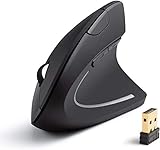
Overview: Anker’s entry-level vertical mouse delivers essential ergonomic benefits with a focus on simplicity and reliability for daily work tasks. It features a neutral “handshake” grip design, modest DPI range, and multi-device compatibility via 2.4GHz USB receiver.
What Makes It Stand Out: Its scientifically backed ergonomic structure reduces wrist strain effectively, while dedicated next/previous buttons streamline web navigation. The ultra-lightweight design (3.4 oz) and 8-minute auto-sleep mode prioritize portability and battery efficiency, appealing to mobile professionals.
Value for Money: As a budget-friendly option, it offers excellent value for basic ergonomic needs. Though limited to 1600 DPI and lacking Bluetooth, its 18-month warranty, included receiver, and Anker’s reliability provide peace of mind unmatched by cheaper knockoffs.
Strengths and Weaknesses:
Strengths: Lightweight and portable, intuitive thumb buttons, strong build quality, exceptional warranty, easy setup.
Weaknesses: Low max DPI (unsuitable for high-precision tasks), no Bluetooth connectivity, batteries not included, minimal customization.
Bottom Line: A dependable, no-frills ergonomic mouse perfect for casual users or those new to vertical designs. Its affordability and Anker’s trustworthiness make it a safe starting point, though power users may desire higher DPI.
4. Logitech Lift Vertical Ergonomic Mouse, Wireless, Bluetooth or Logi Bolt USB Receiver, Quiet clicks, 4 Buttons, Compatible with Windows/macOS/iPadOS, Laptop, PC - Graphite

Overview: Logitech’s Lift Graphite is a premium ergonomic mouse certified by ergonomists, designed for small-to-medium right hands. It merges comfort-focused engineering with quiet operation and seamless cross-device connectivity for productivity-focused users.
What Makes It Stand Out: The 57-degree vertical angle actively promotes natural forearm posture, while the SmartWheel enables hyper-smooth scrolling. “Ergo-certified” status, whisper-quiet clicks, textured grip, and dual connectivity (Bluetooth/Logi Bolt) set it apart as a scientifically validated solution for long-term comfort.
Value for Money: Positioned at a premium price, it justifies cost through rigorous ergonomics testing, superior materials, and Logitech’s ecosystem integration. It outperforms mid-range rivals in comfort consistency and build quality, especially for macOS/iPadOS users.
Strengths and Weaknesses:
Strengths: Ergonomist-approved design, exceptional quiet operation, SmartWheel precision, cross-platform compatibility, durable finish.
Weaknesses: Premium pricing, limited to small/medium hands, only 4 buttons (less customization), no high-DPI options.
Bottom Line: The gold standard for ergonomic mice—ideal for professionals seeking all-day comfort without compromise. Worth the investment for wrist pain prevention, though budget-conscious buyers may consider alternatives.
5. Logitech Lift Vertical Ergonomic Mouse, Wireless, Bluetooth or Logi Bolt USB Receiver, Quiet clicks, 4 Buttons, Compatible with Windows/macOS/iPadOS, Laptop, PC - Rose

Overview: Identical to its Graphite sibling but in a Rose hue, this Logitech Lift mouse offers the same ergonomist-certified comfort for small-to-medium right hands, targeting users who prioritize aesthetics alongside wrist health in their workspace.
What Makes It Stand Out: Beyond the stylish Rose finish, it retains all core innovations: the 57-degree vertical angle, SmartWheel for fluid scrolling, whisper-quiet clicks, and dual-mode connectivity. Its textured grip and thumb rest ensure consistent comfort, making functionality indistinguishable from the Graphite model.
Value for Money: Priced identically to the Graphite version, it delivers equal value—just with added personalization. The rose color appeals to users wanting ergonomic benefits without sacrificing desk aesthetics, maintaining Logitech’s premium quality and warranty.
Strengths and Weaknesses:
Strengths: Same ergonomic excellence as Graphite, stylish color option, quiet operation, multi-OS compatibility, reliable Logi Bolt tech.
Weaknesses: Identical limitations (hand size, 4-button setup, premium cost), color may not suit all setups.
Bottom Line: A flawless blend of form and function—choose this Rose variant if aesthetics matter. It’s as effective as the Graphite model for reducing strain, making it a top pick for design-conscious professionals.
6. Logitech Ergo M575S Wireless Trackball Mouse, Wireless Ergonomic Mouse with Bluetooth and Encrypted Dongle, Comfortable Thumb Control, Precise and Smooth Tracking, for PC/Mac - Black Silver Ball

Overview:
The Logitech Ergo M575S is a thumb-controlled wireless trackball mouse designed for ergonomic comfort during extended use. It eliminates traditional mouse movement by letting users navigate via a stationary thumb-operated ball, reducing physical strain while maintaining precision on any surface.
What Makes It Stand Out:
Its sculpted shape promotes a neutral hand position, reducing forearm muscle strain by 25% compared to standard mice, per ergonomist certification. The dual connectivity (Bluetooth + encrypted USB dongle), quiet clicks, and customizable buttons via Logi Options+ app enhance versatility. Thumb control saves desk space and suits compact setups perfectly.
Value for Money:
Priced mid-range, it justifies cost through certified ergonomic benefits, dual connectivity, and durability. Cheaper alternatives lack Logitech’s ergonomist validation and app customization, while premium models rarely offer this blend of comfort and precision for office or home use.
Strengths and Weaknesses:
Strengths: Exceptional comfort for all-day use; stable dual-mode connectivity; quiet operation; space-efficient design; precise tracking. Weaknesses: Steeper learning curve for trackball novices; thumb fatigue during intensive tasks; limited button customization without the app.
Bottom Line:
Ideal for ergonomics-focused users seeking strain reduction and desk-space efficiency. A top-tier investment for office professionals, though beginners may need adjustment time.
7. TECKNET Ergonomic Mouse, 4800 DPI Wireless Vertical Mouse, 5 Adjustable DPI Levels, 6 Buttons, 2.4G Silent Wireless Mouse for Laptop, PC, Chromebook - Pink

Overview:
This TECKNET vertical mouse combats wrist strain with a 52° natural handshake posture, targeting users prone to RSI. Its pink finish, compact size (4.13"x2.55"), and silent-click tech cater to small/medium hands in office or home environments.
What Makes It Stand Out:
The 52° vertical angle significantly reduces wrist pronation, while 4800 DPI with five adjustable levels ensures adaptability for tasks from browsing to design. Silent clicks (99% noise reduction) and forward/back buttons streamline workflow, though side buttons lack Mac support.
Value for Money:
An affordable ergonomic solution under $30. It outperforms budget mice with certified strain reduction and quiet operation, though premium models offer Bluetooth. The pink variant adds aesthetic appeal without inflating cost.
Strengths and Weaknesses:
Strengths: Effective wrist strain relief; ideal for small hands; near-silent primary clicks; plug-and-play 2.4GHz stability; vibrant color option. Weaknesses: Non-silent side buttons; no Bluetooth; limited Mac compatibility; smaller size may not suit large hands.
Bottom Line:
A budget-friendly, stylish choice for small-handed users prioritizing wrist comfort and quiet operation, especially in shared spaces. Avoid if you need Bluetooth or Mac side-button support.
8. JYKEYMOUT Bluetooth and 2.4G (2-in-1) Rechargeable Wireless Mouse, Ergonomic Vertical Design, 1000/1200/1600 DPI, 6 Silent Buttons, for Laptop, Computer, PC, MacBook, Chromebook-Black

Overview:
JYKEYMOUT’s dual-mode vertical mouse merges ergonomics with modern connectivity. Its rechargeable battery, silent buttons, and 2-in-1 Bluetooth/2.4G operation target mobile professionals needing cross-device flexibility without compromising wrist comfort.
What Makes It Stand Out:
Seamlessly pair with two devices simultaneously (e.g., MacBook via Bluetooth and PC via USB dongle), switching with one button. Type-C recharging, 1–3 months battery life, and near-silent clicks (6 buttons) excel in noise-sensitive areas like libraries or open offices.
Value for Money:
Priced competitively, its dual connectivity and rechargeability surpass single-mode rivals. Cheaper vertical mice lack multi-device support, while premium options rarely include Type-C charging at this price point.
Strengths and Weaknesses:
Strengths: Effortless dual-device switching; long battery life; fully silent clicks; broad OS compatibility; compact ergonomic design. Weaknesses: Limited DPI range (max 1600); non-silent side buttons on Mac; power-saving mode may disrupt workflow.
Bottom Line:
Perfect for multi-device users valuing portability and quiet operation. A standout for MacBook owners needing USB-free connectivity, despite modest DPI flexibility.
9. TECKNET Ergonomic Mouse, Wireless Rechargeable Vertical Mouse for Carpal Tunnel Right Hand, 4800 DPI 5 Adjustable Levels 2.4GHz with USB-A Receiver, Silent Click, for Laptop, PC, Desktop (Not USB-C)
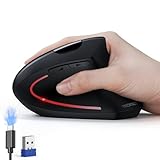
Overview:
Tailored for carpal tunnel sufferers, this TECKNET vertical mouse emphasizes strain reduction via a 52° natural grip and 4800 DPI precision. It features rechargeable operation, silent clicks, and robust 2.4GHz connectivity for office or remote work.
What Makes It Stand Out:
A high-capacity 600mAh battery delivers two months per charge (1.5-hour Type-C recharge), while Tru-Wave optical tracking ensures surface versatility. Silent left/right clicks and 5-step DPI adjustment cater to noise-sensitive and precision-focused tasks.
Value for Money:
Offers exceptional battery life and medical-grade ergonomics under $40. Competitors either sacrifice longevity (non-rechargeable) or charge premiums for similar DPI ranges, making this ideal for chronic pain sufferers.
Strengths and Weaknesses:
Strengths: Outstanding 2-month battery life; carpal tunnel-focused design; powerful 4800 DPI; reliable 2.4GHz connection; silent primary clicks. Weaknesses: No Bluetooth; USB-A only (incompatible with modern MacBooks); non-silent side buttons; larger size may not fit small hands.
Bottom Line:
A top pick for long-duration comfort and battery efficiency, especially for carpal tunnel users. Avoid if you require Bluetooth or own USB-C-only devices.
10. Logitech Ergo M575S Wireless Trackball Mouse, Wireless Ergonomic Mouse with Bluetooth and Encrypted Dongle, Comfortable Thumb Control, Precise and Smooth Tracking, for PC/Mac - Graphite Blue Ball

Overview:
Identical to Product #6 but in Graphite Blue, this Logitech trackball prioritizes ergonomic thumb control. It minimizes arm movement via a stationary design, targeting users seeking fatigue reduction during prolonged computer sessions.
What Makes It Stand Out:
Ergonomist-certified to reduce forearm strain by 25%, it features dual-mode connectivity (Bluetooth/dongle), customizable buttons via Logi Options+, and quiet clicks. The thumb-operated ball enables cursor movement without repositioning the hand, ideal for cramped desks.
Value for Money:
Priced identically to the Black Silver variant, the Graphite Blue offers aesthetic distinction without functional trade-offs. It outperforms cheaper trackballs in build quality and app integration, justifying its cost for ergonomics-focused buyers.
Strengths and Weaknesses:
Strengths: Proven comfort for all-day use; versatile connectivity; precise tracking; space-saving; quiet operation. Weaknesses: Thumb fatigue during heavy use; learning curve for trackball newcomers; limited app customization on macOS.
Bottom Line:
A superb ergonomic upgrade for reducing physical strain, with the Graphite Blue appealing to style-conscious users. Choose based on color preference—functionality matches Product #6 exactly.
Understanding Wrist Pain and Mouse Mechanics
The Anatomy Behind the Ache
Your wrist is a complex junction of bones, ligaments, tendons, and nerves, not designed for prolonged static positions. Standard mice force your forearm into pronation (palm down) and your wrist into ulnar deviation (bent sideways) and extension (bent backward). This compresses the median nerve within the carpal tunnel and strains tendons, leading to inflammation, pain, numbness, and tingling – classic signs of developing RSIs.
How Standard Mice Exacerbate the Problem
The flat, symmetrical design of conventional mice requires your hand to collapse into a “claw” or “hover” grip. This unnatural positioning creates sustained muscle tension in the forearm and wrist. The lack of support for the natural arch of the hand means muscles constantly work to stabilize the mouse, accelerating fatigue and strain. Even slight, repeated movements performed in this compromised posture accumulate significant stress over time.
Recognizing Early Warning Signs
Don’t wait for severe pain to act. Early indicators include intermittent tingling or numbness in the fingers (especially thumb, index, middle), mild wrist aches that fade with rest, occasional stiffness in the morning, or a feeling of weakness when gripping objects. Fatigue in the forearm after relatively short computer sessions is also a red flag. Addressing these symptoms proactively is far easier than treating established chronic conditions.
Essential Features to Prioritize in an Ergonomic Mouse
Optimal Hand Posture: Vertical vs. Angled Designs
The core principle is achieving a neutral wrist position. Vertical mice rotate your hand to a near handshake position (60-90 degrees), drastically reducing pronation and extension. Angled mice (often 30-45 degrees) offer a gentler transition for some users, still significantly improving posture over flat mice but potentially less radical than full vertical designs. The “best” angle depends entirely on individual anatomy and comfort tolerance.
Thumb and Palm Support Structures
Look for contoured shapes that provide substantial, comfortable support for the entire palm and the thenar eminence (the fleshy pad at the base of your thumb). This support prevents your hand from collapsing inward and reduces the need for gripping tension. A well-designed thumb rest is crucial; it should cradle the thumb naturally without forcing it into an awkward splayed position or leaving it dangling.
Size, Shape, and Hand Compatibility
Ergonomic mice are not one-size-fits-all. Your hand size (measured from wrist crease to tip of middle finger) and dominant hand shape (slender, wide, long fingers) are critical factors. A mouse too large forces finger stretching; one too small leads to clawing. Many manufacturers offer size variants (small, medium, large). Consider whether your mouse needs to fit comfortably within your natural reach zone without excessive shoulder movement.
Button Layout and Customization Potential
Strategic button placement minimizes finger travel and awkward reaches. Primary buttons should align with your index and middle fingers’ natural resting positions. Side buttons (for back/forward navigation, DPI switching) should be easily thumb-activatable without repositioning your entire hand. Software customization allows remapping functions to reduce strain-inducing gestures, like assigning frequent actions to easily accessible buttons.
Optimizing Usage and Environment
Correct Desk and Chair Setup Fundamentals
The mouse is only one piece of the puzzle. Ensure your chair height allows elbows to rest at 90-110 degrees with upper arms relaxed at your sides. Your desk height should enable forearms to be roughly parallel to the floor. The mouse should sit immediately next to the keyboard, within the “elbow pit” – the space your elbow creates when resting comfortably at your side. Avoid reaching forward or across your body.
Incorporating Healthy Movement Habits
No ergonomic device eliminates the need for movement. Practice the “90-20 rule”: every 20 minutes, take 90 seconds to stretch your hands, wrists, and forearms. Gently flex and extend fingers, rotate wrists slowly, and perform forearm stretches. Alternate between mouse and keyboard tasks actively. Consider a mouse pad with a slight wrist rest only for moments of rest, never while actively moving the mouse.
Gradual Transition Strategies
Switching to a significantly different mouse shape requires adaptation. Start by using the new mouse for just 1-2 hours per day during less demanding tasks. Gradually increase usage time over 1-3 weeks as your muscles adjust. Don’t push through sharp pain – mild muscle soreness is normal, but nerve pain is a signal to ease back. Patience during this transition period is key to long-term success.
Evaluating Technology and Performance
Sensor Accuracy and Surface Compatibility
A high-precision optical or laser sensor is non-negotiable. It must track flawlessly on your specific desk surface (wood, glass, fabric pad) without acceleration, jitter, or requiring excessive lifting. Look for adjustable DPI (dots per inch) settings to match your screen resolution and preferred cursor speed – too high can cause overshooting, too low requires excessive arm movement.
Connectivity Options: Wired vs. Wireless Reliability
Wired mice offer zero latency and no battery concerns, ideal for precision tasks. Modern wireless mice (Bluetooth or 2.4GHz dongle) provide excellent reliability and freedom from cable drag, but ensure they boast strong, interference-free connections and long battery life (or easy recharging). Latency should be imperceptible; test reviews specifically mentioning smooth cursor movement.
Build Quality and Material Comfort
Durability matters for long-term investment. Look for sturdy plastics or sustainable composites that won’t creak or flex excessively. Surface texture is vital – it should provide enough grip to prevent slippage without causing friction or irritation during prolonged use. Avoid overly glossy or excessively rough finishes that can cause discomfort. Consider hypoallergenic materials if you have sensitive skin.
Emerging Trends for Future-Proof Comfort
Advanced Biometric Feedback Integration
The next frontier involves mice incorporating subtle sensors to monitor grip pressure or micro-movements, potentially providing real-time feedback via software (e.g., gentle reminders to relax your hand) or even dynamically adjusting weight distribution to encourage better posture, moving beyond passive support to active guidance.
Sustainable and Adaptive Materials
Expect increased use of recycled, biodegradable, or rapidly renewable materials (like bamboo composites) in construction. Research into adaptive materials that subtly conform to individual hand shapes over time, offering personalized support without complex adjustments, is also gaining traction, focusing on long-term environmental and user comfort.
AI-Assisted Personalization
Future software ecosystems might leverage AI to analyze your usage patterns – click force, movement speed, rest periods – and suggest highly personalized ergonomic adjustments, optimal usage intervals, or even tailored stretching routines based on your specific interaction data, creating a more bespoke wellness experience.
Implementing Your Ergonomic Strategy
Assessing Your Specific Pain Points and Workflow
Before choosing, pinpoint your exact discomfort: Is it primarily thumb strain, wrist extension pain, or forearm fatigue? Analyze your dominant tasks: Heavy clicking (requires low-actuation force buttons), precise graphic work (demands high sensor accuracy), or frequent horizontal scrolling? Your specific pain and primary computer use should heavily influence feature prioritization.
The Importance of Hands-On Testing (When Possible)
If feasible, visit a store to physically handle different ergonomic shapes. Notice how your hand naturally rests on each. Does the thumb slot feel supportive? Can you easily reach side buttons? Does the overall size feel balanced? While online research is essential, nothing replaces the tactile feedback of holding the device to assess immediate comfort potential. Pay attention to weight distribution in your hand.
Frequently Asked Questions
Can an ergonomic mouse completely cure existing wrist pain?
While not a guaranteed “cure,” an ergonomic mouse is a critical tool for managing and preventing the worsening of wrist pain caused by poor posture. It addresses a major contributing factor. Significant existing pain often requires a multi-pronged approach including rest, physical therapy, proper workstation setup, and potentially medical consultation alongside ergonomic equipment.
How long does it typically take to adjust to a new ergonomic mouse?
Adjustment periods vary widely, usually ranging from 1 to 4 weeks. Initial muscle soreness (not sharp nerve pain) is common as unused muscles engage. Start with short usage sessions (1-2 hours/day) and gradually increase. Consistency is key; switching back and forth hinders adaptation. Listen to your body and pace yourself.
Are vertical mice suitable for people with very small hands?
Yes, but size selection is crucial. Many vertical mouse manufacturers offer specific small-sized models. Avoid standard or large vertical mice if you have small hands, as they can force excessive finger stretching. Prioritize models explicitly designed for smaller hand sizes to ensure your fingers can comfortably reach the buttons without strain.
Do I still need a wrist rest with an ergonomic mouse?
Generally, no – and often it’s counterproductive. A wrist rest used while actively moving the mouse can create pressure on the soft tissue of the wrist, potentially worsening nerve compression. Ergonomic mice are designed to be used with the entire forearm supported by the desk, keeping the wrist floating neutrally. Use a rest only during keyboarding pauses, not during mouse operation.
Can ergonomic mice help with conditions like carpal tunnel syndrome?
Yes, significantly. By promoting a neutral wrist posture, ergonomic mice reduce pressure on the median nerve within the carpal tunnel, which is the root cause of carpal tunnel syndrome symptoms. They are a cornerstone of non-surgical management strategies for mild to moderate CTS, often recommended by healthcare professionals alongside other interventions.
Is a heavier or lighter mouse better for reducing strain?
Moderate weight (typically 80g - 120g) is often ideal. Very light mice can feel unstable, requiring more gripping force for control. Very heavy mice demand more effort to move, straining forearm muscles. A well-balanced mouse with a weight that feels substantial yet effortless to glide is generally best for minimizing fatigue during prolonged use.
How important is button actuation force (how hard you have to click)?
Crucially important for reducing strain, especially with frequent clicking. Look for mice with a smooth, light-to-medium actuation force (ideally under 60cN). Excessive force required for clicks significantly contributes to finger and thumb tendon fatigue over time. Check manufacturer specs or reviews focusing on click feel.
Will an ergonomic mouse work well for gaming or precise graphic design?
Absolutely, but prioritize specific features. Gamers need ultra-low latency, high polling rates, customizable button mapping, and often adjustable weights. Graphic designers require pixel-precise sensor tracking, consistent movement, and potentially thumb wheels for zooming. Many high-end ergonomic models now cater specifically to these demanding use cases without sacrificing comfort.
Can using an ergonomic mouse prevent wrist pain if I don’t have it yet?
Yes, this is a primary benefit of proactive use. If you spend significant time at a computer, especially with risk factors like poor posture or high repetition, an ergonomic mouse is a preventative measure. It reduces the cumulative stress that leads to RSIs, making it a smart investment for long-term musculoskeletal health, not just a reactive tool for existing pain.
What’s the single most common mistake people make when switching to an ergonomic mouse?
Forcing prolonged use too quickly and neglecting overall workstation ergonomics. Trying to use the new mouse for a full workday immediately often leads to frustration and abandonment. Equally, placing the ergonomic mouse far away on the desk, requiring reaching, completely negates its benefits. Focus on gradual adaptation and ensuring proper chair/desk height and mouse placement.