The days of grainy, frozen video calls that make you look like a poorly rendered video game character are thankfully fading into the past. With hybrid and remote work becoming deeply embedded in our professional lives, the humble webcam has transformed from a peripheral afterthought into a critical tool for clear communication, professional presence, and genuine connection. Whether you’re pitching a major client, collaborating with a global team, or simply catching up with colleagues, the quality of your video feed directly impacts how you’re perceived and how effectively you can engage. It’s no longer just about being seen; it’s about being clearly and confidently seen.
Investing in an external webcam is often the single most impactful upgrade you can make for your home office or workspace, far surpassing the capabilities of most built-in laptop cameras. But navigating the sea of specifications, marketing jargon, and feature claims can feel overwhelming. What truly matters for crisp, reliable video in varying lighting conditions? Is ultra-high resolution essential, or are there more crucial factors hiding beneath the surface? This guide cuts through the noise to focus on the practical, technical, and ergonomic considerations that will help you find the perfect external webcam solution tailored to your specific conferencing needs and environment, ensuring you present your best self in every virtual interaction.
Top 10 External Webcams for Video Conferencing
Detailed Product Reviews
1. NexiGo N60 1080P Webcam with Microphone, Software Control & Privacy Cover, USB HD Computer Web Camera, Plug and Play, for Zoom/Skype/Teams, Conferencing and Video Calling

Overview: The NexiGo N60 is a plug-and-play 1080p HD webcam targeting remote workers and streamers, featuring a glass lens, built-in mic, and physical privacy shutter. It promises crisp video for Zoom, Teams, and streaming platforms with broad OS compatibility (Windows, Mac, Linux, Chrome OS).
What Makes It Stand Out: Its standout features include the integrated privacy cover for security, a noise-cancelling microphone that minimizes background noise, and a versatile 3.6mm glass lens optimized for 19.6 inches to 13 feet. The driver-free USB setup works in under a minute across most modern systems, excluding gaming consoles.
Value for Money: Priced competitively in the mid-range segment, it delivers reliable 1080p clarity and essential extras like the privacy cover—features often missing in budget models. While not the cheapest, its balance of quality, security, and compatibility justifies the cost for privacy-conscious users.
Strengths and Weaknesses: Strengths: Excellent plug-and-play ease, effective noise-cancelling mic, robust privacy cover, strong OS support. Weaknesses: Potential audio delays requiring firmware updates (per notes), lacks auto-focus, and limited low-light optimization compared to premium rivals.
Bottom Line: Ideal for professionals prioritizing security and simplicity, the NexiGo N60 offers solid performance for everyday conferencing. Recommended for users seeking a hassle-free, privacy-focused webcam without advanced lighting features.
2. SZGIARUY 1080P HD Webcam for PC with Auto Focus & Noise Cancelling Mic - Plug and Play Computer Camera for Video Conferencing, Online Classes, Live Streaming - Ideal for Remote Workers/Students/Gamers

Overview: The SZGIARUY 1080P webcam targets students and remote workers with plug-and-play simplicity, auto light correction, and a noise-cancelling mic. It emphasizes ease of use for video calls and streaming, compatible with major platforms via USB 2.0/3.0.
What Makes It Stand Out: Automatic light correction dynamically adjusts brightness and color in varying lighting—key for inconsistent home environments. The 5ft USB cable adds flexibility, and the noise-cancelling mic ensures clear audio in noisy settings like shared workspaces or classrooms.
Value for Money: Positioned as an affordable entry point, it covers core needs (1080p video, mic, light adjustment) without frills. While lacking a privacy cover or wide-angle lens, its focus on essential performance makes it a smart buy for budget-focused students or casual users.
Strengths and Weaknesses: Strengths: Reliable auto light correction, strong noise-reduction mic, effortless setup, generous cable length. Weaknesses: No privacy shutter, fixed focus (not true auto-focus), limited field of view, and compatibility details are less comprehensive than competitors.
Bottom Line: A practical, no-nonsense choice for those needing dependable video in changing light. Best suited for students or remote workers on a budget who prioritize audio clarity and adaptive lighting over extras like privacy covers.
3. ToLuLu 1080P Webcam with Microphone, HD Webcam Web Camera with Tripod Stand, Widescreen USB Computer Camera, Streaming Mic Web cam for Online Calling/Conferencing,Facetime/YouTube Desktop Laptop PC
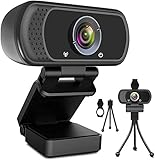
Overview: The ToLuLu 1080P webcam bundles a 110° wide-angle lens, tripod stand, privacy cover, and HDR with auto light correction. Designed for streamers and multi-participant meetings, it offers plug-and-play setup across diverse devices, including Smart TVs and Android.
What Makes It Stand Out: The 110° ultra-wide field of view accommodates groups effortlessly, while the included tripod and privacy cover add significant value. Facial enhancement tech and HDR optimize visuals in poor lighting, and compatibility extends to Xbox One—uncommon for webcams.
Value for Money: Exceptional bundle value: the free tripod and privacy cover typically cost extra elsewhere. At a mid-tier price, it outperforms similarly priced rivals by including versatile accessories and wide-angle capability, ideal for collaborative or dynamic setups.
Strengths and Weaknesses: Strengths: Outstanding 110° FOV, comprehensive bundle (tripod + cover), strong HDR/light correction, broad compatibility (Xbox One, Smart TVs). Weaknesses: Fixed focus limits close-up clarity, mic range (10ft) may struggle in large rooms, and build quality feels lightweight.
Bottom Line: Highly recommended for streamers, teachers, or families needing wide-angle shots and accessories. Its all-in-one package delivers premium features at a fair price, though pros may prefer higher-end focus control.
4. EMEET 1080P Webcam with Microphone, C960 Web Camera, 2 Mics Streaming Webcam, 90°FOV Computer Camera, Plug and Play USB Web Cam for Online Calling/Conferencing, Zoom/Teams/Facetime/YouTube, Laptop/PC
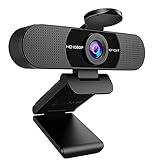
Overview: The EMEET C960 is a business-focused 1080p webcam featuring dual noise-reduction mics, low-light optimization, and a 90° FOV. Tailored for home offices, it includes a privacy cover and emphasizes audio clarity for professional calls on Teams or Zoom.
What Makes It Stand Out: Dual omnidirectional mics provide superior noise cancellation and “radio-quality” audio—critical for noisy environments. Advanced low-light correction and color boost ensure flattering visuals near windows, while the foldable design and long cable enhance portability.
Value for Money: Justifies a slight premium with pro-grade audio and lighting tech. For remote workers investing in home offices, the dual-mic system and reliable low-light performance offer tangible ROI over single-mic competitors, despite the higher cost.
Strengths and Weaknesses: Strengths: Best-in-class dual-mic audio, excellent low-light handling, privacy cover, foldable portability, wide software compatibility. Weaknesses: Incompatible with Windows Hello, 90° FOV narrower than some rivals, requires manual mic selection in settings.
Bottom Line: A top pick for professionals where audio quality is non-negotiable. Worth the investment for frequent callers in challenging lighting or noisy spaces, though group meetings may prefer wider FOV alternatives.
5. Logitech C270 HD Webcam, 720p, Widescreen HD Video Calling, Light Correction, Noise-Reducing Mic, Works with Zoom, Nintendo Switch 2’s new GameChat Mode, PC/Mac/Laptop/MacBook/Tablet - Black

Overview: Logitech’s C270 is a budget 720p webcam targeting casual users and Nintendo Switch 2 owners, featuring RightLight 2 light correction and noise-reducing mic. It’s a no-frills solution for basic video calls on Zoom or Switch GameChat.
What Makes It Stand Out: Exclusive Nintendo Switch 2 GameChat compatibility is its unique edge. Logitech’s trusted RightLight 2 tech brightens dim scenes, and the flexible clip works on screens or shelves—ideal for impromptu calls.
Value for Money: As an entry-level model, it’s hard to beat for simplicity and Switch integration. However, the 720p resolution feels outdated next to 1080p rivals at similar prices, limiting value for professional or streaming use.
Strengths and Weaknesses: Strengths: Nintendo Switch 2 compatibility, reliable light correction, sturdy clip design, broad platform support. Weaknesses: Only 720p resolution (below modern standard), narrow 55° FOV, mic range limited to 1.5m, no privacy cover.
Bottom Line: Only recommend for Nintendo Switch 2 users needing GameChat functionality. Otherwise, avoid—it’s outclassed by affordable 1080p options for general video calling. Prioritize resolution and features elsewhere.
6. Dobuhont 2K Ultra HD Webcam, Computer Camera for PC Monitor Laptop Desktop - External Web Cameras with Microphone, USB C Adapter, Privacy Cover for Video Conferencing, Streaming & Online Learning

Overview: The Dobuhont 2K Webcam delivers sharp 2560x1440 resolution at 30fps for video calls, streaming, and online learning, featuring a noise-reducing microphone and versatile mounting options. Its plug-and-play design targets remote workers and students seeking an affordable upgrade over built-in laptop cameras.
What Makes It Stand Out: The standout features include genuine 2K resolution clarity, a practical sliding privacy cover, and exceptional flexibility with 360° rotation, 180° base adjustment, and dual USB-A/C compatibility via an included adapter. The 1.4m cable and broad OS/software support enhance usability across setups.
Value for Money: Priced competitively, it outperforms most sub-$50 webcams with true 2K output and robust build quality. While 4K models exist at higher price points, this offers the best resolution-to-cost ratio for users prioritizing detail without overspending on unused capabilities.
Strengths and Weaknesses: Strengths: Excellent low-light video quality, effective noise-canceling mic, sturdy adjustable stand, and essential privacy cover. Weaknesses: Limited to 30fps (unsuitable for fast-motion streaming), and the plastic build feels less premium than metal competitors.
Bottom Line: Ideal for budget-conscious professionals and students needing reliable 2K video and privacy. It’s a top-tier mid-range choice, though streamers requiring higher frame rates should look elsewhere.
7. AOC 4k Webcam for PC with Microphone, Computer Camera with Noise Cancellation, Privacy Cover, 99° FOV, Plug & Play USB Webcam for Streaming, Conferencing, Zoom, Skype, Facetime, Laptop, PC, Skype

Overview: AOC’s 4K Webcam promises professional-grade video with ultra-high resolution, a 90° field of view, and advanced light correction. Designed for conferencing and streaming, it emphasizes ease of use and privacy for hybrid workspaces.
What Makes It Stand Out: The true 4K (3840x2160) sensor is rare at this tier, capturing exceptional detail. Combined with auto light correction, wide 90° FOV, and a physical privacy shutter, it excels in varied lighting and group settings. The plug-and-play simplicity works flawlessly with Zoom and Teams.
Value for Money: While pricier than 1080p models, the 4K resolution justifies the cost for professionals where image quality is critical. Most competitors max out at 1080p or 1440p, making this a standout for future-proofing—though casual users may not leverage the full resolution.
Strengths and Weaknesses: Strengths: Stunning 4K clarity, superb light adaptation, wide FOV for teams, and reliable noise-canceling mic. Weaknesses: 4K streams often downscale on platforms like Zoom; the stand lacks 360° rotation (only 180° tilt).
Bottom Line: Highly recommended for content creators and executives needing broadcast-quality video. Overkill for basic calls, but unmatched in its class for visual fidelity and lighting flexibility.
8. j5create 360 Degree All Around Meeting Webcam - 1080P HD Video Conference Camera with High Fidelity Microphone, USB-C | for Video Conferencing, Online Classes, and Collaboration (JVCU360)
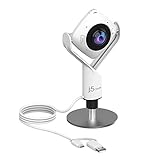
Overview: The j5create JVCU360 is a specialized 360° meeting camera with an omnidirectional mic, targeting group collaboration in conference rooms or classrooms. Its unique rotating lens and multi-mode display cater to team environments.
What Makes It Stand Out: The 360° panoramic view and six display modes (e.g., “Participant Focus”) are revolutionary for group meetings, eliminating blind spots. The high-fidelity mic array captures voices clearly from all angles, and USB-C plug-and-play ensures quick setup on any modern system.
Value for Money: Priced higher than standard webcams, it’s a niche investment. For solo users, it’s overkill, but teams gain immense value from the inclusive framing and audio—replacing multi-camera setups at a fraction of the cost.
Strengths and Weaknesses: Strengths: Unmatched 360° coverage, superb group audio, flexible display modes, and sturdy desktop stand. Weaknesses: Only 1080p resolution (lacks 4K/2K competitors), and firmware updates may be needed for optimal performance.
Bottom Line: Essential for small offices or classrooms needing inclusive video calls. Not for solo users, but unparalleled for collaborative spaces seeking an all-in-one meeting solution.
9. Gohero Full HD 1080P Video Webcam, Noise Cancellation, Privacy Cover, Wide-Angle Lens, Auto Light Correction, Plug & Play USB Webcam for Laptop, Desktop, PC, Mac, Zoom, Skype Pro Series

Overview: The Gohero 1080P Webcam offers a balanced package with reliable HD video, noise cancellation, and auto light correction. It’s a versatile plug-and-play option for everyday remote work, learning, and streaming.
What Makes It Stand Out: Its standout trait is the intelligent auto light correction, which dynamically optimizes brightness/color in poor lighting—a common pain point. The wide-angle lens, physical privacy cover, and robust noise-canceling mic ensure consistent performance across environments.
Value for Money: Exceptional for under $40. It matches premium features (like light correction) typically found in costlier models, outperforming basic laptop cams without the 4K premium. Ideal for users wanting “just works” reliability.
Strengths and Weaknesses: Strengths: Reliable low-light performance, crisp 1080p video, effective mic noise reduction, and included 5ft USB cable. Weaknesses: No 2K/4K resolution; privacy cover feels flimsy compared to metal-shutter rivals.
Bottom Line: The best budget-friendly all-rounder for students and remote workers. Skip if you need ultra-high resolution, but otherwise, it’s a near-perfect value champion.
10. AIRHUG 3 in 1 1080P Webcam with Microphone & Speaker, USB Camera for Video Conferencing/Online Class/Gaming Live, Built-in Privacy Cover

Overview: The AIRHUG 16 integrates a 1080p webcam, mic, and 5W speaker into one compact unit, targeting group meetings and classrooms. Its portability and all-in-one design aim to simplify multi-participant setups.
What Makes It Stand Out: The built-in speaker (90dB volume) is unique, enabling speakerphone-like functionality for 3–5 people without external audio gear. Combined with 6-foot mic range, portability, and privacy cover, it’s tailored for impromptu group calls in shared spaces.
Value for Money: Priced moderately, it saves the cost of separate speakers/mics. However, the speaker quality may not rival dedicated devices, making it best for small groups where convenience trumps audiophile needs.
Strengths and Weaknesses: Strengths: Space-saving 3-in-1 design, strong portability, loud speaker, and easy setup. Weaknesses: Speaker lacks bass clarity; fixed 76° FOV feels narrow for groups; privacy cover is basic.
Bottom Line: A smart pick for mobile professionals needing quick group conferencing—especially in offices or classrooms. Avoid for solo use or critical audio quality, but shines as a portable meeting hub.
Understanding Core Video Quality Fundamentals
Resolution Beyond the Megapixel Hype
While 1080p Full HD has become the standard baseline for clear video, simply chasing higher megapixel counts (like 4K) isn’t always the smartest move for conferencing. Higher resolutions demand significantly more processing power from your computer and consume more bandwidth, potentially leading to stuttering or dropped frames if your system or internet connection isn’t robust. For most video conferencing platforms, which often downscale your feed anyway, a high-quality 1080p sensor with strong processing usually delivers a smoother, more reliably crisp image than a poorly implemented 4K sensor. Focus on the sensor’s overall quality and the webcam’s image processing engine, not just the resolution number.
The Critical Role of Frame Rate
Frame rate, measured in frames per second (fps), dictates how smoothly motion appears. While 30fps is perfectly adequate for standard talking-head presentations, aiming for 60fps (or even higher at lower resolutions) provides a noticeably smoother, more lifelike experience, especially if you gesture frequently, share detailed content, or work in dynamic environments. Higher frame rates reduce motion blur and make video feel more immediate and natural, combating the slight lag or choppiness that can make conversations feel disjointed. Ensure your chosen webcam consistently delivers the advertised frame rate at your desired resolution.
Sensor Size and Low-Light Performance Secrets
The physical size of the image sensor (often listed as 1/2.8", 1/3", etc.) is arguably more important than raw megapixels for real-world usability. A larger sensor can gather more light, which is paramount for producing clear, noise-free images in typical home office lighting – which is often less than ideal. Combined with a wider aperture (indicated by a lower f-number like f/2.0), a larger sensor significantly improves low-light performance, reducing graininess (“noise”) and preserving detail in shadows. Don’t underestimate how crucial this is; most calls happen under artificial light or near windows with variable conditions.
Essential Features for Professional Results
Auto-Focus Capabilities Demystified
A reliable autofocus system is non-negotiable for maintaining a sharp image, especially if you move around your desk or lean in to point at something. Look for webcams featuring fast, quiet phase-detection autofocus (PDAF) rather than slower contrast-detection systems, which can “hunt” for focus, causing distracting blurring during calls. Some higher-end models offer manual focus override or preset focus points, adding flexibility for fixed setups or specific presentation needs.
Integrated Microphone Quality Considerations
While many webcams include built-in microphones, their quality varies wildly. Basic mics often pick up excessive keyboard clatter, room echo, or sound muffled. For critical calls, a dedicated external microphone (like a USB headset or desktop mic) is usually superior. However, if relying on the webcam’s mic, prioritize models with noise suppression technology and multiple mic arrays designed to isolate your voice and minimize background noise. Test audio samples if possible, as specs alone rarely tell the full story.
The Underrated Value of a Physical Privacy Shutter
In an era of heightened security awareness, a physical privacy shutter that physically slides closed over the lens offers the only truly guaranteed protection against unauthorized access. While software indicators are common, a mechanical shutter provides tangible peace of mind, ensuring no one can activate your camera without your knowledge. It’s a small feature that addresses a significant concern for many professional users.
Connectivity and Compatibility Essentials
USB Interface Options Explained
Most modern external webcams use USB-C for its universal compatibility and power delivery, but USB-A (the older rectangular port) is still common. Ensure the webcam’s connector matches available ports on your computer, or factor in the need for a reliable adapter. Crucially, verify the required USB version (USB 2.0, USB 3.0/3.1/3.2 Gen 1). Higher resolutions and frame rates often demand USB 3.0+ for sufficient bandwidth; using a USB 2.0 port with a high-bandwidth webcam will severely limit performance.
Universal Compatibility Across Platforms
A major advantage of modern USB webcams is their broad compatibility. They typically work as standard UVC (USB Video Class) devices, meaning they function seamlessly with virtually all major operating systems (Windows, macOS, ChromeOS, Linux) and popular conferencing software (Zoom, Teams, Google Meet, Webex) without needing proprietary drivers. Always double-check the manufacturer’s stated compatibility list, but true UVC compliance is the gold standard for hassle-free setup across different devices and platforms.
Software Integration and Customization Potential
While plug-and-play is ideal, some webcams come with companion software offering valuable tweaks. Look for features like manual controls for exposure, white balance, and focus (beyond basic auto), digital zoom, background blur effects, or preset scene modes (e.g., “low light,” “outdoor”). While not essential, this software can provide finer control to optimize your image for specific environments or preferences, moving beyond basic auto-adjustments.
Ergonomics and Practical Setup
Mounting Flexibility for Optimal Positioning
Where you place your webcam dramatically affects your on-screen presence. Eye-level positioning is ideal for natural conversation. Prioritize models with flexible mounting options: standard tripod threads (1/4"-20) for use with monitor stands, laptop stands, or dedicated arms; secure clips for monitor tops; or adhesive bases for flat surfaces. Avoid webcams with only a fixed, short base that limits placement options and forces awkward camera angles.
Field of View: Finding Your Sweet Spot
Field of View (FoV), measured in degrees, determines how much of your surroundings the camera captures. A narrow FoV (around 60-70°) focuses tightly on your face, ideal for solo workspaces. A wider FoV (80-90°+) is better for seeing multiple people in a small room or showing more of your workspace during presentations. Consider your typical use case – an excessively wide FoV can cause distortion at the edges (“fisheye” effect), while too narrow might cut off your head or make it hard to gesture naturally.
Cable Management and Portability Factors
The length and quality of the USB cable matter. A short cable (1-1.5m) is often sufficient for desktop setups but can limit placement flexibility. Longer cables (2m+) offer more freedom but may require secure management to avoid clutter. If you frequently move between workspaces (e.g., home office to co-working space), consider a webcam with a detachable cable or one designed for portability – lightweight, compact, and often including a small carrying pouch.
Future-Proofing Your Investment
HDR Technology for Challenging Lighting
High Dynamic Range (HDR) processing is increasingly valuable for webcams. It helps balance exposure in scenes with both very bright areas (like a window behind you) and darker foregrounds, preventing you from becoming a silhouette. HDR captures multiple exposures quickly and blends them, preserving detail in highlights and shadows simultaneously. This is especially beneficial for rooms with large windows or uneven lighting, leading to a more consistently professional image without manual adjustments.
Advanced Autofocus and Tracking Features
Emerging features go beyond basic auto-focus. Some webcams now offer AI-powered subject tracking, keeping you centered in the frame if you move slightly away from your desk. Others utilize advanced autofocus systems that maintain sharpness even when looking down at notes or gesturing widely. While not essential for everyone, these features represent the evolving frontier of webcam tech for more natural, presenter-friendly conferencing.
Software Updates and Long-Term Support
Consider the manufacturer’s track record for providing firmware and software updates. Regular updates can add new features, improve performance (like better low-light algorithms), fix bugs, and ensure compatibility with future OS updates or conferencing platforms. A commitment to ongoing support extends the useful life of your webcam and protects your investment against obsolescence.
Maximizing Your Webcam’s Potential
Optimizing Your Physical Environment
No webcam can overcome terrible lighting. Position yourself facing a natural light source (like a window) whenever possible, avoiding having it directly behind you. Supplement with soft, diffused artificial light (like a ring light or adjustable desk lamp) aimed at your face, not the camera. A plain, uncluttered background also significantly improves focus and professionalism. Small environmental tweaks often yield bigger quality gains than minor hardware differences.
Leveraging Platform-Specific Settings
Don’t neglect the video settings within your conferencing software (Zoom, Teams, etc.). Most allow you to adjust resolution, disable bandwidth-saving features (which can lower quality), and sometimes access basic camera controls like brightness or contrast. Experiment with these settings alongside your webcam’s own features to find the optimal combination for your specific setup and network conditions.
Regular Maintenance for Consistent Quality
Keep your webcam lens clean! Dust, smudges, and fingerprints drastically reduce image clarity. Use a microfiber cloth designed for optics (like those for eyeglasses or camera lenses) to gently wipe the lens periodically. Also, ensure the webcam’s software (if applicable) is up to date, and occasionally check for operating system updates that might include improved camera drivers.
Frequently Asked Questions
Frequently Asked Questions
How significant is the difference between a built-in laptop camera and a good external webcam? External webcams almost always offer superior image sensors, better low-light performance, more flexible positioning, higher potential resolution/frame rates, and often include features like physical privacy shutters, resulting in a noticeably crisper, more professional video feed.
Is 1080p resolution sufficient for professional video conferencing in 2026? Yes, high-quality 1080p is generally more than sufficient for most conferencing needs. Higher resolutions like 4K often provide diminishing returns due to platform downscaling and bandwidth constraints, while a well-optimized 1080p stream delivers excellent clarity and reliability.
What’s the single most important factor for clear video in a typical home office? Low-light performance, driven primarily by sensor size and aperture, is crucial. Most home offices don’t have studio lighting, so a webcam that captures clean, detailed images in average room lighting will outperform one with higher specs but poor low-light capability.
Do I need a webcam with 60fps for regular meetings? For standard talking-head meetings, 30fps is perfectly adequate. 60fps becomes noticeably beneficial if you frequently gesture, share detailed moving content, work in a dynamic environment, or simply prefer ultra-smooth video for a more natural feel.
Are built-in webcam microphones good enough for clear audio? They are often adequate for quiet environments but frequently struggle with background noise, room echo, and clarity. For critical calls or noisy settings, a dedicated external microphone (USB headset or desktop mic) is strongly recommended for professional audio quality.
Why is a physical privacy shutter important? It provides the only guaranteed physical barrier against unauthorized camera access. Software indicators can be bypassed; a physical shutter offers tangible security and peace of mind by ensuring the lens is completely covered when not in use.
How does field of view (FoV) impact my video call experience? A narrow FoV (60-70°) keeps focus tight on your face, ideal for solo work. A wider FoV (80-90°+) captures more of your surroundings, useful for small group meetings or showing workspace context, but can cause edge distortion if too wide for your setup.
What USB version do I need for a high-quality webcam? For reliable 1080p at 30fps, USB 2.0 is usually sufficient. For 1080p at 60fps or higher resolutions (like 4K), USB 3.0 (or later, often labeled USB 3.1 Gen 1, USB 3.2 Gen 1) is essential to provide the necessary bandwidth and prevent performance issues.
Can software settings significantly improve my webcam image? Yes, companion software (if provided) or settings within conferencing apps can offer manual controls for exposure, white balance, and focus, background blur, and scene modes. These allow fine-tuning beyond basic auto-adjustments to optimize for your specific lighting and environment.
How can I test a webcam’s low-light performance before buying? Look for detailed reviews that include actual low-light sample images or videos (not just specs), check for mentions of sensor size (larger is better) and aperture (lower f-number like f/2.0 is better), and prioritize models explicitly highlighting low-light or HDR capabilities in their description.