Working from home has transformed from a temporary perk to a permanent fixture for millions, yet one frustrating truth remains: the humble keyboard can make or break your productivity—and your peace of mind. Picture this: you’re deep in focus during a critical project, fingers flying, when suddenly your neighbor’s dog barks through your thin apartment wall, followed by the unmistakable clack-clack of your cheap membrane keyboard echoing in the quiet room. Or worse, your hands ache after hours of typing, and that crucial Zoom call ends with you awkwardly explaining why you’ve been grimacing. Remote work demands tools that adapt to your environment, not the other way around. The right keyboard isn’t just about typing—it’s about reclaiming comfort, minimizing distractions, and sustaining energy through marathon work sessions without disturbing housemates or roommates.
Enter mechanical keyboards: long beloved by gamers and typists, they’re now essential allies for the modern remote professional. But let’s clear the air—this isn’t about flashy RGB lights or esports bragging rights. It’s about thoughtful ergonomics, customizable feedback, and durability that withstands years of back-to-back meetings and late-night deadline sprints. Forget the hype; what matters is how these devices solve your daily struggles: reducing finger fatigue during spreadsheet marathons, staying silent enough for shared living spaces, and offering the precision that turns tedious data entry into a surprisingly satisfying task. Choosing wisely means investing in a tool that quietly elevates your workflow, rather than adding another headache to your home office setup. Let’s unpack exactly what to prioritize when your career (and sanity) depends on every keystroke.
Top 10 Mechanical Keyboards for Remote Work
Detailed Product Reviews
1. RK ROYAL KLUDGE R98 Pro Wired Mechanical Keyboard, 96% Creamy Gaming Keyboard RGB Backlit with Number Pad and Volume Knob, Gasket Mount, MDA Profile PBT Keycaps, Hot Swappable Pre-lubed Linear Switch

Overview:
The RK ROYAL KLUDGE R98 Pro is a 96% layout mechanical keyboard blending productivity and gaming. It retains a numpad while saving desk space, featuring gasket mounting, pre-lubed linear “cream” switches, and MDA-profile PBT keycaps for a premium typing experience.
What Makes It Stand Out:
Its standout features include a five-layer sound-absorbing foam system for a deep “thocky” acoustic profile, a detachable aluminum volume knob for instant audio control, and dual-platform compatibility (Windows/Mac). The MDA keycap profile enhances ergonomics, while pre-lubed switches deliver exceptional smoothness right out of the box.
Value for Money:
Priced mid-range, it offers exceptional value with hot-swappable sockets, gasket mounting, and premium PBT keycaps typically found in higher-end models. It outperforms similarly priced boards lacking its acoustic tuning and build refinement, though budget alternatives may omit the numpad.
Strengths and Weaknesses:
Strengths: Creamy sound profile, space-saving 96% layout, superb pre-lubed switches, durable PBT keycaps, intuitive volume knob.
Weaknesses: MDA keycaps may require adjustment for flat-profile users, RGB software is functional but less polished than competitors.
Bottom Line:
Ideal for enthusiasts seeking a balanced work-play keyboard with exceptional sound and feel. Its thoughtful design justifies the price, making it a top pick for creamy-switch lovers needing a numpad.
2. Redragon K668 RGB Gaming Keyboard, 108 Keys Wired Mechanical Keyboard w/Extra 4 Hotkeys, Sound Absorbing Foams, Upgraded Hot-swappable Socket, Mixed Color Keycaps x 2 Sets, Red Switch

Overview:
The Redragon K668 is a full-size 108-key mechanical keyboard emphasizing customization and vibrant aesthetics. It features hot-swappable red linear switches, dual keycap sets, and extensive RGB lighting, targeting gamers who prioritize visual flair and modularity.
What Makes It Stand Out:
Dual mixed-color keycap sets enable instant visual customization, while its “music sync” RGB mode creates dynamic disco-like lighting. The 3.5mm sound-absorbing foam delivers crisp acoustics, and four dedicated macro keys enhance functionality beyond standard layouts.
Value for Money:
An outstanding budget option, it includes hot-swappability, dual keycap sets, and advanced RGB at an entry-level price. While build quality feels less premium than higher-end models, the sheer feature density for under $60 is unmatched in its class.
Strengths and Weaknesses:
Strengths: Dual keycap sets, immersive music-sync RGB, quiet linear switches, affordable hot-swappability, ergonomic adjustable feet.
Weaknesses: ABS keycaps prone to shine over time, software customization is basic, foam tuning less refined than premium boards.
Bottom Line:
A compelling choice for RGB enthusiasts and budget-conscious gamers. Its playful customization and solid performance make it a standout value, though durability lags behind pricier PBT-keycap alternatives.
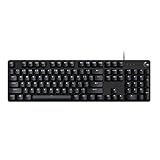
3. Logitech G413 SE Full-Size Mechanical Gaming Keyboard - Backlit Keyboard with Tactile Mechanical Switches, Anti-Ghosting, Compatible with Windows, macOS - Black Aluminum
Overview:
The Logitech G413 SE is a no-nonsense, full-size mechanical keyboard built for competitive gaming. It emphasizes durability with an aluminum top case, tactile switches, and minimalistic white backlighting, targeting users seeking reliability over flash.
What Makes It Stand Out:
Its brushed aluminum top case provides exceptional rigidity, while PBT keycaps resist wear and shine far longer than standard ABS. The 6K anti-ghosting ensures flawless input during intense gameplay, and macOS compatibility broadens its appeal beyond Windows users.
Value for Money:
Priced moderately, it justifies cost through Logitech’s build quality and PBT keycaps—a rarity at this tier. Though lacking RGB or hot-swappability, its focus on core gaming performance and longevity offers better long-term value than cheaper, less durable alternatives.
Strengths and Weaknesses:
Strengths: Durable aluminum chassis, fade-resistant PBT keycaps, responsive tactile switches, clean white backlighting, macOS support.
Weaknesses: No RGB lighting, basic software, fixed-height legs limit ergonomics, limited customization.
Bottom Line:
A superb choice for gamers prioritizing reliability and clean aesthetics. Its robust construction and tactile feedback deliver consistent performance, making it a wise investment for serious players avoiding flashy extras.
4. Logitech K845 Mechanical Illuminated Keyboard, Mechanical Switches, Strong Adjustable Tilt Legs, Full Size, Aluminum Top Case, 104 Keys, USB Corded, Windows (TTC Brown Switches)

Overview:
The Logitech K845 merges office professionalism with mechanical precision. Featuring TTC Brown tactile switches, adjustable tilt legs, and an aluminum top case, it caters to productivity-focused users who demand comfort and durability in a workspace-friendly design.
What Makes It Stand Out:
The 4–8° adjustable tilt legs provide exceptional ergonomic flexibility, while white backlighting offers five subtle patterns—ideal for low-light work. Choice of switch types (Red/Blue/Brown) and a compact full-size layout balance numpad utility with desk space efficiency.
Value for Money:
Mid-priced yet premium, its aluminum build and TTC switches rival costlier boards. It outshines membrane keyboards in longevity and typing satisfaction, though RGB-free alternatives may undercut it slightly for basic office use.
Strengths and Weaknesses:
Strengths: Highly adjustable tilt, premium aluminum construction, switch variety, quiet white backlighting, compact full-size footprint.
Weaknesses: No RGB or macro keys, software is minimal, backlight patterns lack depth compared to gaming boards.
Bottom Line:
Perfect for professionals seeking a refined, comfortable typing experience. Its ergonomic focus and build quality make it a top-tier office keyboard, though gamers may miss advanced customization.
5. Newmen GM325Pro Mechanical Keyboard,104 Keys Rainbow LED Backlit Wired Gaming Keyboards,Hot-Swap Metal Panel ABS Black Keycaps Gaming Mechanical Keyboard for Windows Laptop PC Linear Red Switches

Overview:
The Newmen GM325Pro is a feature-packed full-size mechanical keyboard targeting budget gamers. It boasts hot-swappable red linear switches, RGB side lighting, a metal top plate, and a detachable USB cable, emphasizing portability and visual impact.
What Makes It Stand Out:
Its detachable 1.8m USB cable enables easy transport for LAN events, while 13 RGB side-lighting effects add dramatic flair without complex software. The metal top plate ensures stability during intense sessions, and FN-key shortcuts provide quick access to media controls.
Value for Money:
An exceptional value under $50, it includes hot-swappability, metal construction, and RGB at a price where competitors often omit one or more features. Though ABS keycaps lack PBT’s longevity, the overall package is hard to beat for casual gamers.
Strengths and Weaknesses:
Strengths: Detachable cable for portability, vibrant RGB edge lighting, sturdy metal plate, hot-swappable switches, full-key rollover.
Weaknesses: ABS keycaps wear faster, RGB customization is limited to preset modes, software feels outdated.
Bottom Line:
A fantastic budget entry for gamers needing portability and flashy lighting. It sacrifices keycap durability for affordability but delivers core gaming features reliably, making it ideal for students or casual use.
6. Arteck Mechanical 2.4G USB Wireless Performance Keyboard, Tacktile Quiet Brown Switches, Stainless Steel Low Profile for PC/Desktop/Laptop/TV and Windows 11/10 Built in Rechargeable Battery Black

Overview: The Arteck Mechanical Keyboard delivers a refined wireless typing experience tailored for办公 and home use. Featuring tactile quiet brown switches and a stainless steel backing, it targets users seeking mechanical responsiveness without excessive noise or bulk. Its low-profile design and full-size layout prioritize comfort and space efficiency.
What Makes It Stand Out: Stainless steel construction enhances durability uncommon in this price tier, while the quiet brown switches offer satisfying feedback at 45g actuation force with minimal sound. The 6-month battery life (tested at 2 hours/day) and nano USB receiver storage inside the keyboard showcase thoughtful engineering for hassle-free daily use.
Value for Money: Priced mid-range, it outperforms typical membrane keyboards in longevity and feel but lacks Bluetooth connectivity found in competitors. The rechargeable battery and included accessories (cable, receiver) justify the cost for users prioritizing reliability over multi-device flexibility.
Strengths and Weaknesses: Strengths: Exceptionally quiet operation, premium build quality, ergonomic low-profile keys, long battery life. Weaknesses: No Bluetooth support, limited customization (no backlighting), basic plastic keycaps prone to shine over time.
Bottom Line: Ideal for office professionals needing a silent, reliable mechanical keyboard. Its durability and battery life make it a smart investment despite lacking advanced features—opt for this if quiet precision matters most.
7. AULA F99 Wireless Mechanical Keyboard,Tri-Mode BT5.0/2.4GHz/USB-C Hot Swappable Custom Keyboard,Pre-lubed Linear Switches,RGB Backlit Gaming Keyboards for PC/Tablet/Xbox/PS4/PS5

Overview: The AULA F99 is a versatile, feature-packed wireless mechanical keyboard designed for gamers and tinkerers. Its tri-mode connectivity, hot-swappable switches, and layered sound-dampening system cater to users demanding customization and multi-device flexibility without soldering.
What Makes It Stand Out: Hot-swap compatibility for 3/5-pin switches (with included pullers) and pre-lubed linear switches enable effortless personalization. The five-layer sound-absorbing structure reduces hollow noise by 80%, while 16.8M RGB lighting and macro programmability create immersive gaming experiences. Seamless switching across five devices via BT5.0/2.4G/USB-C is exceptional.
Value for Money: Competitively priced for its capabilities, it rivals premium models with its 8000mAh battery (weeks of use), PBT keycaps, and structural innovations. Outperforms single-mode keyboards in versatility, though RGB software may overwhelm minimalist users.
Strengths and Weaknesses: Strengths: Outstanding customization, superb noise reduction, long battery life, robust PBT keycaps, multi-device mastery. Weaknesses: Complex software setup, RGB can feel gimmicky, compact 96% layout may require adjustment.
Bottom Line: A top pick for enthusiasts seeking a do-it-all keyboard. Its hot-swap flexibility and tri-mode reliability justify the price—choose this for future-proofed gaming or productivity.
8. Redragon Mechanical Gaming Keyboard Wired, 11 Programmable Backlit Modes, Hot-Swappable Red Switch, Anti-Ghosting, Double-Shot PBT Keycaps, Light Up Keyboard for PC Mac

Overview: The Redragon K671 is a budget-friendly wired mechanical keyboard focused on gaming essentials. With hot-swappable red linear switches, vibrant backlighting, and anti-ghosting technology, it targets entry-level gamers needing responsive performance without wireless complexity.
What Makes It Stand Out: True hot-swap functionality (with 4 spare red switches) allows instant switch changes—a rarity under $50. Eleven backlight modes and double-shot PBT keycaps ensure crisp visibility and durability, while full anti-ghosting guarantees flawless multi-key presses during intense gameplay.
Value for Money: Exceptional for its price point. It undercuts wireless rivals while delivering core gaming features like macro editing and PBT keycaps. The wired design avoids battery concerns, though limited backlight customization (no color adjustment) holds it back.
Strengths and Weaknesses: Strengths: Affordable hot-swap capability, bright backlighting, durable PBT keycaps, plug-and-play simplicity. Weaknesses: Wired only (limits desk setup), backlight color fixed to red, basic software for macros.
Bottom Line: The best budget wired option for red-switch lovers. If you prioritize switch customization and reliability over wireless freedom, this delivers unbeatable value.
9. AULA 99 Key Keyboard, Tri-Mode Bluetooth/2.4GHz/USB-C Cute Creamy Gaming Keyboard with Number Pad RGB Backlit, Media Knob Custom Mechanical Feel Computer Keyboards for MAC Xbox PC Gamer - Purple

Overview: The AULA S99 is a stylish, tri-mode membrane keyboard marketed with “mechanical feel” aesthetics. Featuring a retro purple design, media knob, and RGB lighting, it targets casual users seeking visual flair for办公 or light gaming—not true mechanical enthusiasts.
What Makes It Stand Out: The dual-mode rotary knob elegantly controls volume and lighting, while the 96% layout with integrated numpad saves desk space. Tri-mode connectivity (BT5.0/2.4G/USB-C) and full-key macro programmability offer surprising versatility for a membrane keyboard.
Value for Money: Priced attractively for its looks and connectivity, but the membrane construction limits longevity versus mechanical alternatives. The cute design and media knob justify cost for style-focused buyers, though the “mechanical feel” claim is misleading per specs.
Strengths and Weaknesses: Strengths: Charming aesthetics, excellent multi-device support, responsive media knob, ergonomic foldable stand. Weaknesses: Not mechanical (membrane keys lack tactile feedback), no hot-swap support, RGB feels plasticky.
Bottom Line: A solid choice for style-conscious casual users, but avoid if you want genuine mechanical typing. Its tri-mode flexibility shines for办公—just manage expectations on key feel.
10. RK ROYAL KLUDGE S98 Mechanical Keyboard w/Smart Display & Knob, Top Mount 96% Wireless Mechanical Keyboard BT/2.4G/USB-C, Hot Swappable, Software Support, Creamy Sounding, 98 Keys

Overview: The RK S98 merges innovation with acoustic refinement in a 96% wireless mechanical keyboard. Its standout OLED display, top-mount design, and multi-layer sound dampening target users craving both functionality and a premium typing sound profile.
What Makes It Stand Out: The customizable OLED screen displays battery status, connection modes, or GIFs—unmatched in its class. Combined with a multifunction knob for volume/RGB control and “creamy” acoustics (40% noise reduction via IXPE/silicone foams), it delivers a uniquely tactile and visual experience.
Value for Money: Premium-priced but justified by the display, hot-swap sockets, and exceptional sound engineering. Outperforms similarly priced boards in noise reduction and aesthetics, though the creamy sound may not suit thock-lovers.
Strengths and Weaknesses: Strengths: Revolutionary display/knob combo, superb noise-dampening, top-mount stability, tri-mode flexibility. Weaknesses: Display adds cost without critical utility, creamy sound polarizing, software can be glitchy.
Bottom Line: A visionary keyboard for tech enthusiasts who value aesthetics and acoustics. Pay the premium for its display and quiet performance—if novelty excites you, this is essential.
Understanding Your Remote Work Keyboard Needs
Remote work throws unique challenges at your setup that generic office gear often ignores. Unlike cubicle environments, you’re juggling background noise from family, pets, or roommates, while battling physical strain from non-ergonomic furniture. A keyboard that works in a corporate office might shatter your focus at home. Prioritize tools that align with your specific workspace constraints—like noise sensitivity in apartments or the need for portability if you rotate between coffee shops and your kitchen table. Your keyboard should feel like a seamless extension of your productivity, not a compromise.
Assessing Your Workspace Environment
Start by auditing where you actually work. Is your desk wedged into a bedroom corner where keystrokes echo? Do you share walls with neighbors who’d appreciate quieter typing? Maybe you’re in a sun-drenched living room where glare affects visibility. Measure your space literally and figuratively: note ambient noise levels, available surface area, and how frequently you move your setup. A compact, low-profile keyboard might be ideal for cramped quarters, while a full-sized model with dedicated number pad could save time if you crunch numbers daily. Ignoring these realities leads to buyer’s remorse when your “perfect” board doesn’t fit your actual life.
Identifying Your Typing Patterns and Pain Points
Be brutally honest about how you use your keyboard. Are you drafting novels with marathon typing sessions, or toggling between Slack, Excel, and email with constant context-switching? Do your wrists throb by 3 PM, or do you barely notice your hands? Track your habits for a week: count how often you use function keys, navigation clusters, or shortcuts. If you’re a heavy shortcut user, programmable keys could shave hours off your week. Conversely, if wrist pain is a constant companion, prioritize layouts that promote neutral hand positioning. This self-audit prevents overspending on features you’ll never touch.
Key Physical Attributes to Evaluate
Your keyboard’s physical design impacts comfort far more than most realize. It’s not just about looks—it’s about how your body interacts with the device hour after hour. Getting this wrong means enduring preventable strain, while nailing it transforms typing from a chore into a near-effortless rhythm.
Size and Layout Options Explained
Full-sized boards offer everything (numpad, function row, navigation cluster) but devour desk real estate. Tenkeyless (TKL) models ditch the numpad for a sleeker profile, ideal if space is tight but you still want arrow keys. Compact 60% or 75% layouts maximize minimalism, forcing reliance on layered keys but freeing up room for your mouse or coffee cup. Consider your daily tools: financial analysts might need that numpad, while writers could thrive with a compact layout that pulls their mouse closer. Measure your desk space before falling for a sleek design that won’t fit.
Ergonomic Design Features That Matter
True ergonomics go beyond wrist rests. Look for split designs that angle your hands outward (reducing ulnar deviation), tenting kits that lift the keyboard’s center, or columnar staggered keys that align with natural finger curves. These aren’t gimmicks—they prevent repetitive strain injuries by keeping wrists straight and shoulders relaxed. If you type 4+ hours daily, prioritize boards compatible with ergonomic modifications. Even subtle features like a gentle slope (5-10 degrees) beat flat layouts that encourage wrist bending.
The Critical Role of Keycap Profiles
Keycap shape influences accuracy and fatigue. Low-profile OEM or Cherry profiles offer subtle curves for touch typists, while taller DSA or MT3 profiles provide consistent feedback across all keys. Spherical designs like SA prioritize aesthetics but may slow down touch typists. Test profiles if possible: shallow profiles reduce finger travel (less strain), while taller ones offer better tactile feedback for error-prone typists. Matte finishes also minimize glare under desk lamps—a small detail that reduces eye strain during long sessions.
Switch Types: Balancing Feedback and Quiet Operation
Mechanical switches are the heart of the experience, but choosing the right type is less about preference and more about your remote work reality. The “best” switch solves your specific noise and comfort challenges.
Linear Switches for Silent, Smooth Typing
Linear switches (like common silent variants) provide consistent downward pressure without tactile bumps or audible clicks. They’re ideal for shared spaces—apartments, co-living situations, or quiet libraries—because they’re significantly quieter than clicky alternatives. The smooth press also reduces finger fatigue during extended typing, making them perfect for drafting reports or coding. However, some find them “mushy” without feedback; if you miss the confirmation of a keystroke, add O-rings to dampen travel distance.
Tactile Switches for Precision Without Noise
Tactile switches deliver a subtle bump mid-press to confirm actuation, improving accuracy without loud clicks. Modern variants are engineered for lower noise output, making them a sweet spot for remote workers who want feedback but can’t risk disturbing others. They’re excellent for detail-oriented tasks like editing or data entry where missed keystrokes are costly. Avoid older, louder tactile designs if noise is a concern—look for “quiet” or “dampened” versions specifically marketed for office use.
Why Clicky Switches Are Rarely Ideal for Remote Work
While satisfying to some, traditional clicky switches (with their distinct auditory feedback) are generally problematic for remote setups. The sharp, high-pitched click carries far—annoying neighbors through walls or echoing in video calls. Even with sound-dampening foam inside the case, they’re rarely quiet enough for considerate coexistence. Reserve these for isolated home offices; otherwise, they risk becoming a source of tension in shared living environments.
Connectivity and Portability Considerations
Your keyboard’s connection method affects reliability, clutter, and flexibility—critical factors when your “office” might shift from couch to kitchen counter.
Wired vs. Wireless: Reliability Trade-Offs
Wired USB-C connections offer zero latency and no battery anxiety—ideal for deadline-driven work where input lag could cause errors. Wireless models (Bluetooth or 2.4GHz dongle) reduce cable clutter and enable multi-device pairing, letting you switch between laptop, tablet, and phone seamlessly. However, battery life varies wildly; prioritize boards with months-long battery life and quick-charge features to avoid mid-call power drops. For hybrid workers, dual-mode wireless is non-negotiable.
Multi-Device Pairing for Seamless Workflow
If you juggle a work laptop, personal tablet, and phone, multi-device pairing (via Bluetooth or toggle switches) saves constant unplugging. Look for boards supporting 3+ simultaneous connections with easy switching—some even have dedicated keys per device. This avoids the friction of reconnecting during video calls or when grabbing quick notes on another gadget, keeping your focus where it belongs: on the task.
Portability and Travel-Friendly Designs
Frequent movers should prioritize slim, lightweight builds (aluminum cases add heft) and detachable cables. Low-profile keycaps reduce snagging in bags, while compact layouts (65% or smaller) fit easily into backpacks. Avoid heavy wrist rests or complex stands that add bulk. If you work from cafes often, confirm the board has stable rubber feet to prevent sliding on smooth tables.
Durability and Maintenance for Long-Term Use
Remote work keyboards endure daily abuse—spills, crumbs, and years of keystrokes. Skimp here, and you’ll face sticky keys or failure just as you hit peak productivity.
Build Quality Indicators to Watch For
Metal top plates (aluminum or steel) prevent flex during vigorous typing, while plastic frames may creak over time. Check for gasket mounting (soft dampeners between plate and case) which absorbs shock and extends switch life. Solid construction also minimizes “ping” noises from stabilizers—a subtle detail that reduces auditory fatigue. Skip ultra-budget boards with hollow cases; they won’t survive daily professional use.
Keycap Material and Longevity
PBT plastic keycaps resist shine and fading far better than ABS, crucial for frequently used keys (like W, A, S, D). Doubleshot or dye-sublimated legends won’t wear off, unlike laser-etched labels. If you type heavily, this prevents the “ghosting” of critical keys after months. Avoid thin, shiny keycaps—they feel cheap and degrade faster under constant use.
Cleaning and Maintenance Accessibility
Removable keycaps (via any standard puller) and hot-swappable switches (no soldering needed) turn maintenance from a chore into a 10-minute refresh. Spills happen—ensure the board has drainage holes. Dust and crumbs are inevitable in home offices; a simple compressed air blast should suffice. Boards requiring full disassembly for basic cleaning aren’t practical for busy professionals.
Customization and Software Features
Tailoring your keyboard to your workflow isn’t just for power users—it’s about removing friction from repetitive tasks.
Programmable Keys for Efficiency Gains
Remap keys to match your muscle memory or create macros for frequent actions (e.g., one key to launch Zoom, mute mic, and share screen). Layer-based programming lets you access secondary functions (F-keys, numbers) without dedicated keys, ideal for compact layouts. This isn’t just convenient; it reduces physical strain from contorting fingers for hard-to-reach shortcuts.
Onboard Memory vs. Cloud Profiles
Onboard memory stores custom layouts directly on the keyboard—essential if you use multiple computers without installing software each time. Cloud profiles (via manufacturer apps) sync settings across devices but require app installation. For strict IT policies or privacy concerns, onboard storage is more reliable. Verify how many profiles the board saves; three is the sweet spot for work/home/app-specific setups.
Firmware Updates and Community Support
Regular firmware updates fix bugs and add features long after purchase. Check if the manufacturer actively supports the model—abandoned products mean no future improvements. Active user communities also provide DIY fixes and custom firmware (like QMK/VIA), extending functionality beyond stock settings. This longevity protects your investment against obsolescence.
Budgeting Smartly for Remote Work Success
Investing in a keyboard feels indulgent until you realize how much time you spend typing. Allocate funds where they impact your daily reality—not hype.
Value vs. Cost: What Justifies the Price Jump
Premium features like PBT keycaps, gasket mounts, or tri-mode wireless add $20–$50 but deliver years of reliability. Skip expensive RGB lighting unless it solves a specific need (e.g., dark room visibility). Focus spending on tactile improvements: better switches, ergonomic compatibility, and build quality. A $100 board that lasts 10 years beats a $70 one replaced annually.
When to Consider Entry-Level vs. Premium Models
Beginners should try affordable kits ($50–$80) with standard layouts and quiet switches to learn preferences. If you’ve had wrist pain or work 8+ hours daily, invest in mid-to-high-tier ($80–$150) ergonomic or customizable models. Premium boards ($150+) shine for specific needs: ultra-quiet typing, extreme portability, or heavy customization. Avoid “prosumer” traps—fancy features you won’t use drain your budget.
Frequently Asked Questions
How loud are mechanical keyboards really for apartment living?
Most modern mechanical keyboards with linear or dampened tactile switches operate at 45–55 dB—comparable to quiet conversation. Avoid clicky switches and add sound-dampening foam inside the case for significant noise reduction. Testing in-store or checking decibel reviews is wise for thin-walled apartments.
Can mechanical keyboards reduce wrist pain during long work sessions?
Yes, when paired with ergonomic practices. Split layouts, tenting, and columnar staggered keys promote neutral wrist positioning. Combine with proper desk height and frequent breaks to prevent strain. Not all boards are equal—prioritize designs that minimize ulnar deviation.
Are wireless mechanical keyboards reliable for video calls and typing?
High-quality wireless models using Bluetooth 5.0+ or 2.4GHz dongles have near-zero latency. Look for boards advertising “gaming-grade” wireless or sub-10ms response times. Wired remains most reliable for critical tasks, but modern wireless is dependable for most professional use.
How do I know if a keyboard layout fits my desk space?
Measure your available depth and width. Full-sized boards need ~17" x 5.5"; TKL needs ~14" x 5.5"; 65% needs ~13" x 4". Always leave 2–3 inches of clearance behind for cable management. Check product dimensions carefully—marketing images often distort scale.
What switch type is best for heavy typists working late hours?
Linear switches with light actuation force (35–45g) reduce finger fatigue during prolonged use. Silent variants or those with pre-lubed stems minimize noise without sacrificing smoothness. Avoid heavy bottom-out switches that require excessive force.
Do I need a wrist rest with a mechanical keyboard?
Wrist rests prevent resting on the keys while typing, reducing strain. Choose one that keeps wrists straight (not bent up/down). Gel rests compress over time; memory foam or padded leather offers lasting support. Ensure it positions your hands level with the desk surface.
How often should I clean my mechanical keyboard?
Basic dusting with compressed air every 2–4 weeks prevents debris buildup. Deep clean (keycap removal, switch cleaning) every 6–12 months, depending on usage and environment. More frequent if you eat/drink near your desk.
Can I replace switches myself if I change preferences later?
Yes, if the board has hot-swap sockets (no soldering). Verify compatibility—most use standard 3-pin or 5-pin switches. Desoldering is required for non-hot-swap boards, which risks damage without experience. Always check the product specs before assuming hot-swap capability.
Are low-profile mechanical keyboards less durable than standard ones?
Not inherently—durability depends on build materials and switch quality. Low-profile switches may have slightly shorter lifespans (50M vs. 80M keystrokes), but still exceed typical remote work needs. Prioritize boards with metal plates and quality keycaps regardless of profile.
What’s the most important feature for hybrid remote/office workers?
Portability and multi-device pairing. A compact, lightweight board (65–75%) with Bluetooth 5.0+ and 3+ device profiles lets you switch seamlessly between home and office setups without reconfiguration or extra dongles. Wireless reliability is non-negotiable here.