Tangled cables sprawled across your desk like digital spaghetti? That sinking feeling when your laptop’s lone USB-C port is already hogged by a charger, leaving no room for your external monitor or trusty flash drive? You’re not alone. In our hyper-connected world, the humble USB-C port has become both a blessing and a bottleneck. As devices slim down and shed legacy ports, the demand for seamless expansion has skyrocketed. But navigating the sea of hubs promising “ultimate connectivity” often leads to frustration, dead ports, or worse—fried electronics. The right hub isn’t just convenient; it’s the unsung hero that transforms your workspace from chaotic to effortlessly productive.
Forget outdated dongles and port-switching gymnastics. Today’s USB-C hubs are sophisticated mini-docking stations, capable of handling 4K video, gigabit data transfers, and laptop charging—all through a single cable. Yet, choosing poorly can mean sluggish performance, compatibility nightmares, or wasted money on features you’ll never use. This guide cuts through the marketing noise. We’ll demystify the critical factors that actually matter, so you can invest in a hub that works with your workflow, not against it. No fluff, no biased rankings—just actionable insights to future-proof your setup and reclaim your desk’s sanity.
Top 10 USB C Hubs
Detailed Product Reviews
1. Anker USB C Hub, 5-in-1 USBC to HDMI Splitter with 4K Display, 1 x Powered USB-C 5Gbps & 2×Powered USB-A 3.0 5Gbps Data Ports for MacBook Pro, MacBook Air, Dell and More

Overview: This Anker 332 hub delivers essential connectivity for modern laptops, consolidating five critical ports into a single, compact adapter. It addresses the common shortage of ports on ultrabooks like MacBooks and premium Windows devices, enabling simultaneous display output, data transfer, and charging.
What Makes It Stand Out: The hub’s standout feature is its balanced versatility: a 4K@30Hz HDMI port, two high-speed 5Gbps USB-A ports, a 5Gbps USB-C data port, and an 85W pass-through charging port. This combination allows seamless multitasking—mirroring presentations while charging your laptop and connecting peripherals. The robust 18-month warranty adds peace of mind.
Value for Money: Priced competitively, it offers exceptional value for professionals needing reliable expansion without sacrificing portability. While cheaper hubs exist, they often lack the 85W charging or consistent 5Gbps speeds. Anker’s build quality and performance justify a slight premium over budget options.
Strengths and Weaknesses: Strengths: Reliable 85W charging, consistent 5Gbps data transfer, clean 4K output, and compact design. Weaknesses: HDMI limited to 30Hz (not ideal for fast motion), no card readers, and the USB-C data port lacks video support—critical for some workflows.
Bottom Line: An excellent all-rounder for MacBook and Dell users prioritizing charging, display, and data ports. Ideal for office or travel, though gamers or video editors may prefer higher refresh rates.
2. Anker USB C Hub 4 Ports, Multiple USB 3.0 Hub with 5Gbps Data Transfer, Extender for Type C Port Laptop, PC, Desktop and More (2 ft USB-C Connector, Charging Not Supported)

Overview: This minimalist Anker hub focuses purely on expanding USB connectivity, transforming a single USB-C port into four USB-A 3.0 ports. Designed for users overwhelmed by dongles, it solves cable clutter without adding display or charging features.
What Makes It Stand Out: Its 2-foot cable is the hero—unusually long for hubs, enabling flexible device placement (e.g., connecting peripherals under a desk). The plug-and-play simplicity and consistent 5Gbps speeds across all ports ensure hassle-free file transfers, while its pocket-sized form (4.2 × 1.2 × 0.4 inches) enhances portability.
Value for Money: Positioned as a budget-friendly solution, it excels for under $20. You sacrifice charging and video, but if you only need USB-A expansion, it outperforms cheaper hubs with unstable connections. The 18-month warranty underscores Anker’s confidence in durability.
Strengths and Weaknesses: Strengths: Long cable eliminates reach issues, reliable 5Gbps speeds, ultra-portable, and silent operation. Weaknesses: No charging capability (limits laptop use on battery), no HDMI/video ports, and USB-A only (no newer USB-C peripherals supported).
Bottom Line: The go-to choice for adding USB-A ports to Chromebooks, older laptops, or desktops. Avoid if you need charging or display output, but perfect for simple peripheral expansion.
3. Anker USB C Hub, 7in1 Multi-Port USB Adapter for Laptop/Mac, 4K@60Hz USB C to HDMI Splitter, 85W Max PD, 2 USB 3.0 & 1 USBC Data Ports, SD/TF Card Reader, for Type C Devices (Charger Not Included)

Overview: Anker’s 7-in-1 hub is a powerhouse for creatives and professionals, integrating display, charging, data, and media card support. It targets users like photographers or presenters who need extensive connectivity without carrying multiple adapters.
What Makes It Stand Out: The 4K@60Hz HDMI output ensures smooth video playback for editing or presentations—a significant upgrade over 30Hz hubs. Dual SD/TF card slots streamline photo/video transfers, while 85W charging and three 5Gbps data ports (two USB-A, one USB-C) handle heavy workflows. The compact aluminum body aids heat dissipation.
Value for Money: Premium-priced but justified by the 60Hz video and card readers, which few competitors offer at this tier. Cheaper hubs omit card slots or max out at 30Hz, making this ideal for content creators despite the lack of included charger.
Strengths and Weaknesses: Strengths: Flawless 60Hz video, versatile card readers, robust 85W charging, and solid build. Weaknesses: No Ethernet port, USB-C data port doesn’t support video, and card slots may collect dust without covers.
Bottom Line: A top pick for Mac and Windows users needing pro-grade video, card access, and charging. Worth the investment for photographers, designers, or frequent presenters.
4. Acer 10 Gbps USB C Hub, USBC Splitter with 4*USB C 3.2 and 100W PD Port, Fast Transfer Type-C Multiport Adapter Compatible with MacBook Pro/M2/M1, iPad, Surface Pro, XPS【No Video Output】

Overview: This Acer hub prioritizes blistering data speeds and charging over video, transforming one USB-C port into four 10Gbps USB-C ports plus 100W Power Delivery. It’s engineered for power users transferring massive files, like video editors or data scientists.
What Makes It Stand Out: The quad 10Gbps USB-C ports (doubling typical 5Gbps hubs) enable lightning-fast transfers—1GB files in ~1 second. The 100W PD charging sustains high-performance laptops, while the aluminum casing ensures thermal stability during intensive tasks. Its video-free design avoids bandwidth compromises.
Value for Money: Competitive for its niche, though less versatile than HDMI-equipped hubs. If you need extreme data throughput (e.g., editing 4K footage from external SSDs), it’s unmatched under $50. Budget hubs can’t match the 10Gbps consistency across four ports.
Strengths and Weaknesses: Strengths: Industry-leading 10Gbps transfer speeds, robust 100W charging, premium aluminum build, and plug-and-play simplicity. Weaknesses: Zero video output (useless for presentations), potential speed throttling with multiple drives, and limited to USB-C peripherals.
Bottom Line: The undisputed choice for data-centric workflows where speed trumps display needs. Avoid for presentations, but essential for media pros using external storage.
5. UGREEN USB C Hub 5 in 1 Multiport Adapter Revodok 105 4K HDMI, 100W Power Delivery, 3 USB-A Data Ports, USB C Dongle for MacBook Pro/Air, iPad Pro, iMac, iPhone 16 Pro/Pro Max, XPS, Thinkpad

Overview: UGREEN’s Revodok 105 hub offers broad compatibility and a unique port mix, featuring HDMI, three USB-A ports (one 5Gbps, two 480Mbps), and 100W PD charging. It caters to users juggling legacy peripherals and modern devices like iPhone 16 Pro Max.
What Makes It Stand Out: The triple USB-A ports accommodate multiple legacy devices (keyboard, mouse, drive), while 100W PD charging supports even power-hungry laptops. Its standout trait is iPhone 16 Pro compatibility for screencasting—rare among hubs. The 4K@30Hz HDMI works reliably for casual use.
Value for Money: Mid-priced with strong versatility, especially for mixed-device households. The inclusion of two slower USB 2.0 ports (for mice/keyboards) alongside a 5Gbps port (for drives) is pragmatic. Beats Anker’s similar models in USB-A port count.
Strengths and Weaknesses: Strengths: Three USB-A ports, iPhone 16 compatibility, solid 100W charging, and wide OS support. Weaknesses: HDMI capped at 30Hz, USB 2.0 ports limit transfer speeds, and 5W reserved for operations reduces max charging to 95W.
Bottom Line: A versatile, future-proof hub for Apple ecosystem users with older peripherals. Best for home offices or students—not for high-refresh-rate video needs.
6. BENFEI USB C Hub 5-in-1 with 4K HDMI(Certified), 100W Power Delivery, 3 USB-A, Silicone Cable, Aluminum Case Compatible with MacBook Pro/Air, iPad Pro, iMac, iPhone 15 Pro/Pro Max, XPS, Thinkpad

Overview:
The BENFEI 5-in-1 USB-C Hub delivers essential expansion for modern laptops, featuring 4K HDMI output, 100W Power Delivery, and three USB-A ports. Its compact aluminum design, coupled with a 20cm silicone-woven cable, targets mobile professionals seeking reliability for on-the-go setups. Certified for MacBook, iPad Pro, and Windows devices, it promises seamless plug-and-play functionality with an 18-month warranty.
What Makes It Stand Out:
The super-soft, tangle-resistant cable (rated for 25,000+ bends) and robust in-house manufacturing set it apart. It uniquely reserves 10W for hub operations while delivering 90W pass-through charging—ensuring stable performance during simultaneous data/video use. The certified 4K@30Hz HDMI and 10Gbps USB 3.2 Gen 2 ports (one of three USB-A) balance speed and versatility without overheating.
Value for Money:
Priced mid-range, it justifies cost through premium materials and certified reliability. While cheaper hubs lack the durable cable or consistent 90W delivery, pricier docks often overcomplicate for basic needs. Ideal for MacBook users prioritizing portability over ultra-high refresh rates.
Strengths and Weaknesses:
Strengths: Exceptional cable durability; stable 90W PD; certified 4K HDMI; quiet thermal performance; clean aluminum build.
Weaknesses: Only one USB 3.2 Gen 2 port (others are 2.0); HDMI capped at 30Hz; no card readers; Type-C port lacks video/data functionality.
Bottom Line:
A superb minimalist hub for MacBook and iPad Pro users needing reliable charging, 4K output, and tangle-free portability. Avoid if you require 60Hz HDMI or extra high-speed ports.
7. UGREEN Revodok Pro USB-C Hub 6 in 1 10Gbps 4K 60Hz HDMI, 100W Power Delivery for MacBook Pro/Air, iPad Pro, Thinkpad Rog Ally and More.

Overview:
UGREEN’s Revodok Pro is a high-performance 6-in-1 hub engineered for power users, supporting 4K@60Hz HDMI, dual 10Gbps USB-C data ports, and full 100W Power Delivery. Built for MacBook Pro, iPad Pro, and gaming devices like Rog Ally, it enables simultaneous high-bandwidth tasks without driver installation.
What Makes It Stand Out:
It’s rare in offering 4K@60Hz HDMI output alongside two 10Gbps USB-C data ports (Gen 2)—ideal for dual 4K monitor setups or rapid SSD transfers. The 100W PD operates without power reservation, maintaining full speed during charging. Its broad compatibility spans Steam Deck and M1/M3 Macs, excelling in multi-device workflows.
Value for Money:
At a premium price, it delivers unmatched versatility for creatives and gamers. Cheaper hubs sacrifice 60Hz refresh rates or dual high-speed ports, while docks costing twice as much offer redundant features. Justified for users demanding max throughput and smooth video.
Strengths and Weaknesses:
Strengths: True 4K@60Hz HDMI; dual 10Gbps USB-C and USB-A ports; full 100W PD; flawless multi-tasking; sleek aluminum chassis.
Weaknesses: Sensitive to PD cable plugging during use; no card readers; higher price than basic hubs; USB-C ports exclude video/charging.
Bottom Line:
Essential for professionals needing 60Hz 4K and blistering data speeds. Worth the investment if your workflow relies on high-refresh external displays or dual high-speed peripherals.
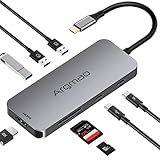
8. Argmao USB C Hub, 8-in-1 Dongle, USB-C PD3.0, 4K@30Hz HDMI, 3 USB 3.0, SD/TF Card Reader Adapter Compatible for MacBook Air Pro Mini and Other Type C Laptop
Overview:
The Argmao 8-in-1 hub maximizes connectivity with an extensive port array: 4K@30Hz HDMI, three USB ports (two 3.0, one 2.0), dual card readers, and 100W PD. Its aircraft-grade aluminum body targets photographers and MacBook users needing instant access to SD/TF cards alongside standard expansion.
What Makes It Stand Out:
The dual SD/TF card readers—operable simultaneously—are its crown jewel, eliminating the need for extra adapters. Combined with eight total ports (including a dedicated USB-C data port), it’s a powerhouse for media professionals. The slim aluminum casing ensures efficient heat dissipation during prolonged use.
Value for Money:
Offers exceptional utility at a budget-friendly price. While hubs with card readers often cost more, Argmao packs eight ports without compromising build quality. Cheaper alternatives lack dedicated card slots or reliable PD, making this ideal for content creators.
Strengths and Weaknesses:
Strengths: Dual SD/TF readers; eight versatile ports; solid aluminum build; plug-and-play simplicity; good heat management.
Weaknesses: HDMI limited to 30Hz; only two USB 3.0 ports (third is 2.0); no 10Gbps speeds; redundant feature descriptions in specs.
Bottom Line:
A top pick for photographers and MacBook users needing integrated card readers and comprehensive port expansion. Skip if you require 60Hz video or ultra-fast data transfer.
9. Hiearcool USB C Hub for MacBook – 7-in-1 USBC Adapter with 4K HDMI, 100W PD, USB 3.0 5Gbps Ports, SD/TF Card Reader – USB-C Dongle for Office, Meetings, Travel & Home Setup-Space Grey

Overview:
Hiearcool’s 7-in-1 hub is optimized for MacBook-centric workflows, featuring 4K@30Hz HDMI, 100W PD, dual USB 3.0 ports, and SD/TF card slots. Its space-gray aluminum design prioritizes portability and thermal efficiency for travelers, educators, and hybrid workers.
What Makes It Stand Out:
The seamless integration of SD/TF readers with MacBook aesthetics stands out, enabling quick photo/video imports during presentations. Its 100W PD operates stably during extended meetings, while the compact aluminum body dissipates heat effectively—critical for confined spaces like coffee shops or planes.
Value for Money:
Priced affordably, it delivers MacBook-tailored value. Competitors charge more for similar port counts, while budget hubs often omit card readers or reliable PD. Perfect for cost-conscious professionals needing presentation-ready versatility.
Strengths and Weaknesses:
Strengths: Integrated SD/TF readers; MacBook-optimized design; stable 100W PD; lightweight travel-friendly build; quiet operation.
Weaknesses: HDMI capped at 30Hz; USB 3.0 limited to 5Gbps; no 10Gbps ports; card readers lack UHS-II support.
Bottom Line:
An excellent all-rounder for MacBook users in education or business travel. Choose it for reliable meetings and media access—but seek alternatives for high-refresh gaming.
10. Acer USB C Hub, 7 in 1 Multi-Port Adapter for Laptop, 4K, HDMI Splitter with 2 USB A 3.1 & Type-C to HDMI Data Port, PD 100W Charging, SD Card Reader for Computer, Desktop, Space Grey

Overview:
Acer’s 7-in-1 hub combines business-grade utility with dual USB-A 3.1 ports, 4K@30Hz HDMI, and card readers in a sleek aluminum shell. Designed for Windows and macOS laptops, it targets office professionals needing simultaneous charging, display output, and data transfer.
What Makes It Stand Out:
The dual USB 3.1 (5Gbps) ports outpace many rivals’ single high-speed option, accelerating file transfers from peripherals. Its robust aluminum housing ensures longevity, while explicit compatibility with Samsung DeX (via manual activation) broadens its device support beyond typical hubs.
Value for Money:
A solid mid-tier investment. It matches premium hubs in port count and build but undercuts them on price. Budget alternatives often skimp on USB 3.1 speeds or PD stability, making Acer ideal for office multitaskers.
Strengths and Weaknesses:
Strengths: Two USB 3.1 ports; durable aluminum body; clear Samsung DeX support; reliable 100W PD; dual card readers.
Weaknesses: HDMI maxes at 30Hz; no 10Gbps ports; requires explicit PD port connection; Samsung DeX needs manual setup.
Bottom Line:
A dependable workhorse for corporate environments where dual high-speed USB ports and card access matter most. Best for Windows/macOS office use—not for 60Hz media enthusiasts.
Understanding Your Hub Needs Before You Buy
Before diving into specs, pause and map your real-world usage. A hub for a graphic designer streaming 8K footage has vastly different demands than one for a student taking notes in class. Overestimating needs wastes money; underestimating cripples productivity. Start by auditing every device you regularly connect: monitors, hard drives, Ethernet cables, keyboards, even your phone. Note their connection types (HDMI? USB-A? SD card?) and data speed requirements. Are you transferring massive video files daily, or just plugging in a mouse? This clarity prevents buyer’s remorse and ensures your hub becomes an invisible extension of your laptop, not a source of new headaches.
Identifying Essential Port Types for Your Workflow
Not all ports are created equal, and your workflow dictates which ones earn a spot on your hub. Video professionals prioritize multiple DisplayPort or HDMI 2.0+ ports for high-resolution, high-refresh-rate monitors. Photographers hauling SD cards from shoots need built-in, high-speed card readers. Gamers might crave dedicated Ethernet for lag-free online play, while travelers value compact hubs with USB-A for legacy peripherals. Crucially, distinguish between needed ports and nice-to-haves. A hub crammed with rarely used ports inflates cost and size. List your non-negotiables first—this filters out 80% of unsuitable options immediately.
Assessing Power Delivery Requirements
Power Delivery (PD) isn’t just about charging; it’s the lifeline for your entire setup. Many hubs can simultaneously power your laptop and charge peripherals—a game-changer for desk-bound work. But wattage matters critically. A 65W PD hub might suffice for ultrabooks, but a 100W+ hub is essential for high-performance laptops or desktop replacements. Check your laptop’s charger wattage (printed on the brick)—your hub should match or exceed it to avoid slow charging or “battery not charging” warnings. Also, consider if the hub powers itself; some draw power from your laptop when not connected to a charger, draining the battery faster during intensive tasks.
Evaluating Data Transfer Speeds and Protocols
Confusing USB 3.2 Gen 2 with Thunderbolt 4? You’re not alone. Data speed dictates how quickly files move between devices. USB 3.2 Gen 1 (5Gbps) handles basic flash drives fine, but editing RAW photos or 4K video demands USB 3.2 Gen 2 (10Gbps) or Thunderbolt 4 (40Gbps). Crucially, not all USB-C ports support the same speeds. A hub might have a USB-C port labeled “10Gbps,” but if it’s sharing bandwidth with other ports (common in budget models), actual speeds plummet when multiple devices are active. Look for hubs specifying dedicated bandwidth per port or per channel—this prevents bottlenecks when using multiple high-speed devices simultaneously.
Decoding Technical Specifications Without the Jargon
Manufacturer specs often feel like deciphering ancient code. Terms like “USB4,” “Alt Mode,” or “bus-powered” get thrown around liberally, but their real-world impact is what counts. Understanding these isn’t about being a tech wizard—it’s about avoiding costly mismatches. A hub supporting “USB4” sounds premium, but if it lacks Thunderbolt 4 certification, it won’t drive dual 4K displays on many Macs. Similarly, “bus-powered” means the hub draws all power from your laptop, which is fine for light use but disastrous when connecting power-hungry external SSDs. Translate the specs into tangible performance: Will it handle your monitor resolution? Will your NVMe drive run at full speed? This section strips away the fluff.
The Critical Difference Between USB4 and Thunderbolt 4
While both use the USB-C connector, USB4 and Thunderbolt 4 are not interchangeable. Thunderbolt 4 is a stricter, Intel-certified standard built on top of USB4. Key differentiators: Thunderbolt 4 guarantees dual 4K display support, 40Gbps data speeds (USB4 can be as low as 20Gbps), and PCIe tunneling for eGPUs. Crucially, many laptops—especially Macs and high-end Windows machines—require Thunderbolt 4 specifically for features like DisplayPort Alt Mode at higher resolutions. If your workflow involves multiple high-res screens or eGPUs, verify Thunderbolt 4 certification; otherwise, USB4 might suffice for basic expansion, saving significant cost.
Video Output Capabilities: Resolutions, Refresh Rates, and MST
Your monitor’s potential is only as good as your hub’s video output. HDMI 2.0 supports 4K at 60Hz—essential for smooth video playback—but older HDMI 1.4 hubs max out at 30Hz, making cursor movement jarringly slow. DisplayPort 1.4 enables even higher resolutions (like 5K) or 144Hz+ refresh rates for gaming. Also, investigate Multi-Stream Transport (MST). A hub might claim “supports two 4K displays,” but without MST, it can only mirror screens, not extend your desktop. For true multi-monitor productivity, ensure MST support and check compatibility with your laptop’s GPU—some older Intel chips struggle with MST over USB-C.
Bandwidth Allocation: Why More Ports Can Mean Slower Speeds
Hubs share a finite bandwidth pool from your laptop’s single USB-C connection. A hub with ten ports doesn’t magically multiply bandwidth—it splits the available 10Gbps or 40Gbps among active devices. Plugging in a 10Gbps SSD and a 5Gbps webcam simultaneously? Both will slow down. Top-tier hubs use clever engineering (like separate controller chips for video vs. data) to minimize this. Look for terms like “dedicated bandwidth channels” or “isolated video/data lanes.” For heavy multitaskers, prioritize hubs with Thunderbolt 4 or USB4, which offer higher total bandwidth (40Gbps vs. 10Gbps), reducing contention when multiple devices are active.
Physical Design and Real-World Usability Factors
A hub packed with perfect specs becomes useless if it’s awkward to use daily. Design impacts more than aesthetics—it affects cable management, heat dissipation, and even port accessibility. A bulky hub might block adjacent laptop ports or won’t fit in your travel bag. Flimsy plastic housings crack under daily stress, while all-metal builds often run cooler during sustained data transfers. Consider where you’ll use it most: a desktop hub can be larger with angled ports for easier cable routing, while a travel hub needs to be pocketable and robust enough to survive bag jostling. Don’t overlook port orientation; downward-facing ports prevent cable strain, and spaced-out ports accommodate chunky USB-A dongles without blocking neighbors.
Size and Portability: Desktop vs. Travel Solutions
The eternal trade-off: power versus portability. Desktop hubs often feature 8+ ports, robust cooling, and higher wattage chargers—ideal for a permanent workstation. But they’re rarely travel-friendly. Conversely, ultra-compact travel hubs (think credit-card size) sacrifice ports and power delivery for pocketability. Some strike a balance with foldable designs or removable cables. Ask: Will this live on your desk 24/7, or bounce between meetings? If you travel, prioritize hubs under 3 inches with reinforced ports. For desks, consider models with vertical stands that double as cable organizers—keeping your space tidy while improving airflow.
Build Quality and Heat Management
Ever touched a hub that felt like a mini-heater? Heat is the silent killer of electronics. Cheap hubs with plastic housings and no thermal pads throttle performance to avoid overheating, slowing your data transfers. Metal housings (aluminum is common) act as heat sinks, dissipating warmth efficiently. Check reviews for mentions of “throttling” or “overheating”—this is especially critical for sustained tasks like video editing or large file backups. Also, examine port construction: gold-plated contacts resist corrosion, and strain relief at cable bases prevents fraying. A well-built hub should feel dense, not hollow, with no wobbly ports.
Cable Length and Attachment Style
The hub’s cable is a surprisingly pivotal detail. Fixed cables (welded to the hub) are sleek but limit flexibility—if it’s too short, you’re stuck; if it breaks, the whole hub is trash. Detachable USB-C cables (using standard connectors) offer freedom to swap lengths or replace damaged cables. For desktops, a 12-18 inch cable prevents desk clutter; for travel, a short 6-inch cable keeps things compact. Crucially, ensure the cable supports your hub’s max speed (e.g., a Thunderbolt 4 hub needs a certified TB4 cable). Avoid hubs with proprietary cables—they’re expensive to replace and limit future compatibility.
Compatibility Pitfalls and Hidden Constraints
Even the most feature-rich hub can fail if it clashes with your specific hardware or OS. Compatibility isn’t just about the connector fitting; it’s about firmware, driver support, and hidden limitations baked into your laptop’s USB-C controller. A hub working flawlessly on Windows might stutter on macOS due to driver differences. Some Chromebooks restrict USB-C functionality to charging only, blocking data/video entirely. Enterprise-managed laptops often have security policies disabling unknown USB devices. Always cross-reference your laptop model’s USB-C capabilities (check manufacturer specs) and read user reviews from people with your exact device before buying.
Operating System and Driver Dependencies
While most hubs work “plug-and-play” on modern OSes, nuances exist. macOS sometimes requires additional drivers for Ethernet or specific video outputs, while Windows may need firmware updates for optimal Thunderbolt performance. Linux users face the steepest hill—many hubs lack open-source drivers, requiring manual configuration. Before purchasing, search “[Hub Model] + [Your OS Version]” in forums. Pay attention to posts about “kernel panics” on Mac or “driver not found” errors on Windows. Hubs with DisplayLink technology (common for multi-monitor support on older laptops) always require proprietary drivers—that’s a red flag if you use Linux or hate software bloat.
Laptop-Specific Limitations You Can’t Ignore
Your laptop’s internal USB-C controller is the gatekeeper. Many budget laptops use slower controllers (like USB 3.2 Gen 1) that bottleneck even a Thunderbolt 4 hub to 5Gbps speeds. Some MacBooks limit USB-C video output to a single external display without Thunderbolt. Check your laptop’s manual: Does it support DisplayPort Alt Mode? What’s the max data speed per port? Enterprise IT departments often disable USB-C data/video via BIOS/UEFI settings—a hub won’t magically override this. Never assume universal compatibility; your specific laptop model dictates what’s possible.
Security and Enterprise Environment Considerations
In corporate or school settings, USB-C hubs can trigger security alarms. Many organizations block “composite devices” (which hubs are) to prevent malware injection via USB. Others restrict data transfer speeds or disable video output over USB-C for privacy. If you’re buying for work, consult your IT department first. Some hubs offer enterprise-friendly features like write-protection switches for storage ports or certified security chips (e.g., Kensington-approved), but these are rare. Don’t learn compatibility the hard way during a critical presentation.
Maximizing Performance and Avoiding Common Mistakes
Owning a high-end hub doesn’t guarantee peak performance—poor setup habits cripple even the best hardware. Simple oversights like using a low-wattage charger or daisy-chaining hubs create avoidable bottlenecks. Understanding how to optimize your chain (laptop → hub → peripherals) unlocks reliability. For instance, connecting power-hungry devices like external SSDs directly to the hub’s rear ports (often wired closer to the controller) can improve stability versus front ports. Similarly, firmware updates silently fix bugs causing screen flickering or disconnects. Treat your hub like a critical tool: maintain it, configure it right, and it’ll serve you flawlessly for years.
Optimizing Power Delivery Chain Configuration
How you plug things in affects stability. Always connect the hub’s power adapter first before attaching peripherals. This ensures the hub initializes correctly with sufficient power. For laptops, plug the hub’s PD cable into your laptop’s primary USB-C port (usually marked with a battery icon)—secondary ports may not support full power input. If using multiple hubs (e.g., hub → second hub), only the primary hub should draw power from the laptop; daisy-chained hubs must be bus-powered or self-powered to avoid overloading circuits. When charging your laptop and using high-power devices, use a hub with a PD adapter matching or exceeding your laptop’s max wattage.
Preventing Data Bottlenecks Through Smart Port Usage
Not all ports on a hub share equal bandwidth. Rear or labeled “high-speed” ports often connect directly to the main controller, while front/side ports might share a slower internal bus. Plug your fastest devices (NVMe enclosures, 10Gbps SSDs) into these priority ports. Avoid connecting multiple high-bandwidth devices (like two SSDs) to ports sharing the same internal channel—check the manual for port groupings. For video, use dedicated DisplayPort/HDMI ports instead of USB-C video adapters where possible; they bypass data bus contention. When transferring large files, disconnect non-essential devices to free up bandwidth.
Firmware Updates and Long-Term Maintenance
Hubs, like any smart device, rely on firmware to manage complex protocols. Manufacturers silently release updates fixing compatibility bugs (e.g., screen flickering on macOS 15) or improving power management. Ignore these at your peril. Check the brand’s support page quarterly for updates—some hubs update automatically via OS, others require manual downloads. Also, clean ports gently with compressed air; dust buildup causes intermittent connections. Store travel hubs in padded cases to protect ports from pocket lint and impacts. A little maintenance prevents 90% of “sudden failure” headaches.
Frequently Asked Questions
Frequently Asked Questions
Can I charge my laptop while using all the hub’s ports simultaneously?
Yes, but only if the hub’s Power Delivery (PD) wattage meets or exceeds your laptop’s charging requirement and the total power draw of connected devices doesn’t exceed the hub’s capacity. High-power peripherals like external SSDs can reduce available wattage for laptop charging.
Will a USB-C hub slow down my internet if I use Ethernet?
Generally no—gigabit Ethernet ports on quality hubs deliver full 940Mbps+ speeds. However, if the hub shares bandwidth between USB data and Ethernet (common in budget models), heavy file transfers might cause minor latency. Dedicated Ethernet controllers avoid this.
Do I need Thunderbolt 4 for dual 4K monitors?
It depends on your laptop. Many Intel Evo-certified Windows laptops and recent Macs require Thunderbolt 4 for dual 4K@60Hz displays over USB-C. Older devices or those with USB4 may support it via DisplayPort Alt Mode, but verify your laptop’s specs first.
Can using a hub damage my laptop’s USB-C port?
Quality hubs with proper voltage regulation pose no risk. Problems arise from cheap hubs with faulty circuitry causing power surges. Always choose hubs with over-current/voltage protection and reputable safety certifications (UL, CE).
Why does my external monitor disconnect when I close my laptop lid?
This is an OS power setting, not a hub issue. On Windows, go to Power Options > Choose what closing the lid does > set to “Do nothing.” On macOS, keep a power adapter connected and disable “Put hard disks to sleep” in Energy Saver.
Are bus-powered hubs reliable for external SSDs?
Only for SSDs drawing minimal power (like some SATA-based enclosures). NVMe SSDs often require more power than bus-powered hubs provide, causing disconnects. Always use a self-powered hub (with its own charger) for NVMe drives.
How do I know if my hub supports my specific monitor resolution?
Check both the hub’s specs (e.g., “HDMI 2.0: 4K@60Hz”) and your laptop’s USB-C capabilities. If the hub supports it but your laptop doesn’t (e.g., only HDMI 1.4), the bottleneck is your laptop, not the hub.
Can I connect multiple hubs together for more ports?
Technically yes, but it risks instability. Daisy-chaining often exceeds bandwidth limits or power budgets, causing ports to drop. For >8 ports, use a single high-port-count hub instead of chaining—controllers are designed for unified bandwidth management.
Why does my hub get warm during use?
Mild warmth is normal (data/video conversion generates heat). Excessive heat indicates poor thermal design or overloading. Ensure vents aren’t blocked, avoid enclosing the hub, and disconnect unused high-power devices. Metal housings run cooler than plastic.
Do USB-C hubs work with older USB-A devices?
Yes—hubs with USB-A ports include built-in converters. However, data speeds are capped by the slowest link: a USB 2.0 flash drive in a USB 3.2 hub will max out at 480Mbps, not 10Gbps. For speed-critical tasks, use native USB-C devices.