Working from home should mean freedom from office constraints, not a constant battle with tangled cables and disappearing ports. If you’ve ever frantically unplugged your webcam to charge your phone mid-client call, or watched your crucial presentation stutter because your laptop couldn’t handle the external monitor and video conference simultaneously, you know the frustration. Modern laptops are marvels of portability, but their relentless pursuit of thinness often sacrifices the very ports we rely on for a seamless remote work experience. This isn’t just about convenience; it’s about maintaining professionalism, productivity, and sanity when your home office is your command center.
The right USB hub transforms your minimalist laptop into a fully-fledged workstation, acting as the unsung hero of your remote setup. It bridges the gap between sleek design and functional necessity, unlocking the potential for multiple high-resolution displays, rock-solid internet connections, and effortless peripheral management. But with a dizzying array of options promising the world, how do you cut through the marketing noise to find the hub that actually solves your specific remote work headaches? Forget chasing fleeting “best of” lists; this guide cuts to the chase, focusing on the non-negotiable features and practical considerations that truly matter when your livelihood depends on a stable, efficient home office. Let’s dive into what makes a USB hub indispensable for remote professionals.
Top 10 USB Hubs for Remote Workers
Detailed Product Reviews
1. ORICO USB Hub 3.0, Clamp USB Hub with Extra Power Supply Port, Aluminum 4-Port USB Adapter with 3 USB-A Data Ports, USB-C Port for Monitors, Desks (Black)

Overview: The ORICO USB Hub 3.0 is a space-saving aluminum docking solution designed for cluttered desks. Its clamp-mount system secures firmly to monitor or desk edges (5–28mm thick), featuring silicone pads to prevent scratches while offering 3 USB-A and 1 USB-C data ports via a 3.3FT cable.
What Makes It Stand Out: The adjustable clamp eliminates sliding issues common in traditional hubs, positioning ports within easy reach. The extra power supply port ensures stable high-power device connectivity (e.g., external drives), while widened port spacing accommodates bulky adapters. The included USB-C to USB-A cable broadens compatibility across MacBooks, PCs, and gaming consoles.
Value for Money: Priced mid-range, it justifies cost through premium aluminum construction, versatile mounting, and dual-cable flexibility. It outperforms basic hubs by preventing disconnections during heavy use, though budget options lack its stability.
Strengths and Weaknesses: Strengths: Rock-solid clamp design; silicone edge protection; 5Gbps transfer speed; plug-and-play across OSes; includes dual cables. Weaknesses: Power adapter sold separately; USB-C port is data-only (not for charging).
Bottom Line: Ideal for professionals needing reliable, elevated port access. Its clamp innovation and sturdy build make it a top choice for monitor/desk setups, despite the missing power adapter.
2. EJAY 5-Port USB 3.0 Hub with Card Reader & Clamp Mount, 5Gbps Aluminum Docking Station for MacBook PC, Dual Cable USB Adapter for Photographers, Remote Workers, Students, Black

Overview: The EJAY 5-Port Hub merges a clamp-mount design with a built-in SD/TF card reader, targeting photographers and creatives. It mounts securely on edges (5–30mm thick) and delivers 5Gbps speeds via USB 3.0, supported by dual cables for data and power.
What Makes It Stand Out: The integrated card reader eliminates extra adapters for photo transfers—a standout for content creators. Its dual-cable system (59" data + 39" power) prevents disconnections during heavy workloads, while the aluminum casing ensures heat dissipation and durability. The clamp’s wider thickness range (up to 30mm) suits bulkier monitors.
Value for Money: Competitive pricing for its niche features. The card reader and robust clamp justify the cost over standard hubs, especially for photographers who avoid buying separate readers. Power stability for multi-device use adds long-term savings.
Strengths and Weaknesses: Strengths: Built-in SD/TF card reader; dual-cable reliability; solid clamp (0.2–1.2" range); 5Gbps speed; sleek aluminum build. Weaknesses: No USB-C data port; power cable lacks strain relief.
Bottom Line: A specialized powerhouse for creatives needing instant photo imports and stable multi-device connectivity. Highly recommended for photographers but overkill for basic office use.
3. Powered USB Hub 3.0, Leinsis 7-Port USB 3.0 Hub [Durable Aluminum] 7 Data Transfer Ports+ 4 Smart Charging Ports with Individual On/Off Switches, USB Hub 3.0 Powered with Power Adapter for Laptop PC
![Powered USB Hub 3.0, Leinsis 7-Port USB 3.0 Hub [Durable Aluminum] 7 Data Transfer Ports+ 4 Smart Charging Ports with Individual On/Off Switches, USB Hub 3.0 Powered with Power Adapter for Laptop PC](https://m.media-amazon.com/images/I/41pqdXCvBHL._SL160_.jpg)
Overview: The Leinsis 7-Port Hub is a high-capacity powerhouse, expanding one USB port into 7 data ports (5Gbps) and 4 dedicated charging ports (2.4A each). Its aluminum housing, individual port switches, and included power adapter cater to heavy multitaskers.
What Makes It Stand Out: Unmatched port versatility—7 data ports for peripherals plus 4 charging ports for phones/tablets—sets it apart. Individual LED-lit switches let users toggle ports to save power, while the 12V/2A adapter prevents overload during intensive use. Over-protection safeguards against surges.
Value for Money: Premium pricing reflects its 11-port capacity and charging capability. It surpasses cheaper hubs by supporting simultaneous high-draw devices (e.g., HDDs + multiple chargers), making it cost-effective for workstations. Included 4ft power cable adds convenience.
Strengths and Weaknesses: Strengths: 7 data + 4 charging ports; individual switches; robust surge protection; long cables; travel-friendly. Weaknesses: Bulky for minimal setups; charging ports not USB-C.
Bottom Line: Essential for power users juggling numerous devices. Its expandability and safety features deliver exceptional value for offices or gaming rigs, despite its size.
4. Plugable 2-in-1 USB Splitter with Dual USB 2.0 Ports, Compatible with Windows, Linux, macOS, Chrome OS, USB Multiport Hub for Laptops

Overview: Plugable’s minimalist USB 2.0 splitter adds two ports via a compact, bus-powered design. Targeting travelers, it features a built-in 12-inch cable and ultra-slim profile for on-the-go port expansion without external power.
What Makes It Stand Out: Extreme portability and simplicity—no power adapter or drivers needed. The integrated extender cable eliminates dangling dongles, while its universal OS compatibility (including Chrome OS) ensures plug-and-play reliability for low-power devices like mice or flash drives.
Value for Money: Budget-friendly for basic needs. At under $15, it outperforms flimsy single-port splitters with its durable build and lifetime support. However, USB 2.0 speeds (480Mbps) limit it to non-data-intensive tasks.
Strengths and Weaknesses: Strengths: Ultra-portable; no power required; plug-and-play; lifetime support; quiet operation. Weaknesses: USB 2.0 only; unsuitable for HDDs/high-power devices; no mounting options.
Bottom Line: A no-frills solution for travelers needing two extra ports. Avoid for data-heavy work, but perfect for expanding laptop ports during commutes or meetings.
5. WIRWTRU USB Hub 7 Port,USB 3.0 Hub Splitter with Individual On/Off LED Switches, USB Hub for PC, 5Gbps HighSpeed Data for Laptop, Mac, PC, Desktop, PS5, Xbox and More

Overview: The WIRWTRU 7-Port Hub offers high-speed USB 3.0 expansion with individual port switches, targeting users needing simultaneous connections for peripherals like webcams and HDDs. It emphasizes compactness and OS versatility.
What Makes It Stand Out: Individual blue LED switches per port enable per-device power control—a rarity in budget hubs. Its slim, lightweight design suits ultrabooks, while 5Gbps speeds and PS5/Xbox compatibility broaden appeal beyond traditional PCs.
Value for Money: Affordable for its 7-port count, but lacks charging functionality (explicitly stated). Cheaper than powered alternatives, yet limited for high-power devices. Ideal for office setups with low-draw peripherals.
Strengths and Weaknesses: Strengths: 7 USB 3.0 ports; individual switches; portable; wide OS support; sleek packaging. Weaknesses: No charging support; no power adapter included; prone to overload with HDDs.
Bottom Line: A solid budget pick for light multitasking, but avoid for charging or heavy data transfers. Best for office workers with keyboards/mice, not power users.
6. TP-Link Powered USB Hub 3.0 with 7 USB 3.0 Data Ports and 2 Smart Charging USB Ports. Compatible with Windows, Mac, Chrome & Linux OS, with Power On/Off Button, 12V/4A Power Adapter(UH720)

Overview:
The TP-Link UH720 is a robust 9-port powered hub (7 data + 2 charging ports) designed for users needing extensive connectivity. It expands a single USB 3.0 port into multiple high-speed connections while offering dedicated fast-charging capabilities, suitable for workstations or home offices.
What Makes It Stand Out:
Its dual smart-charging ports (5V/2.4A each) intelligently optimize charging for diverse devices, from tablets to wearables. The 12V/4A power adapter ensures stable performance under heavy loads, while comprehensive circuit protections (overheat, surge, short-circuit) safeguard connected equipment—a rarity in mid-tier hubs.
Value for Money:
Priced competitively, it outperforms basic unpowered hubs by eliminating data-transfer bottlenecks during charging. The inclusion of two dedicated charging ports (vs. one in most competitors) justifies a slight premium over 7-port-only alternatives, especially for users juggling multiple high-drain devices.
Strengths and Weaknesses:
Strengths: Exceptional port count; reliable charging intelligence; enterprise-grade safety features; hot-swap support. Weaknesses: Bulky footprint; no individual port switches; 7 data ports may exceed needs for casual users.
Bottom Line:
Ideal for power users managing numerous peripherals and charging demands, the UH720 delivers unmatched safety and versatility. A top-tier investment for professionals seeking a future-proof hub.
7. Anker USB Hub 4 Ports with 5Gbps Data Transfer, Multiple USB 3.0 Hub, USB Splitter for Laptop, Extender for A Port Laptop, PC, Desktop and More [Charging Not Supported](0.7 ft USB-A)
](https://m.media-amazon.com/images/I/31TJpGko1rL._SL160_.jpg)
7. Anker USB Hub 4 Ports with 5Gbps Data Transfer, Multiple USB 3.0 Hub, USB Splitter for Laptop, Extender for A Port Laptop, PC, Desktop and More [Charging Not Supported](0.7 ft USB-A)
Overview:
Anker’s ultra-slim 4-port USB 3.0 hub targets minimalist users needing basic expansion. It focuses purely on high-speed data transfer (5Gbps), explicitly omitting charging functionality—a deliberate trade-off for portability and reliability.
What Makes It Stand Out:
Anker’s reputation for durability shines here, with precision-engineered heat resistance and a rugged build. The compact design fits seamlessly in laptop bags, while “SuperSpeed” data transfer reliably handles HD media. The 18-month warranty underscores confidence in longevity.
Value for Money:
At an entry-level price, it excels as a dedicated data hub. Though the short 0.7ft cable limits placement flexibility, the absence of charging circuitry keeps costs low. Beats generic hubs in build quality, but unnecessary for users needing charging ports.
Strengths and Weaknesses:
Strengths: Exceptional durability; sleek, portable form factor; consistent 5Gbps speeds; strong warranty. Weaknesses: No charging capability; short cable; only 4 ports; minimal compatibility with high-power devices.
Bottom Line:
A superb choice for travelers or students prioritizing data transfer reliability over charging. Avoid if you need to power devices—otherwise, it’s the most trustworthy 4-port hub under $20.
8. SABRENT 4 Port USB 3.0 Hub with Individual LED Lit Power Switches, Includes 5V/2.5A Power Adapter (HB-UMP3)

Overview:
SABRENT’s HB-UMP3 is a no-frills powered hub offering four USB 3.0 ports with individual control. Aimed at users managing multiple peripherals, it includes a robust power adapter and emphasizes user-friendly port management via illuminated switches.
What Makes It Stand Out:
The standout feature is per-port LED-lit power switches, allowing instant disconnection of specific devices without unplugging—a boon for conserving power or troubleshooting. The included 5V/2.5A adapter reliably supports power-hungry peripherals like external drives.
Value for Money:
Priced affordably, it delivers exceptional utility with its switchable ports, outclassing fixed-port hubs. The included adapter eliminates extra purchases, and plug-and-play setup ensures hassle-free use across Windows, Mac, and Linux systems.
Strengths and Weaknesses:
Strengths: Individual port control with LEDs; reliable power delivery; true plug-and-play; compact design. Weaknesses: Max 2.5A total output limits simultaneous high-drain devices; no dedicated charging port; basic build quality.
Bottom Line:
Perfect for home offices needing granular port control for printers or drives. Sacrifices high-amperage charging for practicality, making it a smart buy for budget-conscious users seeking functionality.
9. Powered USB Hub, Wenter 11-Port USB Splitter Hub (10 Faster Data Transfer Ports+ 1 Smart Charging Port) with Individual LED On/Off Switches, USB Hub 3.0 Powered with Power Adapter for Mac, PC

Overview:
Wenter’s 11-port hub (10 data + 1 charging) caters to users drowning in peripherals. It combines massive expansion with smart charging, individual port control, and generous cable lengths—ideal for cluttered desks requiring organized connectivity.
What Makes It Stand Out:
The 10 data ports (plus dedicated charging port) are individually switchable with status LEDs, enabling precise power management. Long cables (3.3ft USB/4ft power) enhance setup flexibility, while the 12V/3A adapter ensures stable performance across all ports.
Value for Money:
For its price, it offers unmatched port density and usability. Competitors rarely include 10+ ports with per-port switches, making it cost-effective for studios or multi-device households despite a slightly higher upfront cost.
Strengths and Weaknesses:
Strengths: Industry-leading port count; per-port switches with LEDs; long cables; 24-month warranty. Weaknesses: Single charging port limits simultaneous device charging; bulkier design; occasional power throttling under full load.
Bottom Line:
The ultimate solution for extreme peripheral expansion. Choose this if you need to connect 10+ devices with tidy power management—just supplement charging for multiple phones/tablets.
10. Powered USB Hub 3.0, Atolla 7-Port USB Data Hub Splitter with One Smart Charging Port and Individual On/Off Switches and 5V/4A Power Adapter USB Extension for MacBook, Mac Pro/Mini and More.
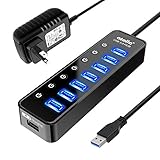
Overview:
Atolla’s 7-port hub (6 data + 1 charging) blends Mac-friendly design with versatile expansion. It targets Apple users needing extra ports plus fast charging, featuring per-port switches and a high-capacity 5V/4A power adapter for stable performance.
What Makes It Stand Out:
The 5V/4A adapter delivers exceptional power headroom (2.4A per charging port), outpacing many rivals. Individual on/off switches with status LEDs enable device-specific control, while Mac-optimized compatibility ensures seamless integration with Apple ecosystems.
Value for Money:
Competitively priced for Mac users, it justifies cost with robust power delivery and switchable ports. Beats generic hubs in macOS reliability, though Windows users may find similar specs cheaper elsewhere.
Strengths and Weaknesses:
Strengths: High-amperage charging; per-port control; Mac-optimized; sturdy 18-month warranty. Weaknesses: Only one charging port; 6 data ports (not 7); short 3.3ft USB cable; premium pricing for non-Mac users.
Bottom Line:
A top pick for MacBook owners needing organized, high-power expansion. Skip if you require multiple charging ports—otherwise, it’s a polished, reliable hub for Apple-centric setups.
Understanding Your Core Connectivity Needs
Before diving into specs, honestly assess your daily workflow. What peripherals are absolutely essential for your productivity? This foundational step prevents overspending on unused features or, worse, ending up with a hub that lacks a critical port.
Identifying Essential Peripheral Types
List every device you connect regularly: external monitors, ergonomic keyboards and mice, high-quality webcams, noise-canceling headsets, Ethernet cables for stable internet, card readers for photos or documents, and even your phone for charging. Consider if you use docking stations or need to connect legacy devices like printers via USB-A. Your hub must accommodate all these simultaneously without constant swapping.
Evaluating Your Laptop’s Port Limitations
Closely examine your laptop’s available ports. How many USB-C/Thunderbolt ports do you have free after connecting your primary charger? Is there an HDMI port you rely on? Understanding your starting point reveals the exact capacity gap the hub needs to fill. Don’t assume one port on the hub equals one port on your laptop; some hubs require specific port types for certain functions.
Anticipating Future Expansion
Remote work evolves. Will you add a second monitor next quarter? Switch to a wired Ethernet connection for reliability? Need more USB-A ports for new peripherals? Choosing a hub with 1-2 extra ports beyond your immediate needs provides crucial breathing room, saving you from another purchase down the line. Future-proofing is key to long-term satisfaction.
Power Delivery: The Lifeline of Your Setup
For remote workers tethered to their desks, a hub that only passes data is a ticking time bomb. Power Delivery (PD) capability is non-negotiable for keeping your laptop charged while driving multiple peripherals.
Decoding Wattage Requirements
Your laptop’s charger wattage is the critical number. A typical ultrabook might need 65W, while a performance laptop could require 90W, 100W, or even 140W. The hub’s PD port must deliver at least this wattage to charge effectively while under load. Using a hub with insufficient wattage leads to slow charging or even battery drain during demanding tasks like video calls with multiple monitors.
Simultaneous Charging and Data Throughput
Ensure the hub can deliver high wattage while all data ports are in active use. Some cheaper hubs throttle power output significantly when multiple devices draw data, defeating the purpose. Look for specifications explicitly stating “full power delivery during multi-device operation” or similar phrasing. This is vital for all-day workstation reliability.
The Passthrough Power Advantage
A hub with its own dedicated power adapter (passthrough power) is almost always superior for a permanent desk setup. It takes the charging load entirely off your laptop’s single port, ensuring maximum power goes to your machine and peripherals. Bus-powered hubs (drawing power solely from your laptop) are generally insufficient for sustained heavy use with multiple devices.
Build Quality and Physical Design Matters
You’ll interact with this device daily, often in a professional setting. Flimsy construction or awkward placement can be a constant annoyance and even a reliability risk.
Durability for Daily Desk Life
Look for hubs constructed with robust materials like aluminum alloy or high-grade plastics. Avoid overly lightweight, hollow-feeling units. Consider the stress points where ports meet the casing – reinforced connectors are less likely to fail from frequent plugging/unplugging. A well-built hub withstands years of desk life.
Strategic Port Layout and Spacing
Clunky dongles and oversized plugs demand generous port spacing. Check reviews or detailed photos for evidence of ports being spaced far enough apart to accommodate multiple large adapters (like USB-C chargers or Ethernet dongles) simultaneously without blocking adjacent ports. A logical arrangement (e.g., video outputs grouped, data ports separated) also enhances usability.
Form Factor: Dock vs. Compact Hub
Decide based on your desk space and portability needs. A larger desktop dock offers more ports, better heat dissipation, and often superior power delivery but is stationary. A compact, travel-friendly hub sacrifices some ports and power for portability if you occasionally work from cafes or co-working spaces. Most dedicated remote workers benefit from the stability of a desktop dock.
Mastering Video Output Capabilities
Seamless multi-monitor support is often the primary reason remote workers seek a hub. Getting video right is complex and critical for productivity.
Understanding Resolution and Refresh Rate Limits
Don’t just look for “supports 4K.” Check the specific resolution and refresh rate supported per display and whether it changes when driving multiple screens. For dual 4K monitors at 60Hz, you often need Thunderbolt 3/4 or specific high-bandwidth USB4 hubs. Basic USB-C hubs might only manage 4K@30Hz or single 4K@60Hz, leading to blurry text or stuttering video.
The Critical Role of DisplayPort Alt Mode
For USB-C hubs, DisplayPort Alternate Mode (DP Alt Mode) is the standard enabling video output over USB-C. Ensure the hub explicitly supports DP Alt Mode at the bandwidth level you require (e.g., DP 1.4 for higher resolutions/refresh rates). HDMI-only hubs limit your connection options and future monitor compatibility.
Adapter Compatibility and Signal Integrity
If your monitors use HDMI, ensure the hub’s HDMI port version (e.g., HDMI 2.0, 2.1) matches your monitor’s needs for resolution and features like HDR. Poor signal integrity in cheap hubs can cause flickering, color issues, or intermittent disconnects – especially over longer cable runs. Look for mentions of signal boosting or high-quality components in reviews.
Essential Specialized Features for Remote Work
Beyond basic ports, specific features directly address common remote work pain points and elevate your professional setup.
The Non-Negotiable Ethernet Port
Wi-Fi is convenient, but for critical video calls, large file transfers, or unstable home networks, a wired Gigabit Ethernet port is essential. It provides rock-solid, low-latency internet crucial for professional reliability. Ensure the hub includes a dedicated RJ45 port; relying on a separate USB-Ethernet dongle wastes a precious port.
SD/microSD Card Readers: A Hidden Time-Saver
Frequently handling photos, documents, or media from cameras or phones? An integrated, high-speed SD/microSD card reader eliminates the need for a separate adapter, streamlining your workflow. Look for UHS-II support for faster data transfer from modern cameras.
Navigating Setup, Compatibility, and Troubleshooting
Even the best hub can cause headaches if compatibility isn’t considered or basic setup isn’t understood. Preparation prevents frustration.
Verifying Operating System and Device Compatibility
While most hubs work across Windows, macOS, and ChromeOS, nuances exist. Mac users, especially with Apple Silicon, should double-check hub compatibility lists for known issues with specific macOS versions or features like Sidecar. Some hubs require specific drivers for full functionality on certain OSes – check the manufacturer’s support page before buying.
Simplifying the Physical Connection Workflow
Establish a logical connection order: Plug the hub’s power adapter into the wall first, then connect the hub’s main cable to your laptop, then attach your peripherals. This sequence minimizes electrical surges and helps the system recognize devices correctly. Keep your main laptop charger plugged directly into the hub’s PD port if possible.
Common Glitches and Quick Fixes
Encountering a disconnected monitor or unresponsive peripheral? Try these first: 1) Unplug the hub’s power adapter for 30 seconds (soft reset), 2) Reboot your laptop with the hub connected, 3) Try different ports on the hub for the problematic device, 4) Ensure your laptop’s OS and relevant drivers (graphics, chipset) are fully updated. Persistent issues often trace back to insufficient power or incompatible video specs.
Frequently Asked Questions
Frequently Asked Questions
How does a USB hub actually work with my laptop? A USB hub acts as an expansion point, utilizing your laptop’s single USB or Thunderbolt port to create multiple additional connection points. It intelligently manages data and power flow between your laptop and all connected devices, requiring no complex setup beyond plugging it in (and often its power adapter).
How many ports do I realistically need for a productive home office? Most remote workers benefit from a minimum of 4-6 additional data ports (USB-A/C), plus dedicated video output (HDMI/DisplayPort), Ethernet, and ideally an SD card reader. This supports dual monitors, keyboard/mouse, webcam, headset, Ethernet, and phone charging simultaneously without swapping.
Is Power Delivery (PD) really necessary if I’m always at my desk? Absolutely. Without sufficient PD wattage coming through the hub, your laptop will drain its battery while powering multiple peripherals and displays, even when plugged in. The hub’s PD must match or exceed your laptop’s charger wattage for true all-day operation.
Why is a dedicated Ethernet port so important for remote work? Wi-Fi can suffer from interference, congestion, and signal drops, leading to frozen video calls or failed file uploads. A wired Ethernet connection provides consistently faster, more stable, and lower-latency internet – critical for professional reliability during client meetings or large transfers.
My external monitor keeps disconnecting. Could the hub be the cause? Yes, this is a common symptom. Potential hub-related causes include insufficient power delivery causing instability, exceeding the hub’s maximum video bandwidth (e.g., trying dual 4K@60Hz on a hub only supporting single 4K@60Hz), or poor signal integrity. Verify the hub’s video specs match your monitor setup.
Will a USB hub work perfectly with my MacBook? Most modern hubs work well with Macs, but Apple Silicon Macs can have specific quirks. Always check the hub manufacturer’s compatibility list for your exact Mac model and macOS version, especially regarding video output modes and potential driver requirements for features like higher refresh rates.
Can I connect another hub to my main hub for even more ports (daisy-chaining)? While technically possible with some Thunderbolt hubs, daisy-chaining standard USB hubs is generally unreliable and often violates USB specifications, leading to power issues, data errors, or unrecognized devices. It’s far better to choose a single hub with sufficient ports upfront.
Will using a hub slow down my internet speed or file transfers? A quality hub with Gigabit Ethernet and USB 3.2 Gen 1 (or higher) ports won’t bottleneck modern home internet speeds or typical file transfers. However, a hub using older USB 2.0 ports for data or Ethernet will severely limit speeds. Always verify the data transfer speeds of the specific ports you’ll use.
My peripherals work sometimes but not others. What’s wrong? This is almost always a power issue. The hub likely lacks sufficient total wattage or per-port current to power all devices simultaneously, especially high-draw items like external SSDs or some webcams. Check the power requirements of your devices and ensure the hub’s total output exceeds the sum, plus overhead for the laptop charge.
How can I ensure my USB hub lasts for years in my home office? Choose a hub with a robust metal or high-quality plastic build, adequate port spacing to prevent physical strain, and a dedicated power adapter to avoid overloading. Place it in a well-ventilated area on your desk, avoid yanking cables, and periodically check connections. Investing in a reputable brand known for reliability is key.