Tangled cables snaking across your desk, competing for precious real estate with your keyboard and coffee mug—it’s a modern workspace nightmare that chews up productivity and fuels frustration. As our digital lives expand with more peripherals, monitors, and devices demanding constant connection, the traditional flat USB hub has become a relic of inefficient design. Enter the vertical USB hub: a sleek, space-conscious solution rising from niche accessory to essential desk companion. By standing tall instead of sprawling wide, these hubs transform cluttered chaos into organized efficiency, reclaiming every valuable inch of your workspace while keeping ports accessible and tangle-free.
Imagine a desk where your mouse, external drive, and smartphone charger coexist peacefully without a single cable spill. Vertical USB hubs achieve this by leveraging often-overlooked vertical space—turning the air above your desk into functional real estate. No more awkwardly reaching behind monitors or digging through cable nests to plug in a device. This isn’t just about tidiness; it’s a strategic shift toward ergonomic, future-proof workspaces where every component serves a purpose without sacrificing style or accessibility. As hybrid work blurs the lines between home offices and professional environments, mastering your desk’s spatial economy isn’t optional—it’s the foundation of sustained focus and productivity in 2026.
Top 10 Vertical USB Hubs
Detailed Product Reviews
1. JoyReken 7-Port USB 3.0 Hub, Vertical USB Hub Splitter with RGB Lighting,5Gbps High-Speed Data Transfer and 2FT Extension Cable, Compatible with PC, MacBook, Laptop, PS5, Xbox, Flash Drive, Printer

Overview:
This vertical USB hub expands a single port into seven USB 3.0 ports, designed specifically for high-speed data transfer (not charging). Ideal for connecting peripherals like keyboards, external drives, and gaming gear to PCs, Macs, or consoles. Its compact triangular tower design saves desk space while adding visual flair.
What Makes It Stand Out:
The vibrant RGB wolf-head lighting (cycling through 7 colors) doubles as a functional night light and workspace accent. The included 2FT extension cable offers flexible placement, and the side USB-C port provides extra power stability for demanding devices like HDDs—though it doesn’t support data transfer or charging.
Value for Money:
Priced competitively for a 7-port USB 3.0 hub, it delivers excellent utility for multitaskers needing expanded connectivity. While cheaper hubs lack RGB aesthetics and the USB-C power boost, premium alternatives rarely include the extension cable and adhesive mounting options, making this a well-rounded budget pick.
Strengths and Weaknesses:
Strengths: 5Gbps transfer speeds, space-saving vertical design, flexible cable placement, stable power for HDDs, plug-and-play compatibility.
Weaknesses: RGB lighting may distract some users, not for charging devices, USB-C port limited to power delivery only.
Bottom Line:
A stylish, functional hub for expanding desktop connectivity without sacrificing speed. Best for gamers and creatives prioritizing aesthetics and data transfer—skip if you need charging ports.
2. Charging Station for Multiple Devices 40W Upoy, Wall Charger Block 5 USB Ports(Shared 6A), USB Charging Hub Smart IC, Charger Tower with Type-C 3A for iPhone iPad Tablets Smartphones, Home Office Use
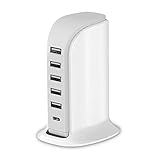
Overview:
This 40W sailboat-shaped charging tower consolidates power for up to 5 devices simultaneously (6A shared output), featuring Smart IC technology to optimize charging speeds. Designed for home or office use, it replaces multiple wall adapters with a single, space-efficient solution for smartphones, tablets, and other USB-powered gadgets.
What Makes It Stand Out:
Its unique sailboat form aids heat dissipation (using 1382℉-resistant materials) while occupying minimal space. The Smart Flow IC intelligently allocates up to 2.4A per port, and six-layer safety protections—including over-temperature and short-circuit prevention—ensure device safety during extended use.
Value for Money:
At its price point, it outperforms generic multi-port chargers with robust safety features and a compact design. Though Anker offers similar wattage, this tower’s aesthetic sailboat shape and 6-protection suite provide extra value for households managing multiple devices.
Strengths and Weaknesses:
Strengths: Efficient space-saving design, comprehensive safety protections, Smart IC for optimized charging, 40W total output.
Weaknesses: Shared amperage limits peak speed for all ports simultaneously, no USB-C PD for newer laptops, plastic build feels less premium.
Bottom Line:
A reliable, safety-focused charging hub ideal for families or desks cluttered with adapters. Choose this if consolidating phone/tablet charging is your priority over ultra-fast laptop charging.
3. JoyReken 7-Port USB 3.0 Hub, Vertical USB Hub Splitter with RGB Lighting, 5Gbps High-Speed Data Transfer and 2FT Extension Cable, Compatible with Laptop, PC, Desktop, MacBook, PS5, Xbox, Flash Drive

Overview:
This 7-port USB 3.0 hub transforms one port into seven for seamless data transfer, targeting users needing expanded connectivity for peripherals. It’s strictly for data (not charging), compatible with Windows, macOS, and Linux, and includes a 2FT cable for flexible placement near laptops, desktops, or gaming consoles.
What Makes It Stand Out:
Its tree-silhouette RGB lighting cycles through calming colors—toggleable with a button—blending workspace aesthetics with utility. The vertical design saves desk real estate, while the side USB-C power port stabilizes transfers for power-hungry devices like external HDDs, a rare feature at this price.
Value for Money:
Delivers robust 5Gbps speeds and 7 ports at a mid-range cost. Cheaper hubs often lack USB-C power support or RGB customization, and few include the 2FT extension cable. It’s a pragmatic upgrade for creatives or gamers needing reliable expansion without premium pricing.
Strengths and Weaknesses:
Strengths: Plug-and-play simplicity, excellent file-transfer speeds, ergonomic vertical layout, USB-C power stability, cable management tie.
Weaknesses: RGB lighting consumes minor power, not suitable for charging, plastic build lacks premium feel.
Bottom Line:
A versatile, aesthetically pleasing hub for data-focused expansion. Highly recommended for multi-device setups where charging isn’t required—avoid if you need power delivery.
4. JoyReken 7-Port USB 3.0 Hub, White Vertical USB Hub Splitter with Tree-Shaped RGB Lighting, 5Gbps High-Speed Transfer, 2FT Extension Cable, Compatible with PC, MacBook, Laptop, Flash Drive, Printer

Overview:
This white vertical hub offers seven USB 3.0 ports for high-speed data transfer (non-charging), perfect for connecting printers, flash drives, or controllers to PCs and Macs. Its tree-themed RGB lighting and compact form cater to users seeking a minimalist yet stylish desktop accessory with plug-and-play ease.
What Makes It Stand Out:
The soft-glow tree silhouette RGB lighting provides a serene ambiance (customizable via button), distinguishing it from generic hubs. The 2FT extension cable enables discreet placement under monitors or desks, and the USB-C power port ensures stable performance with external drives—uncommon in budget hubs.
Value for Money:
Priced affordably for 7-port USB 3.0 functionality, it justifies cost through thoughtful extras: the extension cable, RGB aesthetic, and USB-C stability. While basic hubs cost less, they lack these refinements, making this ideal for users valuing both utility and workspace harmony.
Strengths and Weaknesses:
Strengths: Quiet RGB ambiance, space-efficient vertical design, reliable 5Gbps transfers, wide OS compatibility, easy cable management.
Weaknesses: No charging capability, lighting may not appeal to all, plastic construction feels lightweight.
Bottom Line:
An elegant solution for expanding data ports with subtle flair. Best for home offices or creative studios wanting clean aesthetics—opt for alternatives if charging ports are essential.
5. Anker 4-Port USB A hub Unibody Aluminum Portable Data Hub with 2ft USB 3.0 Cable,USB Splitter for MacBook, Mac Pro/mini, iMac, XPS, Surface Pro, Notebook PC, Mobile HDD and More

Overview:
Anker’s compact 4-port USB 3.0 hub prioritizes portability and premium build quality, targeting MacBook and ultrabook users. Crafted from seamless aluminum, it delivers 5Gbps data speeds for peripherals like mobile HDDs, with a 2FT cable and hook-and-loop strap for on-the-go convenience.
What Makes It Stand Out:
The unibody aluminum chassis offers exceptional durability and heat dissipation, while its candy-bar size fits in pockets effortlessly. Anker’s trusted reliability (backed by 50M+ users) and included mounting strap ensure it stays secure on minimalist desks—ideal for professionals valuing sleek, no-fuss expansion.
Value for Money:
Though pricier than plastic hubs and offering fewer ports, Anker’s build quality, brand trust, and portability justify the cost. Competitors like Sabrent match specs but lack the refined aluminum finish, making this a worthwhile investment for frequent travelers or Apple-centric workflows.
Strengths and Weaknesses:
Strengths: Premium aluminum construction, ultra-portable, reliable 5Gbps transfers, secure mounting option, Anker’s warranty support.
Weaknesses: Only 4 ports (vs. 7 in rivals), no RGB or extra features, higher price for basic functionality.
Bottom Line:
A top-tier hub for travelers and Apple users prioritizing durability and portability over port count. Choose this for dependable, pocketable expansion—if you need more ports, consider bulkier alternatives.
6. Amazon Basics 7 Port USB 2.0 Hub Tower with 5V/4A Power Adapter, Plug and Play, Charging Ports, Black

Overview: This budget-friendly USB 2.0 hub tower expands a single USB port into seven, designed for basic peripheral connectivity and device charging. It includes a 4A power adapter, a 3-foot cable, and requires no drivers for plug-and-play setup on most systems.
What Makes It Stand Out: Its standout feature is the integrated 4A power adapter, enabling simultaneous charging of multiple devices—a rarity in USB 2.0 hubs. The vertical tower design saves desk space, and backward compatibility with USB 1.1 ensures broad device support.
Value for Money: At an entry-level price, it delivers solid functionality for light-duty use. While cheaper unpowered hubs exist, the included adapter justifies the modest premium for users needing reliable charging, especially for phones or low-power accessories.
Strengths and Weaknesses: Strengths: Affordable; space-efficient tower; easy plug-and-play; robust power adapter for charging. Weaknesses: Max 480Mbps transfer speed (too slow for large files); charging may falter for high-draw devices like tablets; no USB-C support.
Bottom Line: Ideal for budget-conscious users needing extra ports for charging phones or connecting basic peripherals, but avoid for data-intensive tasks. A practical, no-frills solution for simple expansion.
7. ORICO USB Hub 3.0, Clamp USB Hub with Extra Power Supply Port, Aluminum 4-Port USB Adapter with 3 USB-A Data Ports, USB-C Port for Monitors, Desks (Black)

Overview: This premium 4-port USB 3.0 hub features a unique clamp-mount design for monitors or desks, combining aluminum durability with versatile connectivity. It includes three USB-A and one USB-C port, plus an extra power input for stable high-demand use.
What Makes It Stand Out: The adjustable clamp (0.19–1.1" thick) with silicone pads securely mounts to edges without tools, eliminating cable clutter. The dedicated power port prevents data corruption during heavy transfers, and the widened port spacing accommodates bulky dongles.
Value for Money: Priced mid-range, it offers exceptional build quality and innovative mounting. Competitors often lack secure mounting or extra power, making this hub a smarter investment for desk/monitor setups despite no included power adapter.
Strengths and Weaknesses: Strengths: Tool-free clamp mounting; premium aluminum heatsink; extra power port for stability; USB-C expansion; wide port spacing. Weaknesses: Power adapter sold separately; USB-C port is data-only (no charging output); limited to four ports.
Bottom Line: Highly recommended for users seeking a clutter-free, permanent desk/monitor solution. Its robust design and power safety features justify the cost for professionals needing reliable expansion.
8. JoyReken 4-Port USB 3.0 Hub, FlyingVHUB USB Hub Tower with 2 ft Extended Cable,USB Splitter for Laptop,PC,PS4,PS5,Xbox,Mouse,Keyboard, Flash Drive, U-Disk (Black)
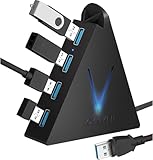
Overview: This vertically oriented USB 3.0 hub adds four ports via a 2-foot cable, featuring a distinctive “Flying V” design with RGB lighting. It targets gamers and home users, supporting PCs, consoles, and peripherals but explicitly excludes charging functionality.
What Makes It Stand Out: The eye-catching RGB night light cycles through seven colors, doubling as desk decor. The 2-foot cable solves reach issues under desks, while double-sided tape secures placement. Its compatibility with PS5/Xbox consoles is a niche plus.
Value for Money: Competitively priced for USB 3.0 speeds (5Gbps), the aesthetic flair and console support add value. Budget hubs lack RGB or console testing, though the no-charging caveat limits utility for some users.
Strengths and Weaknesses: Strengths: Vibrant RGB lighting; 2-foot cable reduces strain; secure adhesive mounting; console compatibility; plug-and-play ease. Weaknesses: Cannot charge devices; RGB may distract in professional settings; plastic build feels less premium.
Bottom Line: A fun, functional choice for gamers or casual users wanting style and convenience. Skip if you need charging—otherwise, excellent for expanding ports with personality.
9. VIENON 4-Port USB 3.0 Hub [90°/180° Degree Rotatable], USB Splitter with PD-in 5W USB C Port, USB Extender for Laptop, Car, iMac, MacBook Air, MacBook Pro, and More
![VIENON 4-Port USB 3.0 Hub [90°/180° Degree Rotatable], USB Splitter with PD-in 5W USB C Port, USB Extender for Laptop, Car, iMac, MacBook Air, MacBook Pro, and More](https://m.media-amazon.com/images/I/31KyAOXX0TL._SL160_.jpg)
Overview: This compact, rotatable hub expands one USB port into four (three USB-A, one USB-C) with a swivel base for flexible positioning. It targets MacBook users and car setups, emphasizing plug-and-play simplicity across OS platforms.
What Makes It Stand Out: The 90°/180° rotation adapts to tight spaces, while the USB-C port supplies 5W power to the hub (not for device charging). Tesla Model compatibility and car usability distinguish it from generic hubs.
Value for Money: Affordable for its versatility, though the USB-C port’s limited role (power input only) may confuse buyers. Cheaper hubs lack rotation or automotive use cases, making this worthwhile for Mac/car owners.
Strengths and Weaknesses: Strengths: Space-saving rotation; car/Tesla compatibility; supports Mac/Windows/Linux; no drivers needed. Weaknesses: USB-C port can’t charge devices; no power adapter included; USB 2.0 ports slow for data-heavy tasks.
Bottom Line: Best for MacBook or Tesla users needing adaptable ports in confined spaces. Avoid if you expect USB-C charging—but ideal for hassle-free expansion on the go.
10. USB C Hub, 8 in 1 USB C Hub Multiport Adapter with 4K HDMI, PD 100W, 5Gbps Type C 3.0, 3xUSB A 3.0, SD/TF Card Reader. RGB USB Hub for MacBook Air/Pro, HP, Laptop, PC, Switch, PS5(Tree)

Overview: This premium vertical hub delivers eight functions: 4K HDMI, 100W PD charging, three USB-A 3.0 ports, USB-C data, SD/TF readers, and RGB lighting. Designed for power users, it includes repositionable adhesive mounting and a 1.6ft cable.
What Makes It Stand Out: The 100W PD passthrough (85W to device) enables fast laptop charging while supporting peripherals—a rarity. Vertical space-saving design, 4K output, and dynamic RGB lighting cater to creatives and gamers needing all-in-one expansion.
Value for Money: Priced higher but justified by comprehensive features. Cheaper hubs omit 4K, high-wattage PD, or card readers. The repositionable adhesive adds long-term flexibility, making it cost-effective for professionals.
Strengths and Weaknesses: Strengths: 100W PD passthrough; 4K HDMI; fast data transfer; versatile mounting; SD/TF readers. Weaknesses: RGB may not suit all aesthetics; HDMI limited to 30Hz; requires DisplayPort Alt Mode support.
Bottom Line: The top recommendation for professionals needing max functionality. Worth every penny for MacBook or high-end laptop users prioritizing charging speed, video output, and expandability.
Why Vertical USB Hubs Are Revolutionizing Desk Organization
The Space-Saving Science Behind Vertical Design
Vertical hubs capitalize on an overlooked dimension: height. While traditional hubs consume valuable horizontal surface area, vertical models occupy a fraction of the footprint by stacking ports upward. This shift aligns with ergonomic principles, positioning ports within natural hand-reach zones without forcing you to stretch or contort. Studies show reducing physical clutter lowers cognitive load, and vertical hubs directly address this by eliminating cable sprawl. They’re not just smaller—they’re intelligently scaled, transforming cramped desks into minimalist command centers where every device has its place.
Overcoming Horizontal Hub Limitations
Flat hubs create three critical pain points: port inaccessibility (especially rear-facing ones), cable strain from tight bends, and accidental disconnections from desk vibrations. Vertical designs solve these by exposing all ports outward, allowing cables to flow downward with gravity rather than kinking sideways. This reduces wear on both ports and cables, extending hardware lifespan. Additionally, vertical alignment prevents “port stacking” where multiple devices block adjacent slots—a common frustration with horizontal models. In compact workspaces like standing desks or shared co-working stations, this difference is transformative.
Ergonomic Benefits Beyond Clutter Reduction
Beyond freeing up desk space, vertical hubs promote healthier posture. Reaching for low-lying ports encourages slouching, while elevated ports keep arms at neutral angles during frequent plug-ins. This subtle shift reduces shoulder and wrist strain during long work sessions. Many vertical hubs also integrate cable management channels along their base, guiding wires downward cleanly to avoid tripping hazards or snagging. For users with dual monitors or laptop stands, this vertical flow creates a seamless “cable waterfall” effect that maintains visual calm.
Key Features to Prioritize When Choosing Your Hub
Understanding Port Types and Versatility
Not all USB ports are created equal. Prioritize hubs with a strategic mix: USB-C for modern laptops and high-speed devices, USB-A for legacy peripherals like keyboards, and potentially Thunderbolt 4 for ultra-fast data transfer or multi-monitor setups. Avoid hubs overloaded with identical ports—if you only need two USB-A slots, extra ones waste space. Look for “smart” port allocation: dedicated charging ports (often marked with a lightning bolt) that deliver higher amperage for phones/tablets, separate from data ports. This ensures your tablet charges rapidly while your external drive transfers files without contention.
Power Delivery Requirements Demystified
Power delivery (PD) is non-negotiable for laptop users. A quality vertical hub should offer at least 60W PD passthrough—enough to power most ultrabooks while simultaneously running peripherals. Verify the hub’s total wattage (e.g., 100W) and how it’s distributed: some hubs throttle laptop charging when multiple high-power devices are connected. For creative pros using 4K monitors or external GPUs, seek 100W+ PD to avoid “brownout” scenarios where the laptop battery drains during intensive tasks. Always match PD specs to your laptop’s requirements—check its charger label for wattage.
Build Quality and Thermal Management
Vertical hubs sit closer to users, making material choice critical. Aluminum housings dissipate heat 3x better than plastic, preventing thermal throttling during sustained data transfers. Avoid flimsy, lightweight models—they often skimp on internal circuitry. Check for rubberized bases to prevent sliding and internal heat vents (subtle slots or patterns). In 2026, top-tier hubs include passive cooling fins or even silent fans for high-power configurations. A simple test: after 2 hours of heavy use, the hub should feel warm but not uncomfortably hot to touch.
Cable Integration and Length Strategy
The hub’s included cable is often an afterthought but impacts usability. A 12–18 inch braided cable prevents slack pooling on desks, while right-angled connectors reduce strain on your laptop’s port. For standing desks, opt for hubs with detachable cables—swap in a longer cable when lowered or shorter when elevated. Magnetic breakaway cables add safety (yanking won’t unplug your laptop), but ensure they support full data speeds. Avoid hubs with permanently attached ultra-short cables (<6 inches) that limit placement flexibility.
Future-Proofing with Expandability Options
Desk needs evolve. Choose hubs with modular potential: some include slots for adding extra ports via magnetic side modules (e.g., SD card readers or Ethernet dongles). Others support daisy-chaining—connecting multiple hubs via Thunderbolt for near-limitless expansion without USB switchers. Verify compatibility with upcoming standards like USB4 v2.0 (80Gbps speeds), even if your current devices don’t use them. A hub with firmware upgradability via companion apps ensures it stays relevant as protocols advance.
Optimizing Your Vertical Hub Setup for Peak Performance
Strategic Desk Placement Tactics
Never place a vertical hub directly against a wall or monitor stand—it blocks airflow and access. Position it slightly inward from your desk edge for easy reach, with ports facing your dominant hand side. For dual-monitor setups, tuck it behind your keyboard tray or under a monitor riser to keep cables hidden. If using a laptop stand, mount the hub on the stand’s rear ledge so cables run straight down, avoiding gaps where dust accumulates. This “gravity-friendly” routing minimizes tangling and eases cleaning.
Cable Management Synergy Techniques
Vertical hubs shine when paired with adhesive cable clips or under-desk trays. Route the hub’s main cable through a grommet hole first, then use velcro straps to bundle peripheral cables descending from the hub. For ultra-clean setups, employ magnetic cable ties that snap onto the hub’s body—these hold wires neatly without permanent adhesives. Remember: shorter cables between devices and hub reduce electromagnetic interference, boosting data reliability. Label ports with tiny tags if you frequently swap devices.
Avoiding Common Compatibility Pitfalls
USB hubs aren’t universal plug-and-play. First, confirm OS compatibility—some budget hubs lack drivers for Linux or older macOS versions. Second, beware of “USB 3.2 Gen 2” hubs that advertise 10Gbps speeds but only achieve 5Gbps due to poor internal controllers. Third, high-resolution webcams or external SSDs may fail if the hub lacks sufficient bandwidth allocation; prioritize hubs with individual port controllers over shared bandwidth models. Always test demanding devices before finalizing placement.
Thermal Performance in Confined Spaces
Vertical hubs in enclosed monitor stands or desk grommets overheat faster. Combat this by:
- Choosing hubs with copper heat sinks (visible as metallic fins)
- Leaving 1–2 inches of clearance around the hub
- Avoiding placement near direct sunlight or laptop vents
- Using hubs with thermal throttling alerts (some flash LEDs when overheating)
In hot climates, opt for matte-black finishes—they radiate heat better than glossy white. If your hub consistently throttles, unplug non-essential devices; sustained 80°C+ temperatures degrade internal components.
Emerging Innovations Shaping 2026’s Vertical Hubs
Integrated Wireless Charging Ecosystems
The latest vertical hubs now embed Qi2 wireless chargers into their bases, creating a unified station for phones and earbuds. Advanced models use magnetic alignment (MagSafe-style) for 15W fast charging while the hub powers your laptop. Some even include a dedicated “charging port” that prioritizes power to wireless devices when connected via USB-C, eliminating the need for separate chargers. This convergence reduces cable count further—your phone, tablet, and peripherals all draw power from one streamlined tower.
Smart Hubs with AI-Powered Optimization
AI is entering hub firmware to dynamically manage resources. These hubs learn your usage patterns—e.g., prioritizing bandwidth for your drawing tablet during creative hours or boosting charging speed when your phone battery dips below 20%. Some integrate with calendar apps to prep ports before video calls (enabling your webcam mic automatically). Others detect defective cables and alert you via desktop notifications. While privacy-focused (processing occurs on-device), this intelligence prevents “why won’t this work?!” moments.
Sustainable Materials and Modular Repairability
2026 hubs emphasize eco-design: housings made from recycled ocean plastic or bamboo composites, and modular internals where you replace a faulty USB-C port instead of the whole unit. Brands now publish “repair scores” showing disassembly ease—top models use standard screws, not glue. Bonus: hubs with replaceable power bricks (instead of fixed cables) let you upgrade to higher-wattage bricks as needed, extending product life. Certifications like EPEAT Gold or TCO Certified signal genuine sustainability beyond greenwashing.
Enhanced Security for Hybrid Work
With rising USB security threats, premium hubs now include hardware firewalls that block malicious data transfers while allowing charging—critical for public workspaces. Biometric hubs (fingerprint-authenticated ports) are emerging for sensitive industries, though mainstream models use software-based port lockdown via companion apps. For corporate environments, look for hubs with remote management features, letting IT teams disable unused ports to prevent unauthorized device connections.
Seamless Integration with Smart Desks
As motorized standing desks gain sensors, vertical hubs are becoming connectivity anchors. New hubs sync with desk OSes to: dim indicator lights during “focus mode,” adjust port power when transitioning between sitting/standing heights, or even trigger desk movement reminders after 2 hours of continuous peripheral use. Some integrate with ambient lighting systems—glowing softly when new devices connect. This isn’t gimmickry; it’s context-aware design that reduces manual adjustments.
Frequently Asked Questions
Frequently Asked Questions
Can vertical USB hubs overheat more easily than horizontal ones?
Vertical hubs generally dissipate heat better due to increased surface exposure and natural convection airflow around their sides. However, poor placement (e.g., enclosed spaces) can cause overheating. Aluminum-bodied models with passive cooling fins mitigate this risk effectively.
Will a vertical hub charge my laptop as fast as its original charger?
It depends on the hub’s power delivery (PD) rating. If the hub’s PD wattage matches or exceeds your laptop’s charger (e.g., 65W hub for a 65W laptop), charging speed will be identical. Lower PD ratings may result in slower charging or battery drain during heavy use.
How do I prevent ports from wearing out faster with frequent plugging?
Choose hubs with reinforced port sleeves (metal, not plastic) and avoid forcing cables in at angles. Unplugging by gripping the connector—not the cable—reduces strain. Hubs with slightly recessed ports also protect against accidental bumps.
What’s the difference between a vertical hub and a docking station?
Docking stations typically include video outputs (HDMI/DisplayPort) and Ethernet, while vertical hubs focus solely on USB expansion. Some premium vertical hubs now incorporate docking features, but dedicated docks offer more comprehensive connectivity for multi-monitor setups.
Are vertical hubs compatible with all operating systems?
Most modern hubs support Windows, macOS, and ChromeOS without drivers. However, Linux compatibility varies—check manufacturer specs for kernel version support. Always verify OS-specific firmware updates.
Does cable length between the hub and laptop affect performance?
Shorter cables (under 24 inches) minimize signal degradation for high-speed data (USB 3.2/Thunderbolt). Longer cables may reduce max transfer speeds but won’t impact charging. Braided cables also resist fraying from repeated bending.
Can I connect a vertical hub to another hub for more ports?
Yes, but only via Thunderbolt or USB4 ports for full bandwidth. Daisy-chaining standard USB hubs often causes instability or reduced speeds. Check your hub’s manual for “cascading” support limitations.
Are vertical hubs suitable for travel?
Slim, pocket-sized vertical hubs (under 4 inches tall) work well for travel, but avoid fragile designs. Look for models with foldable ports or protective caps. Weight and portability matter more than expandability in mobile scenarios.
Do vertical hubs support fast data transfer for external SSDs?
Only if they use USB 3.2 Gen 2 (10Gbps) or Thunderbolt 4 controllers. Budget hubs with USB 3.0 (5Gbps) will bottleneck modern SSDs. Verify the hub’s actual throughput—some advertise “10Gbps” but deliver less due to shared bandwidth.
How do I clean dust from vertical hub ports without damaging them?
Use compressed air in short bursts, holding the hub upside down to let debris fall out. Never insert metal objects. For sticky residue, lightly dampen a microfiber swab with isopropyl alcohol—ensure the hub is unplugged and dry before reuse.