Picture this: you’re three hours into a deep debugging session, with 37 browser tabs open, three terminal windows, your IDE split across two screens, and a Slack conversation demanding your attention. Your neck aches from swiveling between monitors, and that bezel gap right in the middle of your primary workspace is driving you mad. This is the daily reality for countless developers who’ve outgrown traditional multi-monitor setups but haven’t yet discovered the transformative power of 49-inch super-ultrawide monitors.
These expansive displays aren’t just bigger—they’re a fundamental reimagining of your digital workspace. Offering the equivalent screen real estate of two 27-inch QHD monitors seamlessly fused together, a 49-inch super-ultrawide becomes your command center, eliminating bezels, simplifying window management, and creating an immersive environment where code, documentation, testing environments, and communication tools coexist in your field of vision. But not all super-ultrawides are created equal, and for developers, the wrong choice can mean eye strain, connectivity headaches, or productivity bottlenecks. This guide dives deep into what makes these monitors truly exceptional for coding, the technical nuances that separate professional-grade panels from consumer-focused displays, and how to future-proof your investment.
Top 10 49-Inch Super-Ultrawide Monitors for Developers
Detailed Product Reviews
1. SAMSUNG 49-inch Odyssey G9 (G91F) DQHD, 144Hz, Curved Gaming Monitor, Ultra-Wide 32:9 Screen, DisplayHDR 600, AMD FreeSync™ Premium Pro, Ergonomic Stand, LS49FG910ENXZA, 2025

Overview: The Samsung Odyssey G9 (G91F) represents the pinnacle of ultrawide gaming immersion, wrapping a massive 49-inch DQHD panel around your field of view with an aggressive 1000R curvature. This 2025 model positions itself as the flagship choice for gamers seeking Samsung’s premium ecosystem and unmatched wraparound experience.
What Makes It Stand Out: The G9’s defining feature is its market-leading 1000R curve—the tightest radius available—creating unparalleled wraparound immersion. DisplayHDR 600 certification delivers legitimate high dynamic range with 600 nits peak brightness, deeper blacks, and enhanced contrast that cheaper HDR400 monitors can’t match. AMD FreeSync Premium Pro ensures tear-free gaming with low latency, while the ergonomic stand offers robust adjustments. Samsung’s brand reputation and build quality justify its premium positioning.
Value for Money: At $999.99, the G9 commands flagship pricing, but delivers commensurate quality. While competitors offer higher refresh rates for less, none match Samsung’s ecosystem integration, aggressive curvature, or true HDR600 performance. For buyers prioritizing brand reliability and immersive depth over raw value, it’s a worthy investment.
Strengths and Weaknesses: Strengths include the incredibly immersive 1000R curve, legitimate HDR600 performance, premium build quality, and Samsung’s reliable warranty support. Weaknesses are the 144Hz refresh rate (lower than budget 165Hz alternatives), potential quality control issues common with Samsung panels, and premium pricing that may not suit budget-conscious gamers.
Bottom Line: The Odyssey G9 is ideal for enthusiasts wanting maximum immersion and Samsung’s premium experience. If you value brand trust, aggressive curvature, and true HDR over saving money, this is your monitor.
2. ZZA 49-Inch Ultra-Wide DQHD Curved Gaming Monitor | 5120x1440, 1500R, 165Hz, AMD FreeSync, 120% sRGB, Height Adjustable, HDMI 2.1/DP 1.4 Wall Mountable- Black

Overview: The ZZA 49-Inch Ultrawide delivers massive screen real estate at a surprisingly accessible price point. This DQHD monitor targets budget-conscious gamers and professionals who want the ultrawide experience without the premium brand tax, offering competitive specifications that challenge established players.
What Makes It Stand Out: The most compelling aspect is the 165Hz refresh rate combined with 120% sRGB color coverage—specs that typically cost hundreds more. HDMI 2.1 and DisplayPort 1.4 ensure future-proof connectivity, while the 1500R curvature provides solid immersion. At under $550, it’s among the most affordable entries into the 49-inch ultrawide category without sacrificing core gaming features.
Value for Money: At $512.99, this monitor redefines budget ultrawide value. You’re getting competitive gaming specs and professional-grade color accuracy for roughly half the Samsung G9’s price. The trade-off is brand recognition and potentially lower build quality, but the raw specifications are undeniably impressive for the cost.
Strengths and Weaknesses: Strengths include exceptional pricing, high 165Hz refresh rate, wide 120% sRGB gamut, modern connectivity, and height adjustability. Weaknesses center on the unknown brand’s long-term reliability, potentially inferior panel uniformity, less aggressive 1500R curve, and questionable customer support compared to established competitors.
Bottom Line: The ZZA is perfect for value-seekers willing to gamble on a lesser-known brand. If you want maximum specs for minimum dollars and can accept potential support risks, this delivers incredible bang for your buck.
3. INNOCN 49" Curved Monitor Ultrawide Gaming 5K2K 120Hz 32:9 QHD 5120 x 1440P Computer Monitor, R1800, 99% sRGB, HDR400, USB Type C, DisplayPort, HDMI, Built-in Speakers, Height/Tilt Adjustable - 49C1R

Overview: The INNOCN 49C1R bridges gaming and productivity with a feature-rich ultrawide that emphasizes connectivity and versatility. This 5K2K monitor targets users juggling multiple devices alongside their gaming needs, offering a compelling mix of performance and convenience for modern workflows.
What Makes It Stand Out: The standout feature is comprehensive USB-C connectivity with 65W power delivery, allowing single-cable laptop connections that charge while displaying. The inclusion of RJ45 ethernet, built-in speakers, and multiple USB ports transforms this into a docking station alternative. The 1800R curvature and HDR400 support provide solid visual fundamentals, while PIP/PBP functionality enhances multitasking across two input sources simultaneously.
Value for Money: Priced at $794.98, the INNOCN sits in the sweet spot between budget and premium tiers. You’re paying for connectivity versatility rather than bleeding-edge gaming specs. For professionals using laptops and multiple devices, the USB-C integration and built-in KVM-like features justify the premium over budget alternatives that lack these conveniences.
Strengths and Weaknesses: Strengths include versatile USB-C connectivity with power delivery, built-in speakers, ethernet port, solid color accuracy (99% sRGB), and enhanced productivity features. Weaknesses are the lower 120Hz refresh rate compared to 165Hz competitors, less aggressive 1800R curve reducing immersion, and brand recognition lagging behind established names.
Bottom Line: Ideal for hybrid workers and gamers who prioritize device connectivity over maximum refresh rates. If you need a monitor that powers your laptop and handles casual to moderate gaming, this is a smart, forward-thinking choice.
4. ZZA 49 Inch Ultrawide Curved Gaming Monitor, 165Hz, DQHD 5120x1440P, 1500R, Ultra-Wide 32:9 Screen, HDMI 2.0&DP1.4, 1ms MPRT, HDR, FreeSync G-Sync Compatible, VESA Compatible, Height/Tilt Adjustable

Overview: This ZZA 49-Inch Ultrawide Gaming Monitor offers another budget-friendly entry into the super ultrawide market, focusing on high refresh rate gaming performance at an aggressive price point. It shares many characteristics with its ZZA sibling but with slight specification variations that cater specifically to competitive gamers seeking edge performance.
What Makes It Stand Out: The combination of 165Hz refresh rate, 1ms MPRT response time, and G-Sync/FreeSync compatibility delivers serious gaming credentials typically found in more expensive monitors. DQHD resolution on a 1500R curved panel provides immersive visuals, while the split-screen technology adds productivity value for streamers and multitaskers. The sub-$550 price makes it one of the most accessible true gaming ultrawides available.
Value for Money: At $538.84, this monitor delivers exceptional gaming specifications for the cost. You’re getting competitive refresh rates, adaptive sync, and low response times that challenge monitors costing twice as much. The value proposition is undeniable for performance-per-dollar seekers, though you sacrifice brand recognition and premium build materials.
Strengths and Weaknesses: Strengths include the high 165Hz refresh rate, rapid 1ms response time, broad adaptive sync support, and attractive pricing. Weaknesses include HDMI 2.0 (not 2.1) limiting console potential, unknown brand reliability, potentially inconsistent panel quality, and less robust customer support infrastructure compared to major manufacturers.
Bottom Line: A solid choice for competitive PC gamers on a tight budget who prioritize refresh rate and response time over brand prestige. If you want maximum gaming performance for minimal investment and can accept some risk, this ZZA model delivers impressive specs.
5. Deco Gear 49″ Curved Ultrawide Dual-QHD Monitor | 5120×1440 32:9 HDR400 | 120Hz VA Panel | USB-C 65W PD, FreeSync, PBP/PIP, KVM Switch | Built-in Speakers & Ergonomic Stand

Overview: The Deco Gear 49″ Curved Ultrawide positions itself as the reliable American alternative to Korean budget brands, emphasizing customer support and smart productivity features. This DQHD monitor targets users wanting a balance of gaming performance and professional workflow enhancement without paying Samsung premiums.
What Makes It Stand Out: As a US-based brand, Deco Gear offers domestic customer service and warranty support—a significant advantage over imported alternatives that often lack responsive support. The built-in KVM switch and USB-C 65W power delivery enable seamless dual-device workflows, allowing keyboard/mouse sharing between two computers. The monitor includes built-in speakers and robust PIP/PBP functionality, making it a true all-in-one solution for cluttered desks.
Value for Money: At $619.99, it commands a modest premium over no-name brands but justifies it with US-based support and KVM functionality. You’re paying approximately $100 more for peace of mind and productivity features that power users will appreciate daily. Compared to Samsung’s $999 price, it’s a middle-ground value proposition.
Strengths and Weaknesses: Strengths include US customer service, integrated KVM switch, USB-C power delivery, built-in speakers, and solid build quality. Weaknesses are the 120Hz refresh rate (lower than 165Hz budget options), 100% sRGB coverage (less than some competitors’ 120%), and VA panel’s typical motion blur limitations compared to IPS alternatives.
Bottom Line: Perfect for professionals managing multiple devices who value domestic support. If KVM functionality and reliable customer service matter more than maximum refresh rates, this is your best choice in the mid-range category.
6. 49 Inch Curved Ultrawide Gaming Monitor, 4k Monitor(3840x1080P), 165Hz, 1500R HDR10, 32:9, AMD FreeSync, 125% sRGB, HDMI/DP VESA100*100mm

Overview: This 49-inch ultrawide monitor delivers an immersive 32:9 aspect ratio with a 3840x1080 resolution and 165Hz refresh rate. Designed for gamers and multitaskers seeking expansive screen real estate without the premium price tag, it combines AMD FreeSync technology with HDR10 support and 125% sRGB color coverage for vibrant visuals. The 1500R curvature enhances immersion while dual HDMI and DisplayPort inputs provide versatile connectivity options.
What Makes It Stand Out: The aggressive 1500R curvature creates genuine immersion at an accessible price point. Its 165Hz refresh rate ensures competitive gaming performance, while 125% sRGB color space exceeds standard coverage for more vivid imagery. The VESA mount compatibility offers flexible installation, and the monitor’s sheer size provides equivalent screen space to dual 27-inch displays without bezels interrupting your workflow.
Value for Money: At $449.99, this represents one of the most affordable entries into the 49-inch ultrawide category. While the resolution is technically DFHD rather than true 4K, the price undercuts competitors by $250-500, making it accessible for budget-conscious buyers wanting maximum screen space for gaming and productivity without sacrificing refresh rate.
Strengths and Weaknesses: Pros: Excellent price point; high refresh rate; good color accuracy; immersive curvature; versatile connectivity. Cons: Misleading “4K” marketing (actual resolution is 3840x1080); lower pixel density; basic HDR10 implementation; no USB-C; limited ergonomic adjustments.
Bottom Line: Ideal for gamers and professionals prioritizing screen size and refresh rate over pixel density. The resolution limitation is noticeable for detailed work, but the value proposition is compelling for immersive gaming and multitasking on a tight budget.
7. INNOCN 49" 240Hz Curved Monitor Ultrawide Gaming QHD 5120 x 1440P Computer Monitor, R1800, 99% sRGB, HDR400, USB Type C, DisplayPort, HDMI, Built-in Speakers, Height/Tilt Adjustable - 49C1S
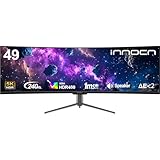
Overview: The INNOCN 49C1S is a premium ultrawide gaming monitor featuring a 5120x1440 DQHD resolution at an impressive 240Hz refresh rate. Built for serious gamers and power users, it combines a 1800R curved VA panel with extensive connectivity including USB-C power delivery and a built-in KVM switch for seamless device management. The height/tilt/swivel adjustments ensure ergonomic comfort during extended sessions.
What Makes It Stand Out: This monitor’s 240Hz refresh rate at DQHD resolution is exceptional, offering buttery-smooth motion clarity. The comprehensive I/O includes USB-C 65W charging, RJ45 Ethernet, and multiple USB ports, effectively serving as a docking station. PIP/PBP functionality and HDR400 certification make it equally suited for productivity and gaming, while the built-in KVM eliminates peripheral clutter.
Value for Money: Priced at $799.49, it competes directly with premium ultrawides while offering superior refresh rates and connectivity. The integrated USB hub and Ethernet port eliminate separate docking station costs, justifying the investment for professionals needing a single-cable laptop solution. The 240Hz panel at this resolution is rare at this price point.
Strengths and Weaknesses: Pros: Outstanding 240Hz refresh rate; robust connectivity with USB-C PD; built-in KVM; height/tilt/swivel adjustment; HDR400; PIP/PBP. Cons: VA panel viewing angles; 99% sRGB coverage lags behind some competitors; speakers are adequate but not exceptional; premium price point.
Bottom Line: A versatile powerhouse for gamers and professionals who demand high refresh rates and comprehensive connectivity. The 240Hz DQHD combination is hard to beat, making it worth the premium for those prioritizing performance and desk simplicity.
8. Viewedge 49" Curved Monitor Ultrawide Gaming 240Hz 1ms 32:9 5K 5120 x 1440P Computer Monitor, R1500, 110% sRGB, DisplayPort, HDMI,Support Crosshair and Wall Mount

Overview: Viewedge’s 49-inch ultrawide monitor targets competitive gamers with its 240Hz refresh rate, 1ms response time, and 5120x1440 resolution. The 1500R curved VA panel supports both FreeSync and G-Sync, while gaming-focused features like built-in crosshairs and flicker-free technology cater to extended play sessions. Wall-mount compatibility saves desk space in compact setups.
What Makes It Stand Out: The 1ms response time combined with 240Hz creates exceptional motion clarity for fast-paced gaming. Crosshair overlay provides competitive advantage in FPS titles. Eye protection technologies including flicker-free backlighting and blue light filtering enable comfortable marathon sessions. The 110% sRGB coverage delivers vibrant colors beyond standard ranges.
Value for Money: At $699.99, this monitor undercuts premium brands while delivering flagship gaming specs. The 240Hz/1ms combination typically commands $800+ from competitors, making this an attractive mid-range option for performance-focused gamers unwilling to sacrifice speed for cost. The feature set rivals monitors costing significantly more.
Strengths and Weaknesses: Pros: Blazing 240Hz with 1ms response; dual adaptive sync support; gaming-centric features; eye comfort technologies; competitive pricing. Cons: Brand recognition concerns; limited ergonomic adjustments; no USB-C connectivity; HDR support is basic; VA panel limitations for color work.
Bottom Line: An excellent value for competitive gamers seeking maximum speed and responsiveness. While it sacrifices some productivity features and brand prestige, the core gaming performance rivals monitors costing significantly more, making it a smart choice for performance-per-dollar seekers.
9. Samsung 49” Business Curved Ultrawide Dual QHD Computer Monitor, USB-C, DisplayPort, HDMI, 120Hz, VESA DisplayHDR 400, Built-in Speakers, Height Adjustable Stand, Eye Care, LS49C954UANXZA, 2024

Overview: Samsung’s 2024 business-focused ultrawide monitor combines a 49-inch 1000R curved DQHD display with professional connectivity features. The 120Hz refresh rate and VESA DisplayHDR 400 support cater to both productivity and light gaming, while built-in speakers and USB-C with 90W power delivery streamline workspace setups. The height-adjustable stand promotes ergonomic comfort during long workdays.
What Makes It Stand Out: The aggressive 1000R curvature matches human field of view for natural viewing. Samsung’s reputation for panel quality ensures reliable performance, while the integrated docking functionality with 90W USB-C charging eliminates clutter. Built-in speakers and comprehensive input selection make this a true all-in-one workspace solution, reducing cable management headaches.
Value for Money: At $799.99, it competes with productivity-focused ultrawides while offering better curvature and brand reliability than most alternatives. The integrated docking capability saves $150-200 on separate peripherals, justifying the premium for office environments seeking minimal desk clutter. Samsung’s warranty and support add long-term value.
Strengths and Weaknesses: Pros: Ideal 1000R curvature; Samsung panel quality; 90W USB-C power delivery; built-in speakers; height-adjustable stand; HDR400 certification. Cons: 120Hz refresh rate lower than gaming competitors; limited to 99% sRGB; no PIP/PBP mentioned; business focus may lack gaming features; premium pricing.
Bottom Line: Perfect for professionals wanting maximum productivity with occasional gaming capability. Samsung’s build quality and thoughtful business features justify the cost for office environments, though hardcore gamers will want higher refresh rates. A premium workspace centerpiece.
10. INNOCN 49" OLED Ultrawide Curved Monitor 5K2K 5120 x 1440p 144Hz, 0.03ms, AI PC Computer Monitor, USB Type C 90W, HDMI 2.1, DisplayPort, USB Hub, Speakers, Adaptive-Sync, Adjustable Stand, Black

Overview: The INNOCN 49Q1R leverages cutting-edge QD-OLED technology to deliver a 49-inch ultrawide with 5120x1440 resolution, 144Hz refresh rate, and an astonishing 0.03ms response time. This premium monitor targets discerning gamers and creators who demand OLED’s perfect blacks, infinite contrast, and lightning-fast pixel response in an expansive 32:9 format. The adjustable stand ensures ergonomic flexibility.
What Makes It Stand Out: QD-OLED technology provides self-lit pixels with 1,500,000:1 contrast ratio, eliminating backlight bleed and delivering true HDR performance. The 0.03ms response time is class-leading, while 90W USB-C connectivity and comprehensive USB hub functionality support modern workflows. PIP/PBP enhances multitasking capabilities, allowing simultaneous content from multiple sources.
Value for Money: At $999.99, this is the most expensive option but justifies cost through OLED superiority. Traditional LED ultrawides with similar features cost $800-900, making the OLED premium reasonable for those prioritizing image quality. The technology leap represents genuine value for color-critical work and immersive gaming where contrast matters most.
Strengths and Weaknesses: Pros: QD-OLED panel with perfect blacks; 0.03ms response time; 90W USB-C; comprehensive connectivity; PIP/PBP; HDR400; superior contrast. Cons: Premium pricing; potential OLED burn-in risk; 144Hz lower than some gaming alternatives; 99% sRGB coverage could be wider; power consumption.
Bottom Line: The ultimate choice for users demanding the best image quality available in ultrawide format. The OLED premium is justified for creators, cinephiles, and gamers who value perfect contrast and response times over refresh rate alone. A future-proof investment in display excellence.
Why 49-Inch Super-Ultrawide Monitors Are a Game-Changer for Developers
The 32:9 aspect ratio isn’t just a gimmick—it’s a workflow revolution. When you’re writing complex applications, you need context: the codebase, API documentation, database schemas, and real-time logs simultaneously visible without alt-tabbing into oblivion. A 49-inch display delivers approximately 5,120 horizontal pixels, effectively giving you two full-sized QHD workspaces in a single, uninterrupted canvas. This eliminates the cognitive friction of window switching and the physical disruption of monitor bezels that break your concentration precisely when you’re building mental models of complex systems.
For developers practicing test-driven development, the benefits multiply. You can position your test suite on the left third, implementation code in the center, and application preview or logs on the right—creating a triadic workflow that feels natural and keeps everything within your peripheral vision. Pair programmers benefit enormously too, with two developers able to view the same screen comfortably from adjacent positions, each taking “ownership” of a virtual screen half during collaborative sessions.
Understanding the Technical Specifications That Matter
Resolution: The Foundation of Clarity
The sweet spot for 49-inch super-ultrawides is Dual Quad High Definition (DQHD), typically 5120x1440 pixels. This gives you the same pixel density as a 27-inch QHD monitor—roughly 109 pixels per inch—which is the minimum for crisp text rendering at typical viewing distances. Some manufacturers push 3840x1080 (DFHD) variants, but these sacrifice vertical space and pixel density, making them poor choices for developers who read and write text all day. True 4K super-ultrawides don’t exist in 49-inch sizes due to bandwidth limitations, making DQHD the professional standard.
Pixel Density and Scaling Considerations
At 109 PPI, you’ll want to run these monitors at 100% scaling in Windows, macOS, or Linux for maximum screen real estate. This delivers razor-sharp text without the fuzziness that plagues 4K displays running at non-native scaling. For developers over 40, this pixel density strikes the perfect balance—text remains legible without requiring OS-level zooming that defeats the purpose of having expansive screen space.
Resolution Deep Dive: DQHD Explained
DQHD (5120x1440) is more than just a number—it’s a carefully calculated resolution that mirrors the productivity of dual 2560x1440 displays while eliminating the central bezel. This resolution requires DisplayPort 1.4 or HDMI 2.0 for 60Hz operation, but developers should prioritize DisplayPort 1.4 or USB-C with DP Alt Mode for 120Hz+ refresh rates that reduce eye fatigue during marathon sessions.
The horizontal pixel count is particularly strategic: 5120 pixels divides cleanly into two 2560-pixel virtual monitors, four 1280-pixel columns, or three roughly 1706-pixel sections—perfect for snapping IDE panes, browser dev tools, and terminal windows. Unlike 4K displays that force awkward divisions, DQHD’s math works beautifully with how developers actually organize their workspace.
Panel Technology: IPS vs VA for Coding
IPS Panels: The Color-Accurate Workhorse
IPS (In-Plane Switching) panels dominate the professional developer monitor space for good reason. They offer wide 178° viewing angles that prevent color shift when you’re viewing the extreme edges of a 49-inch panel—a critical consideration when your code editor stretches 40+ inches across. IPS displays typically deliver superior color accuracy out of the box, with many covering 95%+ of DCI-P3 and 100% of sRGB, making them ideal for full-stack developers who touch UI/UX work.
The trade-off? IPS glow—a faint haze visible in dark scenes when viewing off-angle. For dark-mode IDE users, this can create inconsistent blacks across the panel’s width. However, modern nano IPS panels have dramatically reduced this effect, and the benefits for color-critical work outweigh the drawbacks for most developers.
VA Panels: The Contrast Champion
VA (Vertical Alignment) panels offer 3-4x better contrast ratios (typically 3000:1 vs 1000:1 for IPS), producing deeper blacks that make dark mode coding genuinely immersive. This high contrast reduces perceived eye strain in dim environments and makes syntax highlighting pop with dramatic separation between colors. However, VA panels suffer from narrower viewing angles, causing gamma shift at the screen edges—problematic when you’re scanning code across the entire display width.
For pure coding in dark environments, VA can be superior. For mixed workflows involving design, documentation, and collaboration, IPS remains the safer choice. Some premium VA panels now feature curved designs that mitigate viewing angle issues by keeping the screen surface equidistant from your eyes.
Refresh Rates and Response Times: Do They Matter for Development?
While gamers obsess over 240Hz, developers hit diminishing returns beyond 120Hz—but that doesn’t mean refresh rate is irrelevant. A 120Hz or 144Hz panel makes mouse cursor movement, window dragging, and scrolling through code buttery smooth, reducing micro-stutters that subconsciously fatigue your eyes. More importantly, higher refresh rates correlate with better overdrive implementations, meaning less ghosting when scrolling quickly through log files or diffs.
Response times below 5ms (GtG) are sufficient for development work. You’re not tracking fast-moving objects—you’re reading static text. However, slow response times (>8ms) can create noticeable smearing during rapid scrolling, which becomes irritating during code reviews or log analysis. Prioritize monitors with adjustable overdrive settings; aggressive overdrive can cause inverse ghosting (coronas around text), while too little leaves motion blur.
Color Accuracy and HDR: Beyond Gaming
Color Spaces for Developers
You might think color accuracy only matters for designers, but developers benefit enormously. When you’re building data visualizations, debugging CSS, or creating documentation, accurate color representation prevents surprises when your work reaches users. Look for monitors that cover at least 99% sRGB and 95% DCI-P3. Adobe RGB coverage is a bonus but less critical unless you’re doing print work.
Factory calibration reports are gold—professional-grade monitors include individual calibration sheets showing Delta E < 2 color accuracy. This ensures your dark theme’s subtle syntax highlighting differences (comments vs strings vs keywords) are distinguishable and consistent.
HDR: Useful or Gimmick for Coders?
HDR400 certification is largely marketing fluff for developers—it lacks local dimming, so you won’t see real HDR benefits. HDR600 with edge-lit local dimming can make a difference in dark-mode coding, deepening blacks while keeping highlighted code bright. However, Windows’ HDR implementation remains flaky for desktop work, often causing color accuracy issues in SDR applications. macOS handles HDR better, but most developers will run these monitors in SDR mode for consistent color.
The real value? Future-proofing. As operating systems improve HDR desktop rendering and development tools add HDR-aware themes, having hardware that supports it prevents premature obsolescence.
Connectivity: The Lifeline of Your Development Workflow
Video Inputs: What You Actually Need
A developer’s 49-inch monitor should feature at least two HDMI 2.0 ports and one DisplayPort 1.4. The DP 1.4 port is non-negotiable for full 5120x1440 at 120Hz+ with 10-bit color. HDMI 2.0 will only push 60Hz at that resolution, which is fine for secondary inputs (like a testing laptop) but insufficient for your primary workstation.
USB-C with DP Alt Mode is increasingly crucial. A single cable that delivers video, data, and 65W+ power delivery transforms your laptop into a desktop workstation instantly. Verify the USB-C implementation supports the full DQHD resolution at high refresh rates—some budget monitors throttle USB-C to 60Hz or lower resolutions.
USB Hub Integration: Clean Desk Philosophy
Look for monitors with built-in USB 3.0 hubs (preferably USB 3.2 Gen 1 or better) with at least four downstream ports. This lets you connect your keyboard, mouse, webcam, and development boards directly to the monitor, reducing cable clutter. The hub should automatically switch inputs when you change video sources—essential for multi-device workflows.
KVM Switches and USB-C Power Delivery
The integrated KVM (Keyboard, Video, Mouse) switch is the secret weapon of premium 49-inch monitors. It allows you to control two computers with a single keyboard and mouse, switching between them seamlessly—often with a hotkey or even automatic switching based on which device is actively sending a video signal. For developers running separate work and personal machines, or testing across Windows, macOS, and Linux simultaneously, this eliminates desk clutter and mental friction.
USB-C Power Delivery changes the game for laptop-based developers. A monitor delivering 90W+ can charge a MacBook Pro or high-performance Windows laptop at full speed while driving the display and peripherals. Lower wattage (65W) works for ultrabooks but may discharge under heavy compile loads. Check your laptop’s power requirements and prioritize monitors with dynamic power allocation that adjusts based on device needs.
Ergonomics and Eye Care for Marathon Coding Sessions
Blue Light and Flicker-Free Technology
Developers spend 8-12 hours daily staring at screens, making eye strain reduction critical. Look for TÜV Rheinland-certified flicker-free panels that use DC dimming instead of PWM (Pulse Width Modulation) at low brightness levels. PWM flicker, invisible to conscious perception, causes eye fatigue and headaches during extended sessions.
Blue light filters are standard, but effectiveness varies. Hardware-level blue light reduction (like BenQ’s Low Blue Light Plus or Samsung’s Eye Saver Mode) is superior to software solutions because it doesn’t turn your screen orange. These filters target the specific 415-455nm wavelength range that’s most harmful while preserving color accuracy for design work.
Anti-Glare Coatings: Matte vs Glossy
Matte anti-glare coatings diffuse ambient light, preventing reflections from overhead office lighting or windows behind you. The trade-off is a slight “haze” that can reduce perceived sharpness. For developers in bright environments, matte is essential. If you control your lighting, a light anti-glare coating offers the best balance—reducing reflections without sacrificing clarity. Avoid glossy panels unless you’re in a perfectly dark room; reflections will destroy your focus.
Curvature Considerations: 1800R vs 1000R
The Physics of Peripheral Vision
A 49-inch flat panel would be unusable—the edges would sit at such extreme angles that color shift and distortion would make code unreadable. Curvature solves this by keeping the entire screen surface equidistant from your eyes. The “R” number represents the radius in millimeters; smaller numbers mean tighter curves.
1800R curvature (a radius of 1800mm) is the industry standard, providing a gentle curve that suits most desk depths (24-30 inches). It’s subtle enough that straight lines in your IDE don’t appear bent but effective enough to reduce edge distortion. For typical viewing distances of 28-32 inches, 1800R feels natural after a one-day adjustment period.
1000R curvature is dramatically tighter, wrapping around your field of vision more aggressively. This can feel more immersive and further reduces edge distortion, but it introduces noticeable geometry distortion—straight lines will appear curved. For developers who frequently view architectural diagrams, database schemas, or design mockups, this can be disorienting. However, for pure code immersion, 1000R creates a “cockpit” feel that some developers love.
Software and OS Considerations: Split-Screen and Virtual Desktops
Windows Snap and PowerToys
Windows 10/11’s Snap feature works brilliantly with 49-inch displays, but you’ll want to customize it. The default 2-column split wastes potential; install Microsoft PowerToys and configure FancyZones to create custom layouts—perhaps three equal columns, or a 40/60 split for IDE and browser. PowerToys’ shortcut keys let you throw windows into zones instantly, transforming window management from mouse-dragging tedium into keyboard-driven efficiency.
macOS and Linux: Mission Control and i3
macOS’s Split View is too limited for super-ultrawides—you’re better off disabling it and using Mission Control with manually positioned windows. Better yet, use Rectangle or Magnet (third-party window managers) to create custom snap areas. For Linux developers, i3wm or Sway (Wayland) are natural fits, treating the monitor as a single canvas for tiling window management that respects the aspect ratio.
Virtual desktops remain valuable even with massive screen real estate. Create dedicated desktops for different contexts—one for deep coding, another for meetings, a third for research—switching between them maintains focus while the ultrawide handles the within-context window sprawl.
GPU Requirements: Can Your System Handle It?
The Bandwidth Reality Check
Driving 5120x1440 at 120Hz requires serious bandwidth: approximately 22.3 Gbit/s for 8-bit color, climbing to 27.6 Gbit/s for 10-bit. This exceeds HDMI 2.0’s 18 Gbit/s capacity, necessitating DisplayPort 1.4 (32.4 Gbit/s) or USB4/Thunderbolt 3+.
For discrete GPUs, NVIDIA GTX 10-series or AMD RX 500-series can technically output DQHD at 60Hz, but you’ll want at least an RTX 2060 or RX 5700 for stable 120Hz desktop performance. Integrated graphics are a mixed bag: Intel Iris Xe (11th Gen+) and AMD Ryzen 6000+ APUs support DQHD at 60Hz via USB-C, but struggle with multiple high-resolution windows or video playback.
VRAM Considerations
7.4 million pixels demand VRAM. 4GB is the absolute minimum for desktop use; 6-8GB provides headroom for multiple applications and browser tabs with hardware acceleration. If you’re doing any GPU-accelerated development (CUDA, OpenCL, ML model training visualization), prioritize 8GB+ VRAM to prevent system stutter when the GPU is shared between display and compute tasks.
Multi-Input PIP/PBP: The Hidden Productivity Weapon
Picture-by-Picture (PBP) splits your 49-inch monitor into two independent displays, each receiving separate video inputs. This isn’t just for comparing Windows vs macOS—it’s for simultaneous development and testing. Connect your primary workstation via DisplayPort and a secondary test machine (or Raspberry Pi) via HDMI, and control both with the monitor’s KVM. The screen effectively becomes two 27-inch QHD monitors, but you can still drag windows across the boundary when needed.
Picture-in-Picture (PIP) overlays a smaller window (typically 25% screen size) from a second input. This is perfect for monitoring CI/CD pipelines on a separate machine while keeping your main coding environment full-screen. Advanced implementations let you position the PIP window anywhere and adjust transparency, so it doesn’t obstruct critical code.
Desk Real Estate and Mounting Solutions
Depth Requirements
A 49-inch monitor demands 10-12 inches of desk depth for comfortable viewing at 28-32 inches eye distance. Shallow 24-inch desks force you too close, causing neck strain from excessive head turning. Measure your desk: if it’s under 28 inches deep, consider a monitor arm to push the display back to a healthier distance.
VESA Mounting: The Ergonomic Imperative
The included stands are universally terrible—massive footprints that consume your entire desk. A VESA mount (typically 100x100mm) is essential. Look for heavy-duty arms rated for 30+ pounds; these monitors weigh 25-35 lbs. Dual-arm setups let you position a secondary monitor above the ultrawide for Slack, email, or documentation—creating a vertical stack that maximizes pixel density without horizontal neck rotation.
Monitor arms with gas spring adjustments are worth the premium. They let you easily pull the screen closer for focused work or push it back for meetings. Some developers even mount the ultrawide vertically (in portrait orientation) for reviewing long code files, though this requires a robust arm and a monitor with good viewing angles.
Price-to-Value Analysis for Different Developer Types
The Budget-Conscious Backend Developer
If your workflow is primarily terminal windows, text editors, and browser-based dashboards, you don’t need premium color accuracy or HDR. Focus on IPS panels with solid ergonomics and good USB-C implementation. The value tier ($800-1,200) offers excellent productivity gains without paying for gaming features you’ll never use.
The Full-Stack Designer-Developer
Your workflow spans code, Figma, Photoshop, and client presentations. Color accuracy, uniform brightness, and HDR600 become justifiable expenses. Expect to spend $1,200-1,800 for a monitor with factory calibration, wide color gamut, and excellent build quality. The time saved from not color-correcting on a secondary display pays for itself.
The Tech Lead and Architect
You’re in meetings 40% of the time, reviewing code, diagrams, and architecture documents the rest. KVM switching, premium USB-C power delivery, and PIP/PBP flexibility are non-negotiable. The premium tier ($1,800-2,500) offers build quality that survives office moves, advanced firmware with frequent updates, and enterprise features like network-based management.
Future-Proofing Your Investment
Firmware Update Capability
Monitors with USB firmware update capability extend their lifespan. Manufacturers occasionally fix bugs, improve KVM switching logic, or add compatibility with new GPUs. Check if the monitor has a USB service port and a history of firmware updates before purchasing. Community-driven firmware (like open-source KVM implementations) is a bonus for tinkerers.
Next-Generation Connectivity
USB4 and DisplayPort 2.0 are emerging standards that will eventually enable 5120x1440 at 240Hz+ with HDR. While current GPUs rarely support these, buying a monitor with DisplayPort 2.0 compatibility ensures it won’t become a bottleneck in your next upgrade cycle. Some monitors include firmware-upgradeable input boards—a forward-thinking feature that justifies premium pricing.
Burn-In Prevention
For developers with static UI elements (IDE toolbars, status bars, terminal prompts), OLED super-ultrawides are on the horizon but currently risk burn-in. LCD panels avoid this, but look for pixel shift features that micro-adjust the image periodically, and screensavers that trigger after short idle periods. Your monitor should remember window positions and restore them after waking, preventing the need to manually reposition static elements daily.
Common Pitfalls and How to Avoid Them
The “Too Much Screen” Syndrome
Some developers experience overwhelm initially, with the vast expanse causing decision paralysis about window placement. Mitigate this by starting with a two-zone layout (like dual 27-inch monitors) and gradually expanding into the middle space as you adjust. Use a dark wallpaper to reduce peripheral visual noise, and enable focus modes that dim inactive screen regions.
Cable Quality Matters
Your $1,500 monitor is only as good as your $5 cable. Many “high-speed” HDMI cables can’t handle DQHD at high refresh rates, causing intermittent black screens or forced 60Hz operation. Buy certified DisplayPort 1.4 cables from reputable brands, and for USB-C, ensure the cable supports DP Alt Mode and power delivery. Cable length matters: passive cables over 6 feet may signal degrade, requiring active cables or signal boosters.
Incompatible Docking Stations
USB-C docks are notorious for bandwidth limitations. Many Thunderbolt 3 docks throttle video output to 4K60 when multiple peripherals are connected, even if they claim 8K support. Test your dock with the monitor before committing, or buy a monitor with integrated hub functionality to bypass the dock for video entirely. The ideal setup: USB-C directly from laptop to monitor for video/power, then monitor’s downstream USB ports for peripherals.
Frequently Asked Questions
Is a 49-inch monitor actually too big for coding?
Not if you position it correctly. The key is viewing distance: sit 28-32 inches away, and the screen fills your natural field of vision without requiring head turning. Most developers adjust within 2-3 days and find that the seamless workspace reduces neck strain compared to swiveling between dual monitors. Use window management software to create logical zones, and the size becomes an asset, not a burden.
What’s the real difference between DQHD and 4K for development work?
DQHD (5120x1440) gives you more horizontal pixels than 4K (3840x2160) but fewer vertical pixels. For developers, horizontal space is premium—you’ll see more code per line and keep more windows side-by-side. 4K’s higher pixel density is sharper but requires scaling that reduces effective workspace. DQHD at 100% scaling is the sweet spot: crisp text without sacrificing screen real estate.
Can I completely replace two 27-inch monitors with one 49-inch?
Absolutely, with caveats. You lose the ability to turn off one “monitor” independently, and virtual split-screen requires software configuration. However, you gain seamless window dragging, eliminate bezel gaps, and reduce cable clutter. The transition works best if your dual-monitor workflow already had windows maximized within each screen rather than spanning both. Use PBP mode initially to simulate dual monitors during the adjustment period.
Do I need a high-end graphics card for a 49-inch development monitor?
Not for coding alone. Integrated graphics from Intel 11th Gen or AMD Ryzen 6000+ can drive DQHD at 60Hz for desktop applications. However, for smooth 120Hz operation, multiple 4K video streams, or GPU-accelerated development, a discrete GPU with 4GB+ VRAM is recommended. The monitor will function without it, but the experience won’t be as fluid.
Are these monitors suitable for non-development tasks like video calls and email?
Yes, and they excel at them. You can keep your IDE full-screen while having a video call window and email client visible but not intrusive. The wide field of view means you appear more engaged on camera since you’re not constantly looking away at a second monitor. For email, the width lets you preview message lists and full content simultaneously, mimicking Outlook’s three-pane layout on steroids.
How far should I sit from a 49-inch ultrawide monitor?
The optimal distance is 28-32 inches (70-80cm), measured from your eyes to the center of the screen. This places the edges at approximately 30° from your central vision, within comfortable peripheral scanning range. If your desk is shallower, a monitor arm is essential to push the display back. Sitting too close causes neck rotation and makes the curve distort straight lines; too far wastes the immersive benefits.
Is burn-in a concern with static IDE elements?
For LCD panels (IPS/VA), burn-in isn’t a concern. OLED super-ultrawides exist but aren’t mainstream yet due to cost and burn-in risk. LCDs can experience temporary image retention after displaying static content for days, but this disappears after running color-changing content for a few hours. Enable screensavers, use auto-hiding taskbars, and vary your window positions periodically as preventive measures.
Can I use a 49-inch monitor with my laptop’s USB-C port?
If your laptop supports USB-C with DisplayPort Alt Mode, yes. However, verify the USB-C version: USB 3.2 Gen 2 can handle DQHD at 60Hz, while USB4/Thunderbolt 3+ is needed for 120Hz. Also check power delivery: if your monitor provides 65W but your laptop needs 90W, the battery may drain under heavy load. For MacBooks, Thunderbolt 3/4 is required for optimal performance.
What’s the difference between PIP and PBP, and which should developers use?
PBP (Picture-by-Picture) splits the monitor into two independent displays, each with its own input—perfect for treating the 49-inch as dual 27-inch monitors. PIP (Picture-in-Picture) overlays a smaller window from a second input onto your primary display. Use PBP when actively working on two machines simultaneously; use PIP for passive monitoring (CI dashboards, security cameras) that shouldn’t distract from your main workflow.
Is the premium over dual 27-inch monitors actually worth it?
For developers earning $75,000+, absolutely. The productivity gains from eliminated context switching, reduced window management friction, and seamless workflows typically save 30-60 minutes daily. That’s 125-250 hours annually—more than three work weeks. Even at a $500 premium over dual monitors, the payback period is measured in weeks, not years. The ergonomic benefits and reduced neck strain are invaluable bonuses that improve long-term health and job satisfaction.