Your Mac Studio deserves a display that matches its exceptional performance. As we move through 2026, the 5K monitor landscape has evolved dramatically, offering unprecedented clarity, color accuracy, and connectivity options specifically tailored for Apple’s powerhouse desktop. Whether you’re editing 8K video, designing intricate 3D models, or managing complex data visualizations, the right 5K display transforms your workflow from functional to phenomenal.
But here’s the challenge: not all 5K monitors play nicely with Mac Studio’s unique architecture. From Thunderbolt bandwidth allocation to macOS-specific scaling behaviors, the devil lives in the technical details that most spec sheets gloss over. This comprehensive guide cuts through the marketing noise, equipping you with the precise knowledge to identify a display that doesn’t just connect to your Mac Studio—it elevates it.
Top 10 5K Monitors for Mac Studio
Detailed Product Reviews
1. ASUS ProArt Display 27” 5K HDR Professional Monitor (PA27JCV) - 5K (5120 x 2880), IPS, 99% DCI-P3, 100% sRGB, ΔE < 2, USB-C PD 96W, Calman Verified, Color Accurate, LuxPixel, 3 yr Warranty

Overview:
The ASUS ProArt PA27JCV delivers professional-grade 5K resolution for color-critical workflows at a competitive price point. This 27-inch monitor combines a 5120 x 2880 IPS panel with exceptional color accuracy, covering 99% DCI-P3 and 100% sRGB with factory calibration ensuring Delta E<2 deviation. The integrated ambient light and backlight sensors automatically maintain consistent brightness and color temperature across varying environmental conditions.
What Makes It Stand Out:
The Calman Verified certification provides creatives with confidence in color accuracy out of the box. The robust 96W USB-C Power Delivery streamlines workspace setups by handling video, data, and laptop charging through a single cable. The three-year warranty offers peace of mind that many competitors lack.
Value for Money:
At $718, it undercuts Apple’s Studio Display by over $700 while delivering comparable color performance. For professionals prioritizing accuracy over ecosystem integration, this represents exceptional value. The inclusion of professional calibration and premium connectivity features typically found in more expensive displays further strengthens its position.
Strengths and Weaknesses:
Strengths include verified color accuracy, high power delivery, ambient compensation sensors, and strong warranty coverage. Weaknesses involve lacking integrated webcam and speakers, and potentially less seamless macOS integration than Apple’s offering.
Bottom Line:
The ASUS ProArt PA27JCV is an outstanding choice for creative professionals who demand color precision without paying the Apple premium. Its professional features and reliability make it a smart investment for serious content creators.
2. Apple Studio Display - Nano-Texture Glass - VESA Mount Adapter
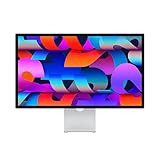
Overview:
Apple’s Studio Display with Nano-Texture Glass represents the pinnacle of ecosystem integration, combining a stunning 27-inch 5K Retina panel with premium peripherals in a single aluminum enclosure. The 5120x2880 resolution delivers 600 nits brightness and P3 wide color gamut, while the nano-texture coating dramatically reduces glare without compromising image quality. The 12MP Ultra Wide camera with Center Stage, studio-quality three-mic array, and six-speaker Spatial Audio system eliminate the need for external accessories.
What Makes It Stand Out:
The nano-texture glass option is a game-changer for bright environments, diffusing light with minimal impact on contrast. Center Stage automatically keeps users framed during video calls, while the integrated audio system rivals dedicated studio monitors. Seamless Thunderbolt 3 connectivity delivers 96W charging and instant Mac recognition.
Value for Money:
At $1,899, this is a luxury purchase justified primarily by ecosystem benefits rather than panel specifications alone. You’re paying for flawless integration, premium materials, and Apple support. For professionals already invested in Apple products, the convenience outweighs the cost premium over comparable displays.
Strengths and Weaknesses:
Strengths include exceptional build quality, best-in-class integrated peripherals, and nano-texture glare reduction. Weaknesses center on the exorbitant price, limited port selection, and lack of height adjustment without VESA mount.
Bottom Line:
This display is exclusively for deep Apple ecosystem users who prioritize seamless integration and premium design over value. For those users, it’s unmatched; for others, it’s prohibitively expensive.
3. KTC 27 Inch 5K Monitor, 5120 x 2880 5K2K Monitor with 65W Type-C Port, Dual Mode Computer Monitors Compatible with Mac mini, IPS Panel, HDR 400, 217 PPI, 135% sRGB, HDMI DisplayPort, Tilt, H27P3

Overview:
The KTC H27P3 brings 5K resolution to budget-conscious buyers without sacrificing key performance metrics. This 27-inch IPS monitor delivers 5120x2880 clarity at 60Hz, with a unique dual-mode feature allowing 2560x1440 at 120Hz for gaming scenarios. The panel covers 135% sRGB area with HDR400 support and 500cd/㎡ brightness, while 65W USB-C connectivity handles video and charging for most laptops.
What Makes It Stand Out:
The dual-mode functionality is rare in this category, offering both high-resolution productivity and high-refresh-rate gaming in one package. Adaptive Sync eliminates screen tearing, while comprehensive eye-care features including flicker-free technology and blue light reduction enable extended use. At $550, it’s the most accessible 5K monitor available.
Value for Money:
This monitor redefines affordability in the 5K space, costing less than a third of Apple’s offering. While it lacks professional calibration certification, the specifications are impressive for the price. It’s ideal for users wanting 5K sharpness without professional color-critical needs.
Strengths and Weaknesses:
Strengths include unbeatable price, versatile dual-mode operation, strong connectivity, and eye-care features. Weaknesses involve unverified color accuracy claims, unknown long-term reliability from a newer brand, and limited 65W power delivery.
Bottom Line:
The KTC H27P3 is perfect for budget buyers, gamers, and general users seeking 5K resolution. Professionals requiring guaranteed color accuracy should look elsewhere, but for everyone else, it’s an incredible value proposition.
4. BenQ PD2730S 27" 5K 218 PPI Mac Monitor, 90W Thunderbolt 4, 98% P3, Uniformity, 2000:1 Contrast, Nano Matte Panel, Daisy Chain, KVM, Height Adjustable, for 3D Artists, VFX Animators, Game Designers

Overview:
The BenQ PD2730S targets creative professionals with a feature set optimized for 3D artistry, VFX, and game design. This 27-inch 5K monitor delivers 5120x2880 resolution at 218 PPI with exceptional 98% P3 coverage and 2000:1 contrast ratio. The Thunderbolt 4 port provides 90W power delivery, 40Gbps data transfer, and daisy-chaining capability for dual 5K or single 8K setups. The Nano Matte panel diffuses ambient light to maintain color accuracy in any environment.
What Makes It Stand Out:
The built-in KVM switch with wireless Hotkey Puck integration streamlines dual-system workflows, allowing seamless control of two computers with one keyboard and mouse. Thunderbolt 4 connectivity future-proofs the investment, while the panel’s uniformity compensation ensures consistent brightness across the entire display—critical for professional work.
Value for Money:
At $1,200, it positions itself between budget alternatives and Apple’s premium offering. The professional-grade features like KVM, Thunderbolt 4, and uniformity compensation justify the cost for serious creators. It’s a workstation investment rather than a simple display purchase.
Strengths and Weaknesses:
Strengths include Thunderbolt 4 connectivity, KVM functionality, excellent color uniformity, and eye-comfort matte coating. Weaknesses include the premium price for non-professionals and lack of integrated camera or speakers.
Bottom Line:
The BenQ PD2730S is ideal for professional creatives managing complex workflows. Its productivity features and color accuracy make it worth every penny for VFX artists, 3D modelers, and designers who prioritize efficiency and precision.
5. Apple Studio Display - Standard Glass - VESA Mount Adapter
Overview:
The Apple Studio Display with Standard Glass delivers the same core 5K Retina experience as its nano-texture sibling at a more accessible $1,439 price point. The 27-inch panel offers 5120x2880 resolution, 600 nits brightness, and P3 wide color gamut, paired with the same exceptional 12MP Ultra Wide camera with Center Stage, studio-quality three-mic array, and six-speaker Spatial Audio system. Thunderbolt 3 provides 96W charging and seamless Mac integration.
What Makes It Stand Out:
This configuration maintains all of Apple’s ecosystem advantages while saving $460 compared to the nano-texture version. The standard glass finish actually preserves slightly more contrast and sharpness, making it preferable for controlled lighting environments. The integration of professional-grade peripherals remains unmatched in the monitor market.
Value for Money:
While still expensive compared to third-party alternatives, this represents the sweet spot for Apple users. You receive the same panel, camera, mics, and speakers as the premium model without the costly anti-glare coating. For home office or studio environments where glare is manageable, it’s the smarter Apple choice.
Strengths and Weaknesses:
Strengths include flawless macOS integration, premium build quality, exceptional integrated peripherals, and lower cost than nano-texture version. Weaknesses remain the high absolute price, limited port expansion, and susceptibility to glare in bright rooms.
Bottom Line:
This is the Apple Studio Display to buy for most users. It balances ecosystem benefits with cost savings, making it the rational choice for Mac users who don’t require nano-texture’s glare reduction.
6. Samsung 27" ViewFinity S9 Series 5K Computer Monitor, Thunderbolt 4, DisplayPort, Matte Display, 4K Slimfit-Camera, Slim Metal Design, AirPlay, Smart-TV Apps, Gaming Hub, LS27C900PANXZA

Overview: The Samsung ViewFinity S9 is a premium 27-inch 5K monitor targeting creative professionals and power users. With a 5120x2880 resolution delivering 218 PPI, 99% DCI-P3 color coverage, and factory calibration (ΔE < 2), it promises exceptional visual fidelity. The inclusion of Thunderbolt 4, a matte display, and smart features distinguishes it from traditional professional monitors.
What Makes It Stand Out: The matte display drastically reduces reflections while maintaining clarity—a rare find in 5K monitors. Smart Calibration via smartphone app eliminates the need for expensive colorimeters. The integrated 4K SlimFit camera enables crisp video conferencing without desk clutter. Unique additions like AirPlay support, Smart TV apps, and a Gaming Hub transform this from a mere display into an entertainment center. Thunderbolt 4 connectivity provides 40Gbps data transfer and power delivery.
Value for Money: At $999.99, the S9 undercuts Apple’s Studio Display by over $1,000 while offering comparable 5K resolution and color accuracy. The matte coating alone saves users $300+ versus Apple’s nano-texture upgrade. For those wanting 5K without ecosystem lock-in, this delivers professional-grade specs plus consumer-friendly smart features at a competitive price point.
Strengths and Weaknesses: Strengths: Excellent color accuracy out-of-box; superior anti-glare matte finish; versatile connectivity (Thunderbolt 4, DP); built-in 4K camera; smart TV functionality; ergonomic adjustability (height, tilt, pivot); VESA compatibility.
Weaknesses: Smart features may feel unnecessary for pure professional use; camera quality trails dedicated webcams; Samsung’s professional monitor ecosystem less established than competitors; no mention of power delivery wattage.
Bottom Line: The ViewFinity S9 is an outstanding choice for Windows and Mac users seeking 5K resolution with modern conveniences. Its matte display and smart features provide genuine advantages over pricier alternatives, making it ideal for home offices that double as creative workspaces.
7. Apple Studio Display - Nano-Texture Glass - Tilt- and Height-Adjustable Stand
Overview: Apple’s Studio Display represents the pinnacle of monitor integration for Mac users, featuring a stunning 27-inch 5K Retina panel with nano-texture glass that minimizes glare. With 600 nits brightness, P3 wide color gamut, and one billion colors supported, it’s engineered for creative professionals deeply invested in the Apple ecosystem.
What Makes It Stand Out: The nano-texture glass option ($300 value) provides exceptional glare reduction without compromising contrast. The six-speaker Spatial Audio system delivers room-filling sound that rivals dedicated speakers. A 12MP Ultra Wide camera with Center Stage automatically frames subjects during video calls. The studio-quality three-mic array ensures crystal-clear audio capture. Seamless Mac integration includes True Tone and reference modes.
Value for Money: At $2,199, this monitor commands a steep premium—over twice the price of competitors with similar panels. However, for Mac users, the ecosystem benefits are unmatched: plug-and-play perfection, synchronized settings, and features that third-party displays simply cannot replicate. The bundled stand adjustability (normally a $400 upgrade) slightly improves value.
Strengths and Weaknesses: Strengths: Exceptional build quality; best-in-class integrated audio; superior camera with Center Stage; nano-texture glare reduction; flawless Mac integration; 600-nit brightness; premium aesthetic.
Weaknesses: Extremely expensive; limited to Thunderbolt 3/USB-C connectivity (no HDMI/DP); ecosystem benefits lost on non-Mac users; stand adjustability still costs extra on base models; no HDR400 certification.
Bottom Line: If you’re a Mac user demanding seamless integration and premium audio-visual features, the Studio Display is unmatched. For everyone else, the price premium is impossible to justify. This is a luxury productivity tool that excels within Apple’s walled garden.
8. INNOCN 40 Inch 5K 5120 x 2160p Ultrawide Monitor for Laptop, 21:9, 100Hz, IPS, HDMI, DP, FreeSync, HDR400, USB-C, DeltaE<2, Built-in Speakers, Height Adjustable, Black - 40C1U

Overview: The INNOCN 40C1U breaks convention with its massive 40-inch ultrawide 5K panel, offering a 5120x2160 resolution in a 21:9 aspect ratio. This monitor targets productivity-focused users who need expansive screen real estate for multitasking, video editing timelines, or financial trading dashboards. The 100Hz refresh rate and HDR400 support add gaming and entertainment versatility.
What Makes It Stand Out: The 40-inch diagonal combined with 21:9 aspect ratio provides the equivalent of two 27-inch QHD monitors without bezels. A 100Hz refresh rate ensures smoother scrolling and casual gaming than typical 60Hz productivity monitors. The 135% sRGB and 106% DCI-P3 coverage with ΔE<2 calibration delivers accurate colors. USB-C with 65W power delivery enables single-cable laptop connectivity.
Value for Money: At $999.99, this monitor challenges traditional 27-inch 5K displays by offering 33% more horizontal pixels and substantially more screen area for the same price. For professionals considering dual-monitor setups, this eliminates bezels and calibration inconsistencies while simplifying desk space. The feature set rivals monitors costing 50% more.
Strengths and Weaknesses: Strengths: Massive uninterrupted workspace; high refresh rate; excellent color gamut; robust connectivity (HDMI 2.1, DP 1.4, USB-C); built-in speakers; ergonomic adjustments; VESA mountable; great for immersive gaming.
Weaknesses: Lower pixel density (138 PPI) than 27-inch 5K; 350-nit brightness limits HDR impact; 40-inch size may overwhelm small desks; brand recognition less than established competitors; potential quality control inconsistencies.
Bottom Line: For multitaskers and creative professionals needing maximum screen real estate, the 40C1U is a game-changer. It replaces dual-monitor configurations with a single, cohesive canvas. The 100Hz refresh rate and HDR400 make it surprisingly versatile for entertainment after hours.
9. ViewSonic VP2788-5K 27" 5K Mac-Ready Monitor with 100% sRGB, 99% DCI-P3, Pantone Validated, Advanced Ergonomics, Thunderbolt 4, USB Hub, HDMI, and DP for Home and Office

Overview: The ViewSonic VP2788-5K is a purpose-built professional monitor for Mac users and color-critical work, delivering true 5K resolution (5120x2880) with exceptional color accuracy. Pantone validation and factory calibration ensure it meets the demands of designers, photographers, and video editors who require consistent, accurate color reproduction across workflows.
What Makes It Stand Out: Thunderbolt 4 connectivity provides 40Gbps bandwidth and 100W power delivery—enough to charge a MacBook Pro. The daisy-chain capability supports dual 5K monitor setups through a single cable. Pantone validation guarantees reliable color matching for print work. The frameless design maximizes screen real estate in multi-monitor configurations. Mac-level color accuracy with 100% sRGB and 99% DCI-P3 ensures seamless integration.
Value for Money: At $949.99, this is the most affordable true 5K monitor from a recognized professional brand. It undercuts Samsung’s ViewFinity S9 and costs less than half of Apple’s Studio Display while delivering equivalent color performance and superior connectivity. The Thunderbolt 4 hub functionality eliminates the need for a separate dock.
Strengths and Weaknesses: Strengths: Pantone validated color accuracy; Thunderbolt 4 with 100W charging; daisy-chain support; comprehensive ergonomic adjustments; excellent Mac compatibility; USB hub functionality; competitive pricing.
Weaknesses: Only 75Hz refresh rate; no built-in camera or speakers; 400-nit brightness adequate but not exceptional; brand lacks Apple’s prestige; HDR400 certification but limited peak brightness.
Bottom Line: The VP2788-5K is the rational choice for Mac-using professionals who prioritize color accuracy and connectivity over premium audio-visual frills. It delivers 95% of the Studio Display’s panel quality at 43% of the cost, making it the best value in the 5K category for serious creative work.
10. INNOCN 27" 4K USB-C Monitor for Laptop MacBook/Mac mini - 16:9 IPS 3840 x 2160 Display, HDR400, DeltaE<2, DisplayPort, HDMI PC Monitor, 1.07B+ Colors, Built-in Speakers, Adjustable Stand, Black

Overview: The INNOCN 27C1U-D delivers 4K resolution at an entry-level price point, making it accessible for home office users, students, and professionals needing sharp text and accurate colors without breaking the bank. The 27-inch IPS panel provides 3840x2160 pixels with ΔE<2 color accuracy and HDR400 support, while USB-C connectivity simplifies modern laptop setups.
What Makes It Stand Out: USB-C with power delivery enables single-cable connection for video, data, and charging. The fully adjustable stand (height, swivel, tilt, pivot) is rare at this price point. HDR400 certification and 1.07 billion colors provide surprising color depth for budget monitor. The frameless design maximizes screen area. Factory calibration ensures accurate colors out-of-box without additional equipment.
Value for Money: At $279.99, this monitor redefines budget expectations. Comparable 4K monitors with USB-C typically start at $400+. The inclusion of ergonomic adjustments, HDR400, and color accuracy certification makes it exceptional value. For Mac mini or MacBook users wanting a sharp secondary display, it’s nearly impossible to beat.
Strengths and Weaknesses: Strengths: Unbeatable price for 4K USB-C; excellent ergonomic adjustments; ΔE<2 color accuracy; HDR400 support; VESA mountable; frameless design; works with laptops, Macs, and PCs.
Weaknesses: Only 60Hz refresh rate; 400-nit brightness limits HDR impact; 4K not 5K resolution; built-in speakers are functional but not high quality; brand reliability less proven than Dell/LG; no Thunderbolt connectivity.
Bottom Line: This is the perfect entry-level 4K monitor for budget-conscious buyers who refuse to compromise on color accuracy or ergonomics. It excels as a home office workhorse or secondary display. While not premium, it delivers essential features at a price that makes it an easy recommendation for students and remote workers.
Why 5K Resolution Remains the Mac Studio Sweet Spot
Apple’s engineering philosophy has long favored the 5K resolution (5120 x 2880) as the ideal pixel density for 27-inch displays. This isn’t arbitrary. At 218 pixels per inch, you achieve perfect 2x HiDPI scaling, rendering interface elements at the same physical size as a standard 1440p monitor while delivering razor-sharp text and graphics. Your Mac Studio’s GPU works efficiently without the overhead of pushing unnecessary pixels, unlike 6K or 8K alternatives that tax system resources for marginal visual gains.
The mathematics behind this matters. When macOS performs its pixel-doubling magic, a 5K display creates a virtual workspace equivalent to 2560 x 1440, but with four times the detail. This balance between screen real estate and rendering performance explains why Apple continues to optimize its display pipeline around this specific resolution, making it the most native-feeling external monitor experience for Mac Studio users.
Understanding Mac Studio’s Display Engine Capabilities
The M-series chips inside your Mac Studio feature dedicated display engines that fundamentally differ from traditional GPU architectures. These engines handle up to four external displays simultaneously, but bandwidth allocation varies significantly based on connection type and resolution. A 5K display typically consumes one full Thunderbolt port, while daisy-chaining additional monitors requires careful consideration of Display Stream Compression (DSC) support.
What many users miss is that the M3 Ultra and M4 Max Mac Studio variants offer enhanced display pipelines with improved DSC implementation, allowing dual 5K monitors at 60Hz over a single Thunderbolt connection. This architectural advantage means your monitor choice in 2026 should prioritize DSC 1.2a compliance to unlock these advanced configurations without compromising color depth or refresh rates.
The 5K Pixel Density Advantage for Creative Workflows
For photographers and designers, 5K resolution delivers a critical advantage: true 1:1 pixel representation at higher magnifications. When editing a 24-megapixel image, you can view it at 100% scale on a 5K display and still have room for tool palettes, something impossible on 4K monitors without constant panning. Video editors gain the ability to view 4K footage at full resolution while maintaining timeline and inspector panels.
This pixel real estate translates directly to reduced cognitive load. Your eyes and brain process information more efficiently when you can see the entire canvas without zooming out, leading to fewer errors and faster decision-making. The 2026 generation of 5K panels further enhances this with improved subpixel rendering, reducing color fringing on text and creating a paper-like reading experience that 4K displays simply cannot replicate.
Key Technical Specifications That Actually Matter
Resolution and Pixel Density Considerations
Beyond the raw 5120 x 2880 number, examine how manufacturers achieve this resolution. Some panels use non-standard subpixel arrangements that can cause shimmering effects during scrolling. Look for RGB stripe subpixel layouts, which macOS expects natively. The pixel pitch—how far apart individual pixels sit—directly impacts viewing comfort. For 27-inch 5K displays, a pitch below 0.12mm ensures you won’t see individual pixels at normal viewing distances.
Color Accuracy Metrics Beyond the Marketing
Delta E values below 2.0 are table stakes in 2026, but the measurement methodology matters immensely. Factory calibration reports should specify the number of color patches tested (aim for over 1000 patches) and whether measurements were taken at the panel’s native temperature or D65 standard. Grayscale tracking performance, often overlooked, reveals a display’s true quality—look for gamma curves that stay within ±0.05 of the target 2.2 or 2.4 value across all brightness levels.
Refresh Rate Realities for Professional Use
While 60Hz remains the professional standard, 2026’s 5K monitors increasingly offer 120Hz+ options. The catch? Mac Studio’s GPU may struggle to maintain consistent frame rates at 5K resolution in graphics-intensive applications. Adaptive sync technologies like ProMotion (when supported) or DisplayPort Adaptive-Sync prevent stuttering during timeline scrubbing or 3D viewport navigation. However, verify that high refresh modes don’t force chroma subsampling, which degrades text clarity—an unacceptable tradeoff for productivity work.
Thunderbolt 4 vs USB-C: The Connectivity Conundrum
Thunderbolt 4 ports on your Mac Studio deliver 40Gbps bandwidth, but a single 5K@60Hz 10-bit signal consumes approximately 25Gbps. This leaves limited headroom for hub functionality. The 2026 monitor landscape has shifted toward “Thunderbolt 4 Ready” designs that intelligently allocate bandwidth, offering full display performance while maintaining 10Gbps downstream USB speeds.
USB-C 3.2 Gen 2 connections, while capable of driving 5K displays, often rely on DSC compression that can introduce barely perceptible artifacts in high-frequency detail areas. For mission-critical color work, Thunderbolt 4’s uncompressed bandwidth pipeline remains the gold standard. The emerging USB4 v2 standard promises 80Gbps speeds, but Mac Studio compatibility remains limited until Apple releases firmware updates to enable these newer protocols.
Color Space Coverage: P3, sRGB, and Adobe RGB Explained
Your Mac Studio operates in the Display P3 color space by default, a wide-gamut standard that encompasses 100% of sRGB and approximately 85% of Adobe RGB. A monitor advertising “100% sRGB coverage” is actually insufficient—it needs to exceed this to properly display your Mac’s interface colors. Target displays offering at least 98% Display P3 coverage for accurate system rendering.
The Adobe RGB debate continues in 2026. While print designers may benefit from 99%+ Adobe RGB coverage, most 5K panels optimized for Mac Studio prioritize P3 accuracy over Adobe RGB extension. This creates a trade-off: wider Adobe RGB coverage often means less precise P3 calibration. For hybrid workflows, consider displays with hardware calibration that stores separate ICC profiles for each color space, switching automatically based on application requirements.
Brightness, HDR, and Mac Studio’s Extended Dynamic Range
Mac Studio’s EDR (Extended Dynamic Range) capability allows SDR content to appear brighter than traditional displays by leveraging HDR headroom. A monitor’s sustained brightness matters more than peak HDR highlights for this feature. Look for panels sustaining 500 nits in SDR mode rather than those advertising 1600-nit peaks that only activate during HDR video playback.
The 2026 market has matured beyond basic HDR600 certification. True Mac Studio compatibility requires understanding a display’s tone mapping behavior. When macOS requests EDR brightness beyond SDR limits, does the monitor maintain color accuracy or clip highlights? Advanced panels now include “macOS EDR Mode” in their firmware, communicating directly with your Mac Studio to preserve color fidelity while extending brightness range for interface elements and photos.
Ergononomics and Studio Workflow Integration
Height Adjustment and VESA Mounting Standards
The best 5K monitor for your Mac Studio accommodates your physical workspace. Height-adjustable stands should offer at least 130mm of vertical travel to position the screen top at or below eye level. Tilt ranges of -5° to +20° accommodate different desk heights and seating positions. For dual-monitor setups, ensure the stand allows flush side-by-side placement without large gaps.
VESA mounting requires careful attention to the 100 x 100mm standard’s implementation. Some ultra-thin 5K panels use recessed mounting points that require specialized brackets. The Mac Studio’s compact form factor often sits behind monitors, so verify that VESA mounts provide sufficient clearance for cable routing and ventilation. In 2026, premium monitors include integrated cable channels in their VESA adapters, maintaining clean aesthetics even when mounted.
Cable Management and Port Placement
Your Mac Studio’s Thunderbolt ports face rearward, making cable routing critical. Monitors with side-mounted ports create awkward cable loops, while bottom-mounted ports may conflict with desk mounts. The optimal design features recessed downward-facing ports with removable cable covers. Consider the power supply location—external bricks simplify replacement but add clutter, while internal power supplies increase monitor thickness.
Cable length limitations plague 5K setups. Thunderbolt 4 cables beyond 0.8 meters may not support full bandwidth unless actively powered. Plan your Mac Studio placement within arm’s reach of your display, or invest in certified optical Thunderbolt cables that maintain 40Gbps up to 50 meters, albeit at significantly higher cost.
macOS-Specific Features That Transform Usability
True Tone and Night Shift Compatibility
True Tone requires ambient light sensors that communicate with macOS through proprietary protocols. Third-party monitors claiming “True Tone support” often merely allow macOS to adjust the color temperature manually. Genuine compatibility includes a dedicated sensor that reports lux values to the system, enabling automatic white point adjustment throughout the day. Test this by covering the sensor—if True Tone grays out in System Settings, you have authentic integration.
Night Shift functionality depends on a display’s ability to maintain color accuracy while shifting toward warmer tones. Lower-quality panels exhibit green or magenta shifts when reducing blue light. Premium 5K monitors include hardware-level blue light reduction that works synergistically with Night Shift, preserving color integrity for evening work sessions.
HiDPI Scaling Perfection
macOS expects specific timing parameters for seamless HiDPI operation. Monitors with non-standard refresh rates or irregular blanking intervals can cause micro-stutters during animations. The 2026 standard includes “macOS Optimized Mode” in display firmware, which advertises exact timing characteristics that match Apple’s internal displays. This eliminates the occasional frame drops that plague even high-end monitors when connected to Mac Studio.
Verify that scaling options appear as “Looks like 2560 x 1440” rather than generic resolution numbers. This indicates macOS has correctly identified the panel as 2x Retina-capable. Some monitors require manual EDID overrides using third-party utilities—a red flag indicating poor Mac Studio optimization.
Panel Technology: IPS, Mini-LED, and OLED Trade-offs
IPS Advancements in 2026
Modern IPS panels for 5K monitors have evolved beyond traditional limitations. Dual-layer IPS designs achieve contrast ratios exceeding 2000:1 without the halo effects of Mini-LED backlights. These panels maintain superior viewing angle consistency critical for collaborative workspaces where multiple people view the screen. Response times have improved to sub-5ms, eliminating ghosting in video playback while preserving color accuracy.
The key differentiator is the polarizer technology. Standard IPS panels exhibit a “glow” when displaying dark content in dim environments. Nano IPS+ and similar 2026 technologies reduce this substantially, approaching OLED black levels without the risk of burn-in or automatic brightness limiting that can affect color-critical work.
Mini-LED and OLED Considerations
Mini-LED backlights offer impressive HDR performance but introduce uniformity challenges. With over 1000 local dimming zones in premium 5K monitors, halo artifacts around bright objects on dark backgrounds remain visible. For Mac Studio users primarily working with bright interfaces, this proves less problematic than for cinephiles. However, verify that local dimming can be disabled for SDR work, as some monitors force it on, causing brightness fluctuations during normal use.
OLED 5K monitors have entered the market but carry significant caveats. Automatic Brightness Limiting (ABL) dims the screen when displaying large bright areas—precisely what macOS interfaces do. The risk of burn-in from static menu bars and Dock icons necessitates aggressive pixel shifting that can subtly degrade sharpness. Unless you exclusively work with video content, OLED remains a niche choice for Mac Studio in 2026.
Audio Integration and Webcam Considerations
Built-in speakers on 5K monitors traditionally disappoint, but 2026 models feature beamforming arrays that create a surprising soundstage adequate for video conferencing. More importantly, these speakers serve as the audio output for macOS system sounds and FaceTime calls, freeing your Mac Studio’s audio interface for professional monitoring. Look for displays that appear as separate audio devices in System Settings, allowing independent volume control.
Integrated webcams have improved from afterthoughts to 4K-capable sensors with IR support for macOS Ventura’s Continuity Camera features. However, monitor webcams rarely match the quality of your Mac Studio’s potential with an external camera. The real value lies in automatic input switching—when you connect your MacBook to the monitor, the webcam intelligently routes to the active device. For Mac Studio-only setups, this feature becomes redundant, making external webcam solutions more flexible.
Future-Proofing Your 5K Investment
Display technology evolves slower than compute hardware, making longevity crucial. The 2026 market has stabilized around 5K as the professional standard, but emerging standards hint at changes. DisplayPort 2.1 certification ensures compatibility with future Mac Studio generations that may adopt this standard. While current models use Thunderbolt 4, DisplayPort 2.1’s 80Gbps bandwidth will eventually enable higher refresh rates or deeper color depths.
Firmware update capability distinguishes premium monitors. Look for displays with USB firmware update functionality that doesn’t require Windows utilities. Manufacturers committed to Mac Studio compatibility release updates addressing macOS version-specific bugs and occasionally add features like improved DSC algorithms. Check the manufacturer’s track record—companies providing updates three years post-launch demonstrate the long-term support your investment deserves.
Budget Considerations and Value Proposition
The 5K monitor market in 2026 stratifies into three tiers: entry-level at $800-1200, professional at $1500-2500, and reference-grade exceeding $3000. Entry-level models sacrifice connectivity and ergonomics but maintain core 5K quality. They often use previous-generation panels with excellent performance but lack advanced features like hardware calibration or Thunderbolt 4 pass-through.
Professional tier monitors represent the sweet spot for most Mac Studio users. These displays balance cost with comprehensive macOS integration, robust stands, and calibration hardware. The $2000 price point typically includes three-year warranties with advance replacement—critical for professionals who cannot afford downtime.
Reference-grade monitors target color scientists and finishing suites. Their value proposition hinges on features unnecessary for most users: 12-bit internal processing, built-in calibration engines, and certification for broadcast standards. For Mac Studio users primarily working in P3 or sRGB, these premium features rarely justify the 2-3x price increase over professional models.
Optimizing Your 5K Monitor Setup
Initial configuration extends beyond plugging in the cable. Begin by connecting directly to a Thunderbolt port on your Mac Studio’s rear—front ports share bandwidth with internal devices and may limit display performance. In System Settings, navigate to Displays and verify that “High Dynamic Range” appears as an option; its absence indicates a connection bandwidth limitation.
Color calibration should occur after the display warms up for 30 minutes. Use macOS’s built-in Display Calibrator Assistant for basic profiling, but understand its limitations—it cannot compensate for poor factory calibration. For professional work, create separate calibration sets for day and night viewing conditions, as ambient light dramatically impacts perceived color accuracy. Store these as separate profiles and switch them manually or automate the change using Shortcuts based on time of day.
Troubleshooting Common Mac Studio Display Issues
Sleep-wake failures represent the most common frustration. If your 5K monitor fails to wake reliably, disable “Put hard disks to sleep when possible” in System Settings > Energy—this prevents the Mac Studio from cutting power to the Thunderbolt controller. For intermittent black screens, examine the System Information report under Graphics/Displays to verify the link speed remains at HBR3 (8.1 Gbps) rather than falling back to HBR2.
Color banding in gradients often stems from incorrect output formatting. In System Settings > Displays, hold Option and click “Scaled” to reveal hidden resolution modes. Select “3840 x 2160” then revert to “2560 x 1440 (Retina)"—this forces macOS to renegotiate the display pipeline and often resolves 8-bit vs 10-bit detection issues. If banding persists, the monitor may be truncating color depth due to insufficient bandwidth; try a shorter or higher-quality Thunderbolt cable.
Frequently Asked Questions
Will a 5K monitor work with my older Intel-based Mac?
While technically possible via Thunderbolt 3, Intel Macs lack the optimized display pipeline of Apple Silicon, resulting in higher CPU usage during display tasks. Performance varies significantly by model—2019 Mac Pro handles 5K adequately, but MacBook Pros from the same era may exhibit thermal throttling. For optimal 5K performance, Apple Silicon is strongly recommended.
Can I use two 5K monitors with my base M2 Mac Studio?
The M2 Mac Studio supports two 5K displays via separate Thunderbolt ports. Attempting to daisy-chain both through a single port will force the second display to 4K resolution or reduced refresh rate. Connect each monitor to its own Thunderbolt port for full performance, avoiding the HDMI port which shares bandwidth with internal components.
Do I need a special cable for 5K resolution?
Yes. Passive Thunderbolt 4 cables longer than 0.8 meters cannot sustain the 40Gbps required for uncompressed 5K. For runs under 1 meter, use certified passive cables. For longer distances, active optical Thunderbolt cables are mandatory—copper cables beyond 2 meters will fallback to USB 3.2 speeds, limiting display bandwidth.
Why does text look blurry on my new 5K monitor?
Blurry text indicates macOS hasn’t engaged HiDPI mode. Verify the display is recognized as 5120 x 2880 in System Information. If it shows 2560 x 1440, the monitor is incorrectly reporting its EDID. Use SwitchResX or similar utilities to force native resolution, then select “Looks like 2560 x 1440” in Display Settings. Also check for chroma subsampling (4:2:2 or 4:2:0) in the monitor’s OSD—this must be set to 4:4:4 for sharp text.
Is hardware calibration worth the premium price?
For users sharing monitors between multiple computers or requiring absolute color consistency, hardware calibration stores profiles directly in the monitor’s LUT (Look-Up Table), bypassing macOS color management variables. This ensures identical appearance whether connected to Mac Studio, MacBook, or even a PC. For single-computer setups, software calibration proves sufficient for most creative work.
Can I connect my 5K monitor to a Thunderbolt dock?
Only certain Thunderbolt 4 docks support 5K passthrough without compression. Look for docks explicitly stating “dual 5K support” and verify they use Thunderbolt 4 upstream connections. Many docks share bandwidth between ports, causing one display to drop to 4K. For reliable performance, connect 5K monitors directly to Mac Studio rather than through a dock.
What refresh rate should I target for video editing?
Match your timeline frame rate. For 24p cinema work, 48Hz or 72Hz refresh rates provide smooth playback without pulldown artifacts. For 30p or 60p content, 60Hz remains ideal. Higher refresh rates like 120Hz improve UI responsiveness but don’t benefit timeline playback and may introduce frame pacing issues if not perfectly synchronized with your content’s frame rate.
How do I clean my 5K monitor without damaging the coating?
Modern 5K monitors use nano-texture or anti-reflective coatings that require special care. Use only distilled water on microfiber cloths—never alcohol-based cleaners. Apply water to the cloth, not the screen, using gentle horizontal strokes. For nano-texture displays, replace the included polishing cloth when it becomes soiled, as trapped particles can scratch the delicate surface. Avoid pressure exceeding 100g, which can damage the liquid crystal layer.
Will upgrading to a 5K monitor improve my Mac Studio’s performance?
Paradoxically, yes. Your Mac Studio’s GPU is optimized for 5K rendering pipelines, and using a non-native resolution forces additional scaling computations. A 5K display reduces GPU overhead compared to 4K or ultrawide monitors, freeing resources for your actual creative work. Users report 5-10% performance improvements in GPU-intensive tasks simply by switching to a native 5K resolution display.
What’s the lifespan of a 5K monitor in professional use?
Quality 5K monitors maintain calibration stability for 3-5 years with typical 8-hour daily use. Backlight brightness decays approximately 10-15% over this period, requiring recalibration. Mini-LED backlights show slower degradation than traditional WLED. Premium panels rated for 50,000 hours can exceed 10 years before reaching 50% brightness. Consider warranty length as an indicator of manufacturer confidence—three-year warranties suggest expected lifespans of at least 5-7 years in professional environments.