Your MacBook’s sleek, minimalist design is a double-edged sword. While those two or four Thunderbolt ports deliver incredible bandwidth and versatility, they leave you constantly swapping cables, adapters, and dongles just to connect the essentials. The modern workspace demands more—external displays, high-speed storage, wired networking, and legacy peripherals—all competing for those precious ports. This is where Thunderbolt 4 docks transform from luxury into necessity, serving as the central nervous system for your digital life.
But not all docks are created equal. The market is flooded with options ranging from budget hubs that barely meet spec to premium workstations that unlock your MacBook’s full potential. Understanding the nuanced differences between power delivery, bandwidth allocation, port prioritization, and macOS-specific optimizations can mean the difference between a seamless workflow and a daily frustration. This guide cuts through the marketing fluff to equip you with the knowledge to identify the perfect Thunderbolt 4 dock for your specific needs, workflow demands, and future ambitions.
Top 10 Thunderbolt 4 Docks for MacBooks
Detailed Product Reviews
1. Plugable Thunderbolt 4 Dock for M4 MacBook Air & M5 Pro: 100W Charging Driverless Laptop Docking Station with 4K HDMI Dual Monitor or Single 6K, 6X USB, SD, Ethernet, Thunderbolt Certified (TBT-UDM)

Overview: The Plugable TBT-UDM is a 13-in-1 Thunderbolt 4 docking station tailored for Mac users, wrapped in space-gray aluminum that complements Apple’s aesthetic. It delivers dual 4K 60Hz HDMI displays without driver installations, making it ideal for M4/M5 MacBooks and Pro/Max M-series models. With 100W host charging, it keeps your laptop powered during intensive workflows. The dock includes a downstream Thunderbolt 4 port, multiple USB-A/C connections, SD/microSD UHS-II slots, Gigabit Ethernet, and audio—streamlining cable chaos for hot-desks, home offices, and development studios. Lifetime support from a North American team adds enterprise-grade reassurance.
What Makes It Stand Out: True plug-and-play operation sets this dock apart—no DisplayLink drivers needed for dual monitors on compatible Macs, a rarity in this category. Its driverless compatibility eliminates setup friction, while the lifetime support policy exceeds industry norms. The aluminum construction matches MacBook aesthetics, and the explicit M4/M5 optimization ensures you’re buying a future-proofed solution. For IT departments, the deployment-ready reliability and zero-configuration dual-display support reduce support tickets significantly.
Value for Money: At $199.95, this dock sits in the sweet spot for premium Thunderbolt 4 hubs. Competing docks with similar port counts and power delivery often cost $250+. The lifetime support alone adds substantial long-term value, effectively providing free troubleshooting and replacement assistance indefinitely. While it lacks 8K output, most users don’t need that resolution, making this a practical investment for professionals seeking reliable dual-monitor setups without hidden software costs.
Strengths and Weaknesses: Strengths include driverless dual-monitor support on M4/M5, robust 100W charging, lifetime support, excellent Mac aesthetic integration, and broad compatibility with Windows Thunderbolt/USB4 systems. Weaknesses are limited to single display on base M1/M2 Macs (an Apple silicon limitation, not the dock’s fault), no 8K support, and only Gigabit Ethernet when some rivals offer 2.5Gbps. The port selection, while comprehensive, lacks DisplayPort outputs.
Bottom Line: This is the go-to dock for Mac users who value simplicity and reliability. If you want dual 4K monitors without software headaches and appreciate lifetime support, the TBT-UDM delivers exceptional value. Windows users with Thunderbolt 4 will also benefit, though Mac users get the full driverless experience.
2. Plugable Thunderbolt 4 Dock with 100W Charging, Thunderbolt Certified, Laptop Docking Station Dual Monitor Single 8K or Dual 4K HDMI for Windows and Mac, 4X USB, Gigabit Ethernet (TBT4-UD5)

Overview: The Plugable TBT4-UD5 is an award-winning Thunderbolt 4 dock recognized by Wirecutter as the Best Thunderbolt Dock for 2025. This Intel Evo-certified powerhouse offers 13 high-performance ports with dual 4K 60Hz HDMI or single 8K display support, 100W Power Delivery, and blazing 40Gbps speeds. It handles demanding workflows for creative professionals and power users across Windows and Mac ecosystems. The dock includes a downstream Thunderbolt 4 port with 15W charging, multiple USB connections, SD/microSD slots, audio combo jack, and a security K-lock slot—packing premium features into a compact design.
What Makes It Stand Out: Industry recognition from Wirecutter validates its performance and reliability. The 8K display capability future-proofs your setup for next-generation monitors, while Intel Evo certification ensures stringent quality standards. The downstream Thunderbolt 4 port provides 15W charging—rare for secondary TB4 ports—enabling power-hungry peripherals. The K-lock slot adds physical security for office environments. Its balanced feature set doesn’t overwhelm with unnecessary ports, focusing on what professionals actually use daily.
Value for Money: Priced at $199.95, this dock matches its sibling TBT-UDM while adding 8K support and award-winning pedigree. You’re getting Wirecutter-vetted performance without paying a premium. Compared to $300+ alternatives from CalDigit or Kensington, the TBT4-UD5 delivers 90% of the functionality at two-thirds the cost. The Intel Evo certification and thorough quality testing reduce failure risk, saving potential replacement costs. For users who don’t need DisplayPort outputs, this represents peak value.
Strengths and Weaknesses: Strengths include Wirecutter 2025 award, 8K single-display support, Intel Evo certification, downstream TB4 charging, robust 100W laptop charging, and security lock compatibility. Weaknesses mirror other Plugable docks: base M1/M2 Macs limited to single display, no 2.5G Ethernet, and only two HDMI ports (no DP). Some users may prefer more USB-A ports than the four provided. The 96W certified charging is slightly lower than advertised 100W.
Bottom Line: Buy this if you want award-winning performance with future-proof 8K support. It’s ideal for professionals who trust expert reviews and need a secure, reliable dock for hot-desking. Mac users with Pro/Max chips and Windows Thunderbolt 4 users will maximize its potential.
3. Satechi Thunderbolt 4 Dock 100W Charging, Dual Monitor HDMI 4K/60Hz, 40Gbps Data Transfer, 2 USB-A 3.2, Ethernet, Thunderbolt 4 Dock for MacBook Air/Pro M5, Mac/Windows, DisplayLink Software Required

Overview: The Satechi Thunderbolt 4 Dock positions itself as a display powerhouse, supporting up to four external 4K 60Hz displays via DisplayLink technology—two via Thunderbolt 4 and two via HDMI. It features three Thunderbolt 4 ports delivering 40Gbps data transfer, 96W charging, plus two 10Gbps USB-A ports, UHS-II SD card reader, and Gigabit Ethernet. Compatible with M5/M4 MacBooks and various Windows PCs, it includes a 180W AC adapter and 1-meter TB4 cable. However, achieving maximum display output requires DisplayLink driver installation, adding a configuration step competitors avoid.
What Makes It Stand Out: Four-display support is the headline feature, exceeding standard Thunderbolt 4 docks by two screens. This makes it invaluable for financial traders, developers, and data analysts needing maximum screen real estate. The triple Thunderbolt 4 ports enable extensive daisy-chaining—up to six devices—perfect for complex setups. The included 180W power supply ensures ample power budget for all peripherals simultaneously. Satechi’s premium aluminum design matches modern Macs, and the 2-year warranty provides decent coverage.
Value for Money: At $299.99, this dock commands a $100 premium over Plugable alternatives. The price is justified only if you absolutely need three or four displays—standard TB4 docks max out at two. For dual-monitor users, the extra cost buys features you won’t use. The DisplayLink requirement adds software dependency and potential compatibility issues that free, driverless solutions avoid. Consider this only if your workflow demands more than two displays; otherwise, better value exists elsewhere.
Strengths and Weaknesses: Strengths include unprecedented four-display support, three Thunderbolt 4 ports, high-wattage power supply, fast UHS-II SD reader, and robust daisy-chaining capability. Weaknesses are significant: mandatory DisplayLink drivers create setup complexity and macOS update fragility, the dock runs hot (86-131°F), only two USB-A ports limit peripheral connectivity, and the $300 price is steep. Base M1/M2 Macs still face display limitations despite DisplayLink.
Bottom Line: Purchase this exclusively for three-plus monitor setups where DisplayLink is acceptable. For standard dual-display workflows, save $100 and avoid driver headaches with driverless alternatives. Power users who prioritize screen count over plug-and-play simplicity will find value, but most should look elsewhere.
4. Plugable 16-in-1 Thunderbolt 4 Dock – Dual 4K Monitors for M4/M5 MacBook Air/Pro, 100W Charging, 2X HDMI, 2X DisplayPort, 2.5G Ethernet, 7X USB, MicroSD/SD Card Reader, Windows & USB4 Compatible

Overview: The Plugable 16-in-1 Thunderbolt 4 Dock earns Laptop Mag’s 2025 Dock of the Year award with its unparalleled port selection and performance. This premium hub enables dual 4K 60Hz displays via HDMI or DisplayPort on M4/M5 Macs without drivers, while delivering 100W charging and 2.5Gbps Ethernet—faster networking than most competitors. Seven USB ports (mix of USB-A and USB-C), SD/microSD slots, and audio provide comprehensive connectivity. The included 40Gbps Thunderbolt 4 cable ensures immediate compatibility with Thunderbolt 5, Thunderbolt 4, USB4, and USB-C laptops running macOS 11+ or Windows 10+.
What Makes It Stand Out: The 2.5G Ethernet port doubles network speed versus Gigabit docks, benefiting content creators and developers transferring large files. Dual HDMI and dual DisplayPort offers unmatched video output flexibility—connect any monitor combination without adapters. Seven USB ports accommodate extensive peripherals simultaneously, eliminating the need for a secondary hub. The award-winning design proves its excellence, while third-party UL-standard testing ensures safe, reliable 100W charging. This is the most versatile Plugable dock for demanding professionals.
Value for Money: Priced at $269.95, this dock costs $70 more than the 13-port models but adds substantial value. The 2.5G Ethernet alone justifies $30-40 of the premium, while DisplayPort outputs and extra USB ports add another $30-50 in adapter savings. For users needing maximum connectivity, it’s cheaper than buying a basic dock plus separate hubs. Compared to $350+ enterprise docks from Lenovo or Dell, it delivers 95% of functionality at 30% less. The award pedigree and safety certification justify the investment for professionals.
Strengths and Weaknesses: Strengths include award-winning design, 2.5G Ethernet, dual HDMI + dual DisplayPort, seven USB ports, UL-tested charging, broad OS compatibility, and driverless dual-monitor support. Weaknesses are the higher price point, larger footprint due to port density, and potential overkill for users with simple setups. No 8K support is a minor omission at this price. The premium may not suit budget-conscious buyers who need only basic connectivity.
Bottom Line: This is the ultimate dock for power users who refuse compromises. If you need 2.5G networking, maximum USB ports, and flexible video outputs, the premium is worthwhile. For simpler setups, save $70 with the 13-port models. Professionals with complex workflows should consider this their central connectivity hub.
5. UGREEN Thunderbolt 4 Dock 8-in-1 40Gbps TB4 Hub 3 x TB 4 Dual 4K@60Hz or Single 8K Display, 85W Charging, Gigabit Ethernet, 3 x USB A 3.2. Revodok Max 208 for Mac M1/M2/M3/M4 Pro/Max

Overview: The UGREEN Revodok Max 208 offers an affordable entry into Thunderbolt 4 docking with an 8-in-1 design featuring three downstream Thunderbolt 4 ports, three 10Gbps USB-A ports, Gigabit Ethernet, and 85W laptop charging via the included 140W GaN charger. It supports dual 4K 60Hz or single 8K displays on Windows and Mac Pro/Max systems, though base M-chip Macs are limited to single displays. The compact form factor and competitive pricing make it attractive for users seeking core TB4 functionality without premium cost. Note: The dock requires its charger connected to function.
What Makes It Stand Out: Three Thunderbolt 4 ports at $161 is exceptional value—most docks offer only one downstream TB4. The included 140W GaN charger is a rare bundled accessory, ensuring adequate power delivery and reducing separate purchase costs. The 8K display support matches premium docks, and the triple TB4 design enables extensive daisy-chaining for storage and peripherals. UGREEN’s aggressive pricing disrupts the market, making Thunderbolt 4 accessible to budget-conscious buyers who still need high bandwidth.
Value for Money: At $161.48, this is the budget champion—nearly $40 less than Plugable’s entry-level dock. You’re sacrificing some ports (no SD reader, fewer USB) but gaining three TB4 ports and an included GaN charger. The value proposition is strongest for users prioritizing TB4 expansion over legacy connectivity. However, the 85W charging may not suffice for 16-inch MacBook Pros under load. For M1/M2 MacBook Air users or Windows ultrabooks, this delivers 90% of the experience at 60% of the cost.
Strengths and Weaknesses: Strengths include unbeatable price, three Thunderbolt 4 ports, included 140W GaN charger, 8K support, and compact design. Weaknesses are significant: 85W charging limits compatibility with high-wattage laptops, only three USB-A ports restrict peripheral connections, no SD/microSD card reader, and no DisplayPort outputs. The requirement to always use the included charger adds cable clutter. Build quality feels less premium than aluminum competitors.
Bottom Line: Choose this for maximum Thunderbolt expansion on a budget. It’s perfect for users with minimal USB peripheral needs who prioritize display output and daisy-chaining. If you need SD cards, more power, or additional USB ports, spend extra on Plugable alternatives. For basic dual-display setups with TB4 storage, this is unmatched value.
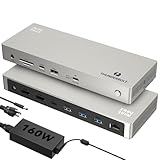
6. Minthouz Thunderbolt 4 Dock with 160W Adapter, 8K@60Hz Single or Triple 4K Displays, 2.5G Ethernet, 4xUSB, SD/MicroSD, Laptop Docking Station for Windows, Dell, HP, Lenovo, Mac
###6. Minthouz Thunderbolt 4 Dock with 160W Adapter, 8K@60Hz Single or Triple 4K Displays, 2.5G Ethernet, 4xUSB, SD/MicroSD, Laptop Docking Station for Windows, Dell, HP, Lenovo, Mac
Overview: The Minthouz Thunderbolt 4 Dock is a comprehensive 12-in-1 docking solution that transforms your laptop into a multi-device powerhouse. With support for single 8K@60Hz or triple 4K displays, it caters to both Windows and Mac users seeking extensive connectivity and professional-grade performance in a single-cable setup.
What Makes It Stand Out: This dock’s versatility shines through its impressive display capabilities—offering 8K resolution for Windows Thunderbolt 4 devices with DP1.4+DSC and triple 4K support for multitasking professionals. The inclusion of a 160W adapter ensures stable power delivery to all connected devices while providing 96W to your laptop. The 2.5G Ethernet and UHS-II card readers deliver professional-grade speeds for creators and power users who demand rapid file transfers and network connectivity.
Value for Money: At $189.99, this dock sits in the mid-range price bracket but delivers premium features typically found in more expensive models. The 160W included adapter adds significant value, eliminating the need for separate power bricks. Compared to similar docks lacking high-wattage adapters, you’re saving $30-50 while getting comparable performance and a more comprehensive port selection than budget alternatives.
Strengths and Weaknesses: Strengths include comprehensive port selection, robust power delivery, excellent display options for Windows users, and broad compatibility across platforms. The 160W adapter is a standout inclusion that future-proofs your setup. Weaknesses include Mac display limitations (single/dual 4K only, no triple support), which is an Apple architecture constraint rather than a dock flaw. Some users may find the plastic build less premium than metal alternatives.
Bottom Line: The Minthouz dock offers exceptional value for Windows users needing maximum display flexibility and Mac users wanting solid dual-monitor support. It’s an ideal choice for content creators and professionals who prioritize connectivity and power delivery without breaking the bank.
7. Anker USB C Hub for MacBook, 7-in-2 with 4K@60Hz HDMI, Compatible with Thunderbolt 4, 1 Type C and 2 USB A Data Ports for MacBookPro 13 Inch, MacBookAir M1 / M2, and More

Overview: The Anker 7-in-2 USB-C Hub is a purpose-built expansion solution designed specifically for MacBook Air and Pro models with two adjacent USB-C ports. This ultra-compact hub transforms your limited laptop I/O into a versatile workstation without compromising the portability that MacBook users value.
What Makes It Stand Out: Anker’s MacBook-specific design ensures the hub sits flush against your laptop without blocking the MagSafe port—a thoughtful detail missing from generic hubs. The multi-function USB-C port supports up to 100W power delivery pass-through, 40Gb/s data transfer, and 5K display output. The HDMI port delivers crisp 4K@60Hz visuals, making it perfect for presentations and external monitors in professional settings.
Value for Money: At $54.99, this hub offers tremendous value for MacBook users seeking essential connectivity without bulk. While it lacks Thunderbolt 4 certification, it provides Thunderbolt-compatible speeds where it matters most. Compared to full-sized docks costing 3-4x more, it’s an economical solution for users primarily needing display output and basic USB expansion for peripherals and storage.
Strengths and Weaknesses: Strengths include perfect MacBook integration, compact form factor, trusted Anker reliability, and competitive pricing. The 18-month warranty adds peace of mind. Weaknesses are significant for some users: M1/M2 base models cannot support dual external displays due to Apple silicon limitations, and the hub is incompatible with laptops lacking side-by-side USB-C ports. It also offers no Ethernet or dedicated charging capabilities.
Bottom Line: This hub excels for MacBook users prioritizing portability and basic connectivity. It’s ideal for students and mobile professionals who need occasional external display support and USB-A ports, but power users requiring multiple monitors or wired networking should look elsewhere.
8. MOKiN Thunderbolt 4 Dock - 16 Ports, USB C Docking Station 3 Monitors for Laptop with 2*Thunderbolt 4 Port, 96W Charger, 2.5Gbps Ethernet for Dell, HP, Lenovo, MacBook(Intel Thunderbolt™ Certified)
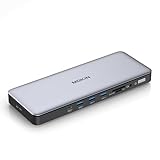
Overview: The MOKiN Thunderbolt 4 Dock delivers 16 ports of connectivity in an Intel-certified package, offering triple 4K display support and 96W power delivery for professional workstations. This docking station targets users needing maximum expansion without the premium pricing of established brands.
What Makes It Stand Out: MOKiN distinguishes itself with dual Thunderbolt 4 downstream ports, enabling complex daisy-chaining setups and versatile display configurations. The dock supports either one 4K@144Hz display for gamers or triple 4K@60Hz for productivity warriors. The 2.5Gbps Ethernet provides future-proof networking, while UHS-II card readers cater to content creators requiring rapid media transfers for professional workflows.
Value for Money: At $179.99, this dock undercuts many competitors while offering superior port density. The inclusion of a 150W power adapter and Thunderbolt 4 cable adds approximately $50 in value. For users needing triple display support and extensive USB connectivity, it represents a cost-effective alternative to $250+ docks from premium brands, though long-term reliability remains less proven than established competitors.
Strengths and Weaknesses: Strengths include excellent port selection, dual TB4 ports, competitive pricing, and Intel certification ensuring broad compatibility. The triple display support for Windows is robust and flexible. Weaknesses involve MOKiN’s lesser-known brand reputation compared to Kensington or CalDigit, potentially raising concerns about warranty support and build quality longevity. Mac users face standard display limitations on M1/M2 base models, not a dock-specific issue.
Bottom Line: The MOKiN dock is a compelling choice for Windows professionals seeking maximum connectivity at a mid-range price. Its dual Thunderbolt 4 ports and triple display capability make it ideal for complex setups, though brand-conscious buyers may prefer established alternatives despite the higher cost.
9. Kensington SD5910T DisplayLink Docking Station Thunderbolt 4, Quad 4K for MacBook Pro/Air M1/M2/M3/M4 with Pro and Max Chipsets, 100W PD, HDMI/DP/TB4, SD/Micro SD Card Slots (K35233NA), Black

Overview: The Kensington SD5910T leverages DisplayLink technology to deliver quad 4K display support for MacBook Pro/Max models, addressing the notorious Apple silicon multi-monitor limitations. This enterprise-grade Thunderbolt 4 dock combines security features with exceptional display flexibility for demanding professional environments.
What Makes It Stand Out: Kensington’s hybrid approach uses both native Thunderbolt 4 and DisplayLink compression to achieve up to four extended 4K@60Hz displays on supported Macs—a feat impossible with standard docks. The dock includes Intel VT-d DMA protection for corporate environments and a comprehensive 16-port array. Two downstream TB4 ports enable daisy-chaining, while flexible video connections (HDMI/DP/TB4) accommodate any monitor setup imaginable.
Value for Money: At $289.99, this premium dock targets business users and professionals who absolutely need multiple monitors on Mac. The DisplayLink capability justifies the cost for this niche, but represents poor value for average users satisfied with single/dual displays. Enterprise security features and Kensington’s reputation for durability add value for IT departments managing device fleets.
Strengths and Weaknesses: Strengths include unique quad-display support for Mac Pro/Max, robust security features, premium build quality, and versatile video outputs. The 2.5G Ethernet and comprehensive port selection are excellent. Weaknesses include the high price, requirement for DisplayLink driver installation (occasionally problematic with macOS updates), and limited benefit for Windows users or base M1/M2 Macs (which only support triple displays with lid closed).
Bottom Line: This dock is essential for Mac professionals requiring three or more external displays, particularly in enterprise settings. For typical dual-monitor users or Windows workstations, more affordable options deliver equivalent performance without the DisplayLink premium.
10. Satechi Thunderbolt 4 Dock Slim Hub Pro, USB C 100W Charging, Single 8K or Dual 4K Display, 4 Thunderbolt 4 Ports, USB 3.2 Gen2, for Mac/Windows, MacBook Air/Pro M5/M4, Dell, Surface, Lenovo

Overview: The Satechi Thunderbolt 4 Dock Slim Hub Pro prioritizes premium design and efficient performance in a compact form factor. With four Thunderbolt 4 ports and focused connectivity, it serves users who value Thunderbolt ecosystem integration over legacy port proliferation and bulky designs.
What Makes It Stand Out: Satechi’s thermal management design maintains optimal 30-50°C operating temperatures during intensive use, addressing a common pain point with high-performance docks. The slim profile houses four TB4 ports (one upstream, three downstream) with 96W PD, enabling complex daisy-chained setups. The dock supports single 8K@30Hz or dual 4K@60Hz displays with clear, honest compatibility information for various Mac chip generations.
Value for Money: At $199.99, this dock commands a premium for its design and brand reputation. While offering fewer total ports than competitors at similar prices, the quality GaN power supply and included Thunderbolt 4 cable add value. It’s priced for buyers prioritizing reliability and aesthetics over raw port count, though value-conscious shoppers may prefer more expansive alternatives from lesser-known brands.
Strengths and Weaknesses: Strengths include exceptional build quality, honest Mac compatibility communication, efficient heat dissipation, and premium components. The 2-year warranty exceeds industry standards. Weaknesses are the limited legacy connectivity (single USB-A port), higher cost-per-port ratio, and lack of Ethernet or SD card readers—requiring additional adapters for many workflows and reducing all-in-one convenience.
Bottom Line: This dock suits Thunderbolt-centric users with modern, wireless workflows who value design and thermal performance. It’s ideal for MacBook Pro users with minimal legacy device needs, but professionals requiring Ethernet, card readers, or multiple USB-A devices should consider more comprehensive alternatives.
Understanding Thunderbolt 4: The Foundation of Modern MacBook Connectivity
Thunderbolt 4 represents Intel’s most refined connectivity standard, and Apple has embraced it wholeheartedly across its MacBook lineup. While it maintains the same 40Gbps maximum bandwidth as Thunderbolt 3, the “4” designation brings mandatory requirements that eliminate the guesswork from your purchasing decisions. Every certified Thunderbolt 4 dock must support dual 4K displays at 60Hz, offer at least one accessible Thunderbolt 4 downstream port, and provide 15W minimum power delivery for accessories.
For MacBook users, this standardization is crucial. Unlike Thunderbolt 3, where manufacturers could cherry-pick features, Thunderbolt 4 ensures baseline performance guarantees. Your M-series MacBook’s Thunderbolt controllers are optimized for these specific capabilities, creating a symbiotic relationship when paired with certified hardware. The protocol also mandates Intel VT-d-based direct memory access (DMA) protection, shielding your system from malicious devices—a security layer that aligns perfectly with Apple’s hardware-level protections.
The Technical Architecture Behind the Magic
Thunderbolt 4 leverages PCIe 3.0 x4 lanes, DisplayPort 1.4, and USB4 protocol convergence. This means your dock isn’t just a passive splitter; it’s an intelligent traffic controller managing multiple high-bandwidth data streams simultaneously. When you connect an NVMe SSD, a 4K monitor, and a 10GbE adapter, the dock’s chipset prioritizes and allocates resources dynamically. Understanding this helps explain why a cheap USB-C hub stutters under load while a premium Thunderbolt 4 dock handles the same scenario effortlessly.
Why Your MacBook Demands a Thunderbolt 4 Dock
Apple’s silicon architecture—whether M1, M2, or M3—integrates the Thunderbolt controller directly into the SoC, reducing latency and improving efficiency. This tight integration means your MacBook expects specific handshake protocols and power negotiation sequences that only certified docks provide reliably. Using inferior hubs can trigger macOS to throttle connected devices, disable features, or worse, cause kernel panics during sleep/wake cycles.
The single-cable lifestyle isn’t just about convenience; it’s about preserving your MacBook’s port longevity. Those USB-C connectors have a finite insertion cycle rating—typically around 10,000 connections. By using a dock as your primary connection point, you’re protecting your MacBook’s internal ports from daily wear. More importantly, you’re tapping into capabilities that Apple’s port-limited design intentionally offloads to external hardware, like driving multiple displays on M3 MacBook Air models that natively support only one external monitor.
Workflow Transformation Through Strategic Connectivity
Consider the cumulative time spent plugging and unplugging devices throughout a workday. A Thunderbolt 4 dock eliminates this friction, but the benefits extend deeper. With all peripherals permanently connected, your MacBook becomes a modular computing module—dock it and instantly inherit your entire workstation’s capabilities. This seamless transition between mobile and desktop modes preserves mental flow states and eliminates the “reconnection tax” that fragments productivity.
Essential Features That Separate Premium Docks from Pretenders
The difference between a $150 dock and a $400 model isn’t just branding—it’s silicon quality, power topology, and firmware sophistication. Premium docks feature Texas Instruments or Intel retimer chips that clean and boost signals, ensuring stable connections at cable lengths up to 2 meters. Budget alternatives often omit these, resulting in intermittent disconnections when pushing high bandwidth.
Firmware update capability is another non-negotiable feature. macOS updates frequently adjust Thunderbolt behavior, and docks with flashable firmware can adapt while static hardware becomes obsolete. Look for docks with companion apps or manual update utilities—this indicates manufacturer commitment to long-term compatibility. Thermal design also separates classes; quality docks use aluminum heatsinks and strategic ventilation, while cheap models rely on plastic shells that trap heat and throttle performance under sustained loads.
The Hidden Cost of Insufficient Power Budgets
Many docks advertise “96W charging” but fail to mention their total power budget. If the dock consumes 15W for its own operation and downstream ports, you’re left with only 81W for your MacBook Pro—insufficient for a 16-inch model under load. Premium docks specify their power allocation clearly, often using GaN (Gallium Nitride) technology to improve efficiency and reduce waste heat.
Port Selection Strategy: Building Your Ideal Connectivity Hub
Start by auditing your current and future peripheral needs. Count your USB-A devices, check your monitor’s interface options, and consider network requirements. The optimal dock serves as a time machine, bridging legacy hardware with modern bandwidth. A well-designed dock offers 8-12 ports, but quality trumps quantity. Two high-power USB-A ports (10Gbps, 7.5W) are more valuable than four low-power ports that can’t reliably charge devices.
Port placement matters more than you’d think. Docks with front-facing USB-A and audio ports provide convenience for temporary connections, while rear-facing ports keep permanent cables tidy. SD card readers should support UHS-II speeds (312MB/s) for photographers and videographers; UHS-I (104MB/s) is a bottleneck for modern cameras. Ethernet should be 2.5GbE minimum—1GbE is outdated for NAS access and large file transfers.
The Critical Role of Downstream Thunderbolt Ports
A single downstream Thunderbolt 4 port enables daisy-chaining, but two ports unlock true flexibility. With dual downstream ports, you can connect a high-speed RAID array on one port while reserving the second for future expansion or a second display on compatible MacBooks. This future-proofs your investment and avoids the “dock behind a dock” anti-pattern that introduces latency and power complications.
Power Delivery Demystified: Charging Your MacBook Through Your Dock
Apple’s power negotiation is sophisticated. Your MacBook queries the dock’s power capabilities during handshake, establishing a charging contract. If the dock advertises 96W but can’t sustain it thermally, macOS will downclock your CPU to prevent battery drain—a subtle performance hit many users never trace back to their dock. The magic number for a 14-inch MacBook Pro is 96W; for a 16-inch, 140W is ideal, though 96W suffices for most workflows if you’re not rendering 8K video.
Docks with smart power distribution continuously monitor temperature and load, dynamically adjusting output. This prevents thermal shutdowns and extends component lifespan. Look for docks that specify “continuous power delivery” rather than peak ratings. The inclusion of a power button on the dock itself is a premium feature, allowing you to reset the Thunderbolt controller without unplugging—useful when troubleshooting connection issues.
Understanding Voltage Rails and Accessory Charging
Quality docks provide separate voltage rails for different port types. The Thunderbolt ports might run at 15V for bus-powered devices, while USB-A ports use 5V with intelligent current limiting. This isolation prevents a fault on one port from cascading to others. For accessory charging, calculate your needs: an iPhone fast-charges at 18W, an iPad Pro at 30W, and AirPods at 5W. Your dock should deliver at least 45W across its downstream ports simultaneously to avoid charging conflicts.
Display Support: Driving Multiple Monitors with Confidence
M-series MacBooks have nuanced display capabilities. M1/M2 MacBook Air and 13-inch Pro models support only one external display natively, but a Thunderbolt 4 dock with DisplayLink technology can bypass this limitation. DisplayLink uses software compression and a dedicated chip in the dock to simulate additional displays, though this introduces slight CPU overhead and isn’t ideal for color-critical work.
For MacBook Pro models with M1/M2/M3 Pro/Max chips, Thunderbolt 4 docks unlock native dual 6K display support at 60Hz. The key is Display Stream Compression (DSC), a visually lossless compression standard that fits massive display bandwidth into the 40Gbps pipe. Ensure your dock explicitly mentions DSC support and that your monitors are compatible. For mixed-resolution setups, the dock’s internal scaler quality determines whether you experience frame drops or micro-stutters when dragging windows between displays.
The 4K@60Hz Minimum and Beyond
Any Thunderbolt 4 dock must support dual 4K@60Hz, but the implementation varies. Some docks use two separate DisplayPort lanes, while others multiplex a single lane. The former provides better performance for high-refresh-rate gaming monitors (144Hz+), while the latter is more power-efficient. If you’re a creative professional, verify the dock supports 10-bit color depth and HDR metadata passthrough—some cheaper models strip this data, causing banding in gradients.
Bandwidth Allocation: Understanding the 40Gbps Pipeline
The 40Gbps bandwidth is shared dynamically, but not infinitely. A practical rule: simultaneous NVMe SSD transfers (20Gbps), 4K display output (12Gbps), and 10GbE networking (10Gbps) will saturate the link, causing throttling. Premium docks include QoS (Quality of Service) logic that prioritizes display traffic to prevent frame drops, while budget docks use first-come-first-served allocation that stutters under load.
The PCIe lane configuration matters. Some docks allocate 4 lanes to PCIe devices and reserve bandwidth for DisplayPort, while others use a flexible pool. For video editors, a dock with dedicated NVMe SSD slots that bypass the USB controller and connect directly to PCIe provides significantly lower latency for scratch disks. This is often advertised as “direct PCIe storage” or “Thunderbolt storage passthrough.”
Real-World Bandwidth Budgeting for Your Workflow
Calculate your peak usage: two 4K displays (18Gbps), a 10Gbps Ethernet adapter (10Gbps), and a USB 3.2 NVMe enclosure (10Gbps) already exceed 40Gbps. In reality, these rarely operate at peak simultaneously, but understanding this helps you avoid bottlenecks. For instance, if you’re cloning a drive while editing video across two monitors, expect the dock to prioritize display traffic, slowing the transfer. Docks with user-configurable bandwidth profiles in software are rare but invaluable for power users.
Build Quality and Thermal Management: The Hidden Performance Factors
A dock’s enclosure isn’t just aesthetic—it’s a critical heatsink. Aluminum unibody designs dissipate heat efficiently, allowing sustained performance. Plastic docks may look sleek but trap thermal energy, forcing the chipset to throttle after 30-45 minutes of heavy use. Check for ventilation slots; if you can’t find any, the dock is designed for light workloads only.
Internal component quality varies dramatically. Premium docks use multilayer PCBs with dedicated ground planes for each high-speed signal, reducing electromagnetic interference. They also feature polymer capacitors rated for 105°C operation, while budget models use cheaper 85°C electrolytics that fail prematurely. The weight of a dock is often a tell: quality models feel dense due to substantial heatsinks and shielding.
The Importance of ESD and Surge Protection
Your dock sits between expensive MacBook and even more expensive peripherals, making it a critical point of failure. Quality models include TVS (Transient Voltage Suppression) diodes on every port, protecting against static discharge and power surges. Look for docks rated to IEC 61000-4-2 Level 4 (15kV air discharge). Some premium models even include galvanic isolation on Ethernet ports, preventing ground loops that can cause audio hum in studio setups.
Compatibility and Certification: Avoiding macOS Headaches
Apple’s implementation of Thunderbolt is strict. Non-certified docks often cause sleep/wake failures, where peripherals don’t reconnect until replugging. Certified Thunderbolt 4 docks undergo rigorous testing with Apple hardware, ensuring proper hot-plug behavior and sleep state management. The certification badge isn’t marketing—it’s a guarantee of macOS driverless operation and compatibility with features like Target Disk Mode.
Firmware version compatibility is equally important. macOS Sonoma introduced changes to Thunderbolt power management that broke compatibility with some older docks. Manufacturers committed to Apple ecosystems release updates within weeks. Check the vendor’s support site for firmware release notes mentioning macOS version compatibility before purchasing. Docks that require third-party drivers for full functionality should be avoided; native macOS support is non-negotiable.
M-Series Specific Quirks and Workarounds
M1 and M2 MacBooks have a known issue where certain docks cause Bluetooth interference on 2.4GHz frequencies. This manifests as mouse lag or audio stuttering when using wireless peripherals. Quality docks include RF shielding and route high-speed traces away from the Bluetooth antenna region. Some manufacturers publish compatibility matrices specifically for M-series MacBooks, detailing which ports can be used simultaneously without interference.
Price vs. Value: Making Smart Investment Decisions
The $200-$300 sweet spot delivers the best balance of features and quality. Below this, you sacrifice power delivery consistency, port selection, or thermal design. Above $400, you’re paying for niche features like 8K display support, 10GbE, or integrated storage slots. Calculate cost-per-port: a $250 dock with 12 usable ports costs $20.83 per port, while a $150 dock with 8 ports might seem cheaper at $18.75 per port, but if two ports are underpowered or share bandwidth, the real cost per functional port is higher.
Consider the replacement cost of your peripherals. A cheap dock that fries your external SSD or causes data corruption on a RAID array is far more expensive than a premium model. Factor in warranty length and support quality. Docks with 3-year warranties and US-based support typically cost 20-30% more but save headaches when issues arise. The total cost of ownership includes your time spent troubleshooting, making reliability worth the premium.
When Budget Docks Make Sense and When They Don’t
For users with basic needs—single display, a few USB devices, and occasional file transfers—a sub-$200 dock can suffice. However, if your workflow includes video editing, large dataset analysis, or multiple high-resolution displays, the performance delta between budget and premium models directly impacts productivity. A dock that saves you 15 minutes daily through faster transfers and reliable connections pays for itself within months at professional billing rates.
Use Case Profiles: Matching Docks to Your Workflow
The Mobile Creative: Photographers and videographers need SD card readers with UHS-II support, multiple high-speed USB ports for tethering and external SSDs, and reliable display output for color grading. They benefit from docks with dedicated storage slots and hardware calibration pass-through for colorimeters.
The Hybrid Executive: Prioritizes clean desk aesthetics and single-cable convenience. Needs 2.5GbE for fast VPN access, multiple USB-A ports for legacy conference room equipment, and a downstream Thunderbolt port for occasional high-speed device connections. Power delivery reliability is paramount for all-day use.
The Software Developer: Requires dual high-refresh displays for IDE productivity, low-latency Ethernet for Docker pulls, and multiple USB ports for test devices. Values docks with firmware update capabilities and Linux compatibility for cross-platform testing environments.
The Audio Professional: Needs pristine signal integrity, galvanic isolation to eliminate ground loops, and USB ports with independent power regulation. Often benefits from docks with word clock input or digital audio interface integration.
Scaling from Minimalist to Power User
Your first dock should match current needs plus 30% headroom. A common mistake is buying a minimalist dock and daisy-chaining hubs within months, creating a reliability nightmare. Conversely, don’t overbuy features you’ll never use. If you don’t own 10GbE infrastructure, paying extra for that port is wasteful. Map your three-year technology roadmap before deciding.
Installation and Optimization Best Practices
Position your dock for optimal thermal performance—avoid enclosed spaces or stacking under other heat-generating devices. Use the included Thunderbolt cable; many aftermarket cables are not certified for full 40Gbps and can cause intermittent disconnections. Cable length matters: passive cables over 0.5 meters may not maintain full bandwidth. For 1-2 meter runs, invest in active optical Thunderbolt cables.
Connect displays directly to dock Thunderbolt ports when possible. Daisy-chaining displays can work but introduces a failure point and may disable some monitors during sleep/wake. For storage, use the dock’s downstream Thunderbolt ports rather than USB-A ports—even for USB 3.2 devices—to avoid sharing bandwidth with other peripherals. Enable “Prevent computer from sleeping automatically when display is off” in macOS settings for docks with firmware update utilities.
macOS Settings for Dock Optimization
In System Settings > Displays, arrange your monitors to match physical placement before adjusting scaling. This ensures proper mouse cursor movement and window management. For docks with Ethernet, manually configure MTU size to 9000 (Jumbo Frames) if your network supports it, significantly improving large file transfer speeds. Disable “Put hard disks to sleep when possible” when using dock-connected storage to prevent spin-up delays.
Troubleshooting Common Thunderbolt 4 Dock Issues
Intermittent disconnections: Usually cable-related. Test with the included cable, then try a different Thunderbolt port on your MacBook. Check System Report > Thunderbolt for link speed; if it shows 20Gbps instead of 40Gbps, the cable is degraded or non-compliant.
Display not detected: Reset NVRAM/PRAM and SMC. For M-series MacBooks, power off completely, wait 30 seconds, then reconnect the dock before powering on. Verify the display is connected to a Thunderbolt port, not USB-A. Some docks require displays to be connected before the MacBook.
Slow transfer speeds: Use System Information to verify the device is connecting at expected speeds. USB devices should show “Up to 10 Gb/s” for USB 3.2 Gen 2. If not, try a different port—some docks share bandwidth between adjacent ports.
Power delivery issues: Check System Report > Power for AC Charger Information. If wattage is lower than advertised, the dock may be overheating. Ensure ventilation and reduce downstream port load. Some docks prioritize accessory charging over MacBook charging when total draw exceeds capacity.
When to Reset vs. Replace
Before replacing a problematic dock, perform a Thunderbolt bus reset: shut down your MacBook, disconnect all dock cables including power, wait 2 minutes, then reconnect power first, then Thunderbolt cable, then peripherals. If issues persist across multiple MacBooks, the dock’s firmware is likely corrupted. Check for updates; if none exist and the dock is under warranty, request an RMA. Persistent problems after updates indicate hardware-level defects.
Future-Proofing: Preparing for Tomorrow’s Technology
Thunderbolt 5 is on the horizon, promising 80Gbps bandwidth, but Thunderbolt 4 docks will remain relevant for years. The key is buying docks with features that age gracefully: 2.5GbE+ networking, USB4 support (backward compatible but forward-looking), and firmware update capability. Avoid docks with built-in cables; removable cables allow upgrading to active optical cables as needs evolve.
Consider emerging standards like USB PD 3.1 (up to 240W) and DisplayPort 2.1. While current MacBooks don’t support these, a dock with these capabilities won’t become obsolete with your next laptop. Modular designs with replaceable power adapters are also valuable; if you upgrade to a MacBook requiring 140W charging, you can swap the adapter rather than the entire dock.
The Role of Daisy-Chaining in Future Expansion
Daisy-chaining Thunderbolt devices is underutilized. A quality dock with two downstream ports allows adding a dedicated 10GbE adapter or high-speed storage later without replacing the hub. However, understand the bandwidth implications: daisy-chained devices share the 40Gbps pipe. For storage expansion, consider a dock with built-in NVMe slots that connect directly to PCIe, preserving downstream ports for other uses.
Security Considerations for Docking Stations
Thunderbolt’s direct PCIe access is a security double-edged sword. The mandatory DMA protection in Thunderbolt 4 is crucial, but not foolproof. Enterprise environments should look for docks with physical security features like Kensington lock slots and MAC address cloning for network authentication. Some docks support IEEE 802.1X for port-based network access control, integrating with corporate RADIUS servers.
Firmware security is often overlooked. Docks with signed firmware updates prevent malicious modification, while those with open update mechanisms are vulnerable to “BadUSB”-style attacks. Check if the manufacturer publishes CVE (Common Vulnerabilities and Exposures) disclosures and patch timelines—this transparency indicates serious security posture. For sensitive work, consider docks with hardware write-protect switches for firmware.
Physical Security and Data Protection
Docks containing your backup drives should support hardware encryption passthrough. While macOS FileVault protects internal storage, external drives connected to the dock remain vulnerable. Some enterprise docks include TPM (Trusted Platform Module) chips for secure key storage. For shared workspaces, docks with individual port enable/disable controls via software prevent unauthorized device connections.
The Cable Conundrum: What Comes in the Box Matters
The included Thunderbolt cable is your dock’s lifeline. Many manufacturers bundle 0.8-meter passive cables, which are fine for desk use but inadequate for under-desk mounting. These cables are often the cheapest component, rated for only 20Gbps despite the dock’s 40Gbps capability. Always test your setup with the included cable, then upgrade to a certified active cable if you need length or reliability.
Cable certification levels are confusing. Look for the Thunderbolt 4 logo and “Certified” marking. Passive cables under 0.8m should support full 40Gbps; longer passive cables drop to 20Gbps. Active cables maintain 40Gbps up to 2m but cost significantly more. Optical cables extend to 50m but don’t carry power, making them unsuitable for docks that charge your MacBook.
Understanding Cable Wear and Signal Degradation
Thunderbolt cables flex internally, and the delicate shielding degrades with repeated bending. If you dock/undock daily, budget for cable replacement every 12-18 months. Signs of degradation include link speed dropping to 20Gbps, intermittent disconnections, or displays flickering. Premium cables with reinforced strain reliefs last longer but cost 3-4x more. For permanent installations, consider cable management that minimizes flexing at the connectors.
Brand Ecosystems and Warranty Support
Thunderbolt dock manufacturers fall into three categories: Apple ecosystem specialists (CalDigit, OWC), PC-focused brands with macOS compatibility (Anker, Belkin), and enterprise vendors (HP, Dell). Specialists offer deeper macOS integration, often providing dedicated control panels and immediate macOS update support. PC brands compete on price but may lag on macOS-specific fixes. Enterprise vendors offer robust warranties but limited retail availability.
Warranty terms reveal confidence levels. Three-year warranties are standard for premium docks; one-year warranties suggest budget construction. Check the RMA process—some brands require shipping to Asia, while others have North American service centers. Support quality varies dramatically; read recent support forum posts to gauge response times and solution effectiveness. Brands active in Mac communities often provide beta firmware fixes before public release.
The Community and Firmware Update Ecosystem
Active user communities indicate strong product support. Brands with active Reddit presence, detailed KB articles, and responsive support on Mac forums demonstrate commitment. Firmware update frequency is a key metric—docks receiving quarterly updates are actively maintained; those with annual updates are in maintenance mode. Some brands offer email notifications for firmware updates, ensuring you don’t miss critical compatibility fixes.
Frequently Asked Questions
1. Will a Thunderbolt 4 dock work with my M1 MacBook Air that only has Thunderbolt 3 ports? Yes, Thunderbolt 4 is fully backward compatible with Thunderbolt 3. Your M1 MacBook Air will operate at Thunderbolt 3 speeds (40Gbps) and gain all the benefits of the dock’s features, though some Thunderbolt 4-specific capabilities like mandatory DMA protection will function at the MacBook’s Thunderbolt 3 level.
2. Why does my MacBook get warm when connected to the dock even when idle? The dock negotiates a constant power connection, and the MacBook’s charging circuitry generates heat. Additionally, some docks keep PCIe devices active, preventing full sleep. This is normal but ensure your dock has good ventilation and you’re using Apple’s recommended power settings to minimize unnecessary power draw.
3. Can I use a Thunderbolt 4 dock to charge my MacBook and other devices simultaneously? Yes, but understand the power budget. A 96W dock might allocate 15W to its own operation, 60W to your MacBook, and have 21W remaining for downstream charging. If you connect multiple high-draw devices, the dock may prioritize MacBook charging and slow accessory charging. Check the dock’s power distribution specifications.
4. My dock has USB4 ports. Is that the same as Thunderbolt 4? Not quite. USB4 is the underlying protocol, while Thunderbolt 4 is a strict superset with mandatory requirements. All Thunderbolt 4 ports are USB4, but not all USB4 ports meet Thunderbolt 4 certification. For MacBooks, Thunderbolt 4 certification ensures full compatibility with features like Target Display Mode and proper sleep/wake behavior.
5. How many displays can I connect to my M2 MacBook Pro using a Thunderbolt 4 dock? M2 Pro MacBook Pro supports up to two external displays natively; M2 Max supports up to four. However, the M2 Pro can drive three displays using a dock with DisplayLink technology. Native connections offer better performance for video playback and gaming, while DisplayLink is excellent for static office work.
6. Why do my USB devices disconnect when my MacBook sleeps? This is typically a macOS power management setting. Go to System Settings > Battery > Options and disable “Wake for network access” and “Enable Power Nap.” Some docks have firmware settings to maintain USB power during sleep; check the manufacturer’s configuration utility if available.
7. Is there a performance difference between connecting an SSD to the dock vs. directly to my MacBook? For Thunderbolt SSDs, the difference is negligible—typically 1-3% overhead. For USB SSDs, connecting to the dock’s Thunderbolt downstream port yields better performance than USB-A ports, as it avoids sharing bandwidth with other USB devices. Always connect high-speed storage directly to a Thunderbolt port on the dock.
8. Can I daisy-chain multiple Thunderbolt 4 docks together? Technically yes, but it’s not recommended. Daisy-chained docks share the same 40Gbps bandwidth, and power delivery becomes unpredictable. Each dock in the chain also introduces latency. It’s better to use a single dock with sufficient ports or connect secondary docks to different Thunderbolt ports on your MacBook if available.
9. Why does my Thunderbolt 4 dock cost more than some Windows laptops? The dock contains a complex Intel Titan Ridge or Goshen Ridge controller chip ($50+ alone), high-quality power delivery circuitry, certification costs, and premium components for signal integrity. The economies of scale are vastly different from mass-market laptops. You’re paying for reliability, performance guarantees, and macOS-specific optimization.
10. How long should a Thunderbolt 4 dock last before needing replacement? With proper care, a premium dock should last 5-7 years. The limiting factors are firmware obsolescence and changing port standards. Docks with updateable firmware and modular power adapters can adapt to new MacBook generations. Budget for replacement when Apple introduces a new connectivity standard that your dock can’t support via firmware updates, typically every 4-5 years.